Submagic is one of the best-known tools for adding captions to talking-head videos. Many creators start there because the captions look good and the setup takes a minute. Then they hit a limit: a 2-minute cap on the cheapest plan, a watermark on the free trial, or a price that doesn't fit a video a week.
This post covers the free and low-cost options that work for talking-head creators, with current prices as of October 2026. We include what each tool does well, where it falls short, and who should pick it. We also say plainly which options export without a watermark, because that is the reason many readers are searching this title.
We make Sycamore, so it gets the first full write-up. We think it's the right pick for some readers. For others, a different tool is a better fit, and we say so below.
Why people look for Submagic alternatives
Submagic's strengths are real. Its one-click captions come with a range of caption styles, and reviewers on G2 single out that caption feature and the ease of adding B-roll and audio. On Trustpilot, Submagic has a 4-star rating from 851 reviews. Its paid plans also include things many tools don't: free stock B-roll and audio on Starter, AI eye contact and auto zoom on Pro, and publishing to social platforms.
The reasons people switch are usually specific:
- Video length. Submagic's Starter plan ($19 a month, or $12 a month billed yearly) allows videos up to 2 minutes each, with 15 videos a month. A talking-head video longer than that needs Pro, which allows up to 5 minutes.
- Editing tools behind a higher plan. Removing silences, bad takes and filler words is not on Starter. It starts on Pro at $39 a month ($23 billed yearly). Those cuts are what turns a raw recording into a tight short.
- No free plan to keep. Submagic's free option is a trial of 3 short videos with no card needed. Downloading them without the watermark needs a paid plan. (StoryCut's October 2026 check of Submagic's pricing.)
- Price per seat. Submagic's plans are priced per member, so a small team pays for each person.
If one of these is your problem, you have options. If you need B-roll, scheduling or an API, Submagic may still be the right choice, and you should check its pricing page against your needs.
Which free options export without a watermark?
Here is the short answer. Most free plans in this space add a watermark or cap the resolution.
- CapCut is the one free editor here that usually exports without a watermark. CapCut's own help page says most exports are watermark-free, but a watermark can appear if a template has an ending clip, a stock asset needs attribution, or the export uses the default outro. (CapCut help)
- Descript's free plan exports with a watermark. Its in-app banner says that upgrading unlocks watermark-free exports. (Marc Andrews' review of the Descript free plan)
- Opus Clip's free plan has a watermark, and its clips are deleted after 3 days. (quso.ai)
- Vizard's free plan exports at 720p with a watermark. Watermark-free export starts on its Creator plan. (Vizard pricing)
- VEED's free plan exports at 720p with a watermark. (StoryCut's October 2026 check of VEED's plans)
- Sycamore's paid plans (Starter and Growth) export without a watermark. Its pricing page lists watermark-free exports on those plans. It doesn't say what the free 10 minutes exports look like, so test with a short clip before you count on it. (Sycamore pricing)
The rest of this post covers each tool in more detail.
Comparison table
Prices are monthly USD as of October 2026. Some plans have yearly prices that are lower. We give those in each tool's section.
| Tool | Starting price | Free plan or trial | Watermark-free export | Best for |
|---|---|---|---|---|
| Submagic (the tool in this post's title) | $19/mo (Starter), videos up to 2 min | Trial of 3 short videos, no card | Paid plans | Captions and B-roll on short clips |
| Sycamore | $19/mo (Starter, 3 hours of video) | 10 minutes of video, one-time, no card | Starter and Growth | Editing one raw talking-head video in one pass |
| CapCut | $19.99/mo (Pro, US price) | Free editor with captions | Usually, on the free plan | Free editing with caption templates, and a mobile app |
| Descript | $16/mo billed yearly ($24 monthly), Hobbyist | Free plan, 60 media minutes a month | Paid plans | Editing audio and video by editing the transcript |
| Opus Clip | $15/mo (Starter) | Free plan, 60 credits a month | Paid plans | Finding clips in long recordings |
| Vizard | $29/mo (Creator), $14.50 billed yearly | Free plan, 60 credits a month, 720p | Creator and up | Clipping long videos, with scheduling |
| Captions | $24.99/mo (Max, iOS prices) | Free plan with 1 caption template | Paid plans | AI-generated footage and avatars |
| VEED | $20/mo per user (Creator) | Free plan, 720p, 10-minute videos | Creator and up | Browser editing for small teams |
Sycamore

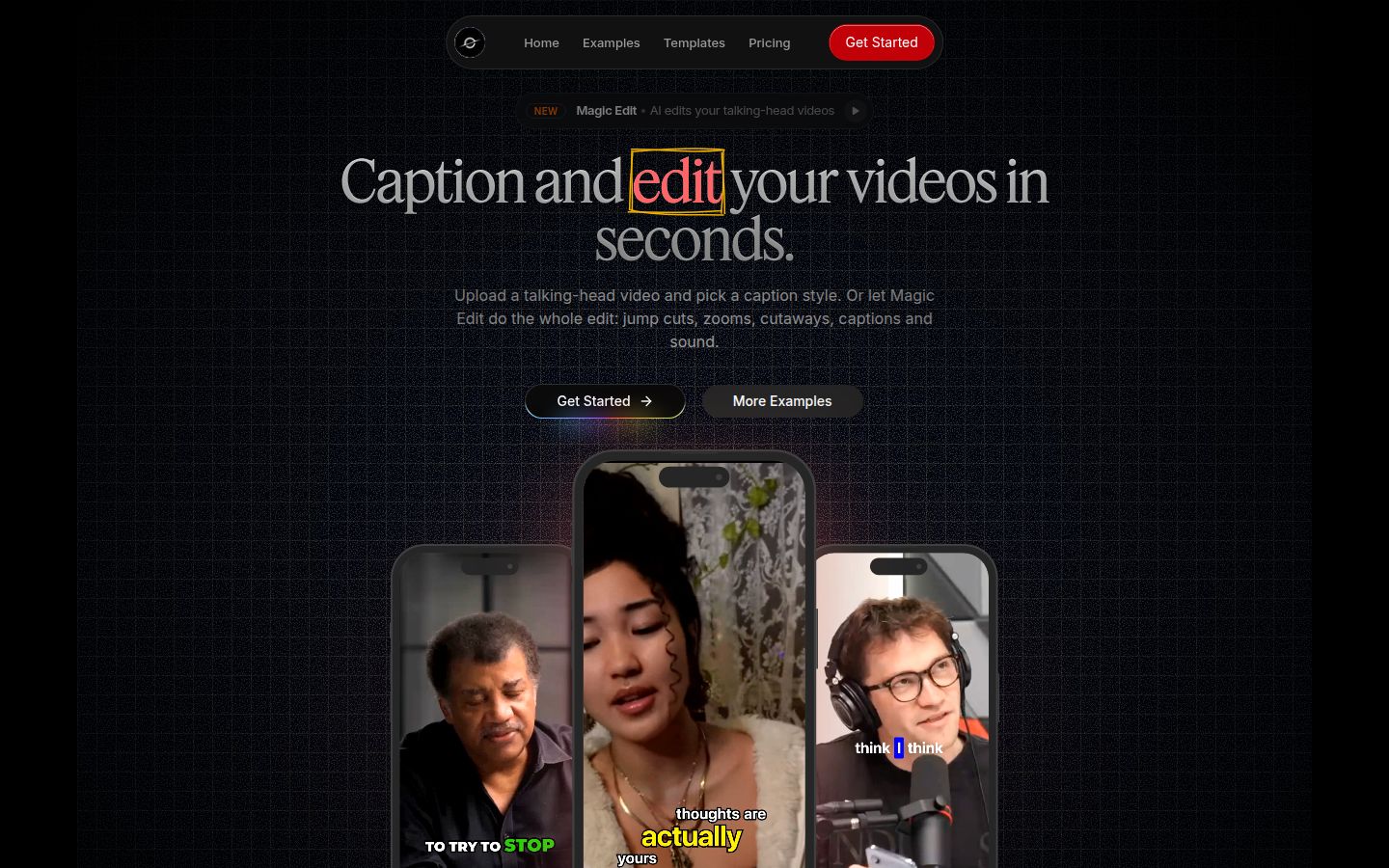
Sycamore is a web app that turns a raw talking-head recording into a finished, captioned short video. Nothing to install. You open it in a browser and upload an MP4, MOV, WebM or MP3 file of up to 2 hours.
The main feature is Magic Edit. You upload the raw video and pick an edit style, such as Apollo or Hermes. Sycamore cuts out silences and filler words, adds animated captions that match each word, and puts emphasis on key lines. It also adds zooms and full-screen text cutaways for the big moments. You then review the edit before you export. Each line can be set to Normal, Emphasis, Full screen, Number, List or Label.
What it does well
- It edits the whole video in one pass: silences and filler words out, captions and emphasis in.
- You stay in control. The edit is laid out in plain words, and you can restore any cut from the transcript.
- Captions are animated and word-timed. You can edit any word, change fonts, colors, size, animation and position, and save a look as a preset for every video.
- You can export an MP4 in 9:16, 1:1 or 16:9 without redoing the captions.
- Pricing is by video hours. The free plan gives you 10 minutes to try everything, with no card.
Limits that matter for this choice
- Transcription is English only.
- Sycamore edits the video you give it. It doesn't cut a long recording into many separate clips, so if you want ten shorts from one hour-long webinar, Opus Clip or Vizard is the better fit.
Pricing as of October 2026 (Sycamore pricing)
- Free: 10 minutes of video, one-time, no credit card.
- Starter: $19 a month for 3 hours of video a month, no watermark.
- Growth: $39 a month for 10 hours of video a month, no watermark, with priority rendering.
Best for founders, coaches, educators and podcasters who film one talking-head video at a time and want a finished, captioned edit with little work. If you post on TikTok, Reels, Shorts or LinkedIn and want less timeline work, this is the one we'd try first. Our guide to caption apps for TikTok has more on how caption styles fit different feeds.
CapCut

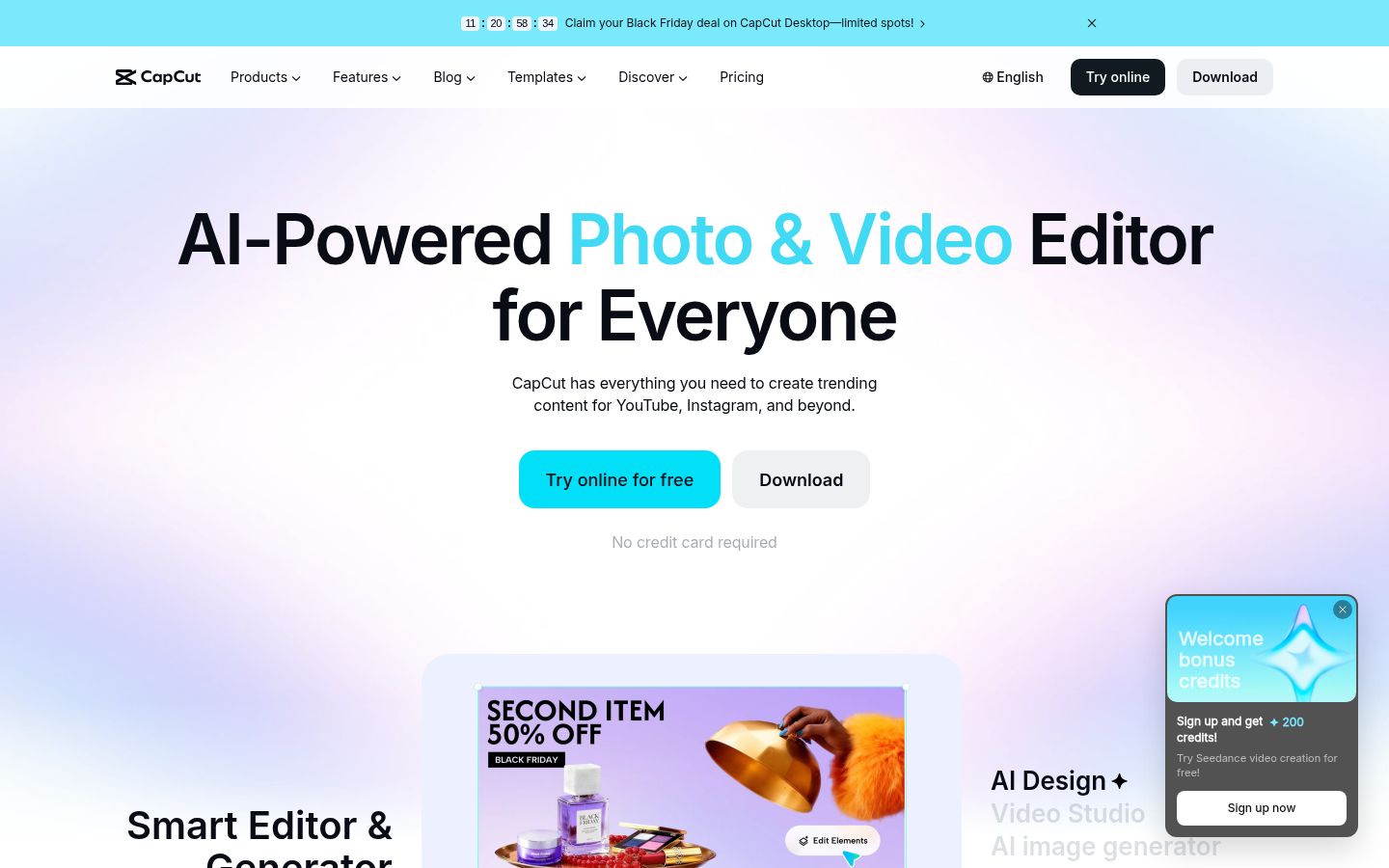
CapCut is a full video editor with desktop, online and mobile apps. It has a large library of templates and effects, and it includes auto captions with caption templates.
What it does well
- The free editor covers most basic editing. A timeline, trims, text and captions are all there.
- The mobile app is the strongest of this list if you edit on a phone.
- Its exports are usually watermark-free on the free plan, as covered above.
Limits
- Some AI features and premium assets are limited on the free plan, and the paid tier is Pro. (FluxNote's guide to CapCut's free and Pro plans)
- Because it's a general editor, you make more decisions for each video. Sycamore makes those decisions for you on a talking-head clip.
Pricing as of October 2026. The free editor costs nothing. In the US, Pro is $19.99 a month or $179.99 a year, and Standard is $9.99 a month on the App Store. Prices differ by region. (Pixflow, Hooked)
Best for people who want a free option and edit on a phone. If your budget is zero and you're happy to make the cuts yourself, CapCut is hard to beat.
Descript

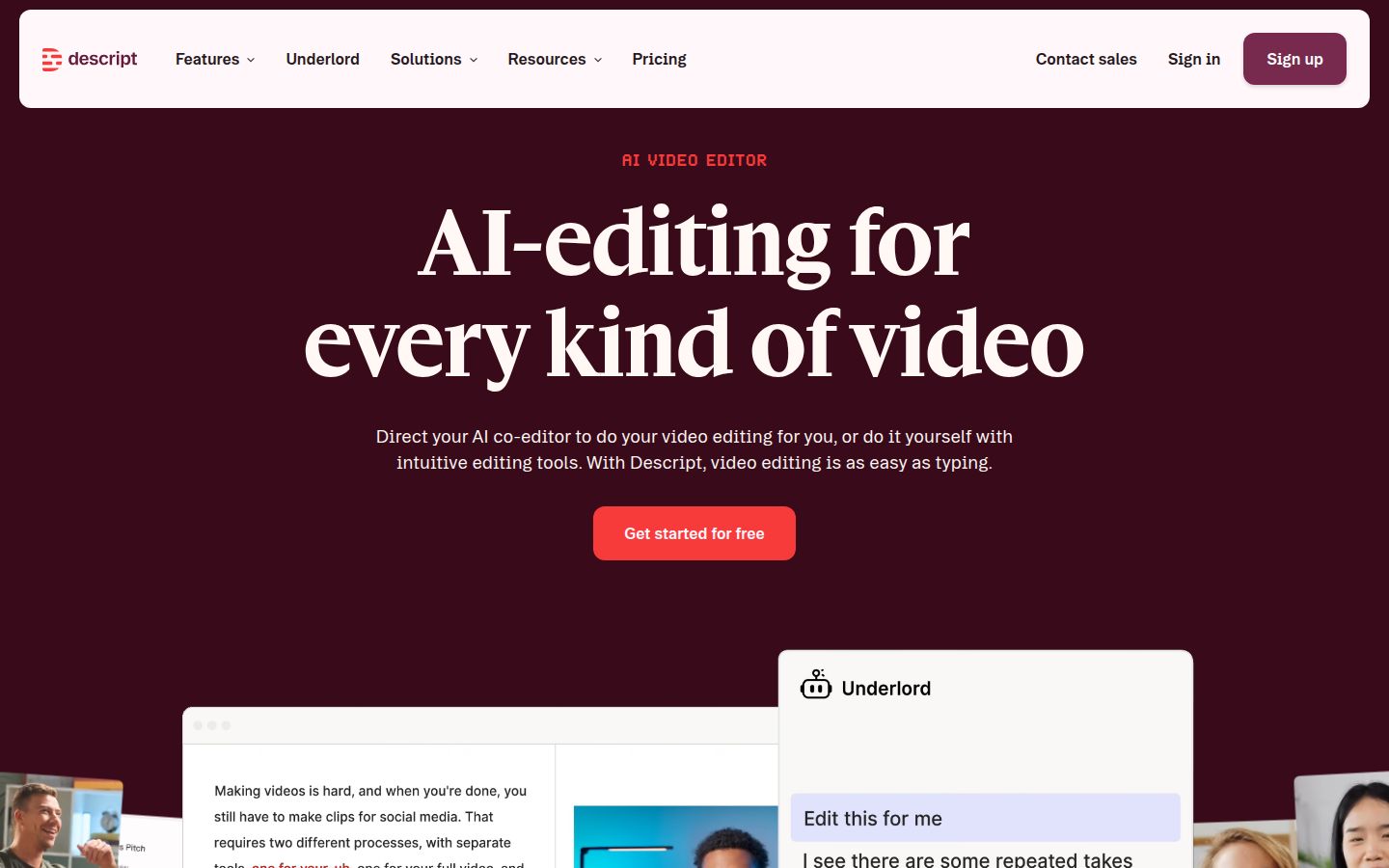
Descript is an audio and video editor where you edit the transcript. Delete a sentence in the text and the clip is cut. It's the tool most podcasters know, and it has more features than a caption tool.
What it does well
- Multitrack audio editing for podcasts, plus Studio Sound and Remove Filler Words.
- A screen recorder, Create Clips and Eye Contact in the same app.
- Captions, with the same text-based editing for the transcript.
Limits
- It has more tools than a talking-head caption tool, so there's more to learn.
- The free plan exports with a watermark. Watermark-free exports need a paid plan.
Pricing as of October 2026 (Descript pricing)
- Free: 60 media minutes a month, with 100 AI credits. Per a review of the free plan, the AI credits are a one-time pool, and the media minutes renew each month.
- Hobbyist: $16 a month billed yearly ($24 billed monthly). It includes 10 media hours a month and 1080p, watermark-free exports, for one person.
- Creator: $35 a month billed monthly, or $24 billed yearly. It includes 30 media hours a month and 4K exports.
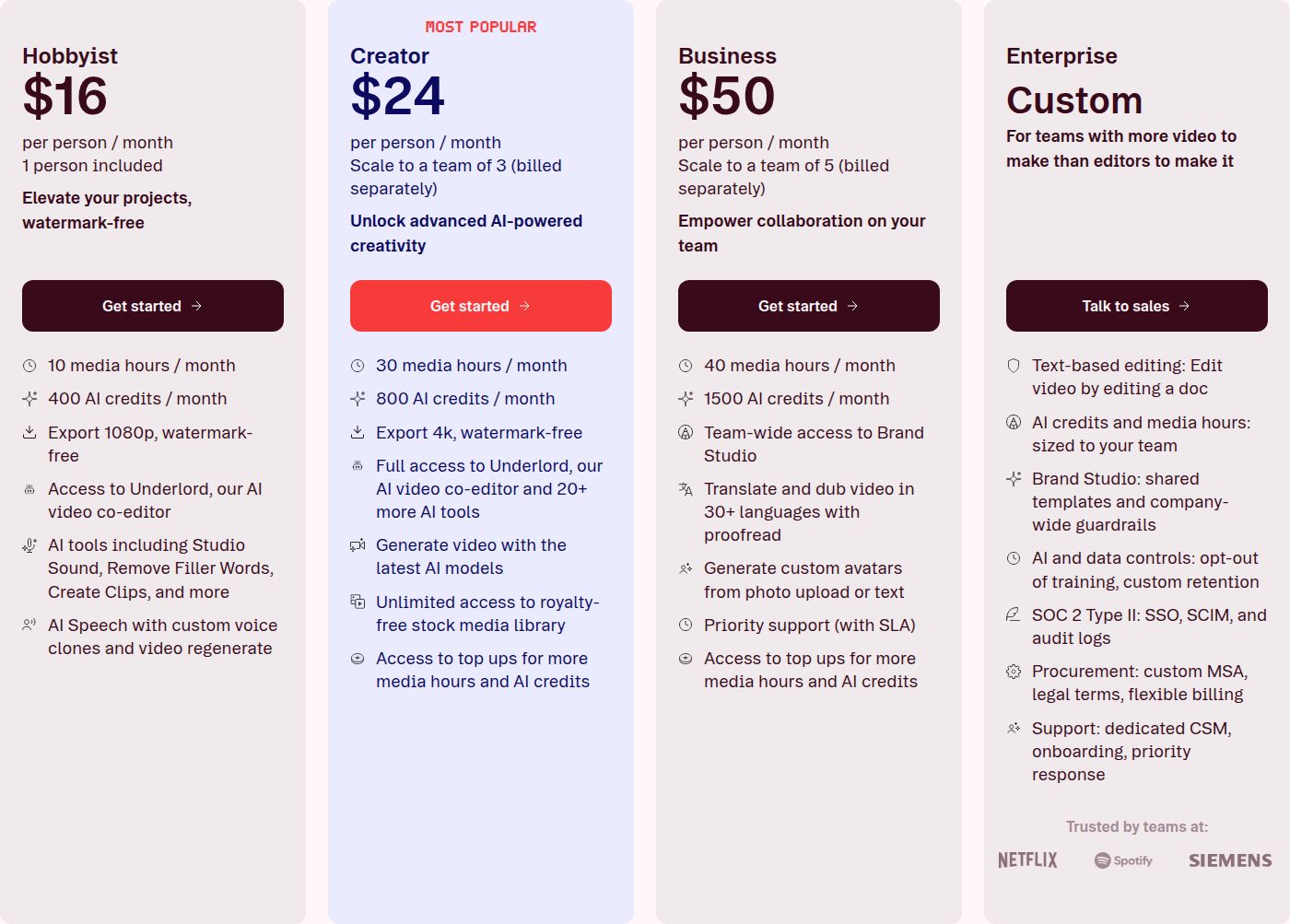 Descript's pricing page showing Hobbyist and Creator plans
Best for podcasters, and anyone who records audio and video together or wants to edit by reading the transcript. If your talking-head videos come from a podcast recording, Descript is the natural pick. Our Descript review for short-form creators covers it in more detail.
Opus Clip

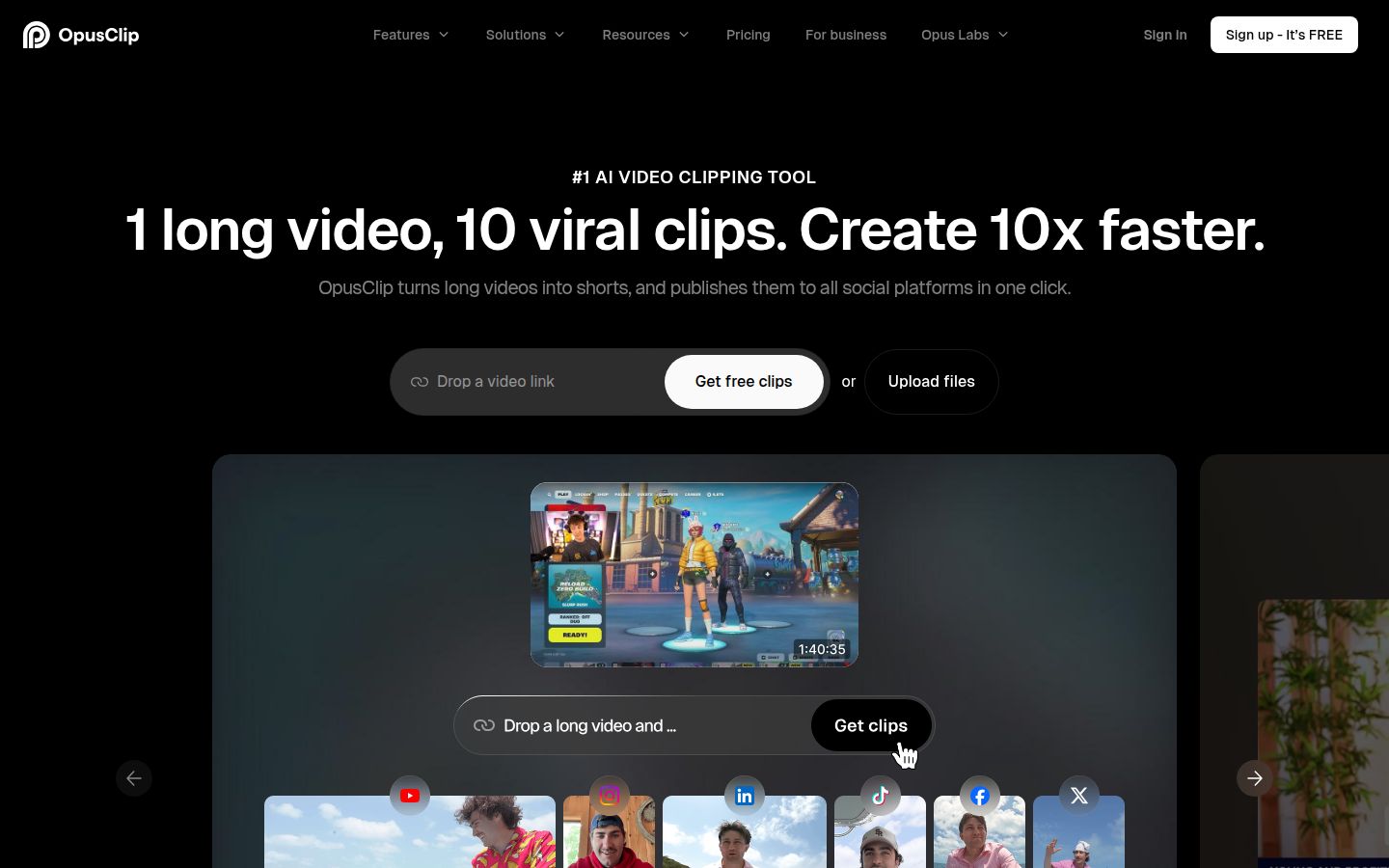
Opus Clip takes a long video and finds the moments worth turning into short clips. You give it a webinar, a podcast or a long talk, and it returns a set of captioned vertical clips.
What it does well
- It finds clips in long recordings. Its feature list includes ClipAnything, AI reframe, B-roll and a social scheduler.
- It can export to XML for Premiere Pro or DaVinci Resolve.
Limits
- The free plan has a watermark on clips, clips are deleted after 3 days, and the free plan has no editor. (quso.ai)
- Credits are counted by the length of the source video, not the number of clips you get. (Ssemble's Opus Clip review)
Pricing as of October 2026. Free: 60 credits a month. Starter: $15 a month. Pro: $29 a month. (quso.ai) Opus's own pricing page lists the same plan names.
Best for creators who record long videos and want many clips out of each one. If your weekly recording is a 45-minute call, this is a better match than a tool that edits one video at a time.
Vizard
Vizard has no logo in our logo library, so we link its homepage.

Vizard finds clips in long videos, adds captions and reframes them for vertical video. It also includes a viral score for each clip and a way to schedule posts.
What it does well
- It includes a free plan with 60 credits a month, so you can test it on real footage.
- The Creator plan adds watermark-free export, 4K and scheduling to social platforms.
Limits
- The free plan exports at 720p with a watermark. Users on G2 mention the upload caps and watermarks on the lower plans. (G2 Vizard pros and cons)
- Credits are counted per minute of uploaded video. Vizard says 1 credit is 1 minute.
Pricing as of October 2026 (Vizard pricing)
- Free: 60 credits a month, 720p export, 1 social account, 3-day storage.
- Creator: $29 a month, or $14.50 a month billed yearly ($174 a year). It includes no watermark, 4K export, scheduling and 6 social accounts.
- Business: $39 a month, or $19.50 billed yearly ($234 a year). It adds a shared workspace, a brand kit and team invites for $5 a month per seat.
Best for creators who want clip-finding and scheduling on one plan, and who record long videos.
Captions

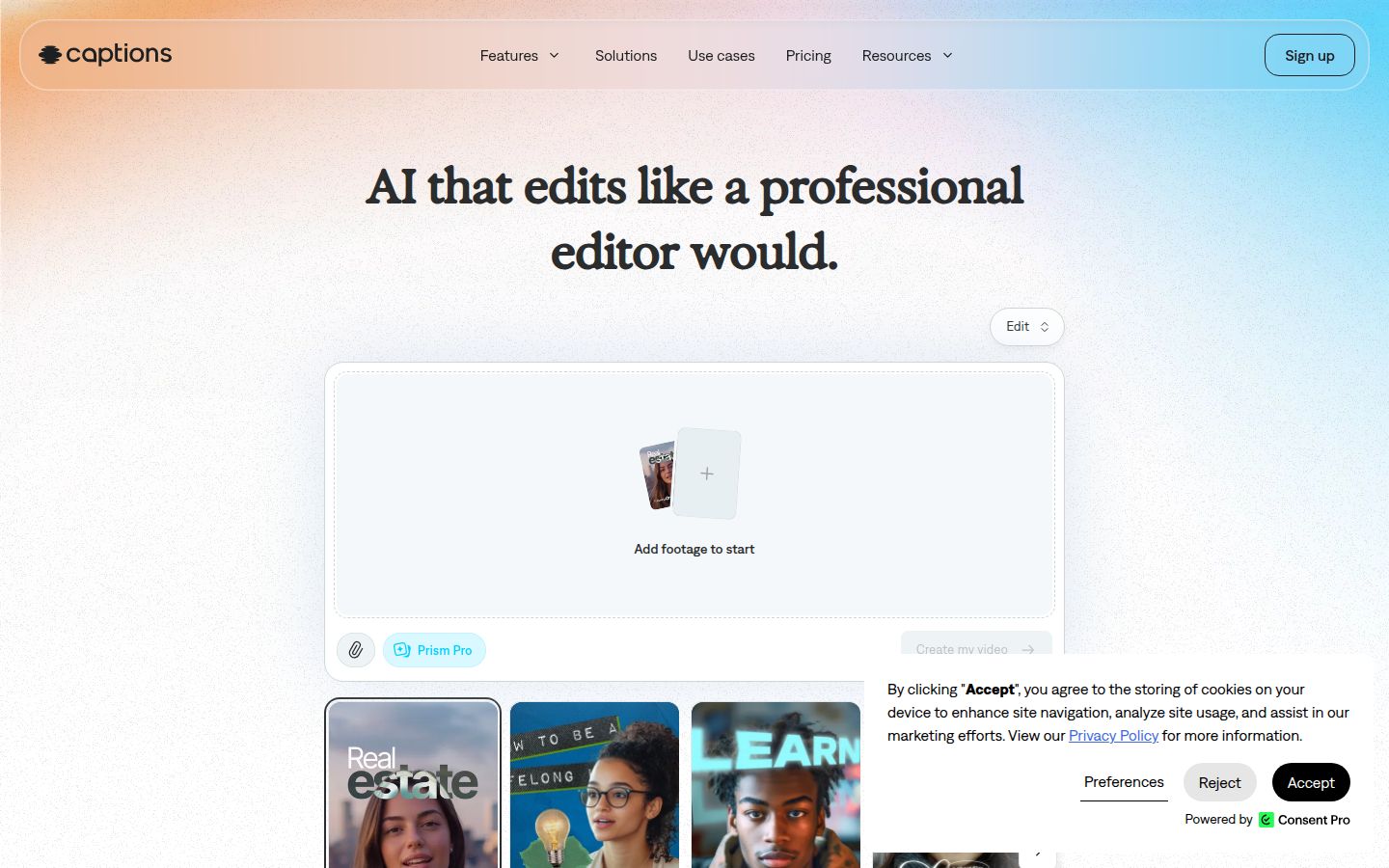
Captions (captions.ai) is an AI video app. It edits footage with an AI edit tool, and it can add AI actors, B-roll, music and generated footage.
What it does well
- It does more than captions. Its AI Edit styles, AI actors, teleprompter and a chat-based editor cover a wider range of video types.
- The Max plan includes a library of AI Edit styles and 100+ caption templates.
Limits
- The free plan has 1 caption template and no AI usage credits. (Captions pricing)
- Generative features run on credits, and the prices on its pricing page are iOS prices.
- Its Basic plan was formerly called Pro, so older guides may use the old names. (Captions help center)
Pricing as of October 2026. Max is $24.99 a month. Frontier is $69.99 a month, and Enterprise is custom. These are iOS prices. (Captions pricing)
Best for creators who want AI-generated footage or AI actors alongside captions, and who are fine with a credit-based plan.
VEED

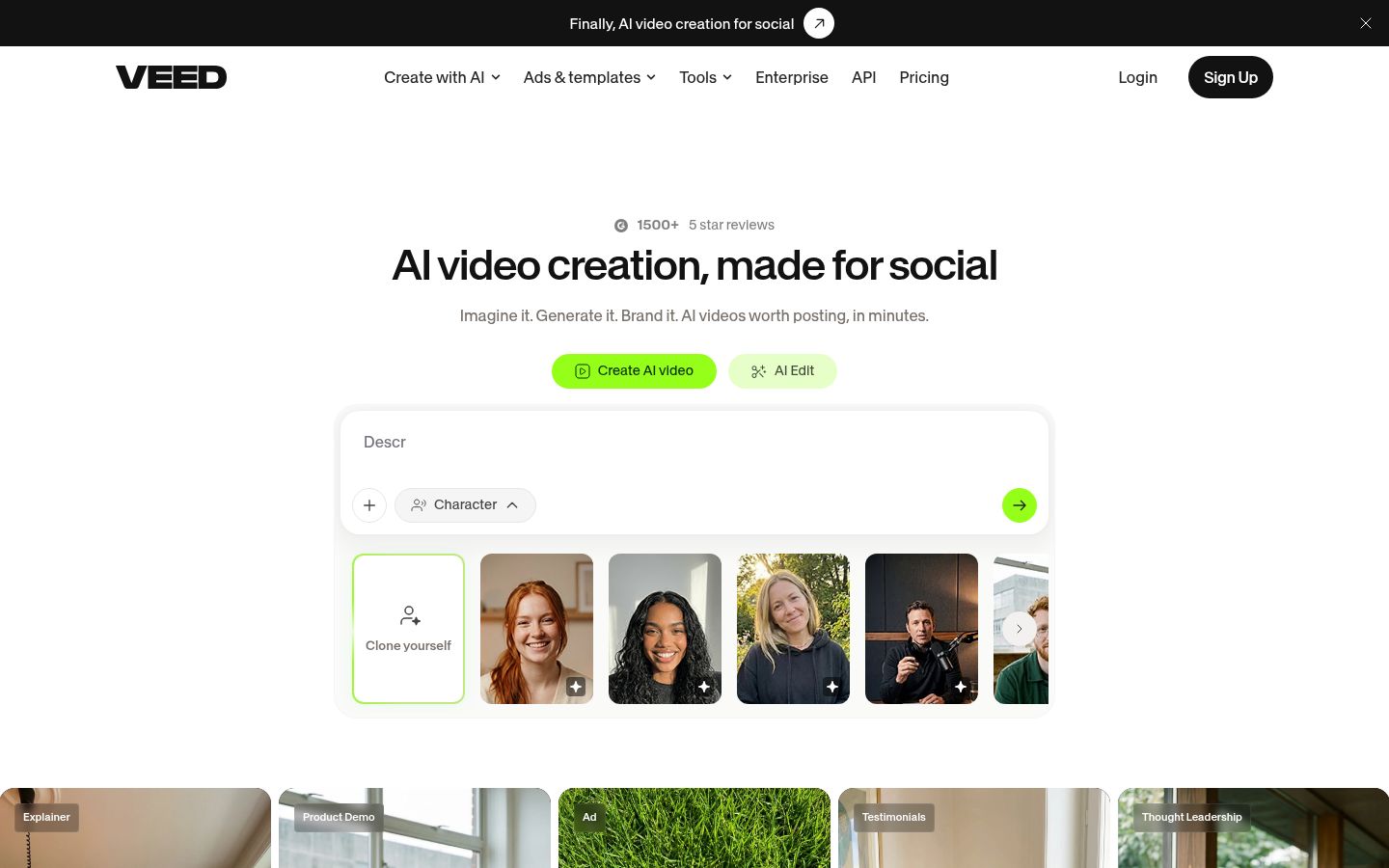
VEED is a browser-based video editor with auto subtitles, templates and AI tools. It's a general editor with a free plan that covers the basics.
What it does well
- It's an editor in the browser, with subtitles, text, audio and templates in one place.
- The Creator plan includes unlimited auto subtitles, with a 50-hour-a-month fair use limit, and up to 3 editors.
Limits
- The free plan exports at 720p with a watermark, handles videos up to 10 minutes, and includes 10 minutes of auto subtitles a month. (StoryCut's October 2026 check of VEED)
- Pricing is per editor. Each person you invite is billed.
- On Creator, subtitle styles are limited. The Pro plan includes unlimited styles.
Pricing as of October 2026 (StoryCut's October 2026 check of VEED's plans, VEED pricing)
- Free: 720p with a watermark, 10-minute videos, 10 minutes of auto subtitles a month.
- Creator: $20 a month per user, or $9.67 a month billed yearly. It includes 1080p, no watermark and up to 3 editors.
- Pro: $44 a month per user. It includes 4K export and unlimited subtitle styles.
Best for small teams where more than one person edits, or anyone who wants a browser editor with subtitles and AI tools in one account.
How to choose
Pick the tool that matches your main problem, not the one with the biggest feature list.
- You want to spend nothing and avoid a watermark. Start with CapCut and make the cuts yourself. Test Sycamore's free 10 minutes on the same clip to compare.
- You record one talking-head video at a time and want the edit done for you. Try Sycamore. Starter is $19 a month for 3 hours of video, with no watermark. Check our pricing page for the current plans.
- You record long videos and want many clips. Try Opus Clip or Vizard. Both can find clips in a long recording.
- You edit podcasts or audio as well as video. Try Descript.
- You want AI-generated footage or avatars. Try Captions. Sycamore doesn't make AI avatars or AI voices.
- Several people edit one account. Try VEED. Its Creator plan allows up to 3 editors.
- You need B-roll, scheduling or an API. Submagic has those on its paid plans. Sycamore doesn't have B-roll, scheduling or an API.
If you're still undecided, pick one video from last week and run it through two tools. Compare the time you spent, the captions, and whether the export has a watermark. That will tell you more than any table. For a wider look at options, see Best Submagic Alternatives for Talking-Head Videos.
FAQ
Which free Submagic alternative has no watermark?
CapCut's free editor usually exports without a watermark, according to CapCut's help page. A watermark can still appear if a template has an ending clip or the export uses the default outro.
Does Submagic have a free plan?
Not one you can keep. Submagic offers a trial of 3 short videos with no card needed, and downloading them without the watermark needs a paid plan.
How much does Sycamore cost in October 2026?
Sycamore's free plan gives 10 minutes of video, one time, with no credit card. Starter is $19 a month for 3 hours of video, and Growth is $39 a month for 10 hours. Both paid plans export without a watermark.
Which tool is best for turning a long recording into many short clips?
Opus Clip and Vizard are built to find clips in long videos. Sycamore edits the video you upload, so it doesn't split a long recording into many shorts.
Can I use Sycamore for videos in languages other than English?
No. Sycamore's transcription is English only, so pick a tool with other language support if you need that.
Which Submagic alternative has a mobile app?
CapCut has a mobile app, and it's the strongest option here for editing on a phone. Sycamore is a web app that runs in a phone's browser, and it doesn't have its own mobile app.