Veed is a capable browser editor. It has a full timeline, automatic subtitles, AI dubbing, AI video generation and team workspaces, and plenty of people use it every week without trouble. If you're searching for a Veed alternative, you probably aren't unhappy with the tool itself. You're checking whether it fits the videos you make and what you pay for them.
Most people who look for a different tool run into one of three things. The first is price. Veed's paid plans are billed per editor, and the free plan puts a watermark on every export and caps exports at 720p and 10 minutes. The second is focus. Veed covers a lot of ground, from ad templates to voice cloning, and if you only film yourself talking, most of those menus go unused. The third is the job itself. You have a raw recording of you talking, and you want captions, the dead air cut out and a finished vertical video in the fewest steps.
This post covers seven alternatives, starting with Sycamore, which is our product. We'll be straight about what each one does well, where it's limited and what it costs as of October 2026. Prices change often, so check the pricing page linked under each tool before you buy.
Why people look for a Veed alternative
Veed's strength is breadth. You can edit on a timeline, generate AI video, clone a voice, dub a video, remove background noise and make subtitles, all in one place. For a team that makes every kind of video, that's a lot of value in one login.
The trade-offs show up when your work is narrower. Veed's paid plans are priced per editor, so a three-person team pays for three seats. Veed's own free plan is useful for trying the editor, but its exports carry a watermark, and the free plan caps resolution at 720p. Veed's paid tiers add watermark-free 1080p and higher, and the tier names and prices have changed in recent months. Depending on the page you read, the entry paid plan is called Creator or Lite. On monthly billing it costs about $20 a month, and on yearly billing it drops to roughly $10 to $12 a month. Check the current numbers on Veed's pricing page before you decide.
If your main job is "raw talking-head file in, finished captioned short out," a narrower tool may be a better fit. The alternatives below each do some of that job well.
Compare the alternatives at a glance
Starting prices are for monthly billing, as of October 2026. Yearly billing is cheaper on every tool below, so check each pricing page for the figure that matches how you'd pay.
| Tool | Starting price (monthly billing) | Free plan or trial | Best for |
|---|---|---|---|
| Sycamore | $19/month (Starter, 3 hours of video) | Free: 10 minutes of video, one time, no card | Raw talking-head video to finished captioned short in one pass |
| Submagic | $19/month (Starter) | Free: 3 videos a month, with watermark | Caption-heavy short-form, B-roll and scheduling |
| OpusClip | $15/month (Starter, 150 credits) | Free: 60 credits a month, with watermark | Cutting long recordings into many short clips |
| Descript | $24/month (Hobbyist) | Free plan with a monthly media-minute cap | Editing video by editing the transcript |
| Vizard | $29/month (Creator) | Free: 60 credits a month, 720p | Clipping long videos, with auto-scheduling on paid plans |
| CapCut | Free; Pro about $19.99/month | Full free editor | Free editing with templates on desktop and phone |
| Captions | $24.99/month (Max) | Free plan, with no AI credits | AI edit styles, eye contact and AI actors |
Sycamore

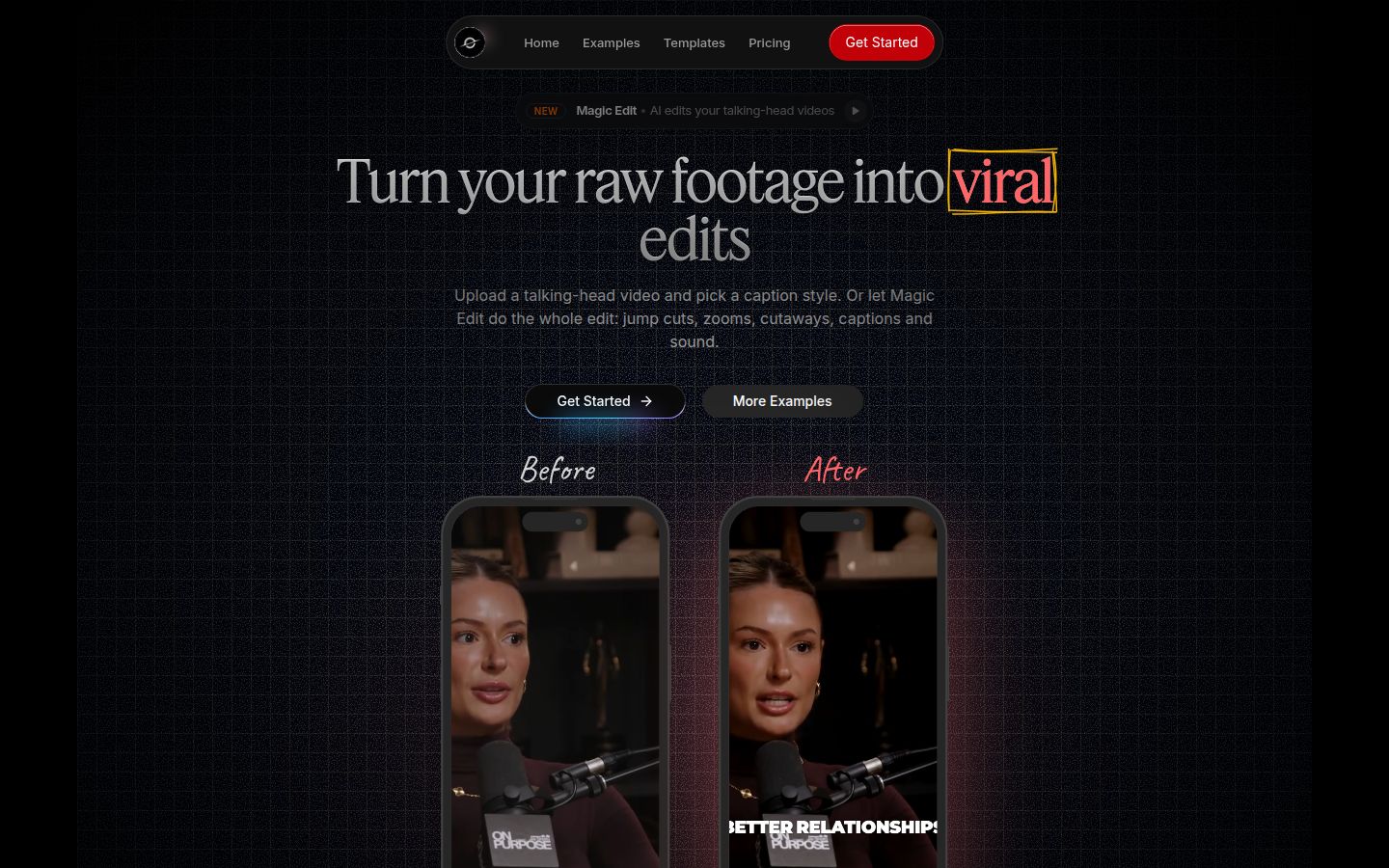
Sycamore turns a raw talking-head recording into a finished, captioned short. It runs in your browser, so there's nothing to install. We built it for one job, which is why the steps are short.
Magic Edit does the first pass. You upload the video and pick one of three edit styles: Apollo, Hermes or Athena. Sycamore cuts out silences and filler words, adds word-synced animated captions, emphasizes key lines, and adds zooms and full-screen text cutaways for the big moments. Then you review the edit in plain words. Each line can be set to Normal, Emphasis, Full screen, Number, List or Label, and you can change anything before you export.
If you'd rather style the captions yourself, you can edit any word, change the font, colors, size, animation and position, and save the look as a preset for the next video. Every word is timed, so captions stay in sync. You can export an MP4 in 9:16, 1:1 or 16:9.
What it does well: it handles the whole raw video in one pass, so you don't have to cut, caption and style in three separate tools. You stay in control because you review the edit before you export. The pricing is simple: you pay by minutes of video, and the free trial needs no card.
Pricing as of October 2026: Free gives you 10 minutes of video, one time. Starter is $19 a month for 3 hours of video a month, with no watermark. Growth is $39 a month for 10 hours of video a month, with no watermark and priority rendering. You can upload MP4, MOV, WebM or MP3 files up to 2 hours long. See the Sycamore pricing page for the current plans.
Limits that matter for this choice: transcription is English only. Sycamore edits the video you give it, so it doesn't cut one long recording into several shorts, and it doesn't post or schedule for you. It also has no B-roll library and no AI avatars. It's a web app, so there's no native mobile app, but it works in a phone's browser.
Best for: founders, coaches, educators and creators who film themselves talking and post to TikTok, Reels, Shorts or LinkedIn, and who want the edit and captions done in one pass with a clear monthly price. If you want to see how the edit looks on your own footage, the free 10 minutes are enough for a first test.
Submagic

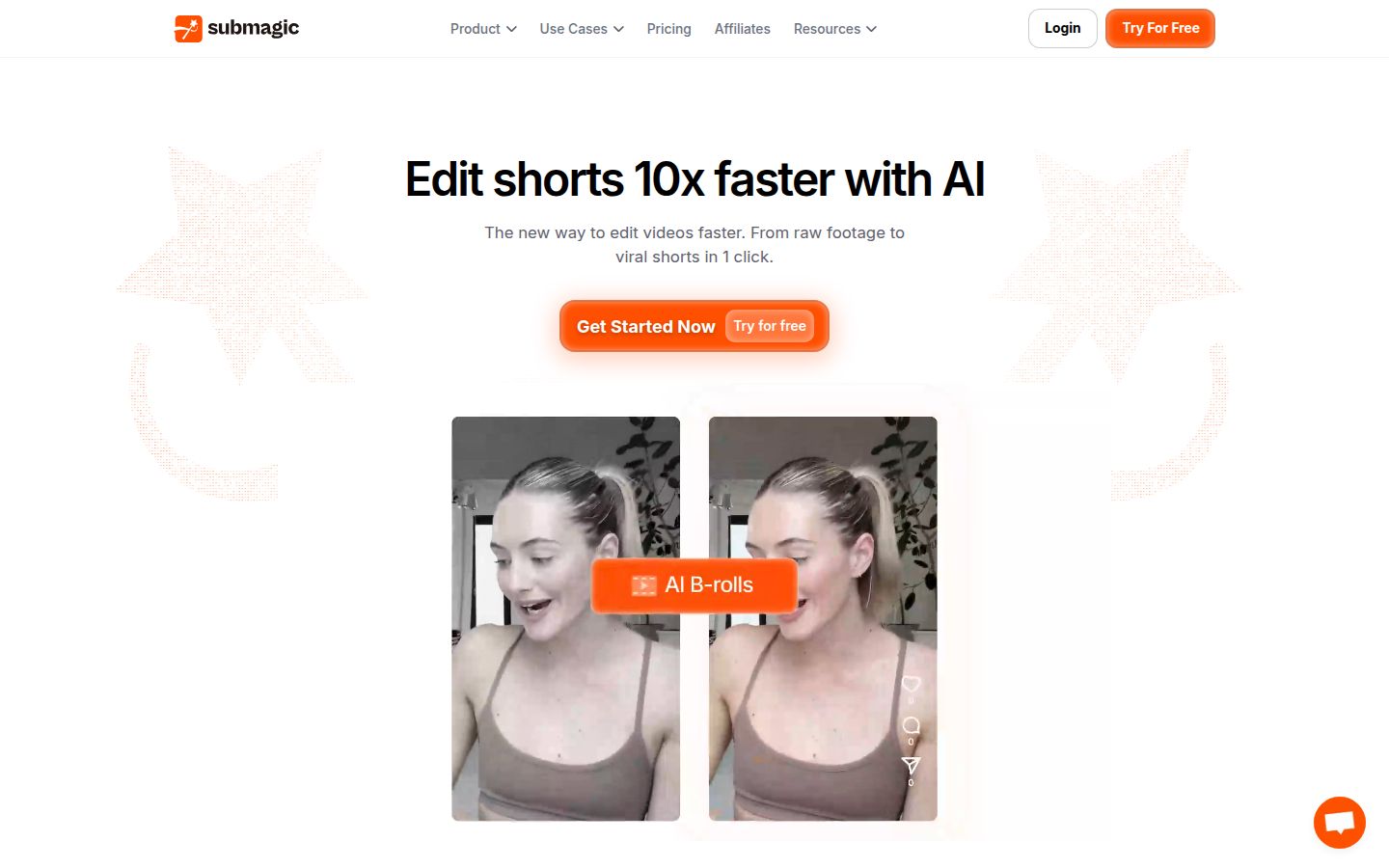
Submagic is built around short-form captions. Its feature list covers AI captions, auto edit, Magic Clips for pulling shorts from longer videos, trimming, B-roll, auto-zoom, AI eye contact, translation, transitions and a social media scheduler. It's a strong pick if captions are the center of your workflow and you want B-roll and scheduling in the same tool.
What it does well: the caption styles are the focus, and the tool covers a broad set of short-form extras. Many creators who post every day use it for captions plus B-roll.
Pricing as of October 2026: the free plan lets you make 3 videos a month, and exports carry a Submagic watermark. Starter is $19 a month, or $12 a month billed yearly. Pro is $39 a month, or $23 a month billed yearly. Business + API is $69 a month, or $41 a month billed yearly. Magic Clips is sold as an add-on on top of a plan. Check the Submagic pricing page for the current numbers.
Limits: the free plan's watermark and 3-video cap mean it's a trial rather than a working plan. Magic Clips costs extra, so long-video clipping adds to the monthly bill.
Best for: creators who publish often and want captions, B-roll and scheduling in one subscription. If you'd like a side-by-side with another tool, we compare Submagic and Opus Clip for talking-head videos.
OpusClip

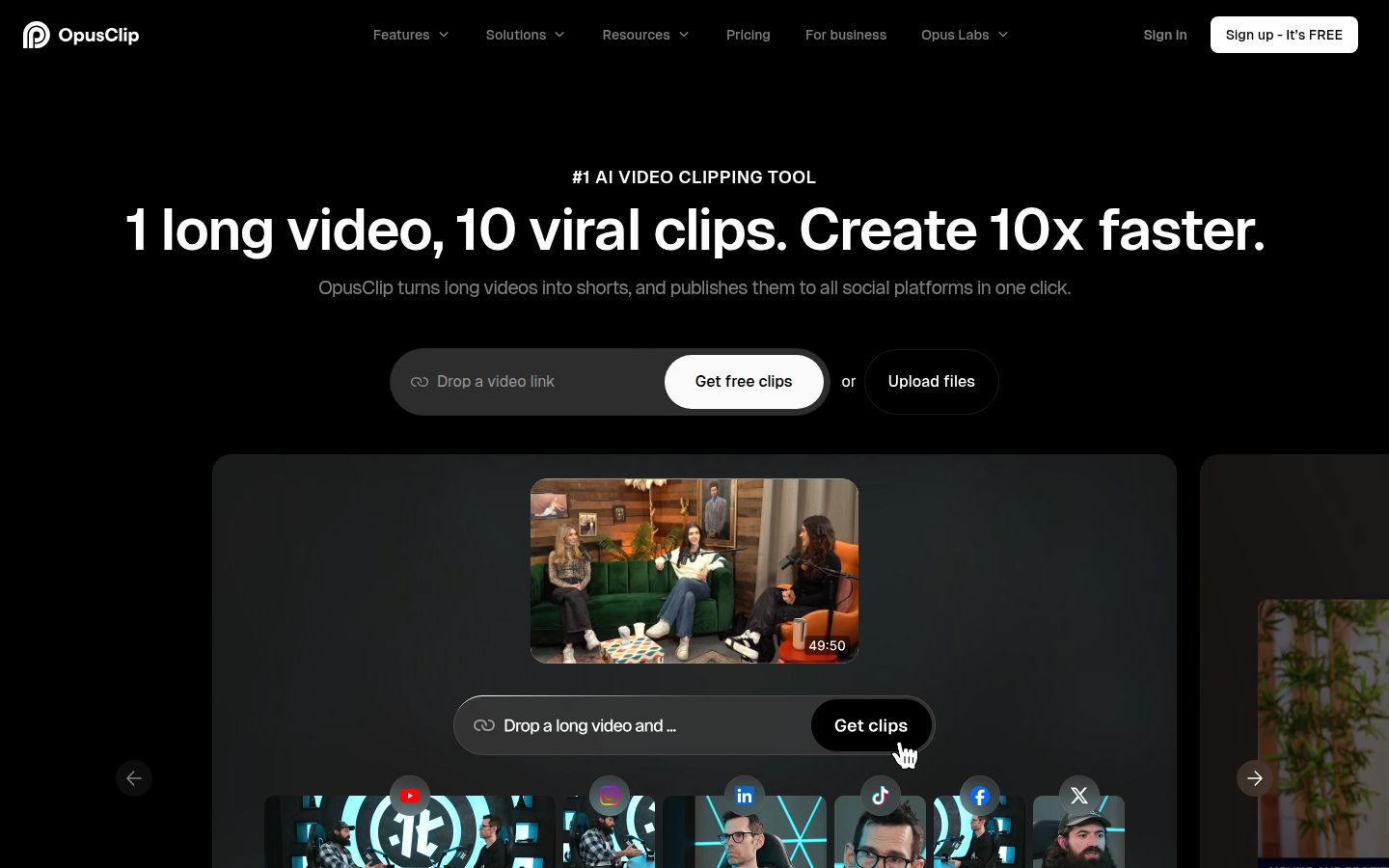
OpusClip is for long recordings. You give it a webinar, a podcast episode, a long talk or a product demo, and it suggests moments to turn into vertical clips with captions. Its help center describes a clip-selection step where you can also prompt for specific moments, and it can reframe clips for each platform.
What it does well: it's the strongest option here for turning one long file into many clips. On the paid plans, you can import from a link, such as YouTube, and the official site lists video support for English and more than 20 other languages.
Pricing as of October 2026: the free plan gives you 60 minutes of credits a month, and exports on the free plan carry a watermark. Starter is $15 a month for 150 credits. Pro is $29 a month for 300 credits, with a lower monthly rate on yearly billing. One credit covers about one minute of video processed. See the OpusClip pricing page.
Limits: the credit model means your bill depends on how many minutes you process, so a long weekly recording uses more than a single short clip. It's a clipping tool first, so if you only have one short talking-head video, a single-pass editor is a more direct route. There are more features and menus to learn than in a simple caption tool.
Best for: podcasters, coaches and marketers with a long recording each week who want several clips out of it. For a fuller comparison, read Best Opus Clip Alternatives or our Opus Clip vs Descript comparison.
Descript

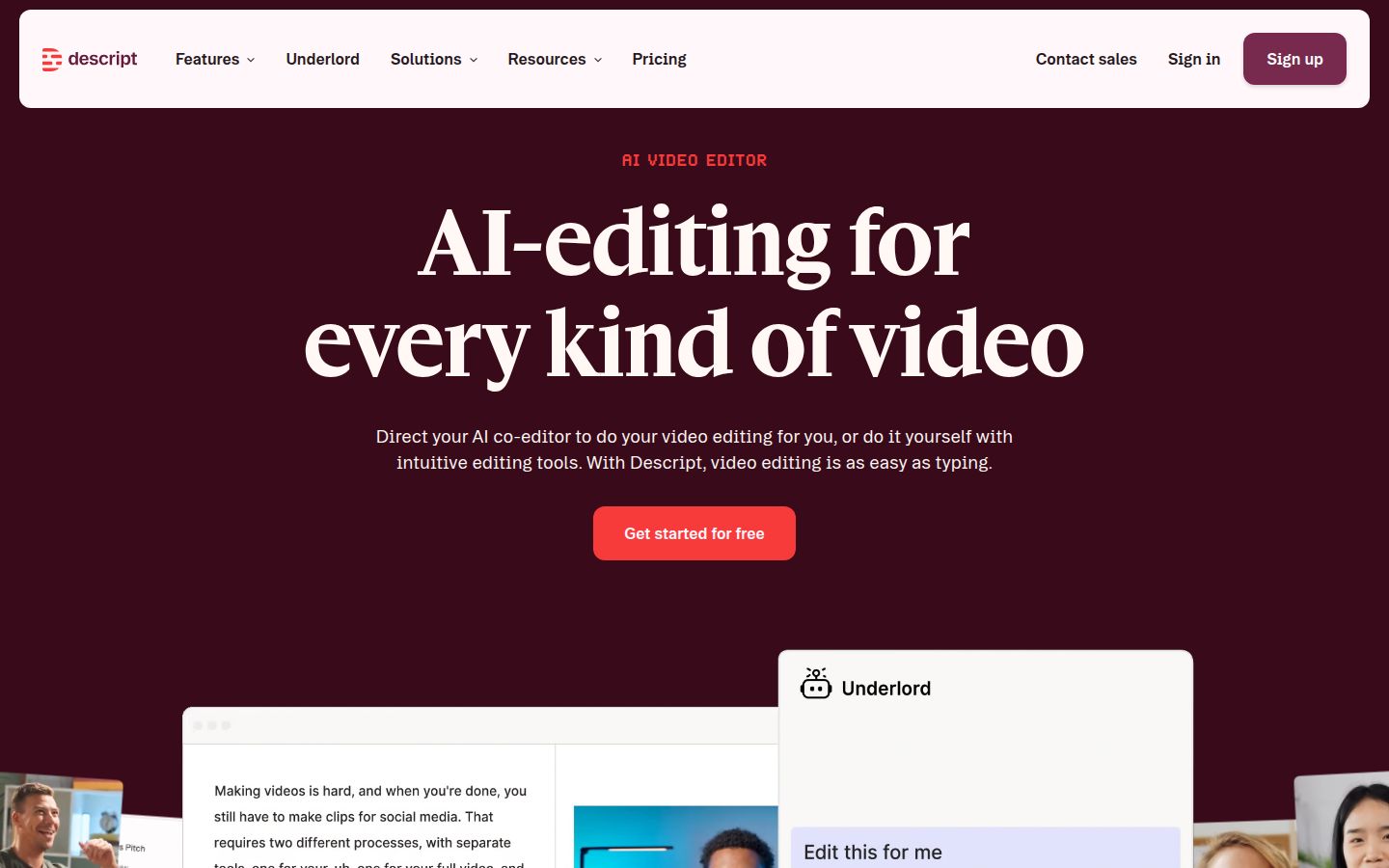
Descript works like a document. You see a transcript of your video, and when you delete a word or a sentence, the matching video is cut too. You can also remove filler words, fix a misheard line by typing the correct word, and clean up audio in the same project. For podcasts and dialogue-heavy videos, this is a very natural way to work.
What it does well: text-based editing is the thing to try if you think in words. Fixing a misheard word means typing it, not scrubbing through the video to find the moment. Descript also has screen recording, multitrack audio and an AI assistant called Underlord.
Pricing as of October 2026: the free plan includes a limited number of media minutes each month. Hobbyist is $24 a month, or $16 a month billed yearly. It includes 10 media hours a month, 400 AI credits a month and 1080p export with no watermark. Creator is $35 a month, or $24 a month billed yearly, and Business is $65 a month, or $50 a month billed yearly. See the Descript pricing page.
Limits: plans are metered by media hours and AI credits, so heavy users move up a tier. The app has a lot of editing depth, so it takes longer to learn than a single-pass caption tool. The Hobbyist plan and up are the ones that offer watermark-free 1080p export.
Best for: podcasters, educators and anyone who edits dialogue by reading it. We've written a longer look at Descript for short-form creators and a comparison of Veed vs Descript.
Vizard
Vizard turns long videos into short clips. You upload a recording or paste a link, and it finds the moments it thinks will work as shorts, then reframes them for vertical video with subtitles. It's a clip-first tool, similar to OpusClip, with scheduling for social accounts on its paid plans. Visit vizard.ai to see how it works.

What it does well: the free plan is generous for testing. It includes 60 credits a month, where one credit covers one minute of uploaded video, and a private workspace. The Creator plan adds watermark-free exports, 4K export, auto reframe, caption translation in more than 100 languages and social scheduling.
Pricing as of October 2026: the free plan costs nothing, with 60 credits a month and exports at 720p. Creator is $29 a month, or $14.50 a month billed yearly ($174 a year). Business is $39 a month, or $19.50 a month billed yearly ($234 a year), and adds team features. See the Vizard pricing page.
Limits: the free plan exports at 720p and keeps your files for 3 days. Like the other clip tools, you pay per minute of video processed, so a long weekly recording uses credits fast.
Best for: creators with long recordings who want clips and scheduling in one subscription. If you're comparing it with OpusClip, we cover both in Opus Clip vs Vizard and in Best Vizard Alternatives.
CapCut

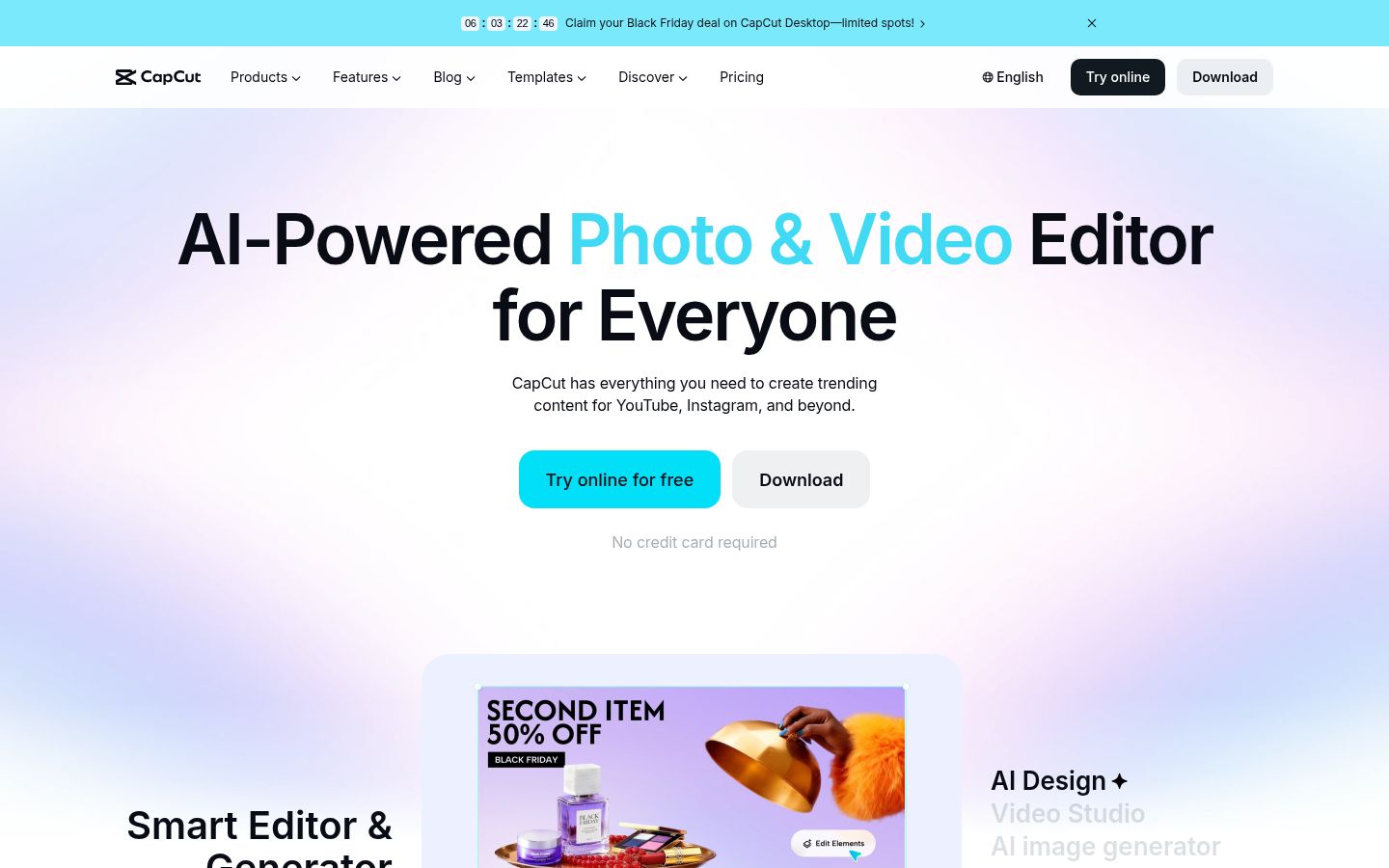
CapCut is a full video editor that runs on desktop, on a phone and in the browser. Its tools include a timeline, transitions, effects, text styles, auto captions, transcript-based editing and text-to-speech. Creators use it a lot for short-form edits built around templates and trends.
What it does well: it's free to start and has the largest library of text styles, effects and templates in this list. If you like building an edit by hand, with B-roll, music and product shots, CapCut gives you the room to do it.
Pricing as of October 2026: the free plan is available with no card. Pro is about $19.99 a month on CapCut's web checkout, and yearly billing is lower. App store prices can run higher, and prices vary by region. Check the CapCut pricing page for your region.
Limits: with this many features, there's more to learn and more choices on each clip. You'll make decisions that a single-pass tool makes for you, such as which cuts to keep and how the captions look. Check which tier includes the auto features you need before you pay.
Best for: anyone who wants a free, full editor and a phone app, and who is happy to build the edit by hand. For a side-by-side with our own tool, read Veed vs CapCut for short-form video.
Captions

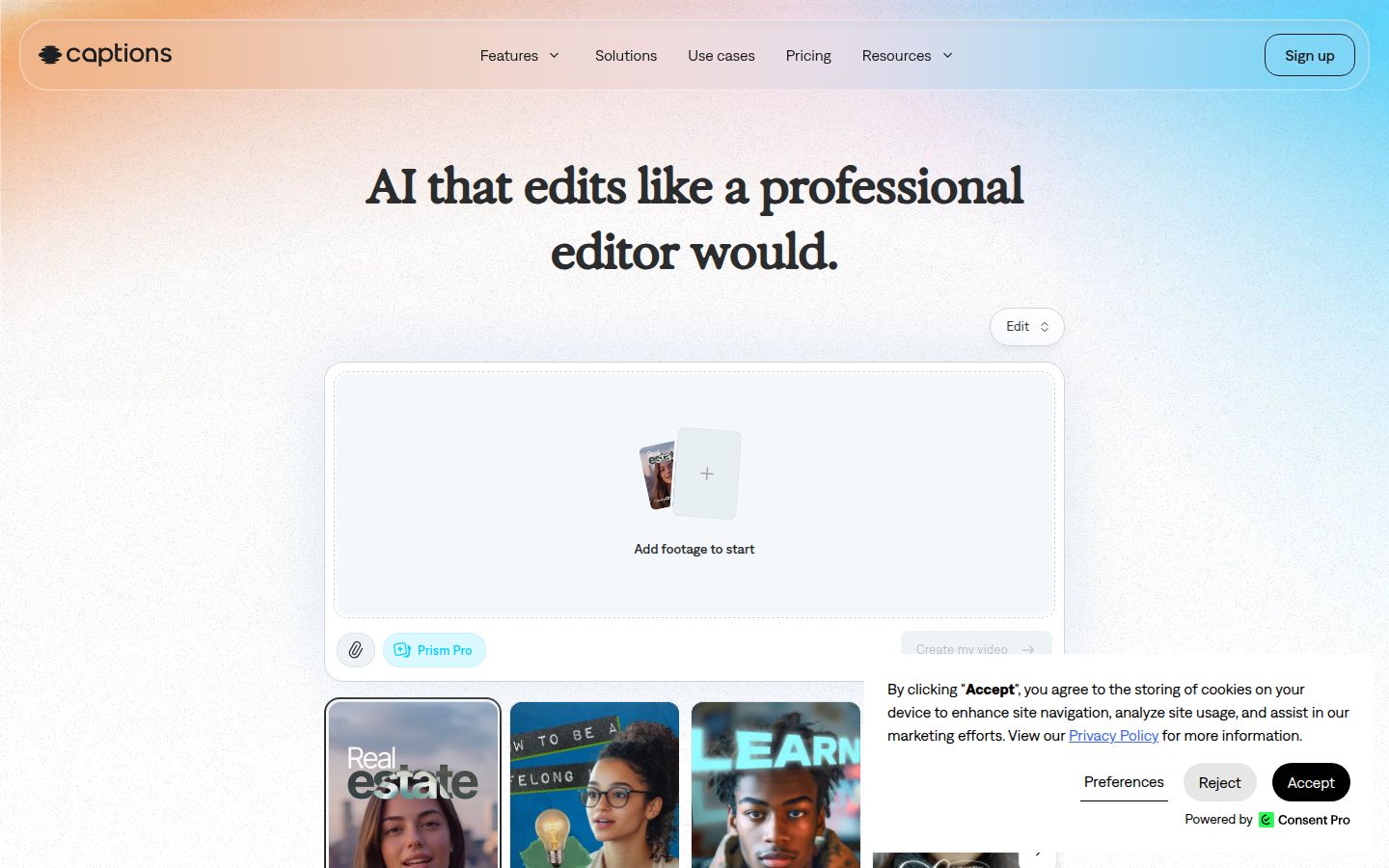
Captions is a phone-first AI editor. It can apply an AI edit style to your footage, correct eye contact, add a teleprompter and create AI actors or digital twins from your footage. It also has a chat-based editor for changes, so you can describe a change in words.
What it does well: it's strong for creators who want AI to do more of the production, including eye contact correction and generated footage. The mobile app is central to the product.
Pricing as of October 2026: the free plan has no AI credits, so auto-edit and generative features need a paid plan. Max is $24.99 a month and includes 500 credits a month. The Frontier tiers start at $69.99 a month. The pricing page notes that its prices reflect iOS plans. See the Captions pricing page.
Limits: generative features use credits, so cost depends on how much you generate. The free plan can't use the AI features that do most of the work.
Best for: creators who want AI actors, eye contact and a phone-first workflow, and who are happy to pay for the generative features.
How to choose the right Veed alternative
Start with the job, not the brand. Pick the tool that matches the kind of video you post most.
- You film one talking-head video a week and want it captioned and cut in one pass: start with Sycamore. The free 10 minutes let you test it on your own footage, and Starter at $19 a month covers 3 hours of video.
- You caption a lot and also want B-roll and scheduling: look at Submagic. Plan for the Starter or Pro tier, since the free plan adds a watermark.
- You have a long recording each week and want many clips: compare OpusClip and Vizard. Both bill by the minute, so check how many minutes you process each month before you pick.
- You edit dialogue by reading the transcript, or you run a podcast: choose Descript. The Hobbyist plan removes the watermark and unlocks 1080p.
- You want a free full editor and a phone app: try CapCut. You'll do more of the edit yourself.
- You want AI actors, eye contact and a phone-first app: try Captions, and budget for the credits.
- You need Veed's broader toolkit, or your team already works in it: stay with Veed. It has a wide feature set, and the paid plans are priced per editor.
Whichever tool you try, run the same clip through it twice. Use a three-minute talking-head recording from your own channel. Time how long the edit takes, check the captions for errors and look at the export. The tool that gets you to a post you're happy with fastest is the right one for you.
FAQ
What is the best free Veed alternative?
CapCut has the broadest free editor in this list, with a timeline, effects, text styles and transcript-based editing. Sycamore's free plan covers 10 minutes of video one time, with no credit card needed. Check each pricing page for the features you need on the free tier.
How much does Veed cost per month in 2026?
Veed's paid plans are priced per editor. The entry paid plan is about $20 a month on monthly billing and roughly $10 to $12 a month on yearly billing. Plan names have changed recently, so check Veed's pricing page before you buy.
Which Veed alternative is cheapest for captioned talking-head videos?
OpusClip's Starter plan is the lowest paid price at $15 a month, but it's built around 150 credits for clipping. Sycamore Starter and Submagic Starter are both $19 a month. Compare the minutes of video each plan includes, not just the price.
Can Sycamore cut one long recording into several shorts?
No. Sycamore edits the video you upload into one finished, captioned short. For long recordings you want split into many clips, OpusClip and Vizard are built for that job.
Does Sycamore caption videos in other languages?
No. Sycamore's transcription is English only, so for captions in other languages you'll need a different tool.