Descript has become a go-to tool for creators who want to edit video by editing text. Its promise is simple: upload a recording, edit the transcript, and the video changes accordingly. For short-form creators who film talking-head content and need to turn it into TikTok, Reels, Shorts, or LinkedIn clips, the question is whether Descript’s all-in-one approach delivers enough value to justify the cost.
In this review, we’ll look at what Descript does well, where it falls short, how its pricing stacks up, and how it compares to three alternatives that serve similar needs: Sycamore (a specialist in captioned talking‑head shorts), Submagic (an AI‑powered caption and auto‑edit tool), and Opus Clip (a clipping‑first platform that turns long videos into shorts). We’ll use current prices and features as of October 2026, and we’ll be honest about the trade‑offs so you can decide if Descript is the right tool for you.
Quick verdict
Descript is great for creators who want a single app to record, transcribe, edit, caption, and repurpose their talking‑head videos, especially if they value text‑based editing and AI-powered audio cleanup. It’s less ideal if you need automatic clipping of long videos into many shorts, a mobile app, or unlimited exports without tracking minutes. If your main goal is fast, watermark‑free captions for talking‑head videos and you don’t need advanced video editing beyond cuts and captions, Sycamore or Submagic may be a better fit.
Descript

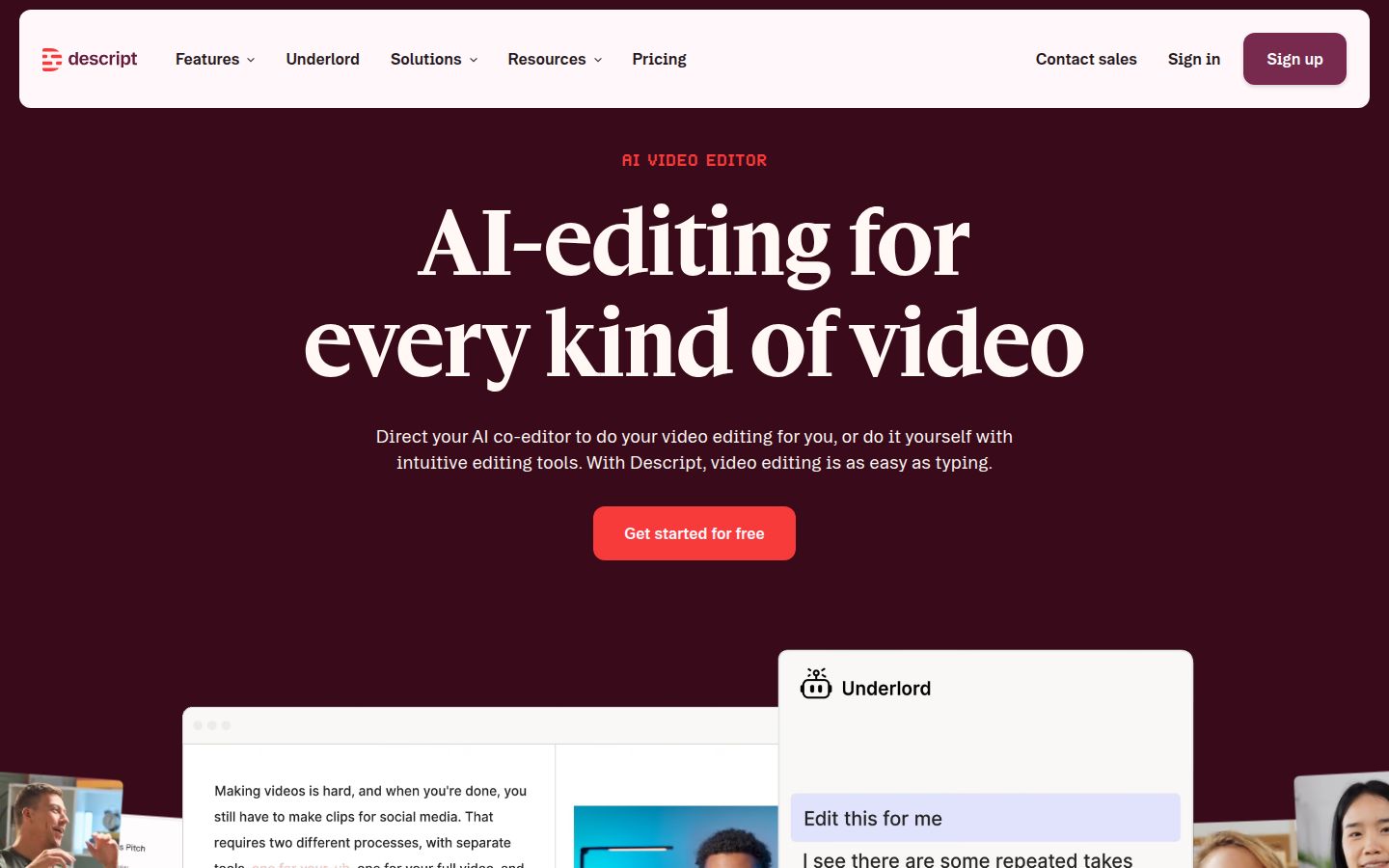
Descript is an AI-powered video and audio editor that lets you record, transcribe, edit, refine, share, and repurpose video by editing text. Its core innovation is text‑based editing: delete a word in the transcript and the corresponding video segment is removed. The platform includes a suite of AI tools such as Studio Sound (noise reduction), Remove Filler Words, Eye Contact correction, Green Screen, AI Voices, and Underlord, an AI co‑editor that can automate tasks like tightening cuts or generating social‑media clips. Descript also offers captioning, screen recording, podcasting, and the ability to create custom media from prompts. It runs as a desktop app for Mac and Windows, with a web version usable in tablets.
Sycamore

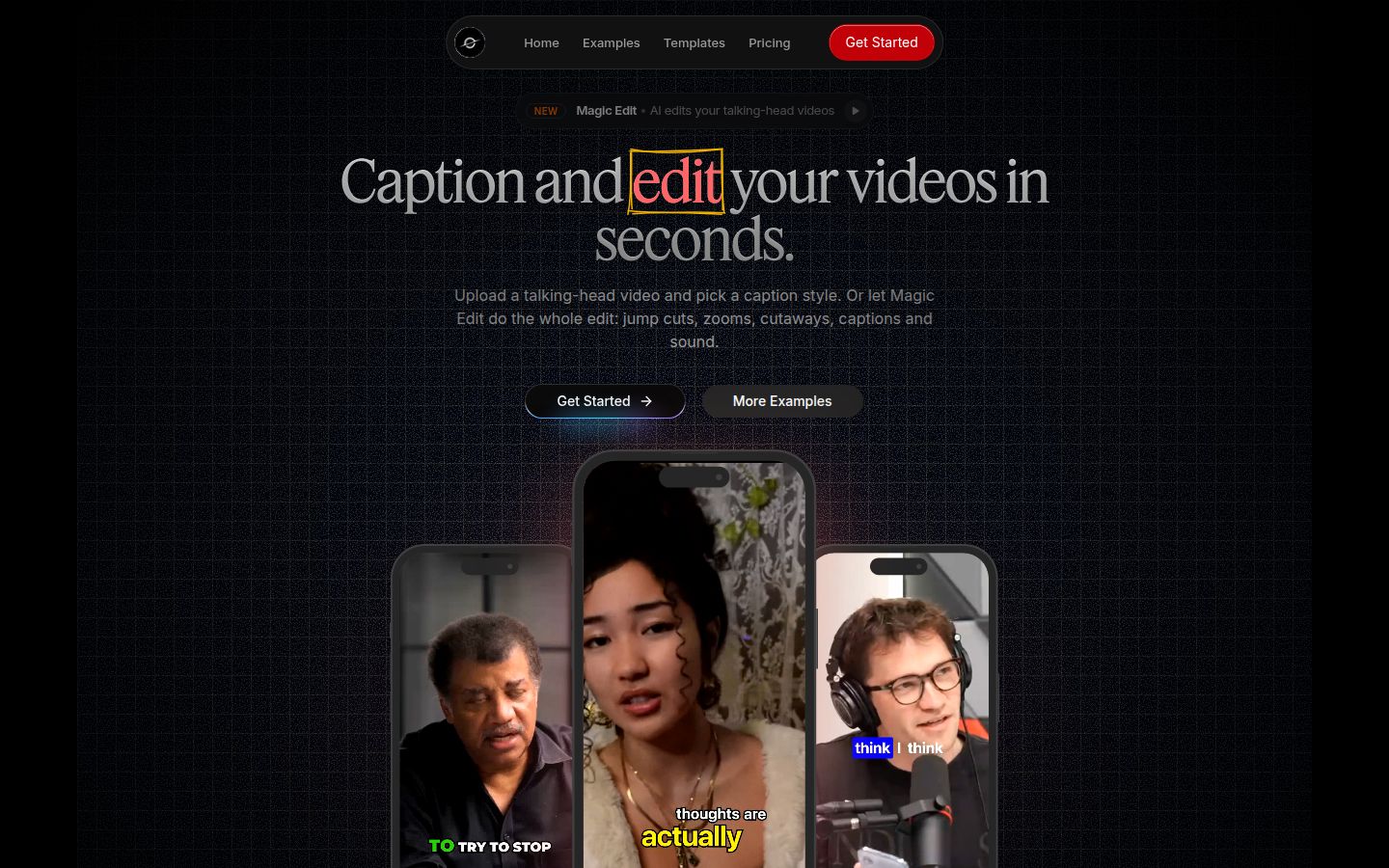
Sycamore is a web app that turns a raw talking-head recording into a finished, captioned short-form video. It runs in the browser: nothing to install. Its Magic Edit feature automatically cuts out silences and filler words, adds a hook at the start, applies zooms and full-screen text cutaways, inserts animated word‑synced captions, and layers sound effects, all in one pass. You choose an edit style (Apollo or Hermes), review the edit in plain words, and export. Sycamore also offers a standalone captions mode where you can pick a template, edit the caption text, colors, size, animation, and position, then export. Captions are word‑level timed and can be translated into 30+ languages. The platform exports MP4 in any aspect ratio (9:16, 1:1, 16:9). No watermark appears on paid plans.
Submagic

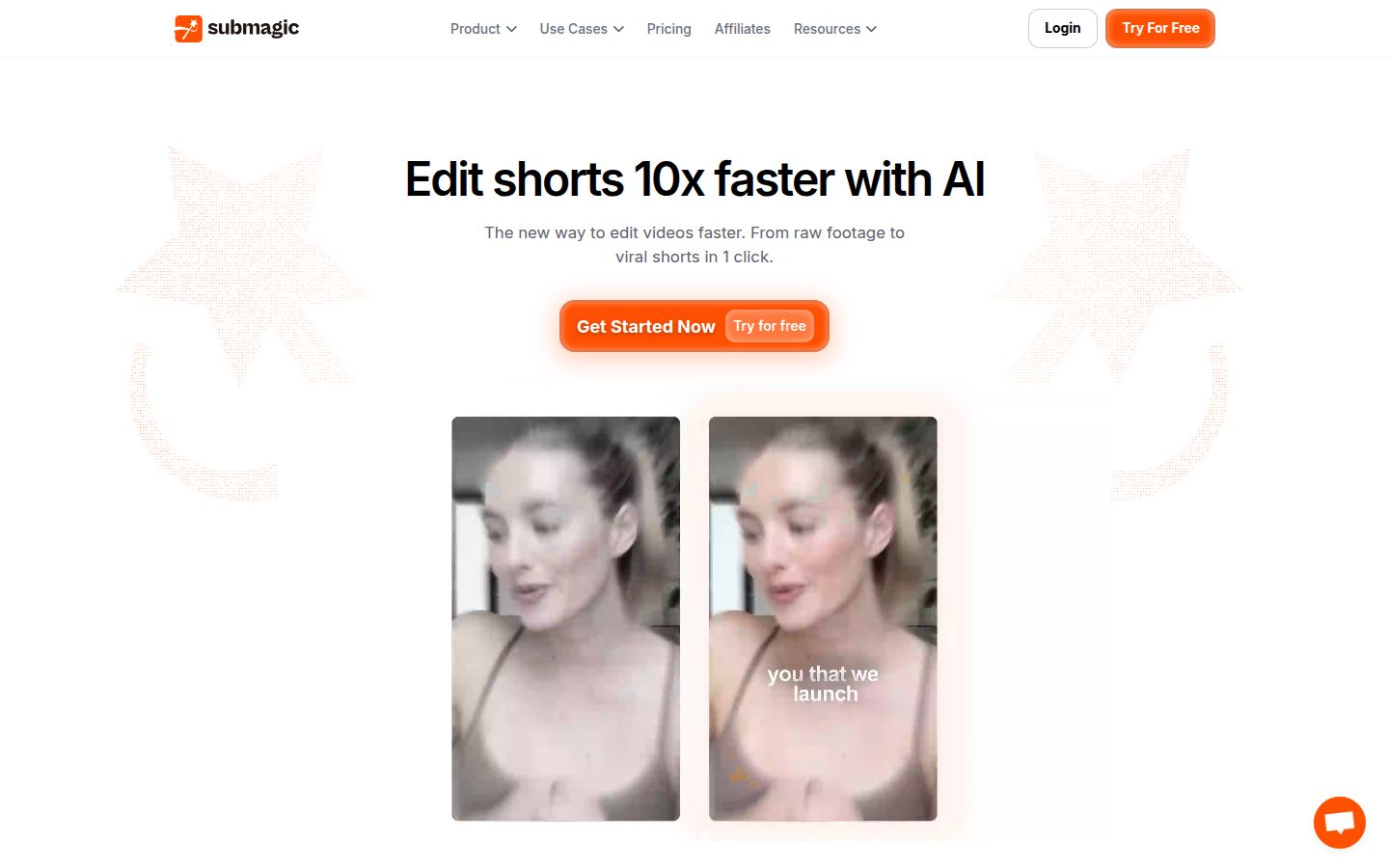
Submagic is an AI-powered editor focused on creating short-form videos fast. Its core features include AI-generated captions with emoji and keyword highlighting, automatic eye‑contact correction, auto‑zoom, removal of silences and bad takes, filler‑word removal, and access to premium caption templates and Storyblocks B‑roll. The platform also offers AI avatars, AI video translation, B‑roll generation, and social‑media scheduling. Submagic’s editor works in the browser; you upload a video, select an AI preset or edit manually, then export. It includes a Magic Clips add‑on (sold separately) that turns long videos into multiple short clips. Exports are watermark‑free on paid plans, and you can export in 1080p, 2K, or 4K up to 60 fps.
Opus Clip

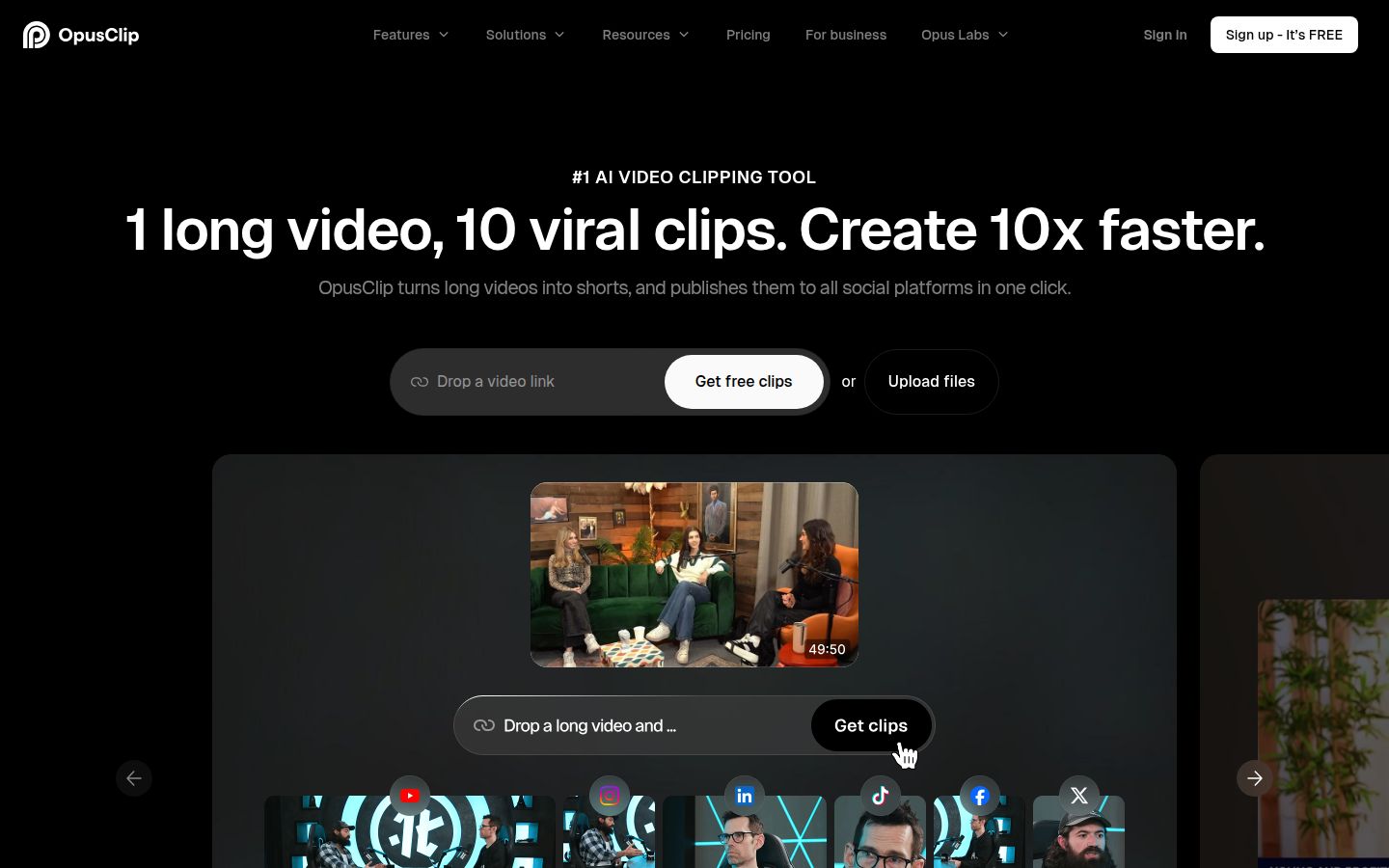
Opus Clip is an AI-driven clipping tool that turns long-form sources (webinars, podcasts, live streams, YouTube links, etc.) into ready‑to‑post shorts. It analyzes the video, identifies viral moments, adds captions, reframes for vertical, and exports clips optimized for TikTok, Reels, Shorts, and LinkedIn. The platform works on a credit system: one credit equals one minute of source video you import. Features include AI captions with emoji and keyword highlights, auto‑reframe, AI B‑roll, virality score, and limited API access. Opus Clip also offers direct publishing to YouTube Shorts, TikTok, and Instagram. Exports on paid plans are watermark‑free, and you can export up to 4K resolution. The free plan includes 60 credits per month (about 60 minutes of source video) but carries a watermark and requires export within three days.
What Descript does well
Descript’s biggest strength is its text‑based editing workflow. You upload a video or audio file, Descript transcribes it, and then you can cut, copy, paste, or delete words in the transcript just like editing a document. Each edit ripples through the timeline, removing filler words, tightening pauses, or rearranging sections. This makes editing talking‑head content surprisingly fast, especially if you’re used to working with scripts or notes.
Beyond the core editor, Descript packs a suite of AI tools that run with a click:
- Remove Filler Words, deletes “ums,” “uhs,” and long pauses in one pass.
- Studio Sound, reduces background noise and enhances voice clarity.
- Eye Contact, adjusts your gaze to look directly at the camera (useful if you read off‑screen notes).
- Green Screen, swaps or removes backgrounds without a physical green screen.
- Underlord, an AI co‑editor that can automate tasks like tightening cuts, adding captions, or generating social‑media clips from a long recording.
- Captions, adds styled, word‑by‑word subtitles that you can edit, animate, and save as presets.
- AI Voices, creates realistic voice clones or picks from a stock library for overdubs or narration.
- Create Clips, highlights a section of the transcript to generate a short‑form clip ready for TikTok, Reels, or Shorts.
All of this lives in a browser‑based desktop app (Mac/Windows) with no mobile app, but the web version works in a tablet browser if you need to edit on the go.
Because Descript treats video like a document, it’s especially strong for creators who produce long‑form content (podcasts, webinars, interviews) and want to repurpose it into multiple short pieces. The transcription supports 25 languages, and you can translate captions into those same languages.
Where Descript falls short
Descript is not a magic‑button solution for turning a hour‑long interview into ten ready‑to‑post shorts with zero effort. While the Create Clips feature helps, you still need to select the highlights manually or rely on Underlord’s suggestions, which may miss the most engaging moments. For fully automatic clipping, tools like Opus Clip or Submagic’s Magic Clips add‑on are more hands‑off.
The platform also places hard limits on how much you can process each month. Every plan caps the number of media minutes (imported or recorded video) you can process. If you regularly edit long videos, you’ll burn through those minutes quickly and either need to buy top‑ups or upgrade to a higher tier. AI credits, which power features like Studio Sound and filler‑word removal, are also limited per plan; heavy users may run out before the month ends.
Other missing pieces that matter for short‑form creators:
- No B‑roll or stock footage library, you must bring your own visuals.
- No AI avatars or AI dubbing, if you want to generate video from a script without appearing on camera, Descript can’t do that.
- No auto‑posting or scheduling, you export the video and then upload it manually to each platform.
- No mobile app, editing on a phone requires using the browser version, which isn’t optimized for touch.
- No SRT/VTT export, you can’t pull the caption file out for use elsewhere; captions are baked into the video.
- Transcription is limited to 25 languages, while that covers most major languages, it’s not universal.
These limits aren’t deal‑breakers for everyone, but they’re worth knowing if you need any of the above.
Pricing and value
Descript’s pricing sits in the middle of the tool spectrum for short‑form creators. The Free tier lets you test the core idea with up to one hour of media per month, but exports are watermarked, making it unsuitable for published content. The Hobbyist plan at $16/month (annual) gives you 10 hours of media and 400 AI credits, enough for a few long‑form videos or a handful of short clips each month, with watermark‑free 1080p export. The Creator plan at $24/month (annual) jumps to 30 hours of media and 800 AI credits, adding 4k export and access to the full AI toolkit, which is where most regular video creators land.
Compared to alternatives, Descript’s pricing is higher than Sycamore’s Starter ($19/month) but lower than Submagic’s Pro ($39/month) when you look at monthly billing. However, the comparison isn’t apples‑to‑apples because each tool solves a slightly different problem. Descript gives you a full‑featured editor with text‑based workflow, while Sycamore focuses on fast captioned shorts with minimal editing, and Submagic blends captioning with auto‑editing features like eye contact and zoom.
If you primarily need captions and simple jump‑cut edits for talking‑head videos, Sycamore’s Starter plan offers more video hours (3 hours) for $19/month versus Descript’s Hobbyist (10 hours) for $16/month, but note that Sycamore’s hours are strictly for the captioning/editing pipeline, while Descript’s media hours include any imported video, audio, or screen recordings. If you already record in 1080p and just want to add captions and cut out silences, Sycamore may be more cost‑effective.
For creators who want AI‑powered enhancements like eye contact, auto‑zoom, and automatic removal of bad takes, Submagic’s Pro plan at $23/month (annual) provides those features along with premium caption templates and Storyblocks B‑roll. Descript includes similar AI eye contact and Studio Sound in its Creator plan, but you’d need to pay $24/month (annual) to get comparable AI audio and video enhancements, plus the text‑based editing flexibility.
Opus Clip takes a different route with a credit‑based system: $15/month for 150 source‑minutes (Starter) or $14.50/month (annual) for 300 source‑minutes (Pro). If your workflow involves clipping long videos into shorts and you don’t need extensive editing beyond captions and reframing, Opus Clip can be cheaper than Descript’s Hobbyist plan. However, you lose the ability to edit by text, add custom animations, or generate voice clones.
Overall, Descript offers strong value if you want an all‑in‑one editor that handles transcription, text‑based cuts, AI audio cleanup, caption styling, and clip creation in one place. If you only need a subset of those features, a more focused tool may save you money.
How Descript compares to the main alternatives
Below is a side‑by‑side look at how Descript stacks up against Sycamore, Submagic, and Opus Clip for the typical short‑form creator who films talking‑head content.
| Feature | Descript (Creator) | Sycamore (Growth) | Submagic (Pro) | Opus Clip (Pro) |
|---|---|---|---|---|
| Starting price (monthly) | $24 (annual equiv. $35) | $39/month | $39/month ($23 yearly) | $29/month ($14.50 yearly) |
| Free tier / trial | 60 min media/month, watermarked | 10 min one‑time, no card | 3‑video trial, watermarked exports | 60 credits/month (~60 min), watermarked |
| Main strength | Text‑based editing, full AI suite | Fast Magic Edit for talking‑head, auto captions & sound | AI eye contact, zoom, auto‑remove filler words, premium captions | Automatic clipping from long videos, virality score |
| Caption style | Styled, editable, word‑by‑word, presets | Animated, word‑synced, editable, multi‑language | Standard → Premium → Premium with brand kit | AI captions with emoji & keyword highlight |
| Filler‑word removal | Yes (Studio Sound & Remove Filler Words) | No (manual only) | Yes (Pro & Business) | No |
| Eye contact correction | Yes | No | Yes (Pro & Business) | No |
| Auto zoom / cutaways | No (manual or Underlord) | Yes (Magic Edit) | Yes (Pro & Business) | No |
| B‑roll library | No | No | Free stock (Starter) / Storyblocks (Pro/Business) | AI B‑roll (Pro) |
| AI avatars / voice cloning | Yes (AI Speech) | No | No | No |
| Auto‑posting to platforms | No | No | Yes (Pro: 1 profile/platform) | Yes (Starter/Pro: Shorts, TikTok, IG) |
| Export options | Any aspect ratio, up to 4k | Any aspect ratio, MP4 | 1080p/2K/4K up to 60fps | 1080p (free/starter), up to 4k (Pro) |
| Watermark on paid plans? | No | No | No | No |
| Mobile app | No (web only) | No (web only) | No (web only) | No (web only) |
| Transcription languages | 25 | English only* | ? (likely multi‑language) | 20+ languages (source) |
| API access | Yes (Underlord MCP) | No | Limited (Pro) / 100 min/month (Business) | Limited (Pro) / custom (Business) |
| Team collaboration | Basic (Creator: 3 seats) | No | Up to 3 members (Pro) / Unlimited (Business) | 2 seats (Pro) / custom (Business) |
*All prices are as of October 2026; annual prices shown as monthly equivalents where applicable.
*Sycamore’s transcription is English only; captions can be translated into 30+ languages.
Where each alternative shines
Sycamore wins if your priority is speed and simplicity for talking‑head shorts. Upload a raw video, pick a style (or let Magic Edit do jump cuts, zooms, cutaways, captions, and sound effects), and export a polished clip in minutes. There’s almost no learning curve, and the pricing is straightforward: pay by video hours, with no AI credits to track. It’s ideal for coaches, founders, and educators who record talking‑head videos and want them captioned and ready to post without spending time in a timeline editor.
Submagic stands out when you want AI‑driven enhancements like eye contact correction, automatic zoom, and removal of silences and bad takes, all paired with premium caption templates and access to Storyblocks B‑roll. Its Pro plan also includes custom fonts, brand kits, and limited social‑media scheduling. If you’re producing short‑form content regularly and want each video to have a polished, “produced” look with minimal manual tweaking, Submagic offers a good balance of automation and control.
Opus Clip is the best fit if you start with long‑form sources (webinars, podcasts, live streams) and need the platform to automatically identify viral moments, add captions, reframe for vertical, and export ready‑to‑post clips. Its credit‑based pricing is attractive if you measure usage by source minutes rather than edited minutes, and the Starter plan includes auto‑posting to Shorts, TikTok, and Instagram. The trade‑off is less control over individual cuts and no text‑based editing.
Descript occupies the middle ground: it gives you the flexibility to edit by text, apply advanced AI audio and video effects, and create clips manually or with Underlord’s help. It’s the tool to choose if you want a single suite that can handle recording, transcription, editing, captioning, and repurposing without juggling multiple apps. The downside is the monthly media‑minute and AI‑credit limits, which can feel restrictive if you edit a lot of long content.
Who should choose Descript?
Consider Descript if you:
- Record podcasts, webinars, or long interviews and want to turn them into multiple short clips.
- Prefer editing video by modifying a transcript rather than cutting on a timeline.
- Value AI audio cleanup (Studio Sound, filler‑word removal) and want to experiment with voice cloning or eye‑contact correction.
- Need a single app that can also handle screen recording, podcasting, and basic video generation from prompts.
- Are comfortable tracking monthly media minutes and AI credits, or don’t edit more than a few hours of video each month.
Skip Descript if you:
- Mainly need automatic clipping of long videos into dozens of shorts with zero manual selection.
- Want a mobile‑first app for editing on a phone.
- Require unlimited exports without worrying about monthly minute caps.
- Are looking for the lowest‑possible price for just adding captions to talking‑head videos (Sycamore Starter or Submagic Starter may be cheaper).
- Need to pull out SRT/VTT caption files for use elsewhere.
Final recommendation
For short‑form creators who film themselves talking and want a versatile, all‑in‑one editor, Descript is a strong choice, especially if you already produce long‑form content and want to repurpose it efficiently. Its text‑based workflow reduces the tedium of traditional video editing, and its AI tools add polish without requiring deep expertise. If your workflow is leaner, just captions, jump cuts, and maybe a sound effect, Sycamore’s Starter plan at $19/month gives you more video hours for a similar price and zero learning curve. If you crave AI eye contact, auto‑zoom, and premium caption templates with access to B‑roll, Submagic’s Pro plan at $23/month (annual) delivers those features at a lower cost than Descript’s Creator plan. And if your primary need is turning hour‑long recordings into ready‑to‑post shorts with minimal manual input, Opus Clip’s Pro plan at $14.50/month (annual) offers the best value for pure clipping.
Ultimately, the best tool matches how you create. Try the free tiers or trials of each, Descript’s free hour of media, Sycamore’s 10‑minute one‑time offer, Submagic’s 3‑video trial, and Opus Clip’s 60‑credit free month, to see which feels most natural in your workflow. Then pick the plan that gives you the features you need without paying for extras you won’t use.
FAQ
Is Descript free to use?
Descript offers a free plan that includes up to 60 minutes of media per month, but exported videos carry a watermark. To remove the watermark and get more media minutes and AI credits, you need a paid plan starting at $16/month (annual billing).
Does Descript watermark exported videos?
The free plan includes a watermark on all exports. All paid plans (Hobbyist, Creator, Business) are watermark‑free for 1080p or 4k export, depending on the tier.
Can Descript automatically turn long videos into shorts?
Descript’s Create Clips feature lets you highlight a section of the transcript to generate a short‑form clip, but it doesn’t automatically scan a long video and pick the best moments. For fully automatic clipping, tools like Opus Clip or Submagic’s Magic Clips add‑on are more hands‑off.
How does Descript compare to Sycamore for captioned talking‑head videos?
Sycamore focuses on speed: upload a talking‑head video, pick a style or let Magic Edit add jump cuts, zooms, cutaways, captions, and sound effects, then export. Descript gives you more control via text‑based editing and AI audio tools, but requires more manual steps. If you want fast, polished captions with minimal editing, Sycamore may be quicker and cheaper.
What are the main limits of Descript’s free plan?
The free plan includes 60 minutes of media per month, basic AI tools, and watermarked exports. You cannot export in 4k, access premium AI features like Studio Sound or eye‑contact correction, or remove the watermark without upgrading.
Does Descript work on mobile?
Descript has no native mobile app. It runs as a desktop application on Mac and Windows, but you can access the web version in a tablet browser, though the experience is not optimized for touch.