Captions and Descript both turn talking-head footage into finished video, but they start from different places. Captions is built around an AI edit: you pick a style and it cuts, captions and adds B-roll for you. Descript is built around text: you edit the transcript like a document and the video follows. If you film on your phone and want the fastest route to a styled short, pick Captions. If you edit on a computer, work with longer recordings or need subtitle files, pick Descript. If you want a single pass that removes the dead air and captions the video, and you want to review it before you export, Sycamore is the third option to look at.
Prices and plan names below are as of October 2026, taken from each tool's own pricing pages.
The short comparison
| Captions | Descript | Sycamore | |
|---|---|---|---|
| Paid plans (monthly) | Basic $9.99 (200 credits), Max $24.99 (500 credits), Frontier $69.99 to $279.99 | Hobbyist $24, Creator $35, Business $65 (each $16, $24 or $50 if billed yearly) | Starter $19 (3 hours of video), Growth $39 (10 hours of video) |
| Free plan | Yes: basic editing tools and one caption template, with no monthly AI credits | Yes: 60 media minutes a month, 720p exports with a watermark | Yes: 10 minutes of video, one time, no credit card |
| How it edits | AI Edit applies a style and cuts scenes, adds captions, B-roll and music | Text-based editing, plus Underlord, its AI co-editor | Magic Edit cuts silences and filler words, adds captions and emphasis, then you review the edit |
| Captions | Animated captions; 100+ caption templates on Max and above | Auto captions in the editor; subtitles also export as SRT or VTT files | Animated word-by-word captions, editable styles, saved presets |
| Clips from long videos | Yes, on Max and above | Create Clips, on Hobbyist and above | No |
| Where it runs | iPhone, Android and web | Desktop app for macOS and Windows | Web app in any browser, including a phone's |
| Does well | Hands-off AI edit with B-roll, music and styles from a phone | Editing by typing, audio cleanup, podcasts and longer projects | One-pass edit of raw talking-head video, with a plain-words review step |
| Missing or limited | Heavy use runs through the monthly credit allowance | Media hours and AI credits are metered; AI cuts need checking | English-only transcription, no clipping of long videos, no mobile app |
| Best for | Phone-first creators who want the most finished result with the least work | Creators who edit on a computer or make podcasts and interviews | Talking-head creators who want a quick, reviewable edit at a simple per-minute price |
Captions

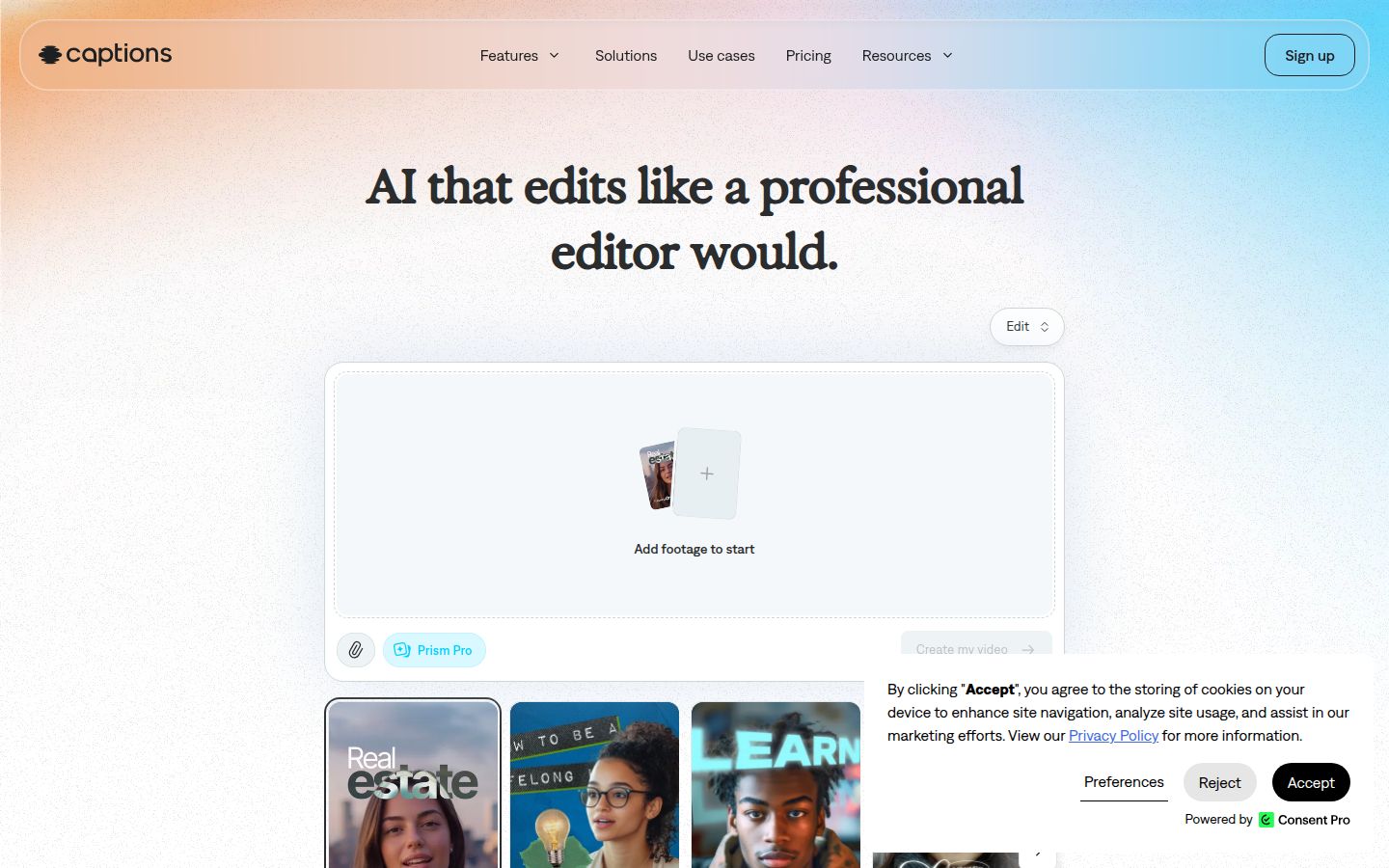
Captions is an AI video app. You add footage, pick one of its AI Edit styles, and the app cuts the scenes, overlays B-roll, adds music and captions and applies transitions and zooms. You can then change the result in a chat-based editor by typing what you want, such as "add b-roll here," or by using the manual controls.
What Captions does well
The strength is how much it does with one click. If you film on an iPhone, you can record, pick a style and get a finished short without learning a timeline. The AI Edit styles add the visual layer (zooms, graphics, transitions and music) that many talking-head creators would otherwise build by hand.
It also covers the longer job. On Max and above, Captions can turn a long video into a batch of clips. Captions lists captions in 100+ languages on its pricing comparison, so it's the wider choice if you caption in more than one language.
Where Captions has limits
Most of the AI work runs on credits. Basic gives you 200 credits a month for $9.99, and Max gives you 500 for $24.99. Each AI feature uses credits, so a creator who edits a lot of videos with AI features will want to check how many they expect to use. The free plan includes one caption template. The 100+ templates are on Max and Frontier.
Captions lists its prices on the iOS plans. If you buy on another device, check the current price on the page you sign up from.
Descript

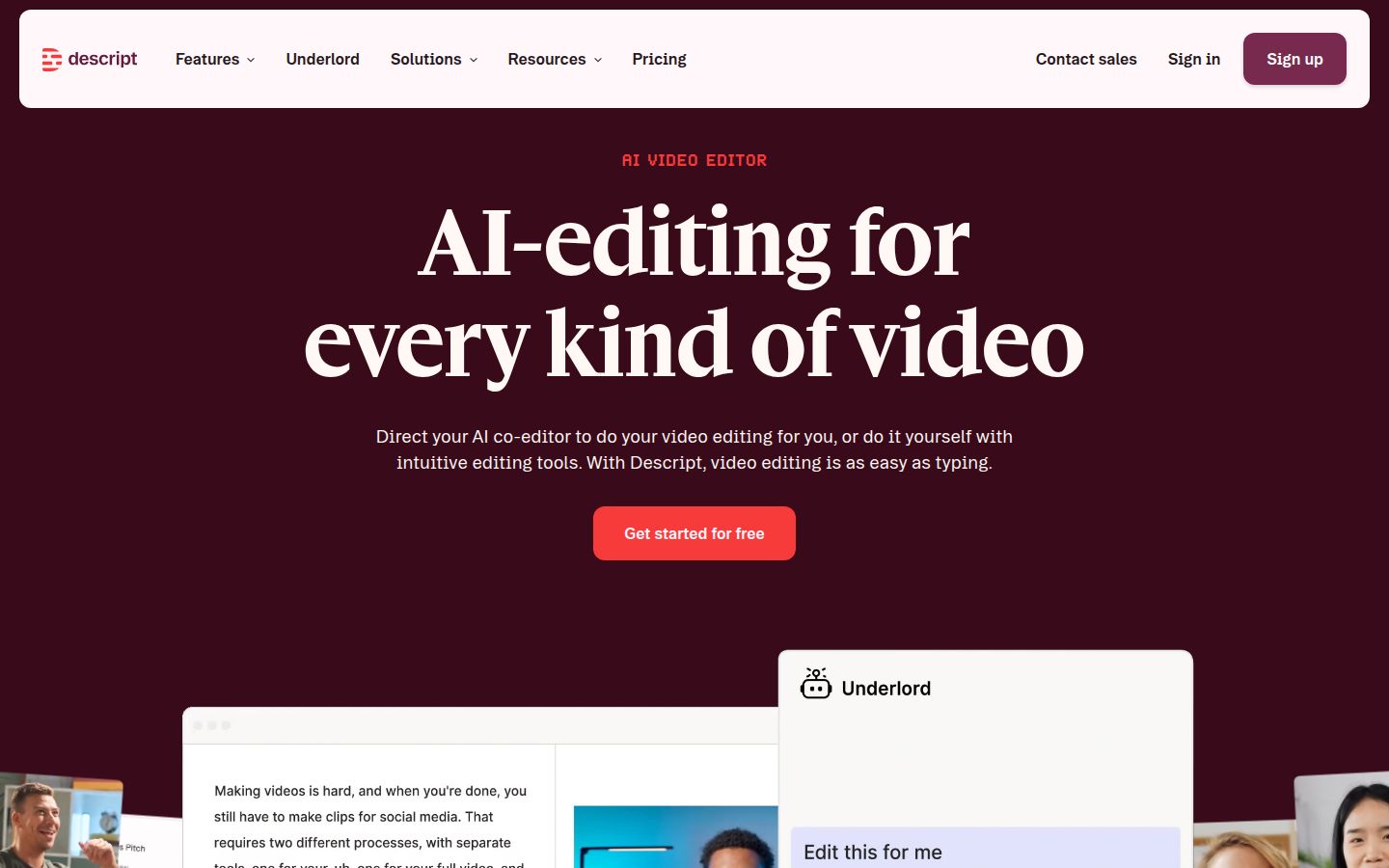
Descript is an audio and video editor built around the transcript. Your recording becomes text, and when you delete a word from the text, that part of the video is cut. You can also rearrange sentences the same way you would in a document. Its AI co-editor, Underlord, can carry out edits from a written instruction.
What Descript does well
Descript is the stronger tool when the work is more than short clips. It has multitrack audio editing for podcasts, Studio Sound for cleaning up audio, and Remove Filler Words and Remove Retakes for tidying a recording. Its Eye Contact feature adjusts where the speaker looks. Automatic Multicam is there for recordings made with more than one camera.
Descript also exports subtitles as SRT or VTT files, which you can upload alongside a video on any platform. Captions that stay on the video are added in the editor, and you can export the video with them included.
Where Descript has limits
Descript's plans are metered by media hours and AI credits. The free plan gives you 60 media minutes a month and 100 AI credits that do not refill, and its exports carry a watermark at 720p. Hobbyist, at $24 a month billed monthly, gives you 10 media hours, 400 AI credits and 1080p exports with no watermark. Creator, at $35 a month, gives you 30 media hours, 800 AI credits and 4K export.
Descript is a desktop app for macOS and Windows, so it's not the tool for editing on a phone.
Removing filler words is the feature that needs the most care. Remove every filler word in one click and the AI can cut sounds you wanted to keep, such as a laugh or a breath before a punchline. Select only the words you want gone, such as "um" and "uh," and go through the cuts by hand before you publish.
Editing: a finished edit in one pass, or an edit you shape
The biggest difference between these two tools is where you start.
Captions starts with the finished look. You choose a style and let the AI build the edit, then you ask for changes in the chat or adjust the timeline. This suits creators who want the video to come out close to done, and who don't want to spend time choosing cuts.
Descript starts with the words. You work through the transcript, delete what you don't want and move sentences around. The AI tools help with cleanup, but you decide each cut. This suits creators who want exact control over what stays in the video, and who are comfortable working in a desktop editor.
Sycamore works in the middle. Magic Edit cuts silences and filler words, adds captions, emphasis and zooms, and then shows you the plain-words edit to review before export. If you want the finished look of an AI edit and a clear place to check it, that's the workflow Sycamore is built for.
Captions: what the captions look like and how you change them
Both tools caption the video with word timing, but they differ in how much styling you get with the captions.
Captions gives you a large library of caption looks. The free plan includes one template and the 100+ templates start on Max. If the caption style is the main thing you care about, the template library is the strongest reason to choose Captions.
Descript's captions are added inside the editor. Its strength is that you can export the subtitle file on its own, as SRT or VTT, and send it to other platforms or editors.
Pricing: what you pay for each kind of work
Here is what each tool costs for a creator who posts a few short videos a week.
Captions starts with a free plan that covers basic editing. Basic at $9.99 a month adds AI credits, and Max at $24.99 a month gives you the AI Edit styles, the 100+ templates and 500 credits. The Frontier plans are for heavier use, from $69.99 a month.
Descript starts with a free plan that includes 60 media minutes. Hobbyist at $24 a month, or $16 a month billed yearly, is the plan most solo creators use for watermark-free exports. Creator at $35 a month, or $24 a month billed yearly, adds 4K export and more media hours.
For a budget, the cheapest paid step in each tool is different. Captions' Basic plan is the lower price, but its AI features are credit-based. Descript's Hobbyist plan costs more per month, and it includes 10 media hours, 400 AI credits and watermark-free 1080p exports.
Sycamore is priced by minutes of video. Starter is $19 a month for 3 hours of video and Growth is $39 a month for 10 hours. Every plan includes the full set of caption templates, and the free plan gives you 10 minutes of video one time, with no card needed.
Ease of use and output quality
Captions is the easiest of the three to start with on a phone. You pick a style, and the video comes out looking finished. The chat editor helps if you don't want to learn a timeline. It's also the tool with the most visual variety, which matters if your posts need a strong, consistent look.
Descript is the easiest for people who already think in documents. If you can edit a Word file, you can edit a Descript transcript. The learning curve comes from the desktop app and the number of features. Expect to spend time with the audio and video tools before you feel at home.
Sycamore is the most focused of the three. It edits talking-head footage and nothing else, so there is less to learn. The trade-off is that it has no B-roll library, no AI avatars and no mobile app.
On output quality, the three tools produce clean captions with word timing. The real difference is in the edit. Captions makes the most visual changes by default. Descript leaves the edit to you, so the result depends on the choices you make. Sycamore leaves the final cut to you too, but it makes the first pass and asks you to review it.
Sycamore: a third option for talking-head creators

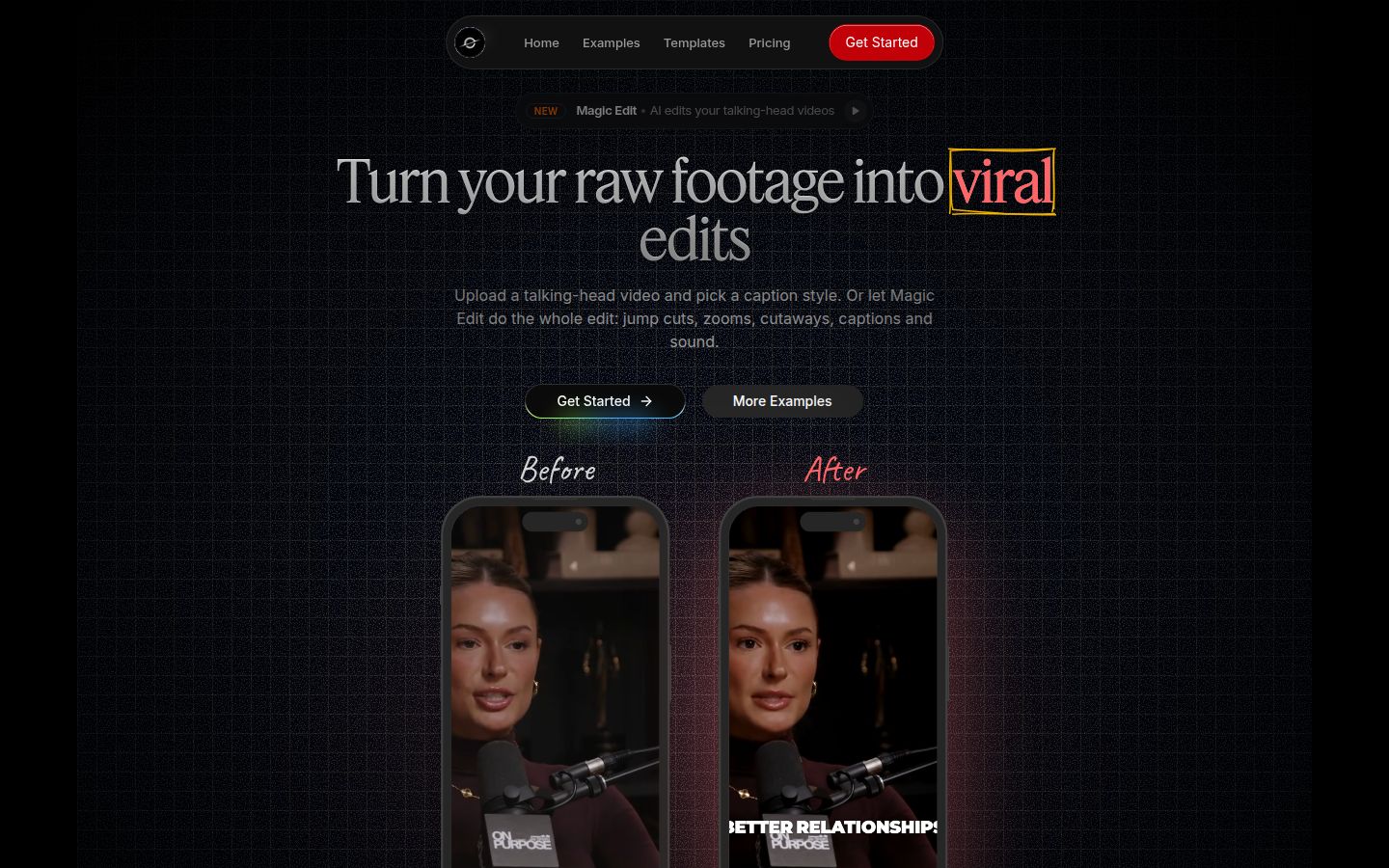
Sycamore is our tool, so here is what it does and who it suits. It's a web app for talking-head videos. You upload a raw recording, and Magic Edit cuts out silences and filler words, adds animated word-by-word captions, emphasis styling on key lines, zooms and full-screen text for the big moments. You pick an edit style, Apollo, Hermes or Athena, then review the edit and change anything before you export.
The editor uses plain words. Each line can be set to Normal, Emphasis, Full screen, Number, List or Label, so you can see what the edit did and change it without learning a timeline. You can also edit any caption word, change fonts, colors, size, animation and position, and save a look as a preset for every video.
Sycamore is the right choice when your videos are one person talking to the camera, and you want the edit done in one pass. It fits founders, coaches, educators and podcasters who post on TikTok, Reels, Shorts and LinkedIn. The pricing is simple: a free plan with 10 minutes of video, then Starter at $19 a month for 3 hours and Growth at $39 a month for 10 hours. Export is an MP4 in 9:16, 1:1 or 16:9.
Sycamore has limits you should know before you choose it. Transcription is English only. It edits the video you give it, and does not clip a long recording into many shorts. It has no B-roll library, no AI avatars and no voice tools. It has no mobile app, though it works in a phone's browser, and it doesn't export SRT or VTT files.
Which one should you pick?
Pick Captions if you film on your phone, post often and want the video to come out styled and close to finished with little work. Start with Basic at $9.99 a month if you want to try the AI features, and move to Max at $24.99 a month if you want the full template library and AI Edit styles. Choose it if you need B-roll and music added for you, or if you want a long recording turned into a batch of clips on Max.
Pick Descript if you edit on a computer and want to control every cut. It is also the better pick for podcasts, interviews and longer projects, for audio cleanup with Studio Sound, and for subtitle files you can upload on their own. Start with Hobbyist at $24 a month, or $16 a month billed yearly, and use the free plan to learn the editor first. If you only need short talking-head clips, Captions or Sycamore will likely get you there faster.
Pick Sycamore if your videos are one person talking to the camera, you want a single pass that removes the dead air and captions the result, and you want to review the edit before you export. Start with the free plan's 10 minutes. It's also the better fit if you want simple pricing by minutes. If you need a phone app, B-roll, multiple languages or clips from a long recording, Captions is the better pick.
If you're still unsure, make one short video in each free plan with the same raw recording. The result will show you which edit you'd rather review and publish.
FAQ
Is Captions or Descript cheaper for short talking-head videos?
Captions Basic costs $9.99 a month with 200 AI credits, and Descript Hobbyist costs $24 a month or $16 a month billed yearly. Captions is the lower starting price, but its AI features draw on credits, so heavy use costs more.
Does Descript have a free plan?
Yes. The free plan includes 60 media minutes a month and 100 AI credits that do not refill. Exports are capped at 720p and carry a watermark.
Can Captions and Descript export subtitle files?
Descript exports subtitles as SRT or VTT files. Captions adds captions to the video itself, and the captions appear in the exported video.
Which tool works on a phone?
Captions has apps for iPhone and Android, plus a web version. Descript is a desktop app for macOS and Windows. Sycamore is a web app that works in a phone's browser, with no separate mobile app.
Can Captions or Descript turn a long video into several shorts?
Captions can turn a long video into a batch of clips on its Max plan and above. Descript has Create Clips on its Hobbyist plan and above.
Which is better for podcasts and interviews?
Descript is the better fit. It has multitrack audio editing, Studio Sound and text-based editing for longer recordings.