If you film yourself talking and post the result to TikTok, Reels, YouTube Shorts or LinkedIn, captions are the step that eats the most time. An auto caption tool does the transcript and the styling in a few minutes. The catch is that many of these tools stamp their own logo on your video until you pay, and that's the problem this post is about.
This roundup covers seven tools. For each one we checked the free plan, the cheapest plan that removes the watermark, and what the tool does best. Prices are as of October 2026. Plans change often, so use the pricing link in each section before you buy.
Sycamore is our product, so it comes first. We wrote every section the same way we'd explain these tools to a friend who asked which one to pick, including where another tool is the better choice.
How we chose these tools
We looked at four things for each tool:
- Price and watermark rules. We read each tool's own pricing page and help center, because the watermark rules are the part of the title that matters most.
- What it does with a raw talking-head recording. Does it cut silences, caption the words, style the captions and export a file you can post?
- Who it's built for. Some tools are for one-off captions, some for long recordings that become many clips, and some for full video editing.
- What creators say. We read buyer threads and reviews to see what people run into after they sign up.
We did not run every tool on the same clip, so this is not a speed or accuracy test. We don't publish accuracy or speed figures for any tool here, because we don't have verified ones to show you.
Watermark-free auto caption tools at a glance
| Tool | Entry paid price (no watermark) | Free plan or trial | Watermark on free exports | Best for |
|---|---|---|---|---|
| Sycamore | $19/month (Starter, 3 hours of video) | 10 minutes once, no card | Starter and Growth are watermark-free | Edit and caption a talking-head video in one pass |
| Submagic | $19/month per member (Starter) | Free trial, 3 uploads | Yes, until you subscribe | Caption styles plus extra AI tools |
| Captions | $9.99/month (Basic, 200 credits) | Free plan, no AI credits | Yes | Low-cost AI editing in an app |
| Descript | $16/month billed yearly, or $24 monthly (Hobbyist) | Free plan, 60 media minutes a month | Yes, 720p on the free plan | Editing video by editing the transcript |
| Opus Clip | $15/month (Starter, 150 credits) | Free plan, 60 credits a month | Yes | Turning one long recording into many clips |
| Vizard | $29/month (Creator), or $14.50/month billed yearly | Free plan, 60 credits a month | Yes, on the free plan | Long videos into clips, plus scheduling |
| CapCut | Free plan; paid Pro tier | Free plan | Standard content exports without one; some Pro-marked effects add one | A free full editor with templates |
Two things stand out. Most tools here have a free way in, but only some let you export without a watermark on that plan. And the cheapest watermark-free plan runs from $9.99 to $29 a month.
Sycamore

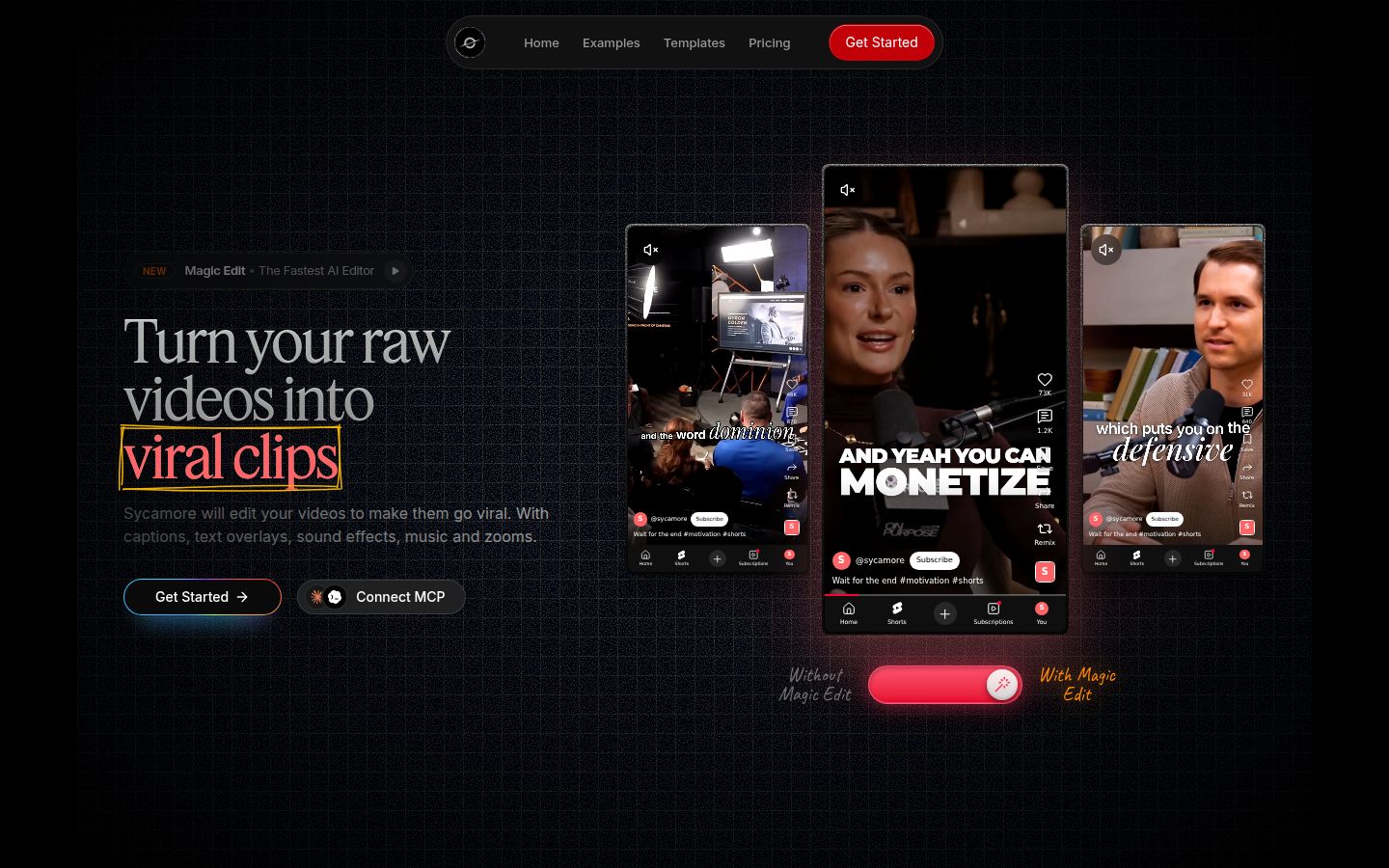
Sycamore is a web app that turns a raw talking-head recording into a finished, captioned short-form video. It runs in your browser, so there's nothing to install.
The main idea is that Sycamore edits the whole video, not just the captions. Upload a recording and Magic Edit cuts silences and filler words, adds word-synced animated captions, puts emphasis on key lines, and adds zooms and full-screen text for the big moments. You pick one of three edit styles (Apollo, Hermes or Athena), then review the result before you export. Each line can be set to Normal, Emphasis, Full screen, Number, List or Label, so the changes stay easy to read.
Where Sycamore is strongest:
- One pass, one result. Silences, filler words and captions are handled together, so you don't bounce between tools.
- You stay in control. You review the edit in plain words and change anything before export.
- Caption styling you can reuse. You can edit any word, change fonts, colors, size, animation and position, then save the look as a preset.
- Simple pricing. Plans are priced by minutes of video, and the free plan needs no card.
The limits that matter for this comparison:
- Transcription is English only.
- Sycamore edits the video you give it. It doesn't cut one long recording into many separate clips. For that job, look at Opus Clip or Vizard below.
Pricing as of October 2026: Free gives you 10 minutes of video, one time, with no credit card. Starter is $19 a month for 3 hours of video, with no watermark. Growth is $39 a month for 10 hours of video, with no watermark and priority rendering. You can see the plans on the Sycamore pricing page.
Best for: founders, coaches and educators who film one or two talking-head videos a week and want the edit and captions done without learning a full editor. Try the free 10 minutes on your next recording before you pay.
Submagic

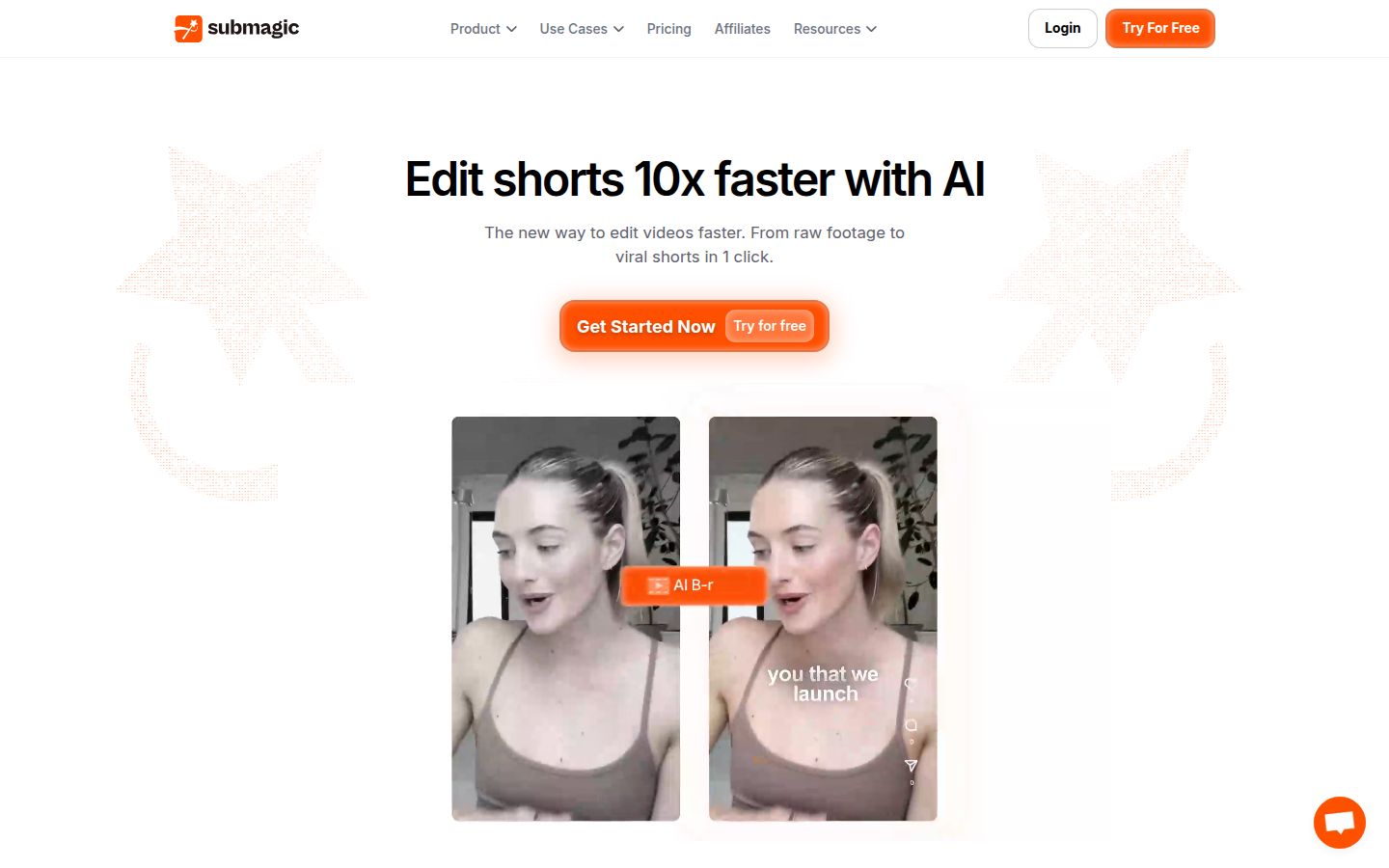
Submagic is a caption-first editor for short videos. You upload a clip and it adds animated captions, and it also offers tools such as silence removal, auto zoom, B-roll, and Magic Clips, which pull shorter clips out of a longer video.
Its caption styles are a real strength. The tutorials and the product page show a long list of animated looks, and you can drag captions, resize them and change colors. If you like trying many styles and want AI extras in the same app, Submagic gives you more to work with.
The limits to know:
- Plans run on a monthly credit balance. Uploading a video costs 3 credits, AI captions don't cost extra, and each Magic Clip costs 8 credits. On the Pro plan, 120 credits covers about 40 uploads with captions. Heavy use of extra AI features uses more credits.
- The free trial lets you upload 3 short videos and edit them, but downloads carry a watermark. You need a paid plan for a watermark-free download.
Pricing as of October 2026: Starter is $19 a month per member, or $12 a month billed yearly, with 45 credits. Pro is $39 a month, or $23 billed yearly, with 120 credits. Business is $69 a month, or $41 billed yearly, with 300 credits. See the Submagic pricing page.
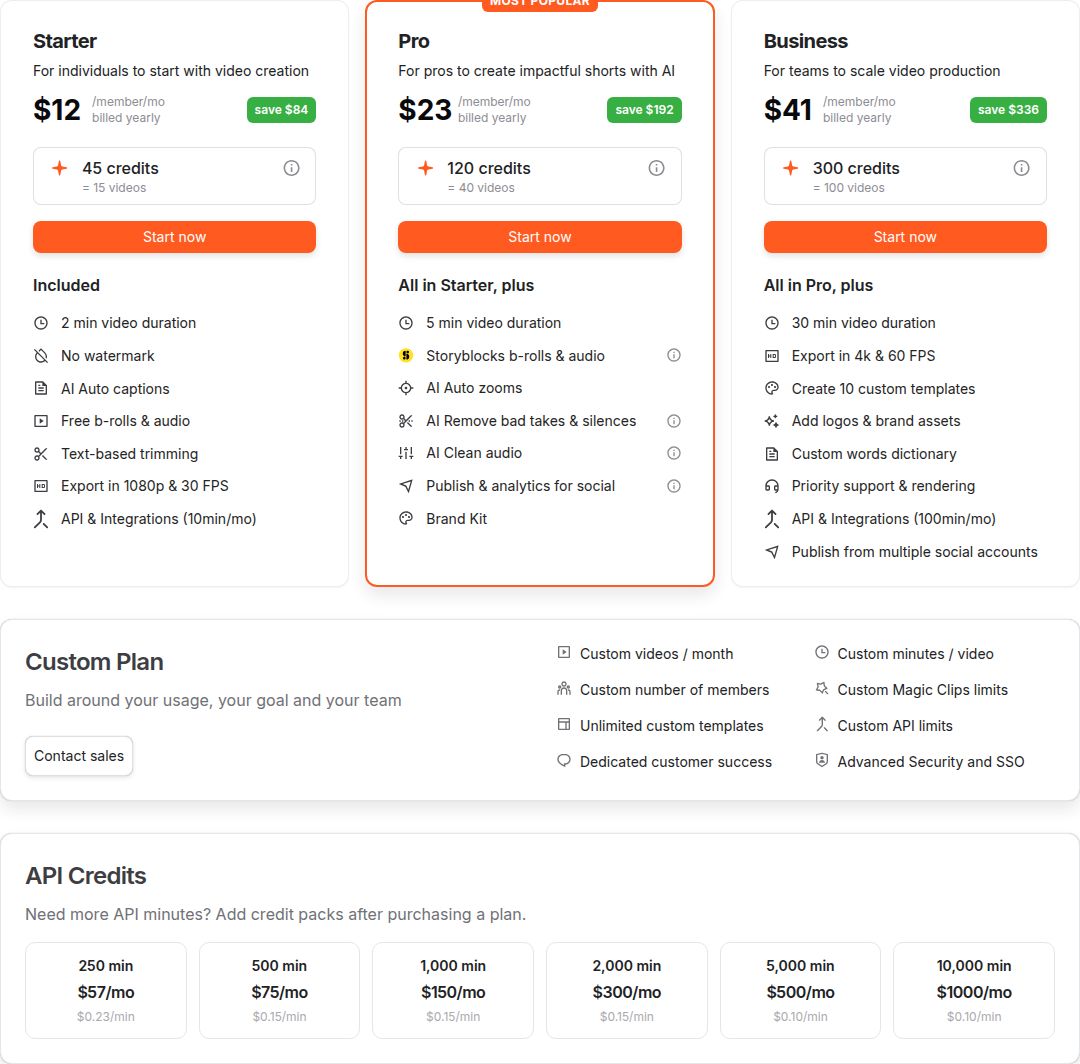 Submagic's pricing page, with its Starter plan and the other plans shown
Best for: creators who want lots of caption styles and extra AI tools in one app, and who are happy to track a monthly credit balance. If you only need the captions and a clean export, the credit math is worth checking first.
For a closer look at the two, read Submagic vs CapCut for Auto Captions.
Captions

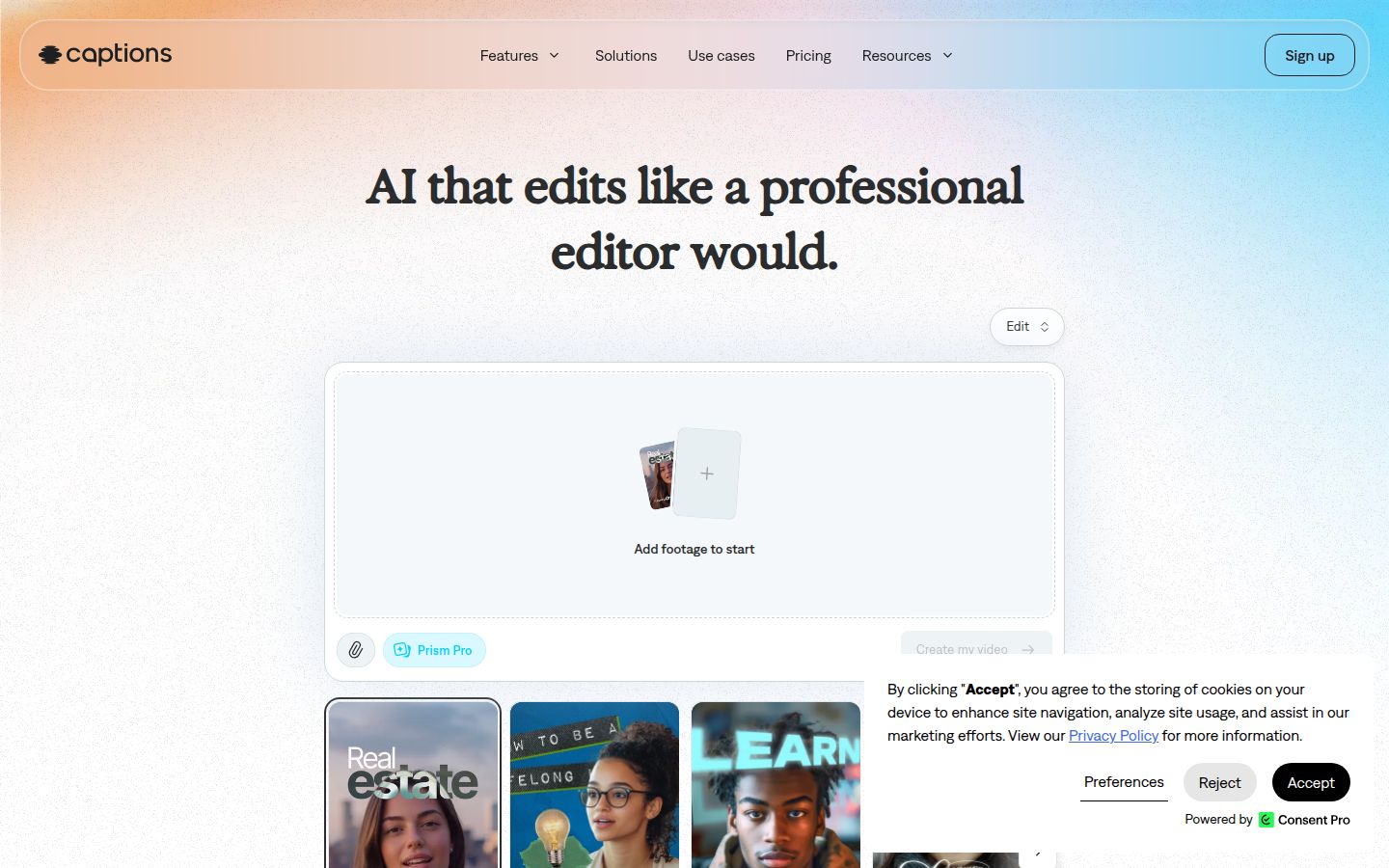
Captions is an AI video app with an editor, captions, trimming, zooms, transitions and a teleprompter. Its homepage pitches AI that edits like a professional editor, and its plans are listed for the iOS app.
Captions has the lowest entry price of the paid plans here. Basic costs $9.99 a month and includes 200 credits. Its help center lists using Max-only features on a Basic plan as one reason an export can still show a watermark, so check the plan that includes each feature you use.
The limits to know:
- The free plan includes no AI credits, and exports from it carry a watermark.
- AI features draw from a monthly credit allowance. The help center's credit table lists 200 credits for Basic and 500 for Max.
- The AI actors and generated footage are on Max, which is $24.99 a month. If you only need captions, Basic is the plan to compare.
Pricing as of October 2026: Basic is $9.99 a month with 200 credits. Max is $24.99 a month with 500 credits. Frontier plans start at $69.99 a month. Check the Captions pricing page for the current numbers, and check the plan that includes each feature before you export.
Best for: people who work mainly on their phone and want an AI editing app with a low-cost paid entry plan. Creators who want AI actors or generated video should look at Max.
Descript

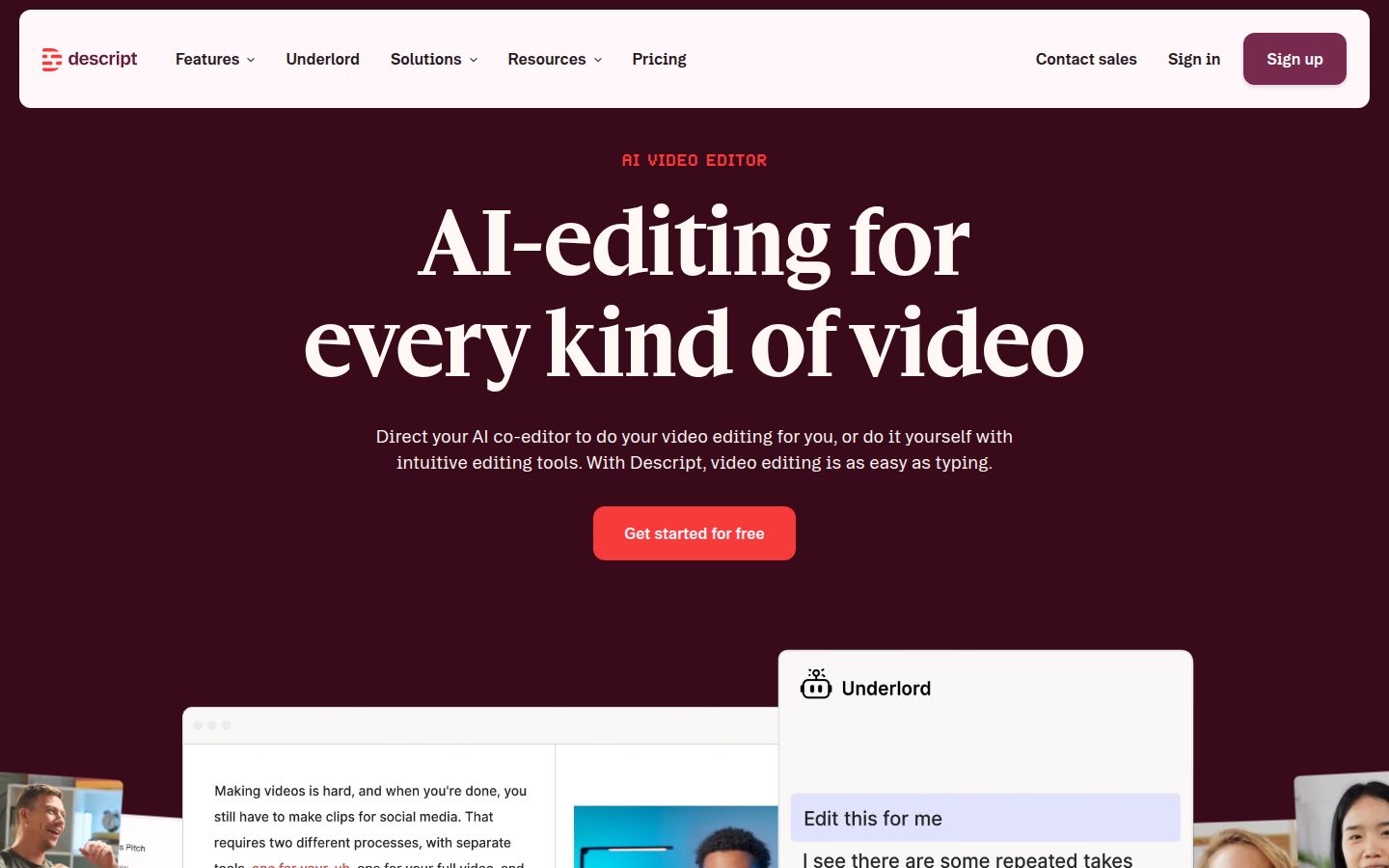
Descript is a text-based video and audio editor. You edit the video by editing its transcript: delete a sentence in the text and it's cut from the video. It's built for podcasts and long-form video as well as shorts, and it has tools for Studio Sound, removing filler words and creating clips.
Its strength is the transcript editing. If you film long talking-head pieces and need to cut them down, reading and deleting text is faster than scrubbing a timeline. Descript also has an AI co-editor called Underlord that can make edits from a request.
The limits to know:
- It's a full editor with many features, so there's more to learn than a one-job caption tool.
- The free plan includes 60 media minutes a month and exports at 720p with a watermark. Watermark-free export starts on Hobbyist.
Pricing as of October 2026: Hobbyist is $24 a month, or $16 a month billed yearly. It includes 10 media hours and 400 AI credits a month, with 1080p export and no watermark. Creator is $35 a month and adds 4K export and 30 media hours. See the Descript pricing page.
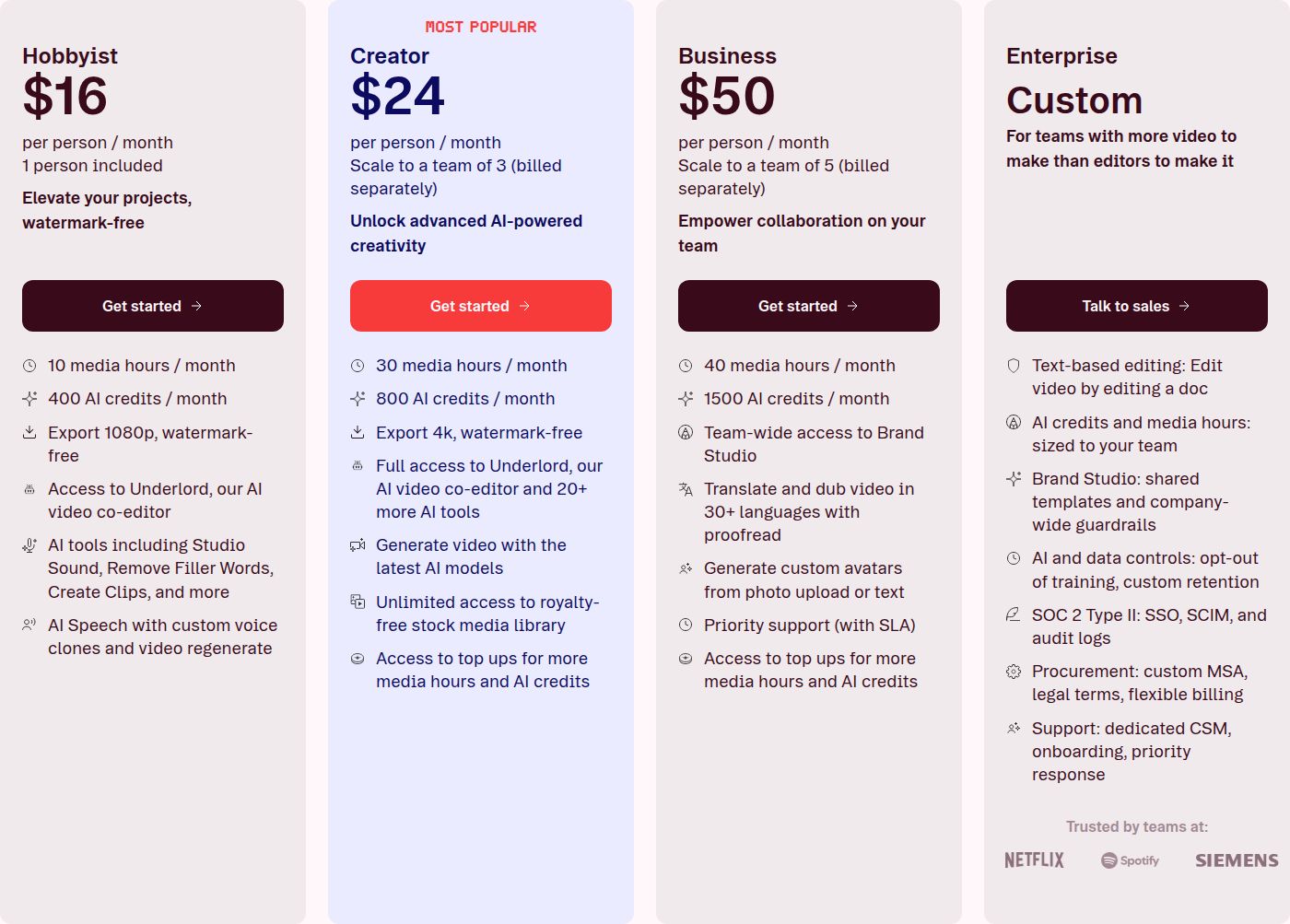 Descript's pricing page, with the Hobbyist and Creator plans
Best for: podcasters and creators who record long conversations and want to edit by reading the transcript. If your main need is a fast caption on one short clip, a simpler tool will get you there sooner.
Opus Clip

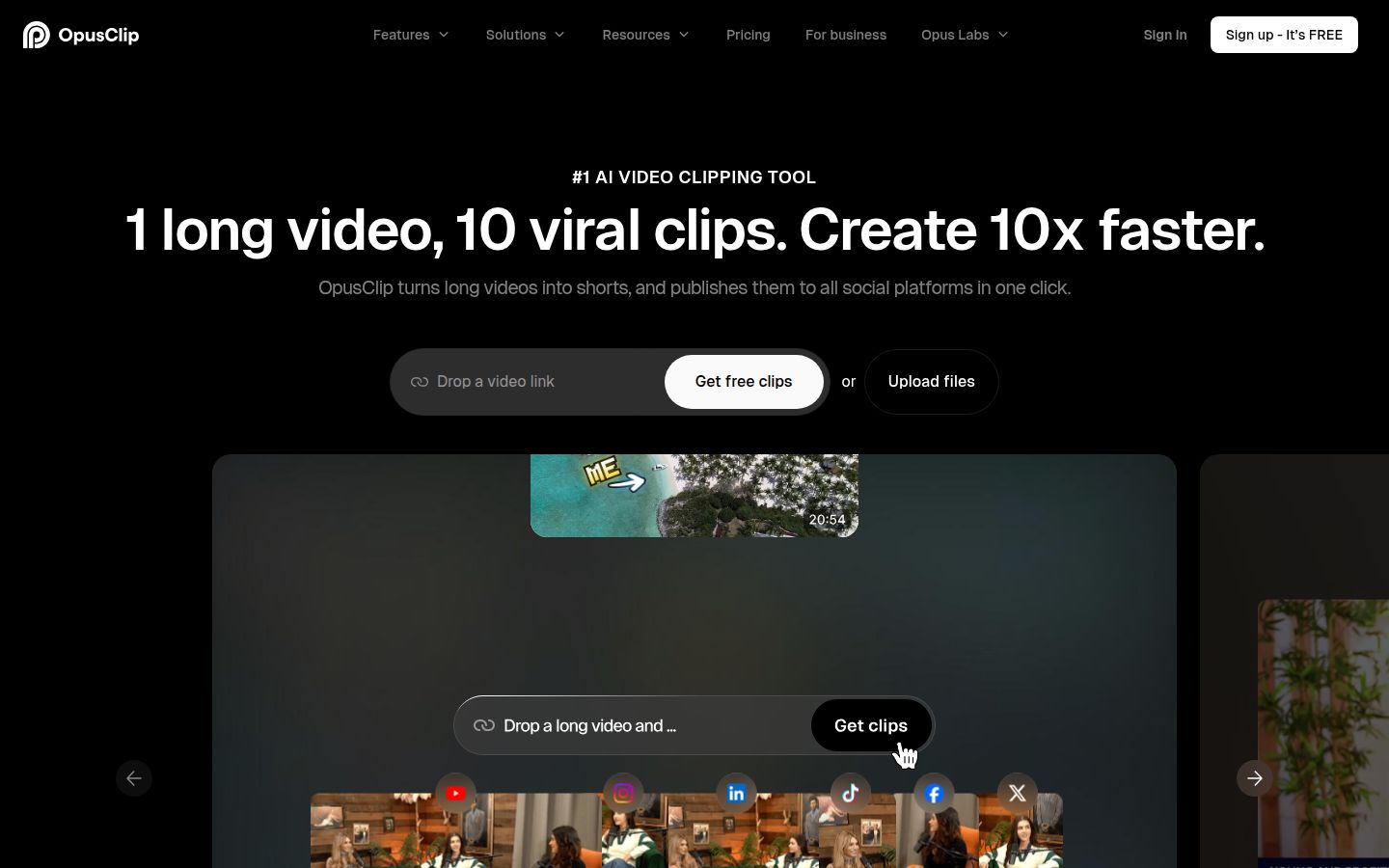
Opus Clip is built to take a long video and produce a batch of short clips from it. You upload a long recording, a podcast or a webinar, and it finds moments to clip, reframes them to vertical and adds captions. You then review the batch.
That's its main strength. One long recording can become many starting points, and the captions are already in place on each one. For a weekly show, that saves a lot of cutting.
The limits to know:
- Billing is per minute of uploaded source video, so a long recording uses credits even if only a few clips are good.
- The free plan puts a watermark on exports and keeps projects for a short window.
- If you have one talking-head video and want it edited in one pass, Opus Clip's approach is different from Sycamore's. Opus Clip finds the clips for you. Sycamore edits the one video you give it.
Pricing as of October 2026: The free plan gives 60 credits a month with a watermark. Starter is $15 a month for 150 credits, with watermark-free export. Pro is $29 a month for 300 credits. One credit equals one minute of source video. See the Opus Clip pricing page.
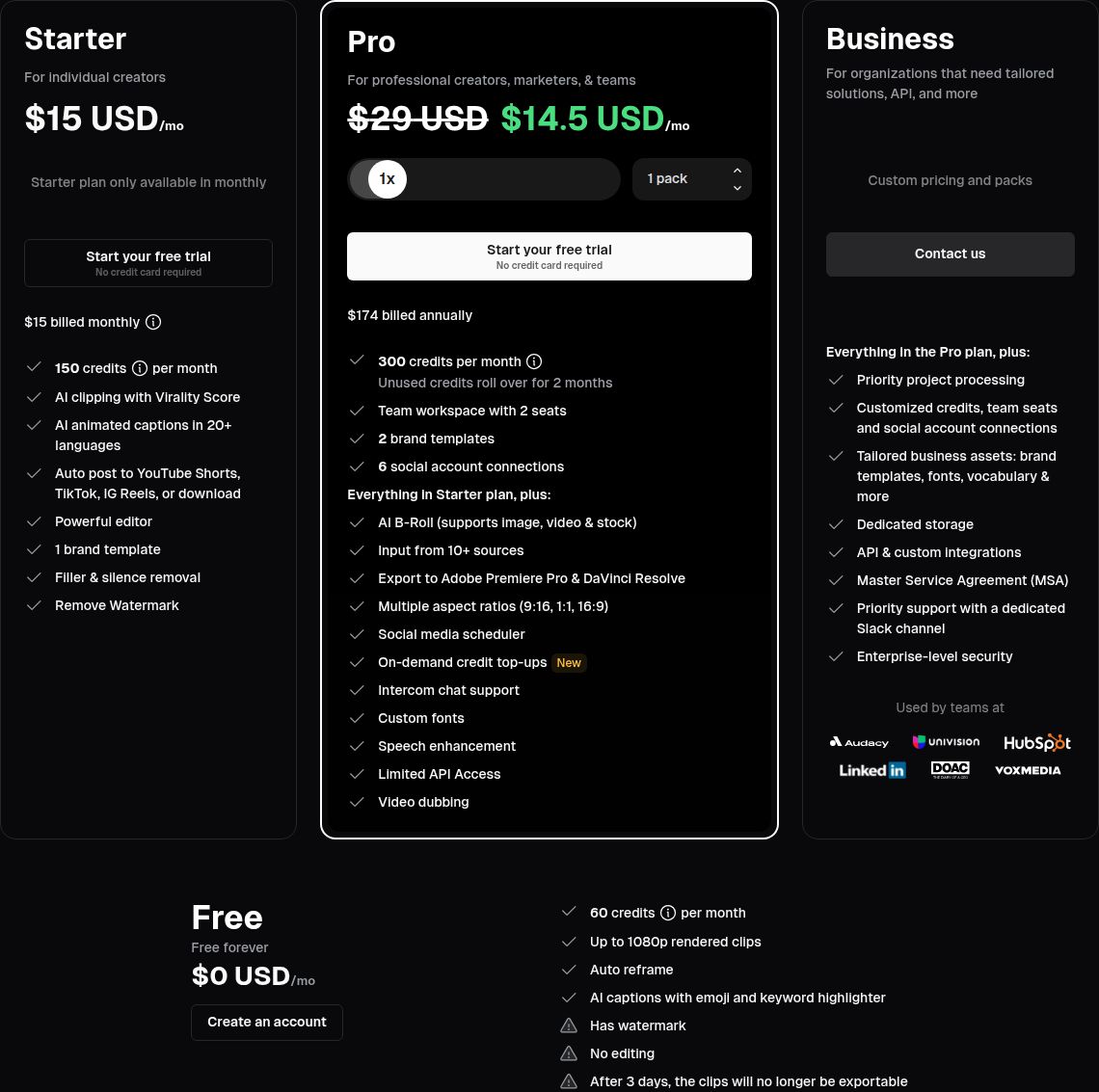 Opus Clip's pricing page, with the Free, Starter, Pro and Business plans
Best for: people who record long videos and want many short clips to review. If you only edit one video at a time, you may not need its clip-finding.
For more on the difference, read Best Opus Clip Alternatives.
Vizard

Vizard is an AI editor that turns long-form videos into short clips for TikTok, Instagram, YouTube Shorts and other channels. Like Opus Clip, it works from long recordings, and it adds captions and reframes video to vertical.
Its free plan gives 60 credits a month, and exports carry a Vizard watermark. Projects on the free plan expire after 3 days. The Creator plan removes the watermark and adds 4K export and scheduling for social posts. Business adds team features.
The limits to know:
- The free plan exports include a watermark, and projects on it expire after three days.
- Like Opus Clip, Vizard bills by minutes of source video, so long uploads use more credits.
Pricing as of October 2026: Free is $0 with 60 credits a month. Creator is $29 a month, or $14.50 a month billed yearly ($174 a year), with no watermark and 4K export. Business is $39 a month, or $19.50 a month billed yearly. See the Vizard pricing page.
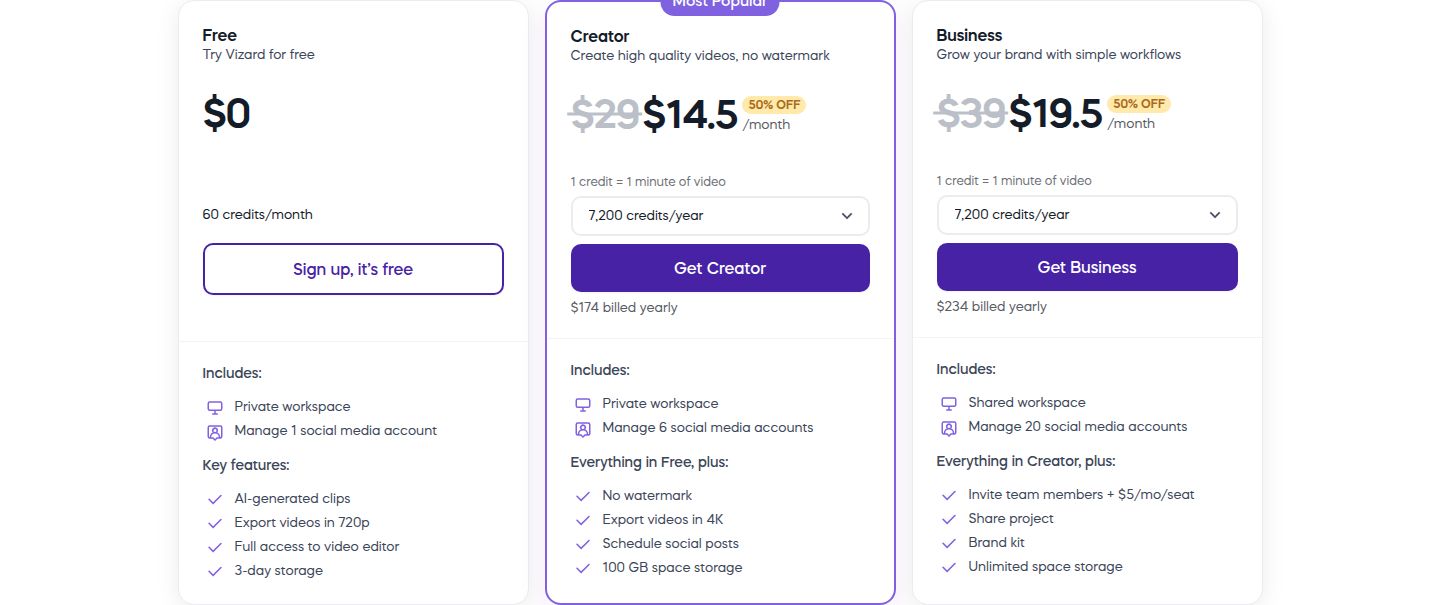 Vizard's pricing page, with the Free and Creator plans
Best for: creators who repurpose long videos into a steady stream of clips and want to schedule posts from the same tool. If you need a few captioned talking-head videos a week, a simpler tool may be enough.
CapCut

CapCut is a full video editor with desktop, online and mobile versions. It has auto captions, caption templates, music, sound effects, transitions and a large library of templates. Many creators start with it because it's free and does a lot.
Its free plan includes free templates and basic editing tools. Standard content exports without a watermark on the free plan. Some templates and effects are marked Pro, and an export that uses them can carry a watermark unless you pay.
The limits to know:
- Pro-marked templates and effects add a watermark, so check the tag on each template before you export.
- It's a general editor, so there are more controls to learn than a caption-only app. That's the trade for the extra features.
Pricing as of October 2026: The free plan is free. Pro and Ultra are paid plans, and their prices are listed on the CapCut pricing page. Check the page for the price in your region, because CapCut has changed its tiers several times.
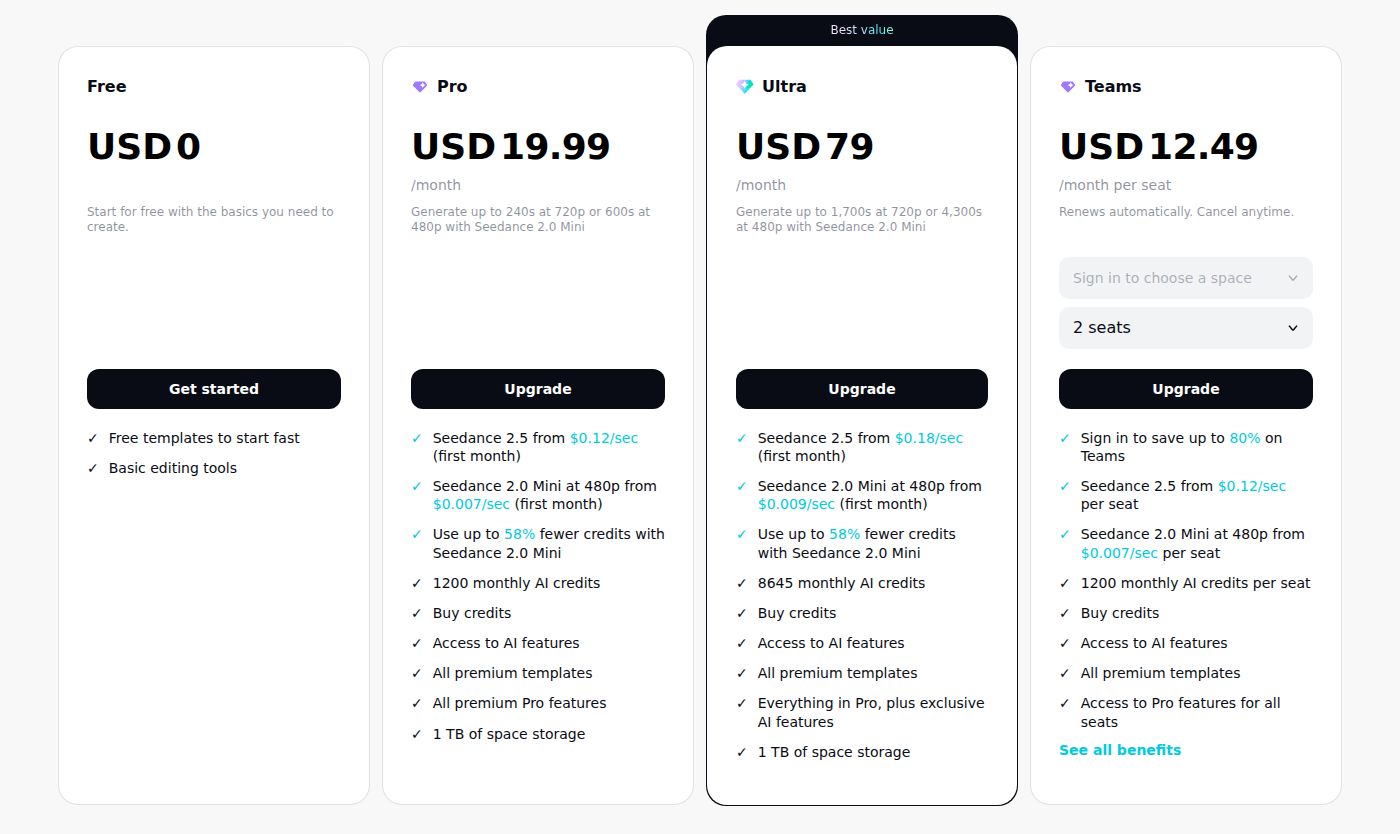 CapCut's pricing page, with the Free plan and Pro plan
Best for: people who want a free editor with music, sound effects and templates, and who are happy to avoid Pro-marked effects. If you want the video edited for you in one pass, Sycamore or Submagic is the closer fit.
For a side-by-side look, read Captions App vs CapCut.
How to choose
Match your situation to a tool:
- You want a finished talking-head short with no watermark, edited and captioned in one pass. Start with Sycamore. Test the free 10 minutes on one recording, then choose Starter at $19 a month if it fits.
- You want the cheapest paid AI captioning. Compare Captions Basic at $9.99 a month with CapCut's free plan. CapCut is free if you avoid Pro-marked effects.
- You want many caption styles and extra AI tools, and you can track credits. Submagic's Starter plan at $19 a month is the one to compare.
- You edit long conversations by reading the transcript. Descript's Hobbyist plan at $16 a month billed yearly, or $24 billed monthly, fits this best.
- You have long recordings and need many clips to review. Opus Clip's Starter plan at $15 a month or Vizard's Creator plan at $29 a month are built for this.
Before you pay, export one short clip on the free plan and check for a watermark. Check the credit or minute allowance too, because that decides how many videos you can make in a month. For a cheaper route to clean exports, read Free Submagic Alternatives Without a Watermark, and for more options, see Best Caption Apps for TikTok.
Pricing and plan names here are as of October 2026. Tools change their plans often, so use each pricing link before you buy.
FAQ
Which auto caption tools don't add a watermark?
The paid plans of Sycamore, Submagic, Captions, Descript, Opus Clip and Vizard export without a watermark. CapCut's free plan exports standard content without one, but some Pro-marked effects add a watermark.
Is there a free auto caption tool with no watermark?
CapCut's free plan is the main option for watermark-free exports on standard content. Sycamore's free plan gives 10 minutes of video once, and its no-watermark exports are on the Starter and Growth plans.
How much does a watermark-free auto caption tool cost?
The lowest paid plans with no watermark are Captions Basic at $9.99 a month, Opus Clip Starter at $15 a month and Sycamore Starter at $19 a month. Prices are as of October 2026 and can change.
Does Sycamore export SRT or VTT caption files?
No. Sycamore exports an MP4 video with the captions built in in any aspect ratio. It does not export SRT or VTT files.
Can Sycamore caption videos in other languages?
No. Sycamore's transcription is English only, so it's a fit for English talking-head videos.
How do Submagic and Opus Clip charge for usage?
Submagic uses a monthly credit balance: an upload costs 3 credits and AI captions don't cost extra. Opus Clip charges one credit per minute of uploaded source video, so a long recording uses more credits.