You will end up with an MP4 that has the "ums," "uhs" and repeated words cut out, with the timing of your sentences still natural. For a talking-head video of a few minutes, most of the time goes to listening back and checking each cut. Plan on about 15 to 20 minutes for your first video. That is a rough estimate, and your clip length decides the real time.
This post covers four ways to do it: Sycamore, Descript, CapCut desktop and Adobe Premiere Pro. DaVinci Resolve has the same feature, but only in its paid Studio version, so it gets a short note at the end. Prices are as of October 2026.
Decide which filler words to cut first
Not every "um" needs to go. Descript's own guide to filler word removal says it is a judgment call: speech with no hesitation at all can sound synthetic, so the repeated tics are the ones to cut, and the pauses that show someone thinking are often worth keeping (Descript blog).
In practice, that means:
- Cut: "um," "uh," and "you know" when they come in a row, and the same word said twice in a sentence.
- Keep: "like" when it means "similar to," and short pauses before a point you want to land.
- Check: the first and last word of a clip. Those are where a cut is most likely to clip a sound.
Every tool below lets you review each cut, so you can make these calls one at a time.
Sycamore

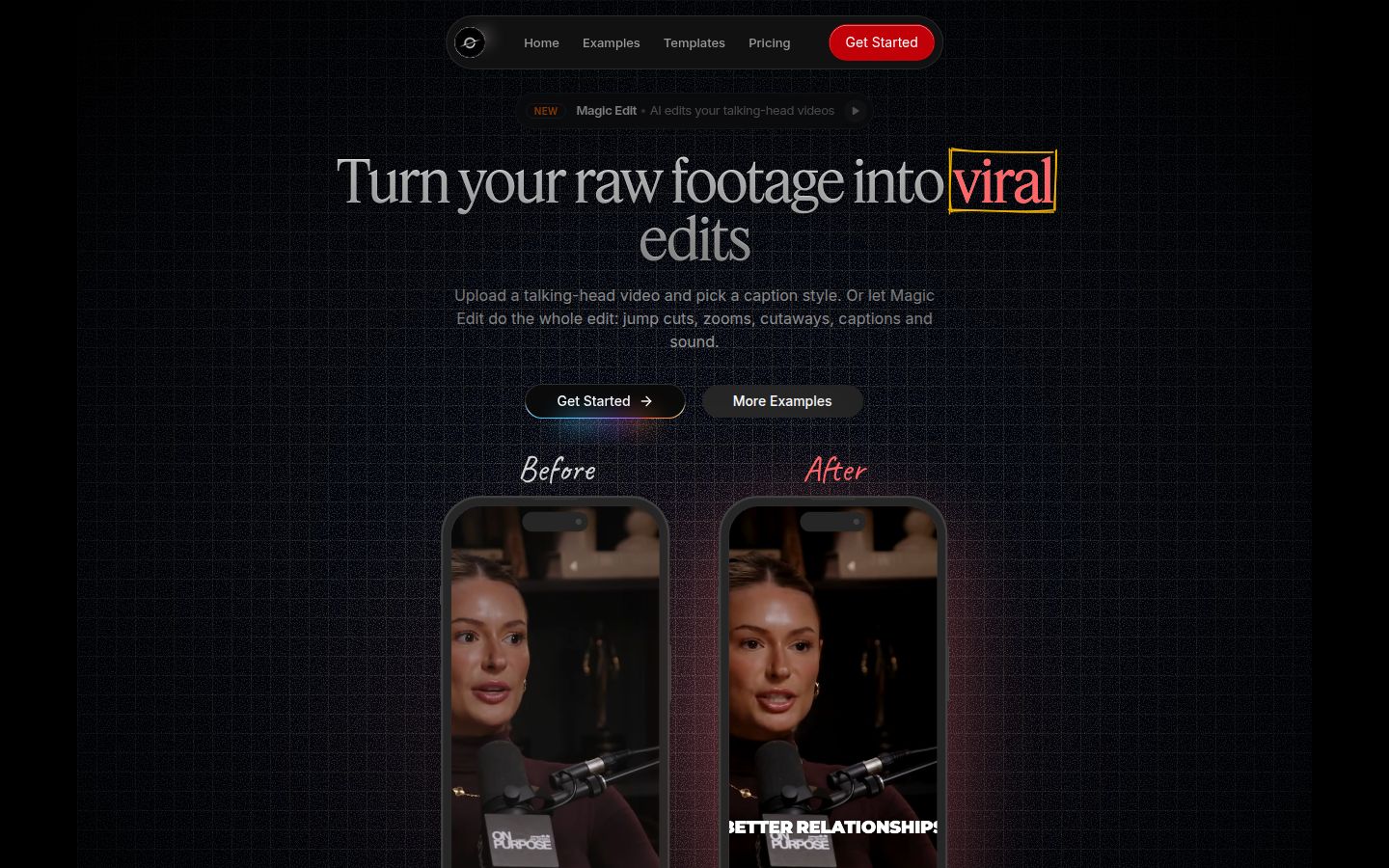
Sycamore is a web app for turning a raw talking-head recording into a captioned short. It runs in the browser, so there is nothing to install. Its Magic Edit mode does the filler word cut as part of a single pass: it removes silences and filler words, adds word-synced captions, and adds zooms and full-screen text where a line is worth emphasis (Sycamore).
It suits you best if you want the whole edit done for you, and you still want to approve every change before you post. You do not need to learn a timeline.
- Sign up at sycamore.to. The free plan gives you 10 minutes of video once, with no credit card.
- Upload the recording. Sycamore accepts MP4, MOV, WebM or MP3 files up to 2 hours long.
- Choose Magic Edit, then pick an edit style. Sycamore's homepage lists Apollo, Hermes and Athena, and each one is a different look for the edit.
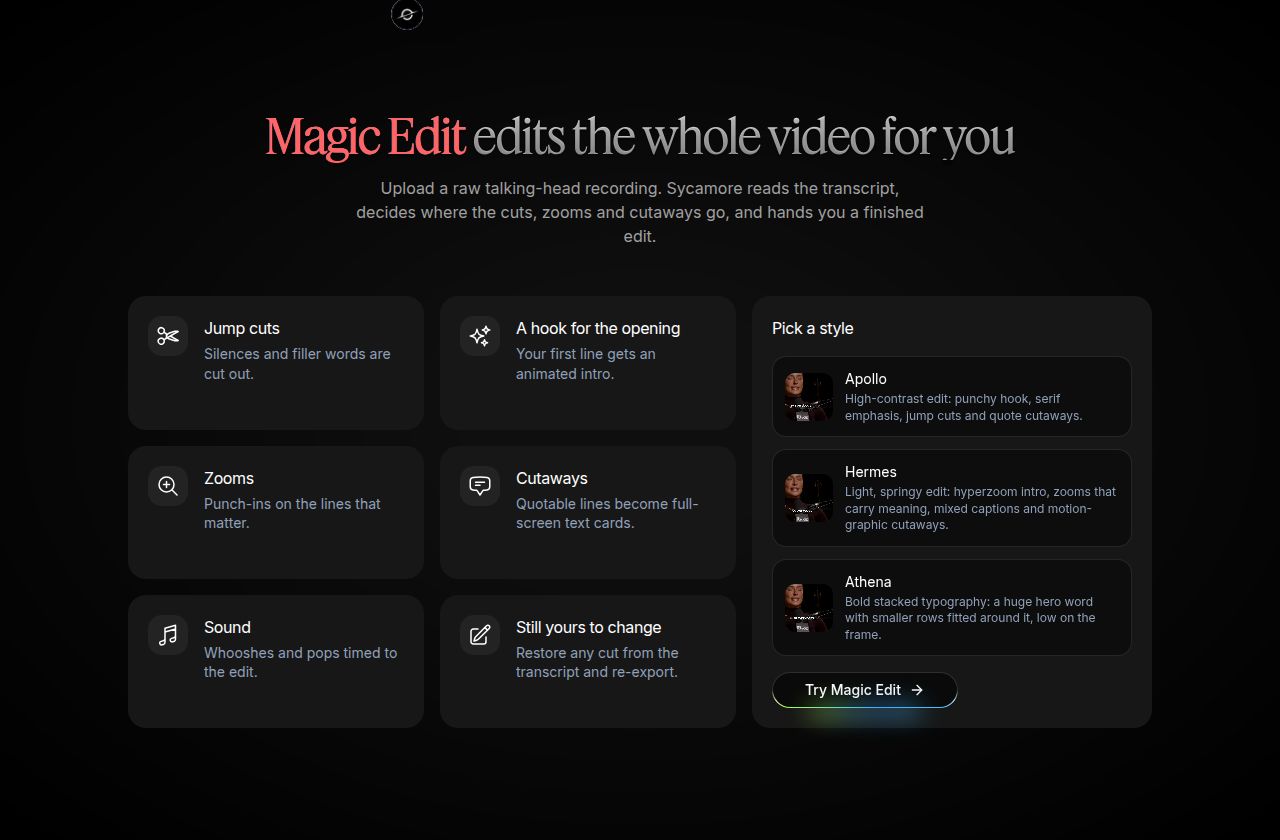 Sycamore's Magic Edit section, showing what the edit includes
- Review the edit. Sycamore's homepage says you can restore any cut from the transcript and re-export, and you can fix any word or undo any cut. This review is the step to spend your time on.
- Export an MP4 in 9:16, 1:1 or 16:9.
Pricing as of October 2026: Free is 10 minutes once. Starter is $19 a month for 3 hours of video. Growth is $39 a month for 10 hours of video and adds priority rendering. Both paid plans remove the watermark (Sycamore pricing).
Two limits matter for this job. Transcription is English only, so if you speak another language, use a tool that supports it. Sycamore also does not export an SRT or VTT caption file, so if a platform needs one, you will need another tool for that step.
Descript


Descript is a full editor built around the transcript. You edit the video by editing the text, and the video follows. Its filler word tool is one part of that. It is the best fit if you already work in a transcript-first way, or if you want to do audio cleanup and video editing in the same app.
Descript's help center describes the steps: open the AI Tools panel in the right sidebar, choose Remove filler words, then review the list of detected words. You can check the timestamp of each one, preview the audio, and choose how to handle it (Descript Help Center).
- Import your video and let Descript transcribe it.
- Open the AI Tools panel in the right sidebar and choose Remove filler words.
- In the sidebar, go through the detected words. Preview each one and keep or remove it.
- Export when the edit sounds right.
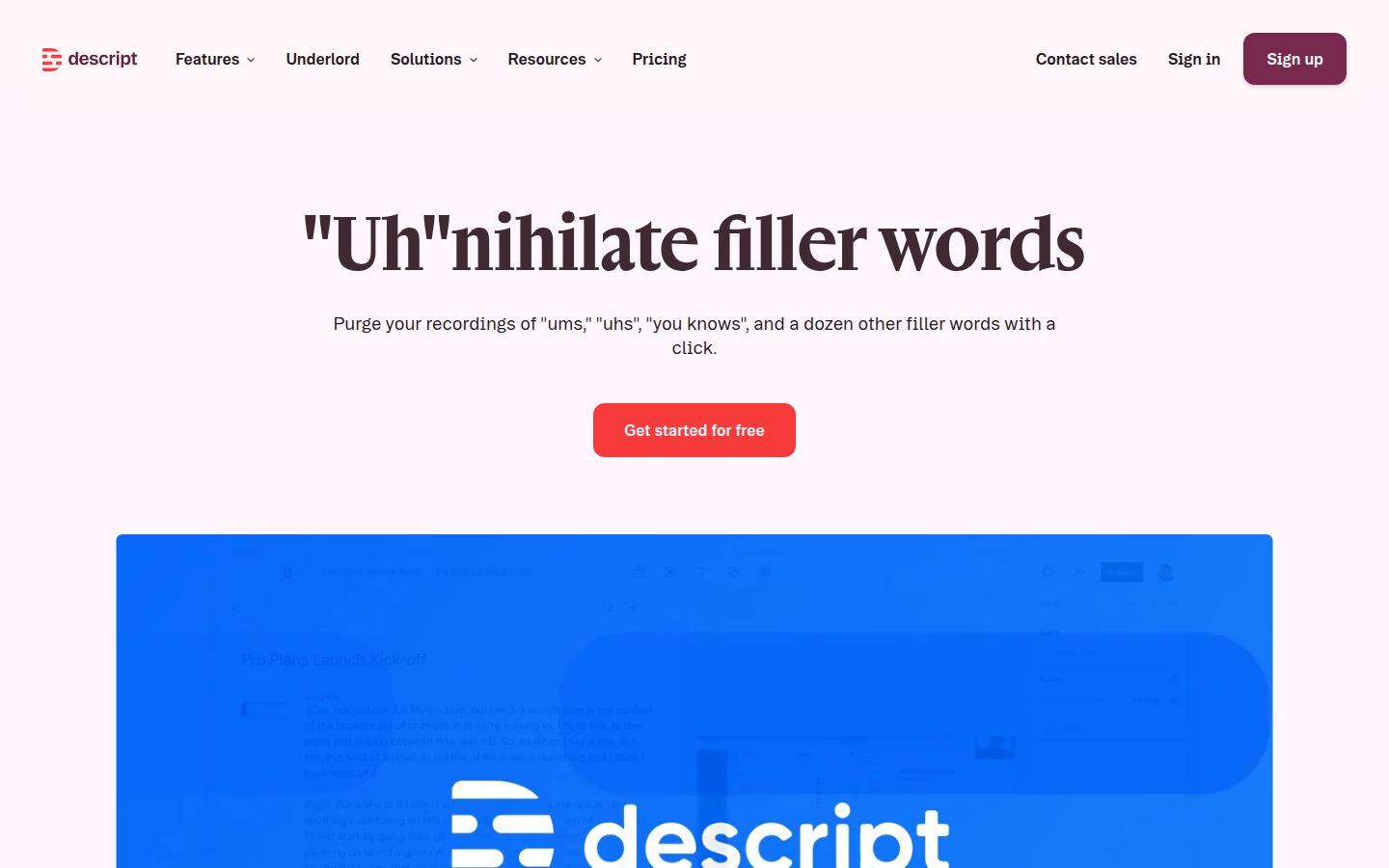 Descript's filler words page
Pricing: Descript has a free plan with 1 media hour a month. The Hobbyist plan is $16 per user a month billed annually, or $24 billed monthly. Filler word removal is listed among the AI tools on Hobbyist (ComparEdge pricing check, July 2026). Check Descript's pricing page before you buy, since its plans change.
One limit: Descript is a larger app than the others here, and it has more to learn. A user on Reddit reports that the filler cuts can sound abrupt when they land mid-phrase, even with the "avoid harsh cuts" option on (Reddit, r/Descript). Listen to every cut before you export.
CapCut

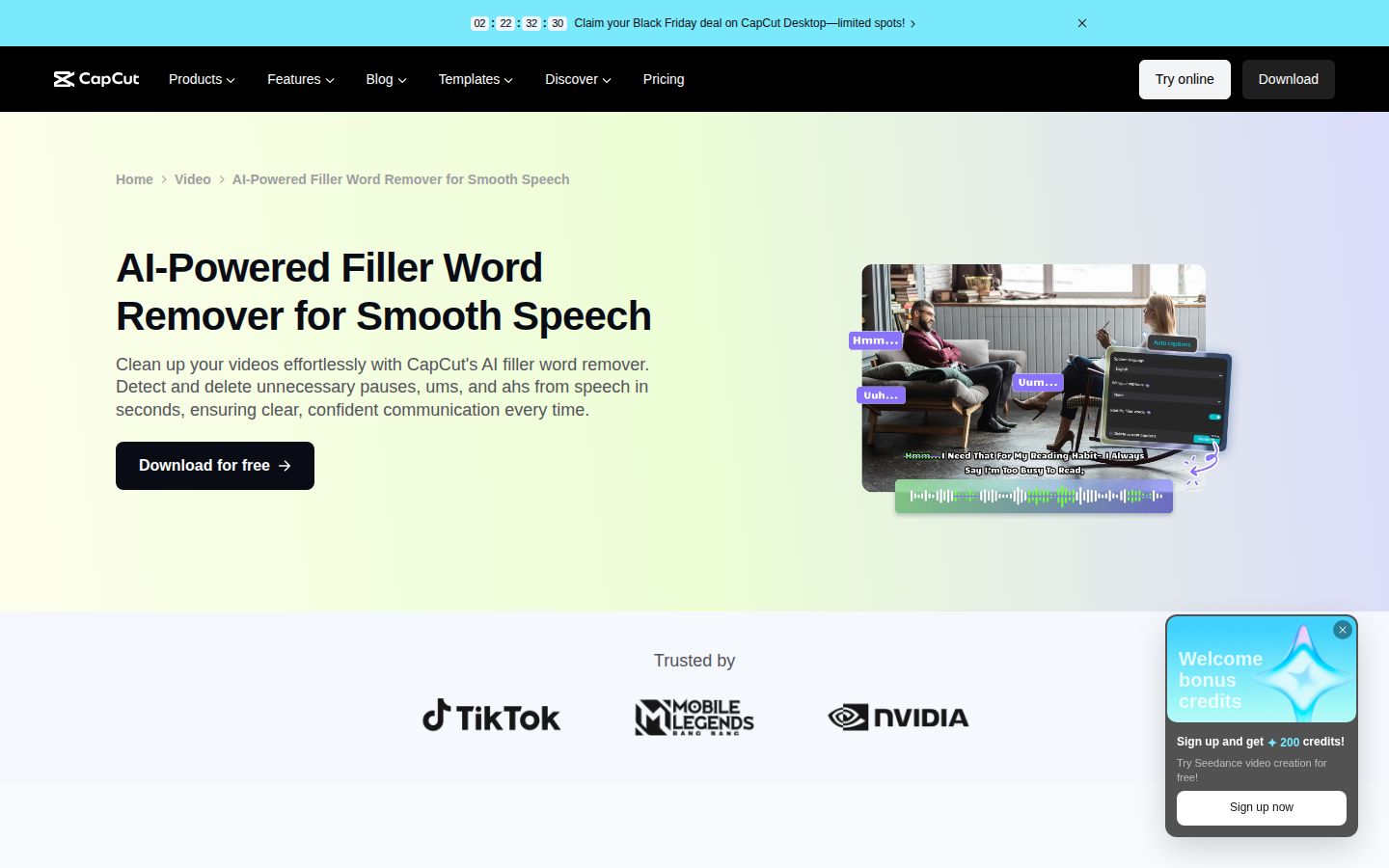
CapCut is a free video editor with a large library of effects, templates and music. Its desktop version has an automatic filler word detector that is built on its auto-caption system. CapCut's own page says the detector looks for common fillers such as "um," "uh," "like" and "you know" (CapCut). It is the best choice if you want a free editor with a lot of creative options and you are comfortable doing the final cut yourself.
- Import the clip into the CapCut desktop editor and add it to the timeline.
- Generate the captions. The transcript is created from the auto-caption step.
- Select Remove filler words from the menu above the timeline (CapCut).
- Play the timeline back and check each cut before you export.
Pricing: The editor is free. CapCut's Pro plan is listed at $19.99 a month in the US App Store, as of September 2026 (CapCut Pricing Guide). I could not confirm from CapCut's own pages whether the filler word detector needs Pro, so check the plan on your account before you rely on it.
One limit: the detector is part of the desktop editor. If you mostly work from your phone, check whether the same step is on the mobile version you use.
Adobe Premiere Pro

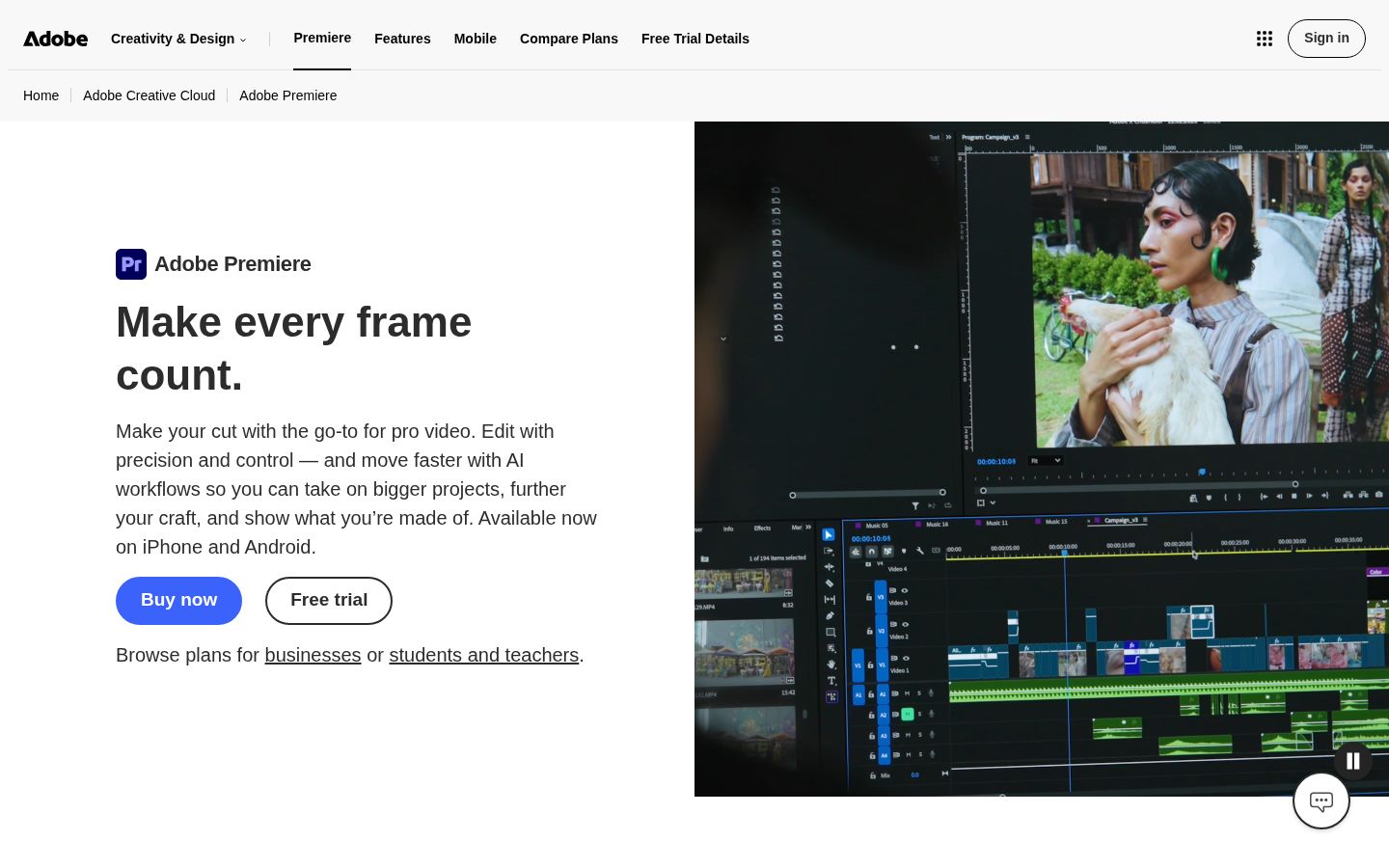
Premiere Pro is the professional editor many teams already use. Its text-based editing panel can find and delete filler words, and it can also delete pauses in bulk (Adobe Help). It is the best fit if you already have a Premiere project, or if you need fine control over audio, color and multi-camera work alongside the cuts.
- Transcribe the clip from the Text panel.
- Find the filler words. Adobe's help page describes finding and deleting text, filler words and pauses from the transcript.
- Delete each one, or use the bulk delete action once you have checked the list. Adobe's help page says "Delete" removes a single instance and "Delete all" runs the bulk action.
- Play the sequence back, then export.
Pricing: Adobe lists the Premiere single app at US$22.99 a month for individuals on the annual plan, billed monthly (Adobe Premiere plans). Adobe's plans page is the place to check current prices in your country.
One limit: it is a desktop app on a subscription, and it has more controls than a short-form job needs. For talking-head shorts, most of those controls go unused.
DaVinci Resolve
DaVinci Resolve also has a transcript-based workflow, and the free version of Resolve is free to download. Its automated transcription, which the filler workflow depends on, requires Resolve Studio, the paid version. The free version can import and export subtitle files, but it cannot create them from speech (DaVinci Resolve Club, updated October 2026). If you already use Resolve Studio, its transcript tools are a good place to start. If you do not, the other options are simpler.
Which one to pick
| Tool | Where it runs | Filler word removal | Price, October 2026 | Best for |
|---|---|---|---|---|
| Sycamore | Browser | Automatic, in Magic Edit, with a review step | Free for 10 min once; $19/mo (3 hrs); $39/mo (10 hrs) | Creators who want a finished captioned short with little work |
| Descript | Desktop app | Detects and lists words to keep or remove | Free (1 media hour/mo); Hobbyist $16/mo annual or $24/mo monthly | People who edit by text and want audio cleanup in one place |
| CapCut | Desktop, mobile | Automatic, from the auto-caption step | Free editor; Pro $19.99/mo in the US | Free editing with lots of effects and templates |
| Premiere Pro | Desktop | Text-based editing with filler and pause removal | $22.99/mo for the single app, annual plan billed monthly | Teams and editors already in Premiere |
If you want the whole job done in one pass with captions, Sycamore is the most direct. If you already use a timeline editor, the filler tool in that editor is usually enough. Sycamore does not export SRT or VTT caption files, so if a platform needs one, check the export options of the other tools before you choose.
Common mistakes and fixes
Cutting every pause. A clip with no gaps at all sounds rushed, and a jump cut on every word is hard to watch. Keep the pauses before a point you want to land. Descript and Premiere both treat pauses separately from filler words, so you can keep the pauses that matter.
Trusting the first pass. Filler detection makes mistakes, and it can cut a real word that sounds like a filler. Play the edit back at full speed before you export. In Sycamore, restore any cut that is wrong from the transcript.
Cutting in a noisy room. The detector works from the transcript, and a noisy recording produces a worse transcript. Record in a quiet room with the mic close to your mouth. This matters more than any setting in the tool.
Captions that no longer match the cut. If you change the video after you generate captions, check that the captions still line up. Regenerate them after your last filler cut when the tool allows it.
Leaving harsh cuts in place. A cut that lands in the middle of a breath or a word can make the speaker sound jumpy. Listen to each cut with headphones and move the edit point if it sounds abrupt.
Recap
- Decide which fillers to cut and which to keep.
- Pick the tool that fits your workflow: Sycamore for a one-pass captioned short, Descript for text-based editing, CapCut for a free editor, Premiere Pro if you already use it.
- Run the filler removal from that tool's menu. In Sycamore, choose Magic Edit and an edit style. In Descript, use AI Tools and Remove filler words. In CapCut, use Remove filler words above the timeline. In Premiere, use the Text panel.
- Review every cut at full speed, and restore or move any that sound wrong.
- Export, then check the captions on your phone before you post.
For more on the rest of the edit, see How to Edit Talking-Head Videos and Jump Cuts Explained: When to Use Them in Talking-Head Videos.
FAQ
Which filler words should I remove from a video?
Cut the repeated tics such as "um," "uh" and "you know" when they come in a row or repeat a phrase. Keep "like" when it means "similar to" and short pauses before a point you want to land.
Can I remove filler words for free?
Yes, with some limits. Sycamore's free plan covers 10 minutes of video once, Descript's free plan covers 1 media hour a month, and CapCut's desktop editor is free, though I could not confirm from CapCut's pages whether its filler detector needs the Pro plan.
Does Sycamore remove filler words automatically?
Yes. Magic Edit cuts silences and filler words in one pass, then you review the edit, restore any cut you want back from the transcript and export.
Does DaVinci Resolve remove filler words for free?
Not with the built-in transcript tools. Automated transcription and transcript-based editing in DaVinci Resolve require the paid Studio version, and the free version cannot create transcripts from speech.
Why do my cuts sound choppy after removing filler words?
Cutting too many pauses or cutting in the middle of a breath makes speech sound rushed or jumpy. Keep the pauses that help your point, and listen to each cut with headphones before you export.
Does Sycamore support languages other than English?
No. Sycamore's transcription is English only, so filler word detection will not work for other languages in Sycamore.