You'll end with a vertical video where each word appears as it's spoken, the active word lights up in a bright color, and only two to four words sit on screen at once. That's the look most people mean by Hormozi-style captions. Your first video takes about half an hour, mostly for checking the captions. After that, a saved style cuts the setup down to minutes.
The look is simple to copy. The real difference between tools is how much work they do for you: timing each word, cutting dead air, and letting you fix mistakes before export. This guide covers the look, the steps in Sycamore and CapCut, and the other tools worth knowing, with prices as of October 2026.
What the Hormozi style is made of
Break down a clip in this style and you find the same few parts:
- A heavy, condensed sans-serif font, usually in capitals, with a thick dark outline.
- White text, with the word being spoken highlighted in yellow or another bright color.
- Two to four words on screen at a time, never a full sentence.
- Placement in the lower middle of the frame, clear of your face.
- One emphasis on the key word: a color flip, a bigger size, an emoji or a sticker.
Alex Hormozi's clips made the look popular, and creators in most niches use it now. The styling is the easy part. The hard part is timing each word to the moment it's said, and that's what the tools below automate.
Choose your route
Pick the route that matches your footage and your budget.
| Route | Price as of October 2026 | Best for |
|---|---|---|
| Sycamore | Free for 10 minutes of video, once. Starter is $19 a month for 3 hours. Growth is $39 a month for 10 hours | Raw talking-head recordings you want cut and captioned in one pass |
| CapCut | Free editor. Auto captions need Pro, which is $19.99 a month or $179.99 a year | Creators who already edit in CapCut and want full control of each cut |
| Submagic | Starter is $19 a month per member, or $12 a month billed yearly. Free trial of 3 videos with a watermark | Short clips that need animated captions and B-roll |
| Descript | Free plan. Paid plans are sized by media hours and AI credits | Editing by deleting words in a transcript, and podcasts |
| Captions | Free plan with one caption template. Paid plans start at $24.99 a month | Phone-first editing where AI builds most of the edit |
If you only film on an iPhone, the free Auto Captions Studio app also builds word-by-word captions in one tap. The rest of this guide goes tool by tool.
Sycamore

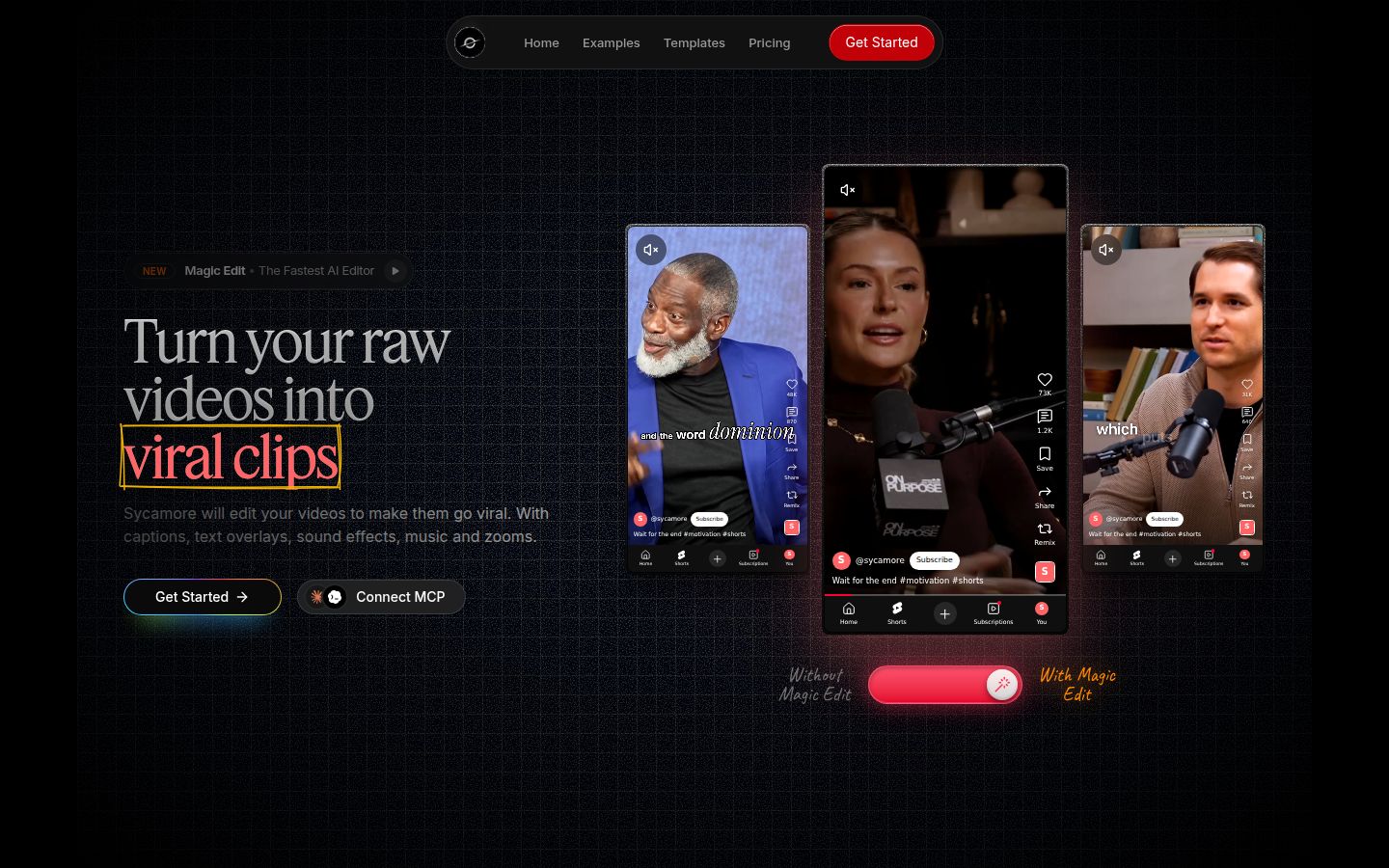
Sycamore is a web app that turns a raw talking-head recording into a finished, captioned short. It runs in the browser, so there's nothing to install. Its Magic Edit mode does the cutting and the captioning in one pass. You upload the raw video. Sycamore cuts silences and filler words, adds word-by-word captions, emphasizes key lines, and places zooms and full-screen text on the big moments. Then you review the edit before you export.
For this style, two things matter. Every word is timed on a word-level transcript, so the captions stay in sync. And you can edit any word before export, which fixes a misspelled name or a misheard term.
Steps in Sycamore
- Go to sycamore.to and click Get Started. The free plan gives you 10 minutes of video, one time, with no credit card.
- Upload your video. Sycamore accepts MP4, MOV, WebM or MP3 files up to 2 hours long.
- Pick an edit style: Apollo, Hermes or Athena. You can switch styles later and export again.
- Review the edit. Each line can be set to Normal, Emphasis, Full screen, Number, List or Label. Set the one or two lines that carry your point to Emphasis.
- Fix the captions. Edit any word that's wrong, and the captions follow the transcript.
- Set the look. Change the font, colors, size, animation and position. On Starter and Growth, save the look as a style preset so you can reuse it on every video.
- Export an MP4. Choose 9:16 for Shorts, Reels and TikTok.
Start from a caption template, then move it toward the look in the section above: a heavy font, a white base, a bright active color, and short lines in the lower middle of the frame.
Where Sycamore fits
Sycamore suits talking-head creators who film one take and want the cuts, captions and emphasis done together. It's built for one job, so there's less to learn than in a full video editor. Pricing is by minutes of video: the free plan is 10 minutes once, Starter is $19 a month for 3 hours, and Growth is $39 a month for 10 hours. Both paid plans have no watermark.
Two limits matter for this decision. Transcription is English only. And Sycamore edits the video you give it, so it won't cut a long recording into many clips. It also doesn't export an SRT or VTT caption file, and it's a web app rather than a mobile app. It works in a phone's browser.
CapCut

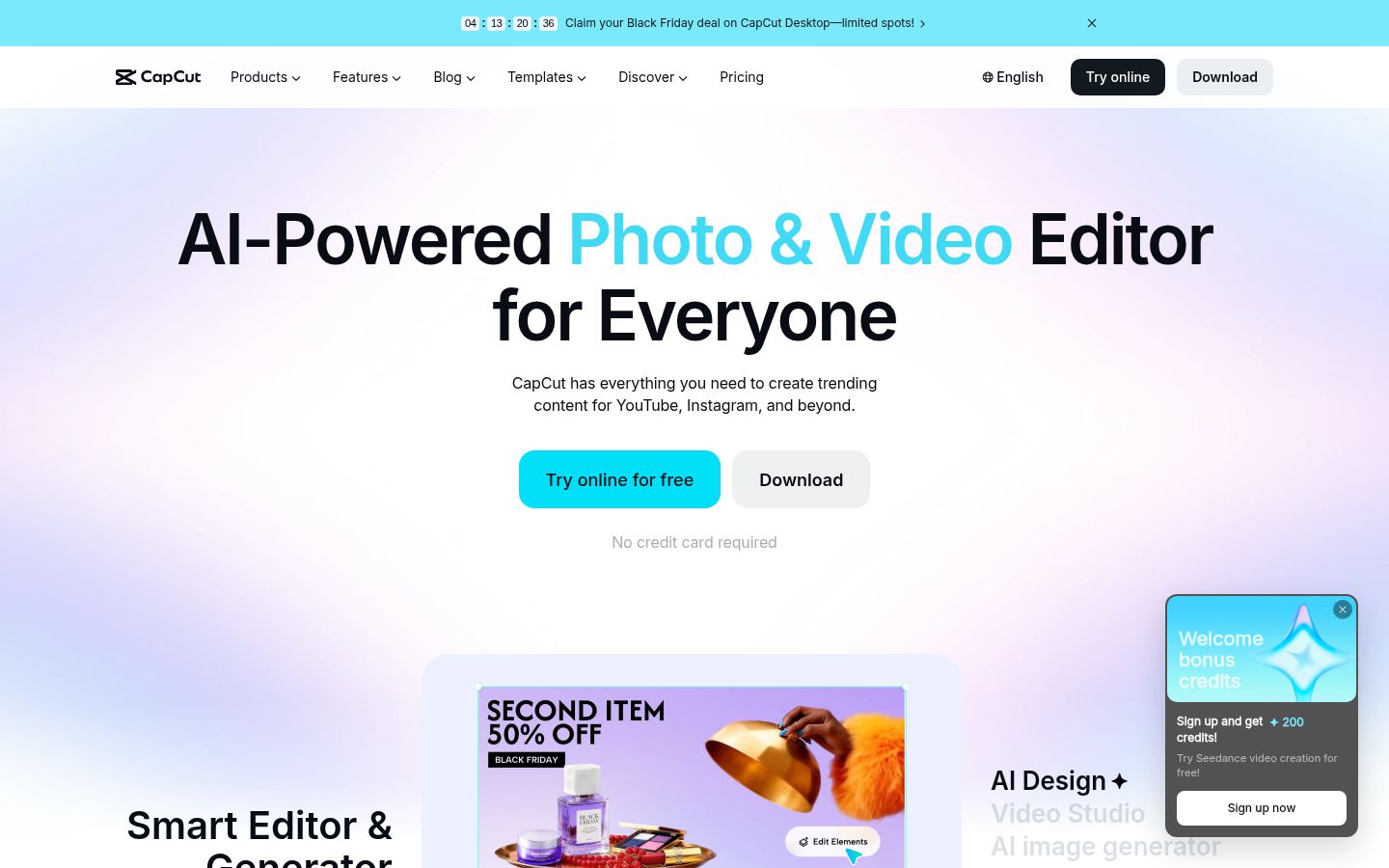
CapCut is a free video editor on phone, desktop and web, with a large template library and full control over each cut. Many creators learned this style in it, and it's a good home if you already edit there.
Auto captions are a Pro feature. CapCut's plan comparison lists Pro at $19.99 a month or $179.99 a year. Prices can vary by region, so check the number in your app or store. If you don't want to pay for Pro, you can import an SRT caption file from another tool. Importing is free.
Steps in CapCut on the phone
- Open CapCut, tap New project, choose your video and tap Add.
- Tap Text in the bottom toolbar, then Auto captions.
- Pick the spoken language, then tap Generate. Some versions say Start.
- Tap the caption track, then Edit captions to check every line in a list.
- Style the captions with a heavy font, a bright highlight color and an outline. Start from a template and change the font and color to match.
- Before you export, look for Pro icons on any template you used. If the export screen asks you to join Pro, remove the Pro element or pick a free one.
- Export at 9:16.
The desktop app and CapCut Web follow the same idea: text, then auto captions, then edit the caption list before export.
Submagic

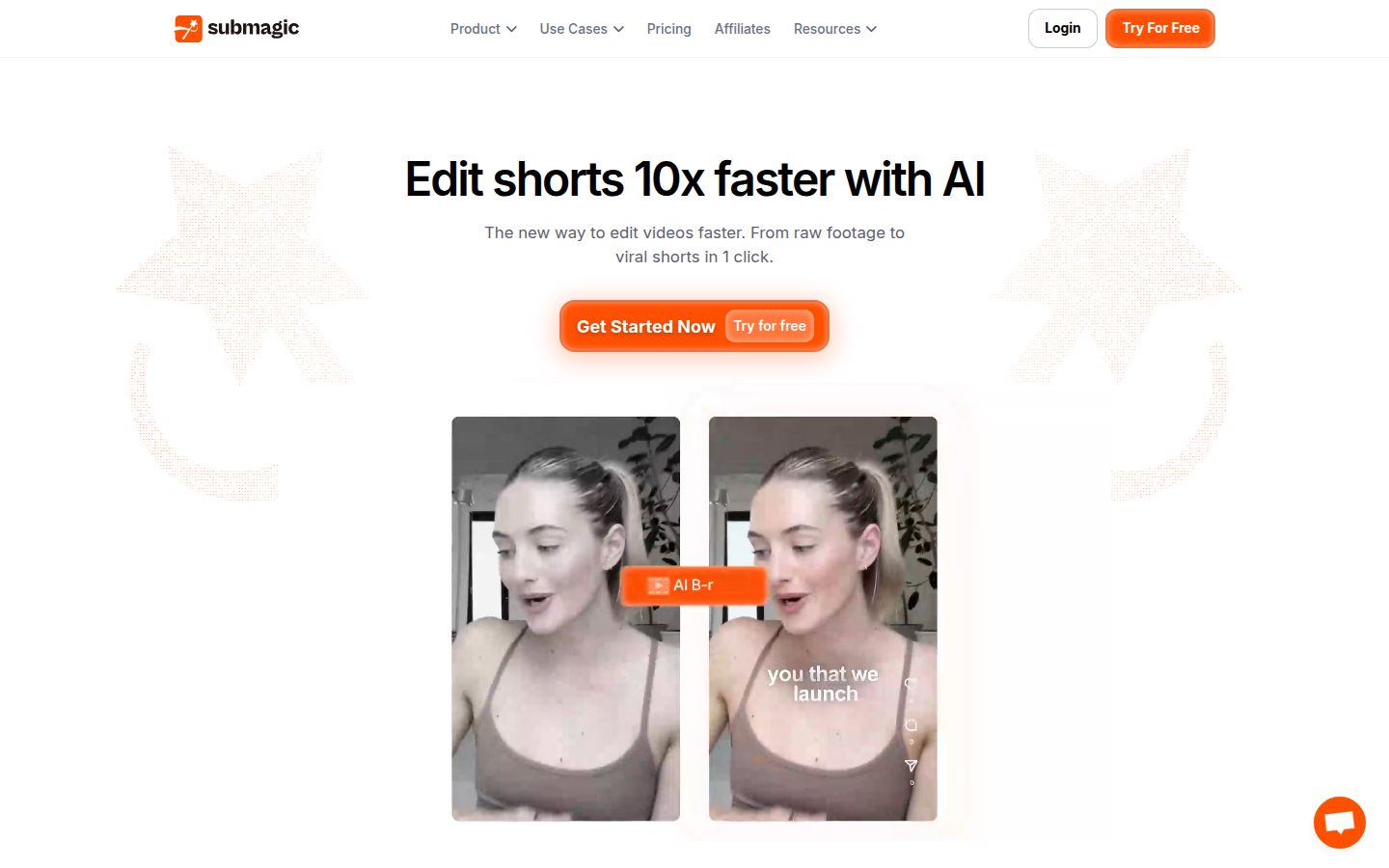
Submagic is a browser tool for short clips. Its caption templates are animated and word by word, with keyword highlighting, so the Hormozi look is one of the first things you can apply. It also adds auto edits and B-roll.
Starter is $19 a month per member, or $12 a month billed yearly. It covers 15 videos a month, each up to 2 minutes. Pro is $39 a month per member and covers 40 videos up to 5 minutes. Pro adds premium caption templates, custom fonts and a brand kit. The free trial lets you upload and edit 3 short videos, with a watermark until you pay.
Submagic suits creators who want captions and B-roll in the same tool. Two limits to plan around: the 2-minute cap on Starter, and Magic Clips, the feature that turns a long video into clips, which costs an extra $19 a month for 10 uploads.
Descript

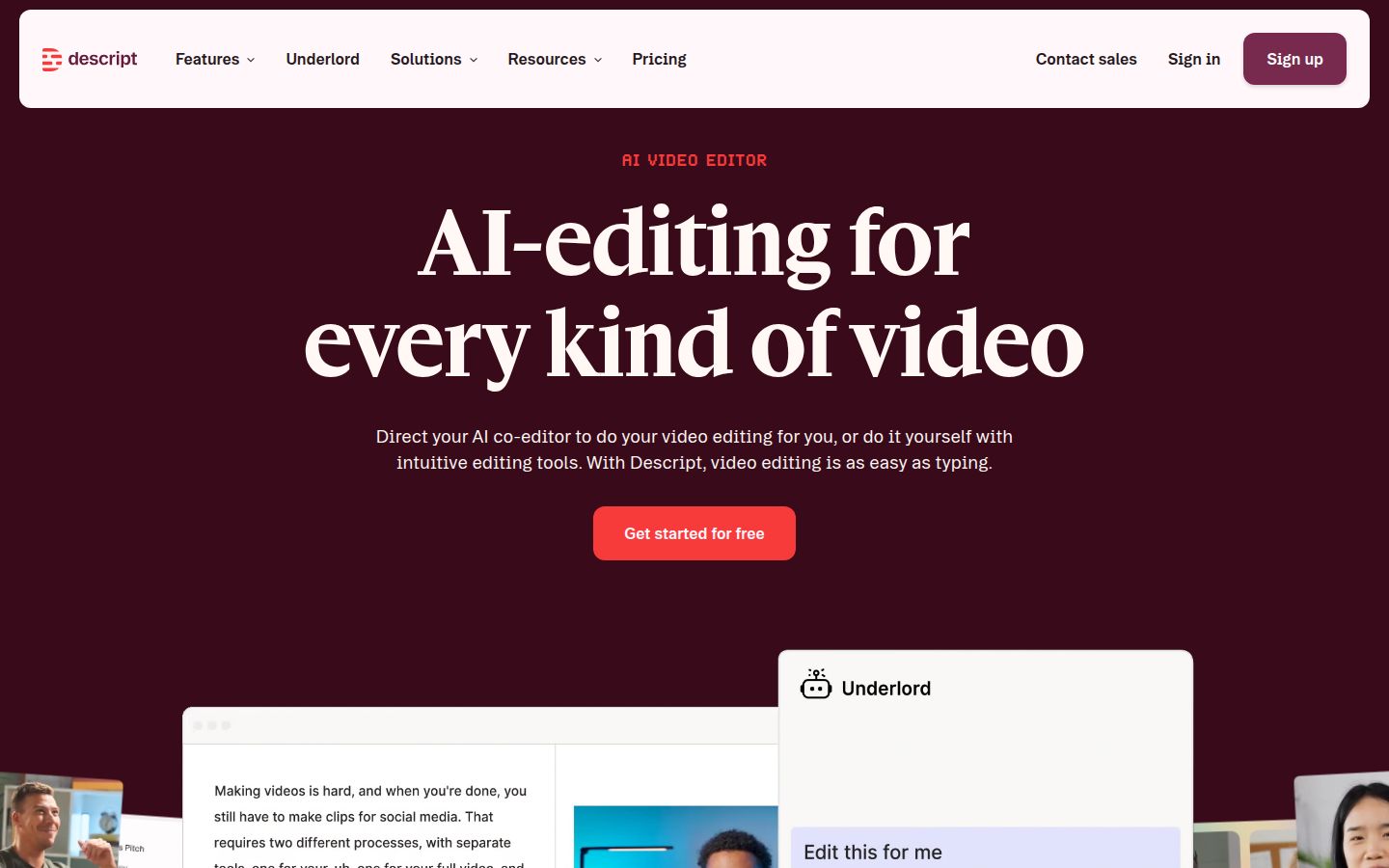
Descript is an editor for video and audio that works from the transcript. You cut a clip by deleting the words you don't want, and the video follows the text. It has a Captions feature that adds subtitles in one click, and it has a free plan.
Its paid plans are sized by media hours and AI credits. The Hobbyist plan, for example, lists 10 media hours and 400 AI credits a month on Descript's pricing page. Descript suits people who think in text and who edit interviews or podcasts as well as short clips. Check how many hours of footage you process each month before you pick a plan.
Captions

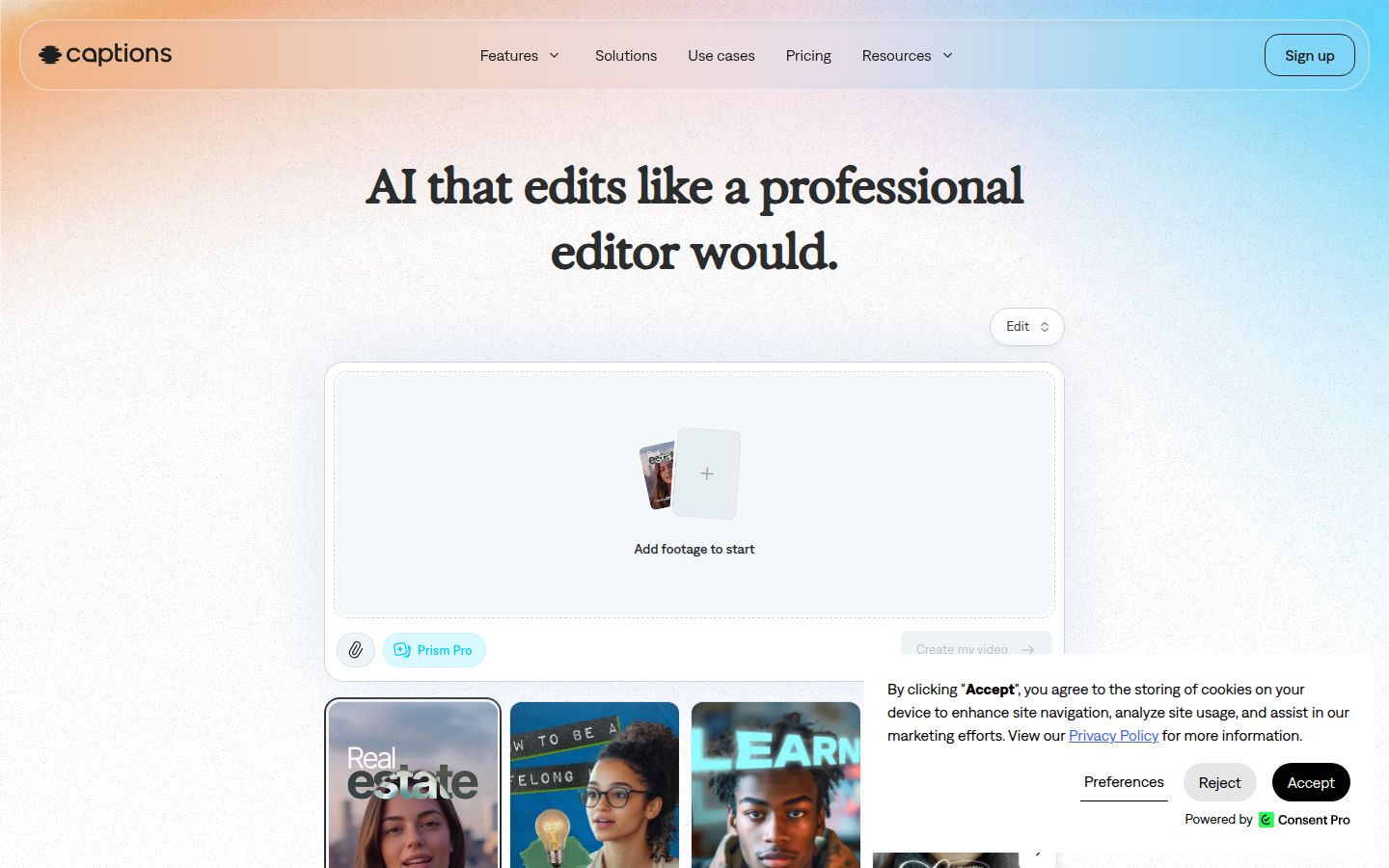
Captions (captions.ai) is a phone-first AI editor. You add footage, pick a style, and the AI cuts the scenes and adds captions. You can also change the edit with a chat-style prompt.
The free plan includes one caption template. The paid tiers include 100+ caption templates and customizable captions. Max is $24.99 a month, and Frontier starts at $69.99 a month. Captions lists these prices for its iOS plans. The AI features need a paid plan, so the free plan is a way to test the workflow, not to make many videos.
Set the look once and reuse it
Whichever tool you use, the settings for this look come down to the same few choices:
- Font: a heavy, condensed sans-serif in capitals, with a thick outline. Use one font across all your videos so the look becomes yours.
- Colors: white for the base text, and one bright color for the active word.
- Lines: two to four words on screen at a time. Split longer lines so the words appear in short bursts.
- Position: the lower middle of the frame, clear of your face and any on-screen graphics.
- Size: large enough to read on a phone with the sound off.
- Emphasis: one or two moments per clip, with a color, a size bump or an emoji. Use more and no word stands out.
Common mistakes and how to fix them
- Captioning before cutting. Cut the dead air and false starts first. Every cut moves the words after it, so a caption you styled before the cut may land on the wrong word.
- Trusting the auto timing without reading it. Read every line with the sound on. Check names, product terms and numbers twice.
- Captions covering your face. Move them down into the lower middle of the frame.
- Showing full sentences. Split the lines so only two to four words appear at once.
- Using a Pro template in CapCut. Look for Pro icons before export, and swap the template if the export asks you to upgrade.
- Needing a caption file. Sycamore exports an MP4 with the captions built in and doesn't export an SRT or VTT file. If your upload needs a separate caption file, choose a tool that exports one.
- Exporting in the wrong frame. Choose 9:16 for Shorts, Reels and TikTok. Sycamore exports 9:16, 1:1 and 16:9.
Recap
- Film with a clean pause before and after each point.
- Upload the video to the tool you picked. For Sycamore, click Get Started and upload.
- Cut the silences, false starts and filler words first.
- Generate word-by-word captions, then read every line and fix any misheard word.
- Style the look: heavy font, white base text, a bright active word, two to four words per line, lower middle of the frame.
- Emphasize one or two words per clip.
- Save the style if your tool allows it, export a 9:16 MP4, and watch the result at phone size with the sound on.
If you want to compare more options before you pick, see our guide to how to make captions in CapCut or the pricing page for Sycamore's plans.
FAQ
Can I make Hormozi-style captions for free?
Yes. Sycamore's free plan gives you 10 minutes of video once, with no credit card. CapCut's free editor can import an SRT caption file, while its built-in auto captions need Pro.
Do I need CapCut Pro for auto captions?
Yes. CapCut lists auto captions as a Pro feature, at $19.99 a month or $179.99 a year as of October 2026. Prices can vary by region.
What font is used in Hormozi-style captions?
The look uses a heavy, condensed sans-serif font, usually in capitals, with a thick dark outline. Montserrat Black and similar fonts are common choices. Pick one and use it on every video.
Does Sycamore support captions in other languages?
No. Sycamore's transcription is English only. Check the language support of any tool before you commit to it.
Can Sycamore export an SRT caption file?
No. Sycamore exports an MP4 with the captions built in. It doesn't export SRT or VTT files.
How long does it take to make a Hormozi-style caption video?
Plan on about half an hour for your first video, since most of the time goes to cutting and checking the captions. Once you save a style, most clips take far less.