You can add captions to a YouTube Short in about five minutes with the built-in YouTube Studio tools, or in roughly the same time with a caption editor if you want the words burned into the video. This guide shows both routes, with the real menu names, so you can pick the one that fits your footage and your budget.
Most people watch Shorts with the sound off, at least some of the time. Captions help them follow along, and they give you control over how the words look. The question is where the captions should live: in a file that viewers switch on, or in the video itself.
Pick a method before you start
There are two ways to get captions on a Short.
- YouTube's caption track. YouTube Studio generates automatic captions, or lets you upload or type your own. Viewers turn them on from the Short's menu. It costs nothing and it's built in.
- Burned-in captions. You caption the video in an editor, export a new MP4, and upload that file. The words are part of the picture, so every viewer sees them, and you can style them however you like.
Many creators use both. They burn in the captions for the look, and skip the caption track so viewers don't see two sets of text. If you only do one thing, burned-in captions give you the most control over style, and YouTube's caption track gives you the least work.
| Tool | Price as of October 2026 | Best for |
|---|---|---|
| YouTube Studio | Free | Captions that viewers can switch on, with no extra tool |
| CapCut | Free auto captions | Free editing with a full video editor |
| Submagic | Free plan, then from $19/month | Quick animated captions on many clips |
| Descript | Free plan, then from $16/month billed yearly | Editing a recording by changing its transcript |
| Sycamore | Free to start, then from $19/month | Raw talking-head footage edited and captioned in one pass |
Option 1: Add captions in YouTube Studio
YouTube Studio is free, and you don't need another app. You can use YouTube's automatic captions, upload a caption file, or type the words yourself.
Use the automatic captions
YouTube creates automatic captions for a Short after you publish it. They don't exist before upload, and they can take a few hours to a few days to appear, depending on the length of the video. Once they're there, review them. Automatic captions often miss names, skip punctuation and get technical words wrong.
- Sign in to YouTube Studio.
- From the left menu, select Subtitles.
- Select the Short you want to edit.
- Check the text, fix any mistakes and select Save.
Upload or type your own captions
If you already have a transcript or a caption file, upload it. YouTube's help page lists these options under Add subtitles & captions.
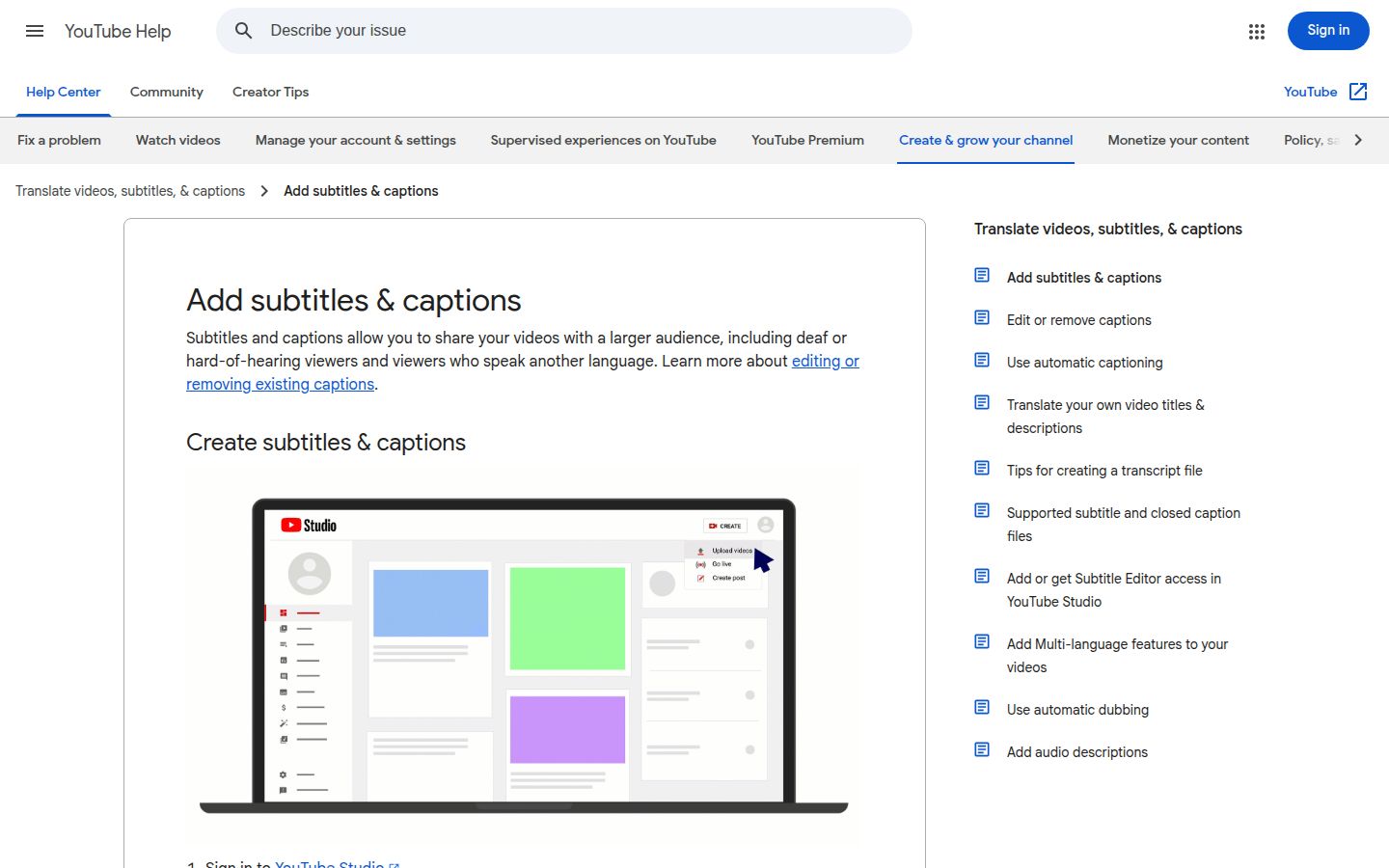 YouTube Help page on adding subtitles and captions
- In YouTube Studio, select Subtitles from the left menu and select your video.
- Click ADD LANGUAGE and choose your language.
- Under "Subtitles", click ADD.
- Choose Upload file, then pick With timing or Without timing. Select Continue, choose your file and select Save.
If you don't have a file, choose Type manually and enter the words while the video plays. Auto-sync is another option: you enter the words, and YouTube lines them up with the audio. YouTube's help page notes that auto-sync works best on clear audio.
How viewers turn captions on
Captions in YouTube's track are off by default. A viewer taps the three dots on the Short, then Captions, and picks a language. A viewer who scrolls with the sound off has to find that menu first, which many won't do.
YouTube's default style is plain. If you want big words that move with the speech, burn them in instead.
Option 2: Burn captions into the video before you upload
With burned-in captions, you do the work in an editor, export a 9:16 MP4 and upload that file to Shorts. Every viewer sees the captions right away, with no menu to open. The look is yours to design. The trade-off is that you can't change the words on YouTube later. If you find a typo after publishing, you re-export and upload again.
The steps are similar in most editors:
- Import the raw video.
- Generate captions from the speech, or import a transcript.
- Check every line against the audio. Fix names, numbers and product words first.
- Pick a font, colour and position, and save the style if the editor allows it.
- Export a 9:16 MP4 and upload it to YouTube as a new Short.
For more on the trade-off, read Burned-In Captions vs Auto Captions: Which Should You Use?
Sycamore

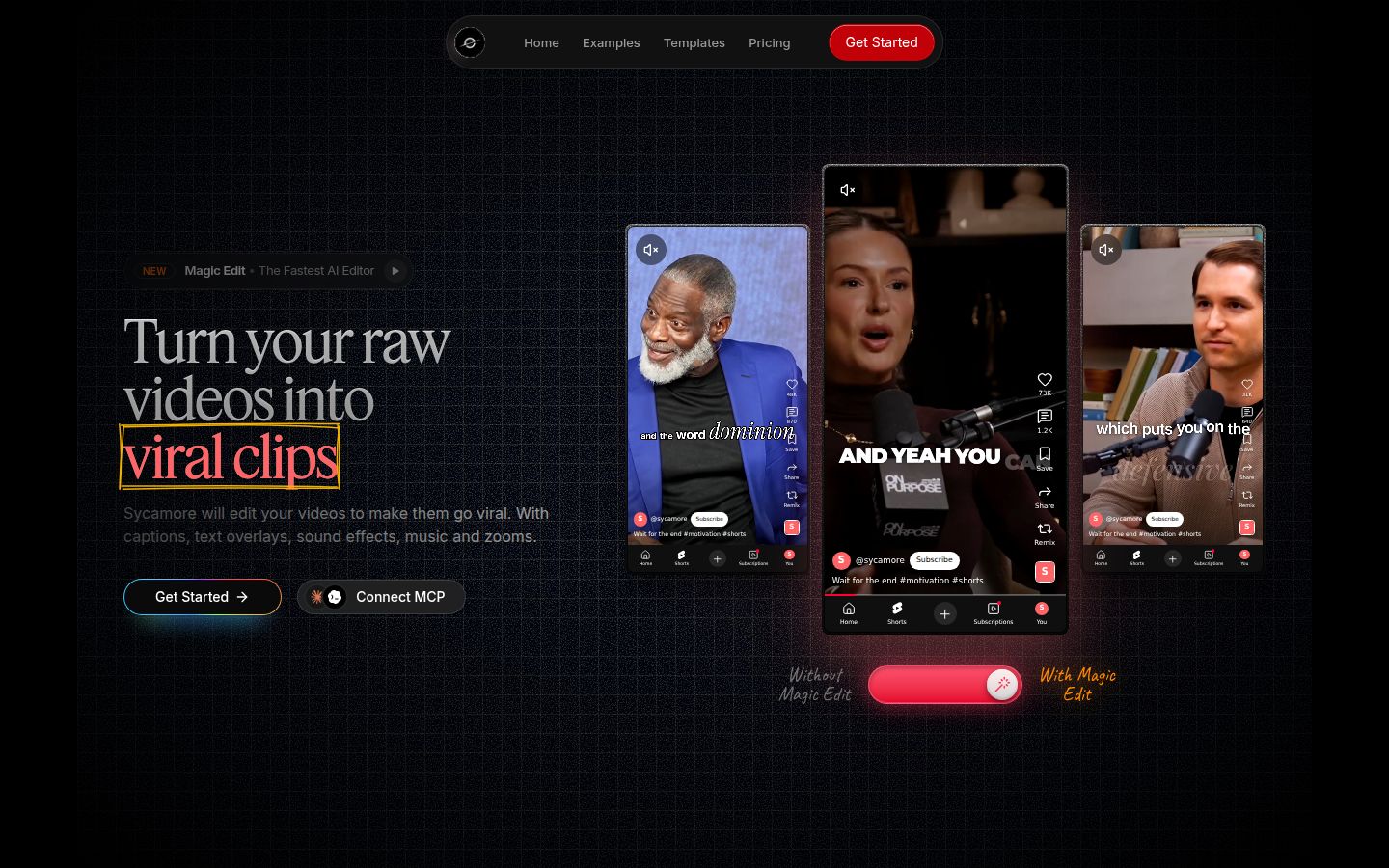
Sycamore is our product. It's a web app that turns a raw talking-head recording into a finished, captioned vertical video. It runs in your browser, so there's nothing to install, and it works on a phone's browser too.
Sycamore's Magic Edit does the first pass for you. It cuts silences and filler words, adds animated word-by-word captions, and adds zooms and full-screen text on the big lines. You pick one of three edit styles, Apollo, Hermes or Athena. Then you review the edit before you export. Each line can be set to Normal, Emphasis, Full screen, Number, List or Label, and you can fix any word in the captions.
Here's how to caption a Short with it:
- Go to sycamore.to and sign up. The free plan includes 10 minutes of video, one time, and doesn't need a credit card.
- Upload your MP4, MOV, WebM or MP3 file. Uploads can be up to 2 hours long.
- Pick an edit style, then review the cuts and captions. Fix any word that's wrong.
- Export an MP4 in 9:16 and upload it to YouTube Shorts.
Price as of October 2026: Free (10 minutes, one time). Starter is $19 a month for 3 hours of video a month, with no watermark. Growth is $39 a month for 10 hours of video a month, with no watermark and priority rendering. See Sycamore pricing for the full list.
Who it suits: founders, coaches and creators who film themselves talking and want the cutting and captions done in one pass. You get a plain-words edit to approve, so you stay in control of the result.
The limits that matter here: transcription is English only. Sycamore exports the video with burned-in captions, so it doesn't produce a caption file (SRT or VTT) for YouTube's Subtitles page. If you need a caption file or other languages, use one of the tools below.
CapCut

CapCut is a full video editor with a free auto caption tool. It's available on desktop, on mobile and in the browser. If you already edit in CapCut, it's the most direct route to burned-in captions with no extra subscription.
On mobile, open your project, tap Text, then Auto captions. On desktop, use the Captions tab and choose Auto captions. In both, select the spoken language, tap Generate, and then check the result. CapCut's help page on auto captions recommends correcting the words and their timing before you finish.
CapCut has more to learn than a caption-only tool, because it's a full editor with many panels. The auto captions give you a starting track, but the styling and cutting are on you. If you generate captions a second time, delete the old track first, or you can end up with two sets of text.
Submagic

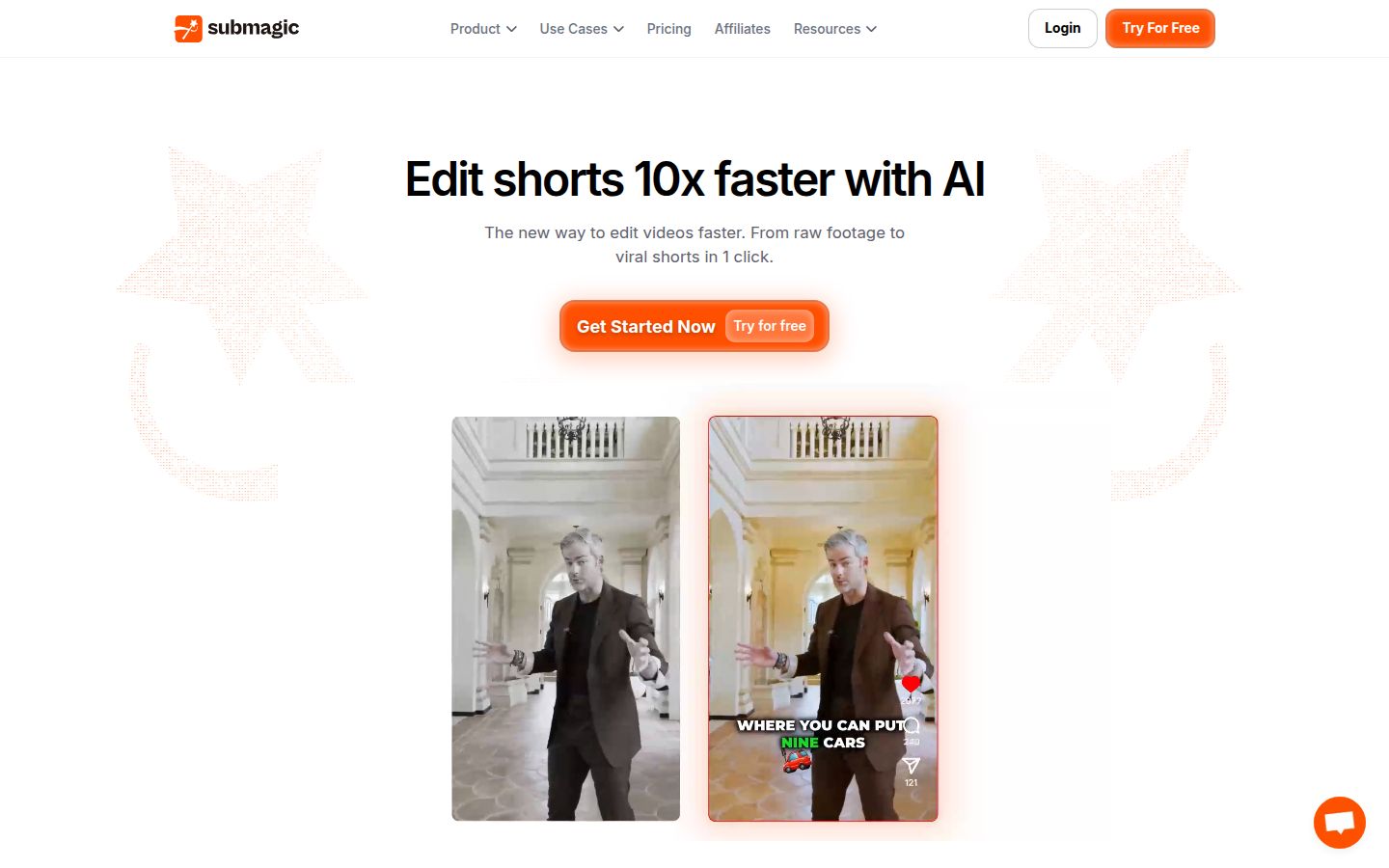
Submagic is a caption-first editor built around animated captions. You upload a video, choose a caption template, and export. It's a good fit if you want many clips captioned in a consistent look and you don't need much manual editing.
Its free plan covers 3 videos a month, with a Submagic watermark on the export. The paid plans are Starter at $19 a month, or $12 a month billed yearly, for 15 videos a month. Pro is $39 a month, or $23 a month billed yearly, for 40 videos a month. Pro adds features such as filler word and silence removal. Check Submagic's pricing page for current limits before you buy, since plans change.
Descript

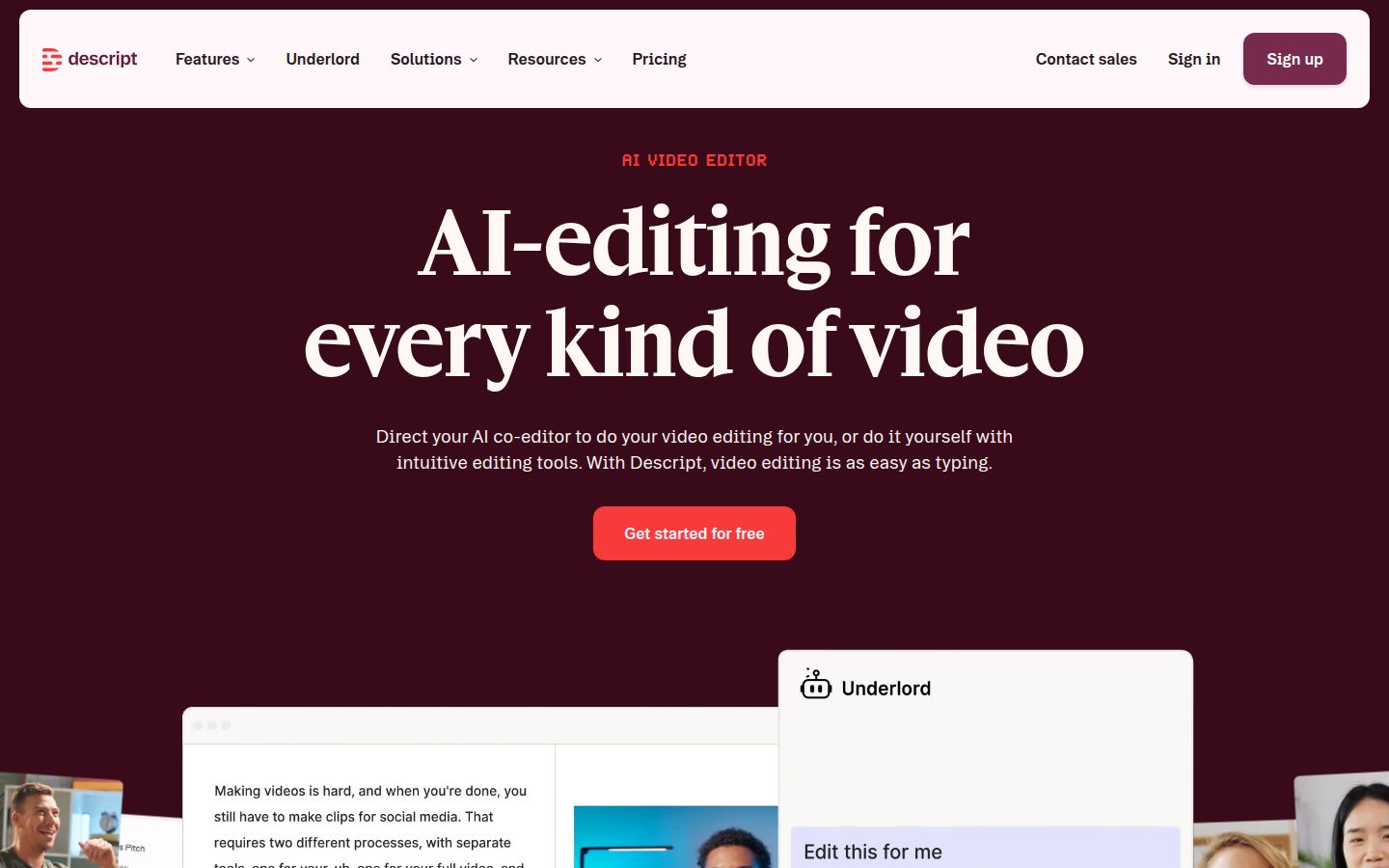
Descript edits video by editing its transcript. You delete a sentence in the text and it's cut from the video. Its captions tool adds subtitles in one step. It's strongest when you're working from a long recording, such as a podcast or a webinar, and it's the tool to pick if you want to edit the speech itself.
The free plan lets you try it. The paid plans are Hobbyist at $16 a month billed yearly ($24 month to month), Creator at $24 billed yearly ($35 month to month) and Business at $50 billed yearly ($65 month to month). The free plan exports at 720p with a watermark, so plan to pay before you publish.
Common mistakes and how to fix them
The captions are out of sync. This usually comes from a recording with long pauses or a cut that moved the audio. Check the first and last lines of each phrase, then nudge the timing in the editor.
The captions have the wrong names or terms. Automatic transcripts get brand names and numbers wrong. Search the transcript for those words before you export.
Viewers see two sets of captions. This happens when you burn captions in and also upload a caption file. Pick one. If you burn them in, leave YouTube's caption track off.
Captions cover the bottom of the screen. On a Short, the title and buttons sit over the lower part of the frame. Keep the caption block in the middle of the frame so viewers can read it.
YouTube's captions don't show up yet. Automatic captions appear after publishing, and they can take a few hours to a few days. Check again later, or upload your own file.
You fixed a typo after publishing. If the captions are burned in, you have to re-export and upload the video again. If the captions are in YouTube's track, edit them in Subtitles.
Recap: captioning a Short in order
- Decide whether you want a caption track (viewers switch it on) or burned-in captions (always visible).
- For a caption track, open YouTube Studio, select Subtitles, pick the Short and fix the automatic captions, or upload a file.
- For burned-in captions, caption the video in an editor such as Sycamore, CapCut, Submagic or Descript.
- Check every line against the audio, especially names and numbers.
- Export a 9:16 MP4 and upload it as a Short.
- Watch the Short on your phone once with the sound off to make sure the words read clearly.
If you're choosing between tools, start with the free option that fits your footage. You can always move to a paid plan once you know how many videos you post each month.
FAQ
Does YouTube add captions to Shorts automatically?
Yes. YouTube generates automatic captions for a Short after you publish it, which can take from a few hours to a few days. You can review and correct them in YouTube Studio under Subtitles.
Can I add captions to a YouTube Short before I upload it?
Yes, by captioning the video in an editor and exporting a 9:16 MP4 with the words burned in. YouTube's own automatic captions only appear after publishing.
Do burned-in captions show for every viewer?
Yes. They are part of the picture, so viewers see them without opening a menu. You can't switch them off, and you can't edit the words on YouTube later without re-uploading.
What is the free way to add captions to a YouTube Short?
YouTube Studio's automatic captions and caption upload are free. CapCut's auto captions are also free, and you can use them to burn captions into the video.
Can I upload an SRT file to a YouTube Short?
Yes. In YouTube Studio, go to Subtitles, select the Short, add a language, and choose Upload file. Select With timing if the file already has timestamps.
Is Sycamore free for adding captions to a Short?
Sycamore's free plan includes 10 minutes of video, one time, with no credit card. Paid plans are Starter at $19 a month for 3 hours of video and Growth at $39 a month for 10 hours, both with no watermark.