This guide shows you how to put captions on a talking-head video in CapCut, from import to export. You'll end with a vertical video that has word-by-word captions you've checked line by line. The caption step itself takes a few minutes on a one-minute clip. The check takes longer, and it's the step people skip most often.
There's one thing to know before you start. CapCut's own help center lists auto captions as a Pro feature, so the fastest route may need a paid plan. This post covers that route, the free ways around it, and Sycamore, a caption-first tool, so you can pick the one that fits your account and your footage.
The ways to caption a video in CapCut
You have four realistic options. Prices are as of October 2026.
| Method | What it costs | Best for |
|---|---|---|
| CapCut auto captions | Pro: $19.99 a month or $179.99 a year, per CapCut's Standard vs Pro page | You already edit in CapCut and want the fastest route |
| Typed captions or caption templates | Included in the editor. Some templates are marked Pro | Short clips, or a few lines you want to style by hand |
| Import an SRT file (desktop or web) | Free to import. You need an SRT file from another tool | People who want auto captions without CapCut Pro |
| Sycamore | Free for 10 minutes of video once. Starter is $19 a month for 3 hours. Growth is $39 a month for 10 hours | Talking-head clips where you want captions and a cleaned-up edit in one pass |
If you already pay for CapCut Pro, use auto captions and skip the rest of this table. If you don't, the SRT route keeps you in CapCut for free. If your footage is mostly talking, Sycamore may take fewer steps than either.
Check your CapCut plan first
CapCut's Standard vs Pro comparison, updated in September 2026, says its auto caption generator is "exclusive to Pro users." It lists Pro at $19.99 a month for individual users, or $179.99 a year. CapCut's help page on pricing says prices vary by region and promotions, so the number in your app or store may differ.
CapCut's help center explains the prompt directly. If you're on Standard and still see a prompt to join Pro, the feature you used, such as auto captions, includes Pro-only functionality. A Reddit user in June 2026 also reported that switching caption templates can bring up Pro-only templates, even when the first set of captions worked. Look for the Pro icon on any template before you export.
Step by step: auto captions in CapCut
On the phone app (iPhone or Android)
- Open CapCut, tap New project, choose your video and tap Add.
- Tap Text in the bottom toolbar, then Auto captions.
- Pick the spoken language, then tap Generate. Some versions say Start instead.
- Wait for the caption track to appear under the video. Short clips take seconds.
- Tap the caption track, then Edit captions to see every line in a list.
If the export screen asks you to join Pro, the project uses a Pro feature. CapCut's advice is to remove anything with a Pro icon before you export. For captions, that means deleting the auto caption track or swapping in a free style.
On the desktop app or CapCut Web
- Import your video and drag it onto the timeline.
- Click Text, then Auto Captions. On some desktop versions the captions sit under a Captions tab in the toolbar at the top left.
- Choose the spoken language and click Generate.
- Check the lines in the caption panel before you style anything.
On the web, CapCut's own help describes the same path: open your project at capcut.com, click Text, then Auto Captions, choose a language and click Generate.
Step by step: check and style the captions
Auto captions get the words mostly right and miss some of the details. Names, brand terms, numbers and fast speech are the usual misses. CapCut's help page on inaccurate captions covers manual correction, re-segmenting and re-recognizing on mobile, desktop and web. Use it as your reference for those fixes.
- Fix the words. Open Edit captions, click any line and type the correction. Go through the whole list once, starting with names and numbers.
- Split long lines. Aim for two to five words per line in vertical video. Put the playhead at the break and press Ctrl+B (Windows) or Cmd+B (Mac). On the phone, tap the scissors.
- Set the style once. Change the font, size, color, outline or animation on one caption. Then use Apply to All so the change reaches every auto caption in the project. CapCut has a separate help page if Apply to All does nothing.
- Move the captions up. Drag them on the preview. Keep them above the bottom fifth of the frame, where TikTok, Reels and Shorts put their buttons and description text.
- Export. Tap the export arrow at the top right on the phone, or the Export button at the top right on desktop. The captions are burned into the video.
CapCut can also export a caption file for captions it recognized on its own. You can use that file on another platform, but it doesn't replace the video export for TikTok, Reels or Shorts.
If auto captions are locked: import an SRT file
If your account won't run auto captions, you can make the captions somewhere else and bring them in. CapCut's help page on importing subtitles says you can import external subtitle files, mainly SRT (.srt) or TXT (.txt). It also says subtitle import works only on CapCut Desktop and CapCut Web. It doesn't work in the phone app.
 CapCut help page showing the Import Subtitles step
- Make an SRT file from your video with any tool that outputs one. CaptionX's free caption generator, for example, creates an SRT without an account, according to its guide.
- Open your project in CapCut Desktop or CapCut Web.
- Import the SRT file. On the web, CapCut's guide calls this option Upload caption file, and it accepts SRT only.
- Play the video and check the timing. Fix any line that starts early or late.
- Style the captions and export, using the same steps as above.
This route is free inside CapCut, but you pay for the tool that makes the SRT. Sycamore doesn't export SRT or VTT files, so it can't serve as the caption maker for this route.
Sycamore

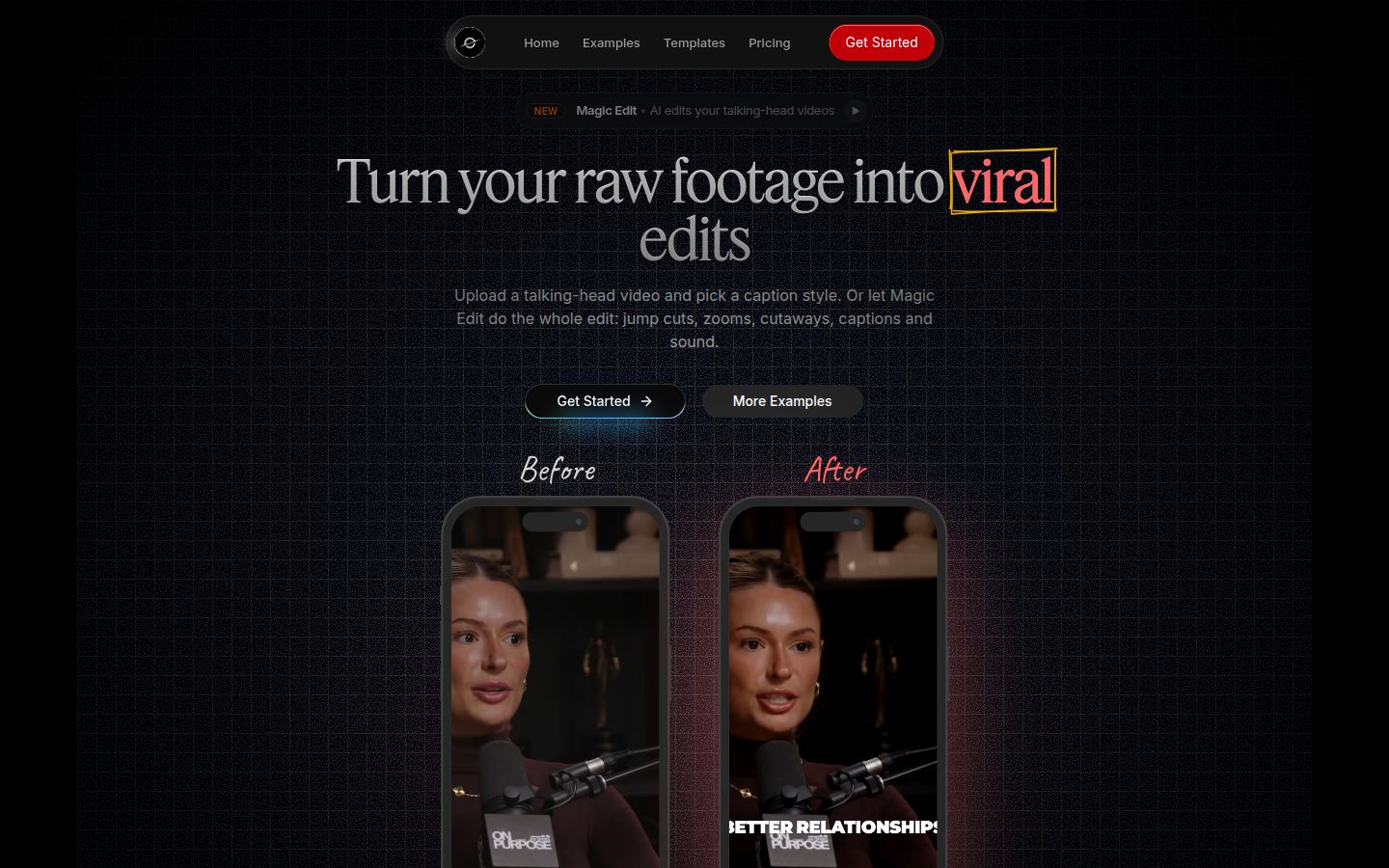
Sycamore is a web app that turns a raw talking-head recording into a finished, captioned short-form video. It runs in the browser, so there's nothing to install. It's built for founders, coaches, educators, podcasters and anyone who films themselves talking and posts to TikTok, Instagram Reels, YouTube Shorts or LinkedIn.
Sycamore gives you two ways in:
- Captions only. Upload your video, pick a caption template and export. The templates include word-by-word and highlight styles. You keep your own cuts.
- Magic Edit. Upload the raw video and Sycamore edits it for you. It cuts silences and filler words, adds animated word-synced captions, emphasis on key lines, zooms and full-screen text cutaways. You pick one of three edit styles (Apollo, Hermes or Athena), then review the edit before you export.
Review is where Sycamore differs most from a caption-only tool. The editor shows the edit in plain words, and each line can be set to Normal, Emphasis, Full screen, Number, List or Label. You can edit any word, undo any cut and restore a cut from the transcript before you export. Every word is timed, so the captions stay in sync when you change the text.
Sycamore exports an MP4 in 9:16, 1:1 or 16:9. You can save a caption look as a preset and use it on every video.
Plans as of October 2026:
- Free: 10 minutes of video, one time, no credit card.
- Starter: $19 a month for 3 hours of video a month, no watermark.
- Growth: $39 a month for 10 hours of video a month, no watermark and priority rendering.
Uploads can be MP4, MOV, WebM or MP3, up to 2 hours long.
Sycamore's limits that matter for this choice:
- Captions are English only. If you need captions in another language, use a tool that supports it.
- No SRT or VTT export. The captions live inside Sycamore's export, so you can't take a caption file to another editor.
- No phone app. It works in a phone's browser, but there's no app to download.
Sycamore is the right pick if your footage is talking-head and English, and you want the cuts and captions done in one pass without learning a full timeline. CapCut is the better pick if you want a full editor with a timeline, a large template library, a phone app or non-talking footage. Its free editor, with its many templates and text tools, is a strong choice for creators who edit by hand.
Common mistakes and how to fix them
The auto caption option asks you to upgrade. Your account doesn't include that feature. Use the SRT route on desktop or web, or caption the video in another tool.
Captions are close but some words are wrong. Open Edit captions and fix names, numbers and brand terms. Auto captions often miss those first.
You changed the style but only one caption changed. Use Apply to All after you set the style on one caption.
A template turns out to need Pro. Switching templates can bring up Pro-only styles. Check the Pro icon before you export, and swap in a free template if the prompt appears.
Captions sit under the app buttons. Move them above the bottom fifth of the frame.
Lines are too long to read at speed. Split them to two to five words each.
The phone app won't import your SRT. SRT import works on CapCut Desktop and CapCut Web only. Move the project to one of those.
Recap
- Check your plan. Auto captions are a Pro feature in CapCut's own help.
- On the phone, tap Text, then Auto captions, pick the language and tap Generate. On desktop or web, click Text, then Auto Captions, then Generate.
- Open Edit captions and fix names, numbers and brand terms.
- Split long lines to two to five words.
- Set one caption's style, then tap Apply to All.
- Move the captions above the bottom fifth of the frame.
- Export. If auto captions are locked, import an SRT file on desktop or web instead.
- If you want captions and a cleaned-up edit in one pass, try Sycamore's free 10 minutes first.
FAQ
Are CapCut auto captions free?
Not reliably. CapCut's Standard vs Pro page lists its auto caption generator as exclusive to Pro users, and its help center says a prompt to join Pro can appear when you use auto captions. Some accounts may still see the feature without a prompt.
How much does CapCut Pro cost in 2026?
CapCut's Standard vs Pro page lists Pro at $19.99 a month or $179.99 a year for individual users. CapCut says prices vary by region and promotions, so check the price shown in your app or store.
Can I import an SRT file into CapCut on my phone?
No. CapCut's help page says subtitle import works only on CapCut Desktop and CapCut Web. Import the file on a computer or in a web browser.
How do I change the caption style on every line at once in CapCut?
Set the font, size, color or animation on one caption, then use Apply to All. CapCut's help describes it as applying one style to every auto-generated subtitle in the project.
Does Sycamore export an SRT caption file?
No. Sycamore exports the finished video as an MP4 with the captions inside it. It doesn't export SRT or VTT files.
Which languages does Sycamore caption in?
Sycamore's transcription is English only. If you need captions in another language, check a tool that supports it before you start.