A talking-head video gets boring for four reasons: long dead air between thoughts, filler words and restarts, one frame that never changes, and key lines that look like every other line. You can fix all four in about 30 minutes for your first clip, and faster once you have a routine. This guide walks through three ways to do it: CapCut (free), Descript and Sycamore. You'll end with a vertical video that's cut tight, emphasized where it matters and captioned, plus a clear pick for which tool to use next time.
Film it so there's something worth editing
Most of the fix happens in the edit, but a few habits at the camera make it much easier. Use one camera at eye level and keep your framing steady. Open with the point of the video, not with a long greeting. Leave a clean one- or two-second pause between thoughts. Editing tools find pauses easily, and a clean silence is simple to cut. A mumbled restart is harder to fix.
Film in the shape you'll post. Vertical works for Shorts, Reels and TikTok, and horizontal works for YouTube. Keep the original file from your phone or camera rather than a compressed copy from a messaging app.
The four things that make a talking-head video feel flat
Fix them in this order, because each fix makes the next one easier.
- Dead air. Pauses longer than a natural breath make viewers wait. Cut them first.
- Filler words and restarts. "Um," "so," and the second try at a sentence all slow the video down. Keep the best take of each line.
- One fixed frame. A single unchanging shot for 90 seconds loses people. Punch in on the lines that matter so the picture changes with the words.
- No emphasis. Captions that appear word by word, plus a highlight or full-screen text on the key line, tell viewers where to look.
For more on the idea behind the cuts and zooms, see What Is Retention Editing?
CapCut


CapCut is a free video editor with a desktop app, an online editor and a mobile app. Its transcript tools can find filler words and pauses in a talking-head clip and remove them. The cleanup is on the desktop app, so it's the path for people who already edit on a computer. Here's the sequence:
- Open CapCut desktop, click the + button to import your clip, and drag it onto the timeline.
- Select the clip and click the transcribe button, which looks like scissors over a sheet of paper. Wait for the transcript to generate.
- In the transcript panel, click Remove filler words at the top. Read the list it finds and delete the cuts you want.
- Check the pauses. The transcript shows each gap with its length, such as 0.7 seconds. Delete the gaps you want gone, and change the minimum pause length if the tool finds too much or too little.
- Run the detection again after big cuts. It often finds a few more.
- Add captions from the auto captions tool and pick a caption template. Then click Export, choose a format and resolution, and save.
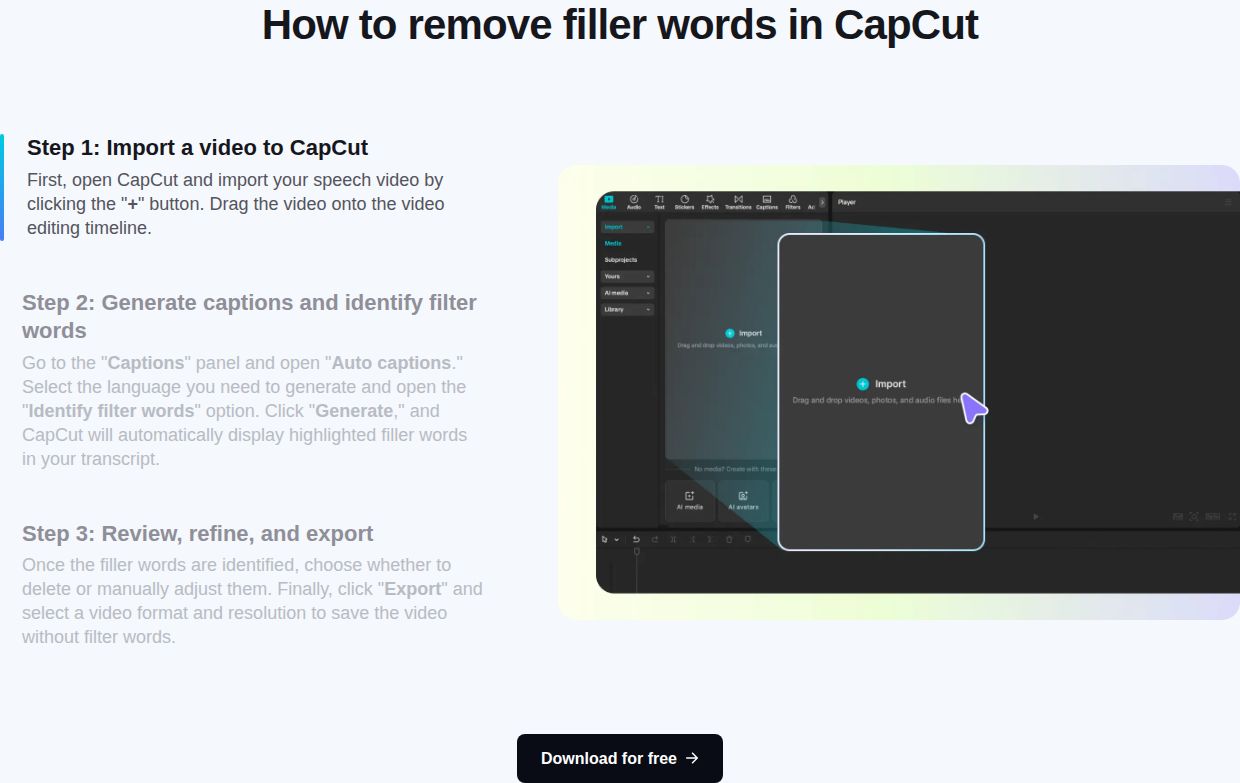 Screenshot of CapCut's filler word help page with its three steps
CapCut's free editor covers this whole workflow. In a walkthrough from March 2026, the transcript cleanup was free to use in the desktop app. CapCut's paid Pro plan lists at $19.99 a month in the US App Store as of October 2026. Prices vary by country and store, so check CapCut's pricing page for your region.
CapCut suits you if you already know a timeline, want a free tool, and don't mind placing the zooms, emphasis and cutaways yourself. The cleanup handles the dead air. The styling is your job.
Descript


Descript is an AI video and audio editor built around the transcript. You edit the video by editing its text: delete a sentence in the script and the matching footage goes with it. That makes it strong for long recordings, interviews and podcasts. Here's how to clean a talking-head clip:
- Import your video. Descript transcribes it automatically.
- Select the words you don't want and delete them. The video cuts at the same point.
- Open the AI Tools panel, go to the Sound Good section and click Remove Filler Words. This detects filler words in English transcripts only.
- For pauses you want to keep but shorten, use Shorten Word Gaps under Corrections & pacing.
- Add captions from the captions option, then export.
Descript has a free plan with 1 media hour a month and 720p exports with a watermark. The Hobbyist plan is $16 a month billed yearly, or $24 billed monthly. It includes 10 media hours a month, 1080p exports without a watermark, and the Remove Filler Words tool. The Creator plan is $24 a month billed yearly, or $35 billed monthly, with 30 media hours and 4K exports.
Descript is the better pick when your footage is long, your audio matters, or you like to edit by reading. The trade-off is that the cleanup is text-based. Punch-ins and emphasis on a short clip are work you add yourself.
Sycamore

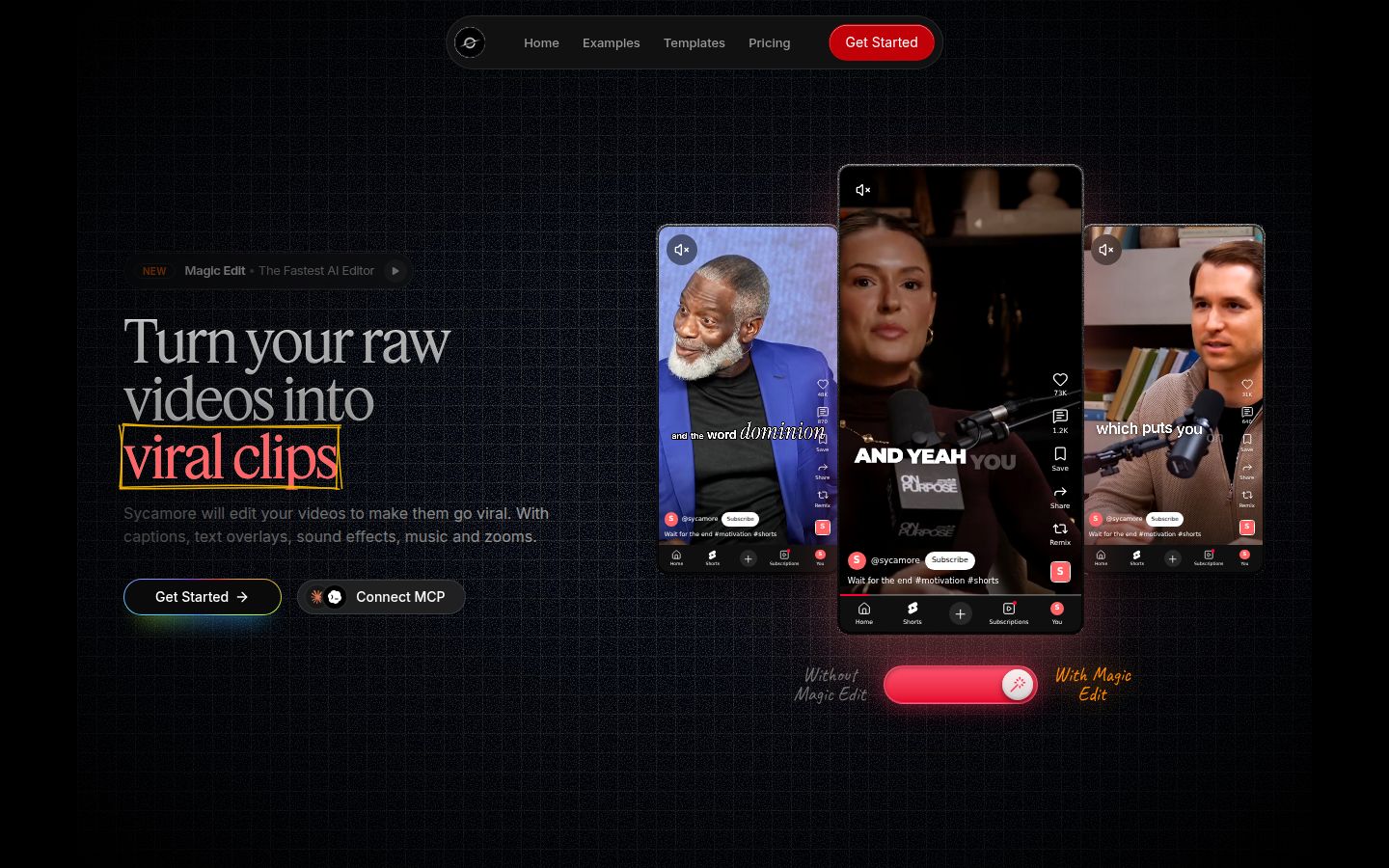
Sycamore is an AI video editor for talking-head videos. You upload raw footage of yourself talking, and Magic Edit turns it into a finished short-form edit. It cuts silences, filler words and dead air. It adds zooms and punch-ins, emphasis on key lines, full-screen text for the big moments, numbers and lists on screen, and animated word-by-word captions. It runs in the browser, so there's nothing to install. Here's the workflow:
- Go to sycamore.to and click Get Started. The Free plan gives you 10 minutes of video, one time, with no credit card.
- Upload your video. Sycamore accepts MP4, MOV, WebM or MP3 files up to 2 hours long.
- Start Magic Edit and pick an edit style: Apollo, Hermes, Athena or Helios.
- Review the edit. Each line is set to Normal, Emphasis, Full screen, Number, List or Label. Change any line, or switch the edit style without starting over.
- Fix any word in the captions. Change the font, colors, size, animation or position, and save a look as a preset.
- Export an MP4 in 9:16 for Shorts, Reels and TikTok, 1:1 for the feed, or 16:9 for YouTube.
Sycamore is built for people who film themselves talking and want the edit done in one pass: founders, coaches, educators and podcasters posting on TikTok, Reels, Shorts and LinkedIn. You work in plain-language lines, not on a timeline. The edit is a first pass you review before you export, so you stay in control of what goes out.
The plans are priced by minutes of video. Starter is $19 a month for 3 hours of video with no watermark. Growth is $39 a month for 10 hours, with priority rendering. Both prices are as of October 2026, and you can see the full plan list on Sycamore's pricing page.
Sycamore has real limits. Transcription is English only. It edits the footage you give it, so it doesn't write your script or your opening line, and it doesn't add B-roll, AI voices or background music. It exports MP4 but not SRT caption files. It's a web app, so you use it in a phone's browser rather than a mobile app.
Which one to pick
| Tool | Price (October 2026) | Good for | Keep in mind |
|---|---|---|---|
| CapCut | Free editor. Pro lists at $19.99 a month in the US App Store | You already edit there and want a free tool | Cleanup runs in the desktop app. Styling is manual |
| Descript | Free plan (1 media hour). Hobbyist $16 a month billed yearly, or $24 monthly | Long recordings, interviews and podcasts, and editing by reading | Filler detection works in English only |
| Sycamore | Free (10 minutes, one time). Starter $19 a month (3 hours). Growth $39 a month (10 hours) | A finished short-form edit from one raw take, with little editing | English only. Edits only what you filmed |
| Submagic | Starter $19 a month, or $12 billed yearly. Pro $39 a month, or $23 billed yearly | Captions and auto-zoom. Pro also removes silences and filler words | Silence and filler removal need the Pro plan |
Submagic is a captions-first tool with a similar goal. Its Pro plan has the silence and filler removal this guide covers, at the same $39 price point as Sycamore's Growth plan, although the plans limit videos differently. Check Submagic's pricing page for current limits.
A simple rule: if you edit a video or two a week and already know CapCut, start there. If your recordings run long and you think in transcripts, Descript fits your workflow. If you want the finished short-form look with the least hand work, Sycamore is made for that. The free 10 minutes let you test it on one of your own videos before you pay anything.
Common mistakes and how to fix them
Cutting every pause. A flat, rapid-fire video tires viewers too. Keep a short beat before a key line so it lands. In CapCut, raise the minimum pause length so only the long gaps get cut.
The cleanup removed a word you meant. Auto cuts sometimes take a real word with a filler. Check the transcript before you export. In Descript, right-click an edit boundary and choose Restore removed media, because the cut media is hidden, not erased. In CapCut, press Ctrl+Z (Cmd+Z on Mac) to undo the cut.
Captions cover your face or the key words. Move the captions up or down in your editor's position setting. Keep them in the lower third, where they don't hide your face.
Captions don't match what you said. Fix the word in the transcript first. In Sycamore, the captions follow the transcript you edit, so you fix a misspelled name once.
Too many zooms. A punch-in on every sentence looks busy. Save the zooms for the lines that carry the point.
The best line is buried. These tools edit what you filmed. They don't move your strongest line to the top. If your best point comes at 1:40, move it into the first few seconds of your recording before you edit.
Wrong shape for the platform. Export 9:16 for vertical platforms. A 16:9 export looks small and cropped on a phone.
Recap: the steps in order
- Film in the shape you'll post, with one camera at eye level and a clean beat between thoughts.
- Transcribe the clip in your editor.
- Remove filler words and dead air. Keep the best take of each line.
- Add punch-in zooms on the lines that matter.
- Add emphasis, full-screen text or captions on the key lines.
- Check every caption word against the audio.
- Export 9:16 and watch the first three seconds on your phone.
FAQ
Can I remove filler words and silences for free?
Yes. CapCut's desktop editor has a transcript tool that finds filler words and pauses, and it was free to use in March 2026. Sycamore's Free plan gives you 10 minutes of video one time, with no credit card.
How much does Sycamore cost?
As of October 2026, the Free plan is 10 minutes of video one time. Starter is $19 a month for 3 hours of video with no watermark, and Growth is $39 a month for 10 hours with priority rendering.
Does Descript remove filler words in other languages?
No. Descript's filler word detection works on English transcripts only. Its Hobbyist plan, which includes the Remove Filler Words tool, starts at $16 a month billed yearly.
Can Sycamore export SRT caption files?
No. Sycamore exports the edited video as an MP4. It does not export SRT or VTT caption files.
Is there a Sycamore mobile app?
No. Sycamore is a web app that runs in your browser, so you can use it from a phone's browser, but there's no separate mobile app.