You'll finish with one edited MP4 of your talking-head clip, sized for LinkedIn, with the dead air and filler words cut, a tight opening, captions on screen and a caption check before it goes live. Plan on about an hour for your first video, most of it spent learning the tool. After that, a one-minute clip should be a short session, not an afternoon.
The steps below work in any editor. We also show four ways to do the job, from free apps to a full desktop editor, and say which kind of creator each one suits.
What LinkedIn accepts before you edit
Check the specs first, so you don't edit a file LinkedIn will reject or crop. LinkedIn's help page lists these limits:
- Length: up to 15 minutes on desktop. The minimum is 3 seconds on desktop and 2 seconds from the mobile app.
- File size: up to 5 GB.
- Aspect ratio: anywhere between 1:2.4 and 2.4:1. That range includes 9:16, 4:5, 1:1 and 16:9.
- Frame rate: 10 to 60 fps.
- Safe zones: keep the edges (top, bottom and sides) free of key elements, text and logos.
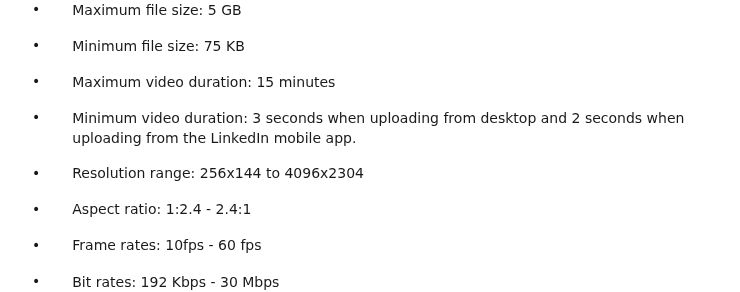 LinkedIn's help page listing the video requirements
Pick the shape before you edit, because it decides where your captions go. If the same clip also goes to TikTok, Reels or Shorts, export 9:16. For LinkedIn alone, many creators pick 4:5 or 1:1, since those fill more of the screen in the feed than a 16:9 frame does.
How to edit a talking-head video for LinkedIn, step by step
-
Decide the one point. Write the point in one sentence before you touch the timeline. Anything that doesn't support it goes.
-
Remove dead air and filler words first. Do this on the audio, before any zooms or text. Cut the "um", the restarts and the pauses where you clearly stopped to think. Keep the natural breath between two ideas, or the cut will feel rushed.
-
Open with your strongest line. Move the sentence that makes the point to the first few seconds. Trim the warm-up before it. If your best line is at the end, move it up.
-
Add a few emphasis moves. A zoom on the key word, or a text card for a number or a short list, helps the viewer follow. Keep them to a few per minute. Zooms and transitions on every sentence make the viewer notice the edit instead of your message.
-
Add captions. Burned-in captions show even when the sound is off, and you control their look. LinkedIn can also generate captions for you when you upload (see step 8), and you can edit those inside LinkedIn.
-
Check every name, number and acronym. Automatic captions get company names and product names wrong. Fix each one before export.
-
Check the edges. Preview the export and make sure captions and text sit inside the safe zone, away from the top, bottom and sides.
-
Export an MP4 and upload it to LinkedIn. On desktop, click the Video icon in the share box on your LinkedIn homepage, or drag the file in. Click Upload from computer. Switch Add auto captions on if you want LinkedIn to generate them. Switch on Review captions before viewers can see them if you want to check them first. Click Next, write your post text, then click Post.
-
Review the captions after posting. LinkedIn shows a banner under the post when the captions are ready. Click Review, then Approve. To fix a word later, click the More icon on the post, then Edit captions.
LinkedIn's help page says auto captions are supported in 10 languages, and that captions can take some time to appear after you post.
Which editor to use for each step
| Editor | Price, November 2026 | Best for | Keep in mind |
|---|---|---|---|
| Sycamore | Free (10 minutes, one-time); Starter $19/month (3 hours); Growth $39/month (10 hours) | Talking-head creators who want an edit made from raw footage | Transcription is English only, and there's no SRT caption file export |
| CapCut | Free; Pro $19.99/month or $179.99/year | Hands-on editing with templates and effects | You make the cuts and zooms yourself |
| Descript | Free (60 media minutes a month, watermark); Hobbyist $24/month or $16/month billed yearly | Editing a video by editing its transcript | Plans are metered by media hours and AI credits |
| Adobe Premiere Pro | US$22.99/month on the annual plan, billed monthly | Full timeline control and existing Adobe users | The learning curve is the longest of the four |
Sycamore

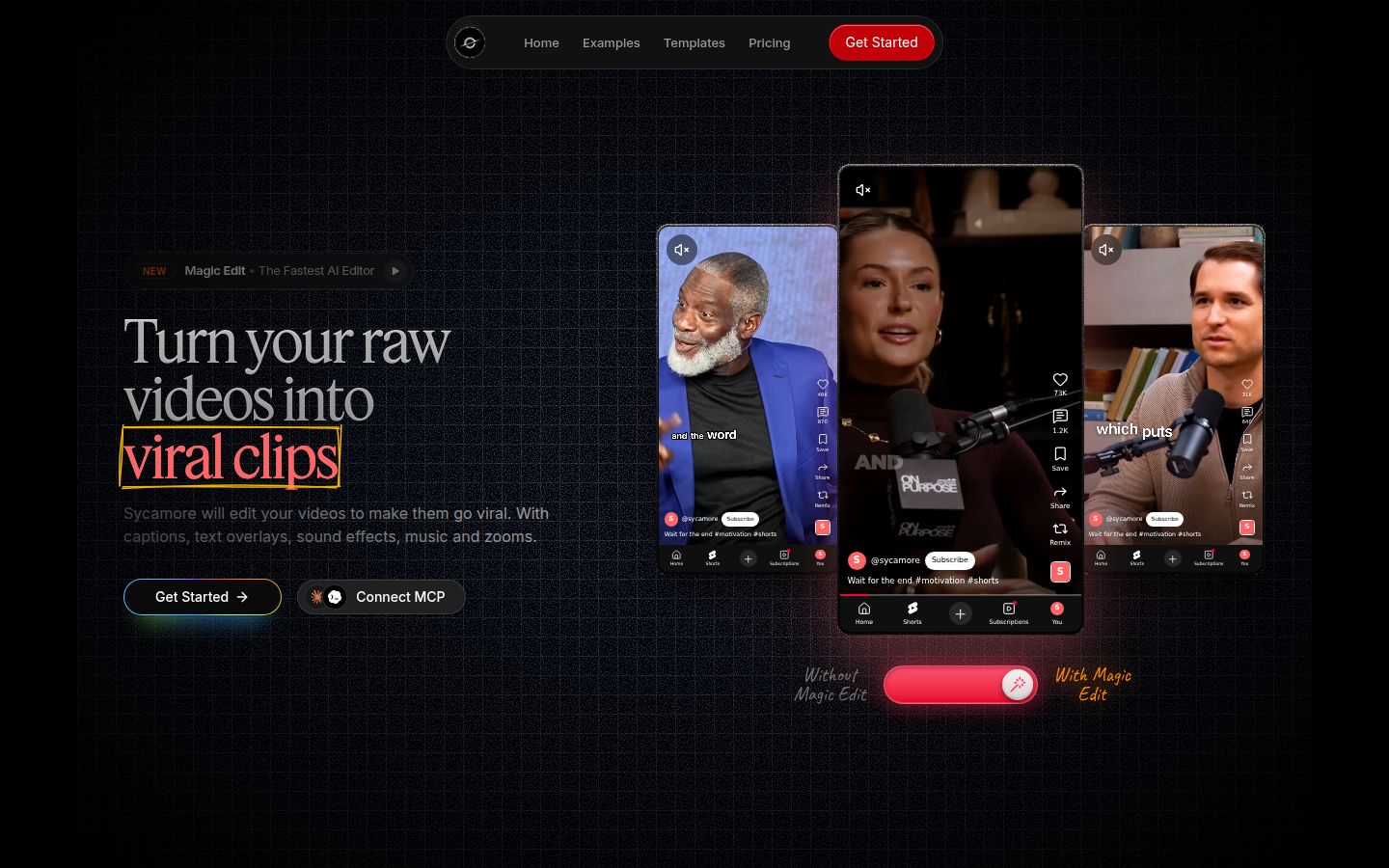
Sycamore is the tool we make. It's an AI video editor for talking-head footage. You upload the raw video of you talking, and Magic Edit makes the whole edit in one pass. It cuts silences, filler words and dead air, then adds zooms and punch-ins, emphasis on the key lines, full-screen text cutaways for the big moments, numbers and lists on screen, and animated captions that appear word by word. It runs in the browser, so there's nothing to install.
Upload MP4, MOV, WebM or MP3 files up to 2 hours long. Choose one of four edit styles: Apollo, Hermes, Athena or Helios. Then review the result. Each line can be set to Normal, Emphasis, Full screen, Number, List or Label, and you can switch the style without starting over. Export an MP4 in 9:16, 1:1 or 16:9.
The best fit is a founder, coach or educator who films themselves talking and wants a finished-looking video without learning a timeline. You get the cuts and captions done for you, and you still review every change before export.
Pricing as of November 2026:
- Free: 10 minutes of video, one-time, no credit card.
- Starter: $19 a month for 3 hours of video a month, no watermark.
- Growth: $39 a month for 10 hours of video a month, no watermark, with priority rendering.
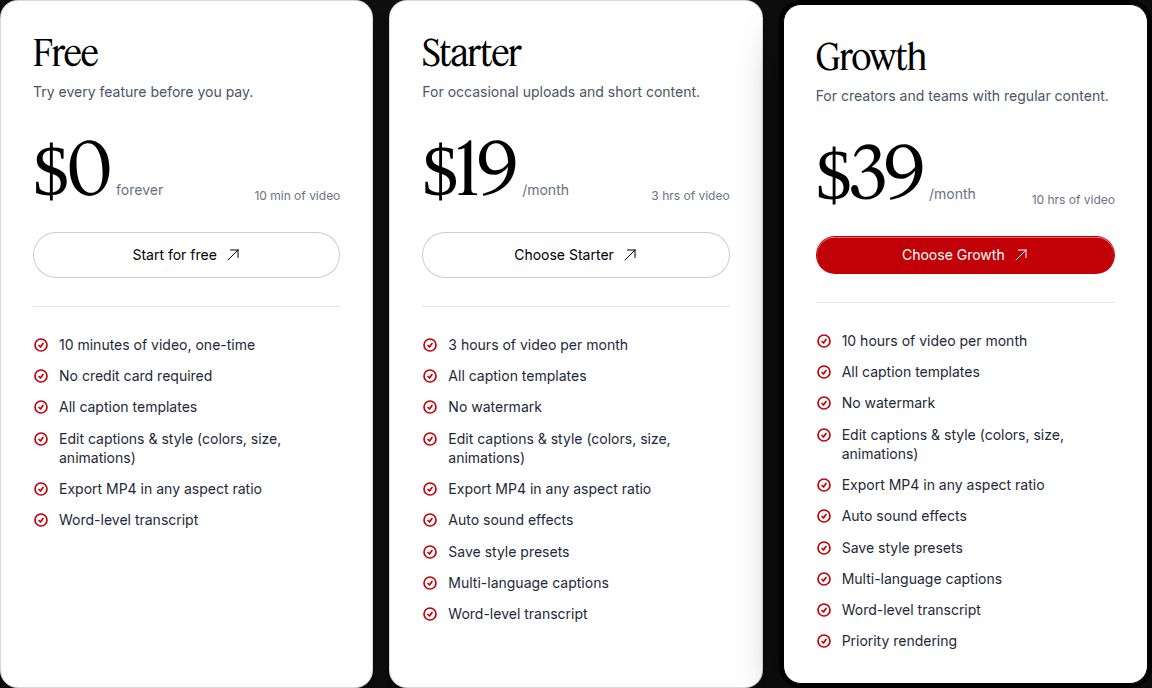 Sycamore's pricing plans
Sycamore has limits that matter for LinkedIn. Transcription is English only, so non-English videos aren't a fit. It doesn't export an SRT caption file, so if you need a caption file to attach on LinkedIn, use burned-in captions or another tool. It also doesn't post or schedule for you. It's a web app that runs in a phone's browser. There's no separate mobile app.
CapCut

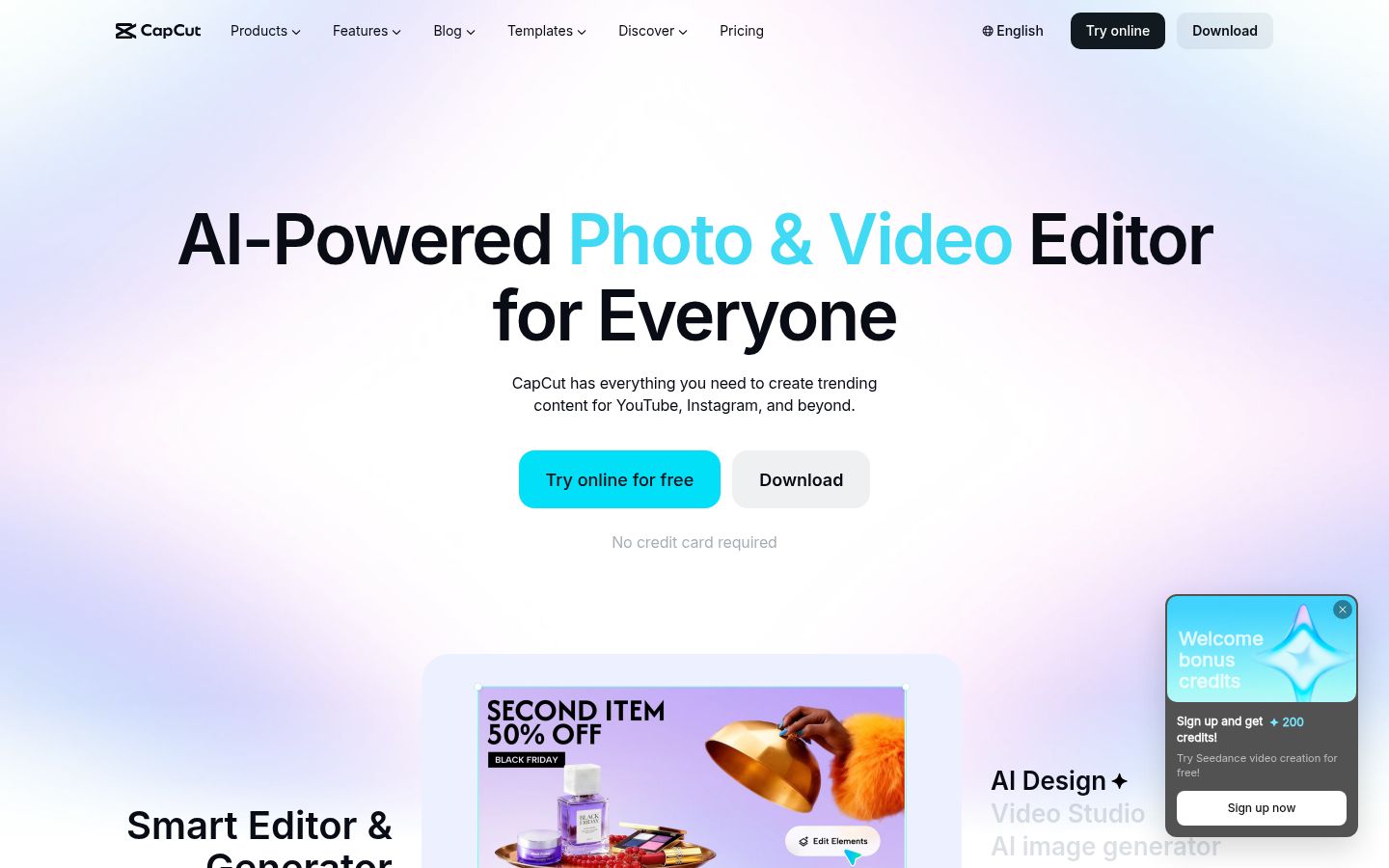
CapCut is a free editor with a large library of templates, effects and text styles, and it works on desktop, online and mobile. It includes free automatic captions. To add them, open your project, go to the Text tab and choose Auto captions from the sidebar, then pick the spoken language and generate.
It's a strong choice if you like to shape every cut yourself, or if you already edit on your phone. You remove the pauses and add the zooms by hand, which takes longer but gives you full control. Pro costs $19.99 a month or $179.99 a year. The free editor covers the captions and the basic edit without a subscription.
Descript

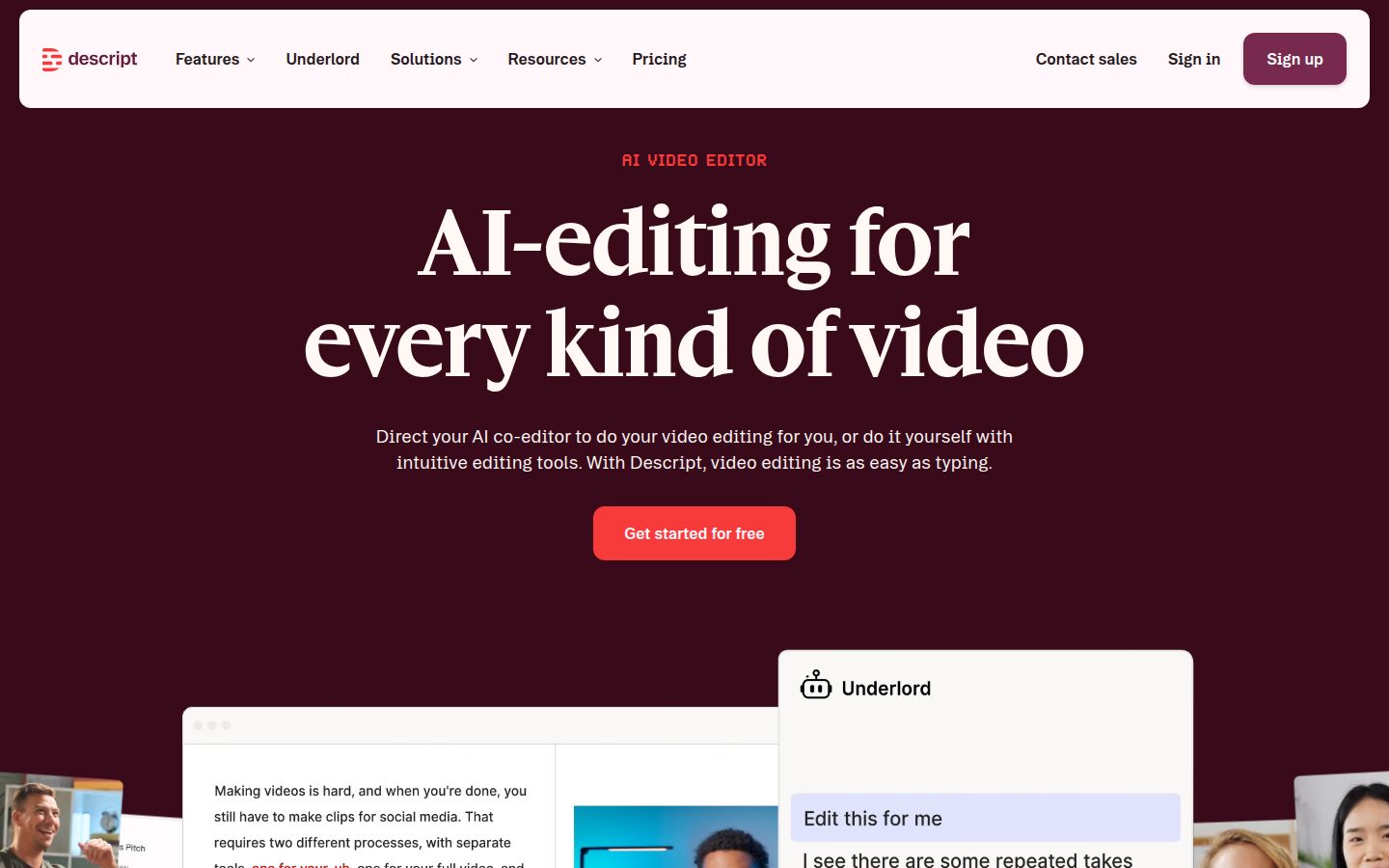
Descript edits video the way you edit a document. It transcribes your recording, and deleting a word in the transcript cuts that part of the video. To remove filler words, open the AI Tools panel in the right sidebar and choose Remove filler words. Descript's help center lists the detected words in a sidebar so you can check them before you remove them.
It's a good fit if you think in words more than in frames, especially if you also record podcasts or interviews. The Hobbyist plan adds 1080p export without a watermark and 10 media hours a month. Its free plan includes 60 media minutes a month, with a watermark and 720p export. Plans are priced per editor, and the allowances are metered in media hours and AI credits.
Adobe Premiere Pro

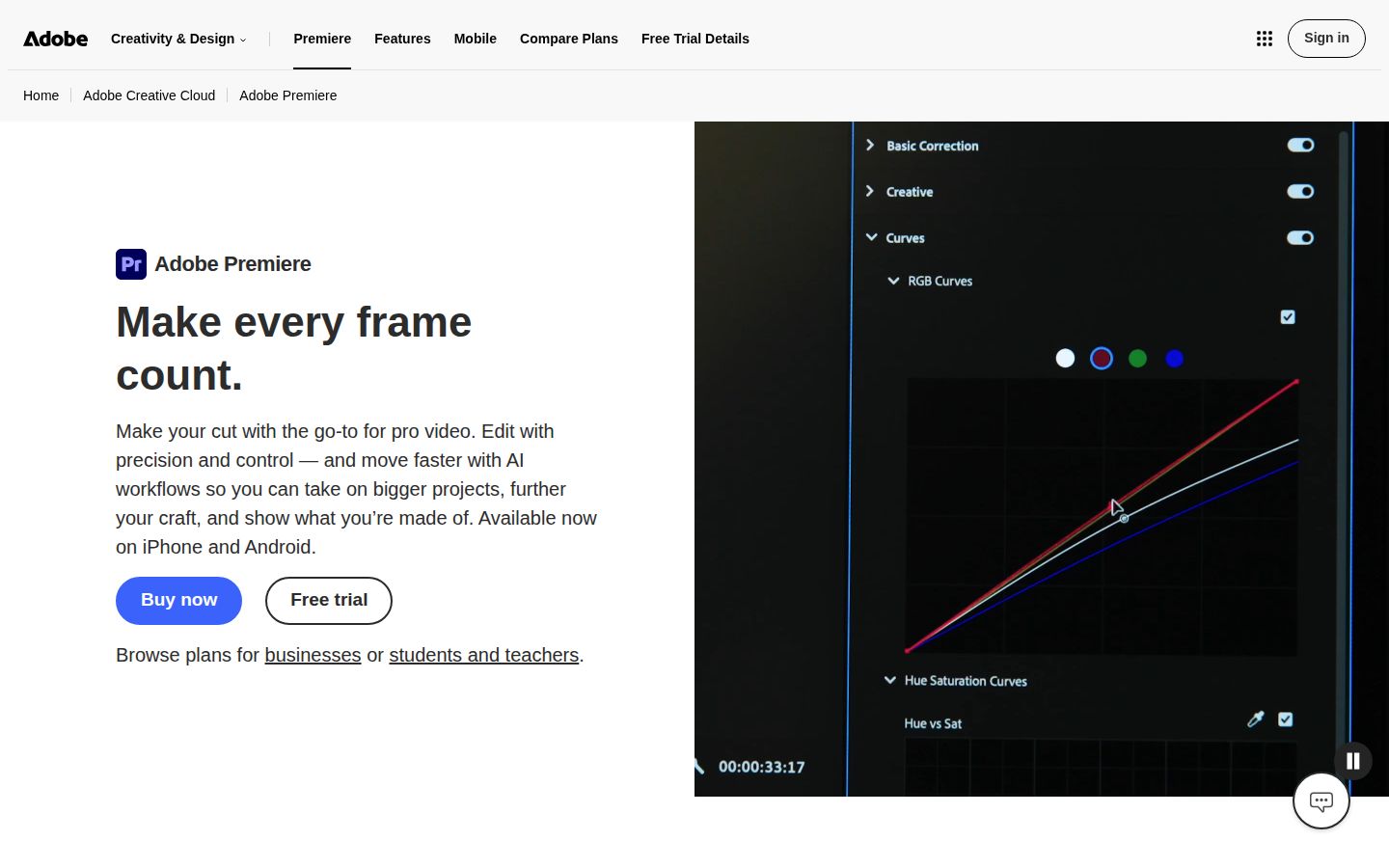
Premiere is a full desktop editor with a multi-track timeline, detailed audio and color tools, and deep control over every cut. Its Auto Reframe feature can turn a 16:9 sequence into a vertical or square version. You choose a target aspect ratio, such as Vertical 9:16, and Premiere adjusts the framing.
It's the right choice if you already work in Adobe apps, or if your videos need more than talking-head edits. The single-app plan for Premiere costs US$22.99 a month on the annual plan, billed monthly. Adobe offers a free trial. The price and the learning curve are the trade-off for that control.
Common mistakes and how to fix them
Captions sit in the edge of the frame. Phone apps and feeds crop the edges. Move captions and text inside the safe zone and preview the export.
Auto captions have wrong names. Open the post, click More, then Edit captions, and fix each word. Check names and numbers before you post.
Too many effects. A zoom on every sentence, a transition at every cut, and text on every line pull attention from what you're saying. Use emphasis for the two or three lines that matter.
Too many pauses left in. Long gaps read as slow. Cut the pauses where you'd stop to think, and keep short breaths so the cuts don't sound clipped.
A file over 15 minutes. LinkedIn's limit on desktop is 15 minutes. Cut the video into parts, or keep only the strongest section.
The caption banner doesn't show. LinkedIn says captions can take some time to appear after you post. Check the post again after a short wait, and use the Review button in the banner once it appears.
Wrong shape for the place you post. Export the shape each platform needs, and preview the file on your phone before you post. If the clip goes to several places, export one version for each.
Recap
- Write the one point the video makes, and cut anything else.
- Check LinkedIn's limits: up to 15 minutes, up to 5 GB, aspect ratio between 1:2.4 and 2.4:1, and safe zones at the edges.
- Remove dead air and filler words.
- Open with your strongest line.
- Add a few zooms, text cards or emphasis moves, not one per sentence.
- Add captions, then check every name and number.
- Export an MP4 and keep text inside the safe zone.
- On LinkedIn, upload from your computer, switch on auto captions, and review them before you post.
FAQ
What aspect ratio should a LinkedIn video be?
LinkedIn accepts any aspect ratio between 1:2.4 and 2.4:1, so 9:16, 4:5, 1:1 and 16:9 all work. Many creators pick 4:5 or 1:1 for the feed, and 9:16 if the same clip also goes to TikTok, Reels or Shorts.
How long can a LinkedIn video be?
LinkedIn's help page lists a maximum of 15 minutes for desktop uploads, with a file size limit of 5 GB. Cut longer recordings into shorter parts before you upload.
Does LinkedIn add captions automatically?
Yes. When you upload, switch on Add auto captions. LinkedIn says auto captions are supported in 10 languages, and you can review and edit them after posting with More, then Edit captions.
Is there a free way to edit a talking-head video for LinkedIn?
Yes. CapCut has a free editor with auto captions, and Descript has a free plan with 60 media minutes a month, a watermark and 720p export. Sycamore's free plan includes 10 minutes of video, one-time, with no credit card.
Can I upload an SRT caption file to a LinkedIn video?
LinkedIn's help page describes attaching an SRT file on the desktop experience. Sycamore doesn't export SRT files, so use burned-in captions or another tool that makes one.
Which editor should I pick for LinkedIn talking-head videos?
Pick Sycamore if you want an edit made from raw footage that you review before export. Pick CapCut if you want to cut by hand for free, Descript if you edit by deleting words, and Premiere Pro if you need full timeline control.