By the end of this post you'll have a TikTok video with captions on every spoken line, checked for mistakes and easy to read on a phone. Plan on about 15 minutes for your first video. Most of that time goes to reading the words, not to the export.
There are three ways to do it in October 2026: TikTok's own creator captions, CapCut, or a caption tool such as Sycamore or Submagic. They differ in how the captions look, what they cost, and whether the captions travel with the file if you post the same clip to Reels or Shorts. The table gives you the short version. The sections after it walk through each method.
| Method | Cost (as of October 2026) | What the captions look like | Best for |
|---|---|---|---|
| TikTok creator captions | Free | TikTok's own style, with a small set of fonts and colors | A quick caption on a TikTok you won't repost elsewhere |
| CapCut | Free to start, but auto captions may sit under Pro | Captions and templates inside a full video editor | Creators who already cut their videos in CapCut |
| Sycamore | Free for 10 minutes once, then Starter at $19 a month | Animated, word-by-word captions burned into the video | Talking-head creators who want cuts and captions in one pass |
| Submagic | Starter at $19 a month, or $12 a month billed yearly | Animated caption styles, plus B-roll on the cheaper plans | Creators who need B-roll or want to publish from the same tool |
TikTok's built-in captions
TikTok can transcribe your speech and put the text on the video inside the app. This is the cheapest option, and you don't install anything. Its help page calls this feature creator captions.
- Tap the Add post + button at the bottom of the app.
- Record a video, or upload one, then continue to the preview screen.
- Tap the Captions button on the side panel. TikTok transcribes the speech. The first time, you'll be asked to opt in to the feature.
- Preview and edit each line. When you're done, tap Save.
- Finish your post and publish.
TikTok says you can edit and design creator captions, such as the font style and color. To fix a caption after you post, tap the caption on your video, tap Edit captions, make your change, and tap Save at the top.
There's a second feature with a similar name. Auto-generated captions is set on the post screen: tap More options, then Select video language. Pick the spoken language before you post, or the captions may not appear.
TikTok's built-in captions have two limits you should know about. The style is plain, with few choices. And the captions exist only inside TikTok. If you save the file and post it to Instagram Reels or YouTube Shorts, the text doesn't come with it. For that you need captions burned into the picture, which the next three methods do.
CapCut
CapCut is a full video editor, and it has auto captions as one of its tools. If you already cut your talking-head videos there, it's the least new software to learn. The steps below follow AutoSubtitles' October 2026 guide, which cites CapCut's help pages for some of them.
One thing to check first. AutoSubtitles, a caption tool, wrote in October 2026 that CapCut now lists auto captions as a Pro feature. On many accounts, the upgrade prompt shows up when you export a project that uses them. Open the feature on your own account before you build a workflow around it. If it asks for Pro, you can still type captions by hand or use another tool for that step.
On a phone, these are the steps, as AutoSubtitles lists them:
- Open CapCut, start a new project, and choose your video.
- Tap Text, then Auto captions.
- Choose the audio source and the spoken language, then tap Generate.
- Tap the caption track, then Edit captions, and fix any wrong words.
- Pick a font, color and animation. Changes apply to every caption at once.
- Export with the arrow at the top right.
On a computer, click the Captions tab at the top left (on some versions it sits under Text), click Auto captions, choose the language, and click Generate. Edit and style the captions in the panel on the right.
CapCut is free to download, and it's a full editor. The trade-off is that you do more of the work yourself. You choose the cuts, the zooms and the timing. If you only want captions on a clip that is already edited, that is fine. If you want the editing done for you, a tool built for talking heads is faster.
Sycamore
Sycamore is a web app that turns a raw talking-head recording into a finished, captioned short-form video. It runs in your browser, so there's nothing to install. We make it, so take this section with that in mind, and we'll say where it isn't the right choice.

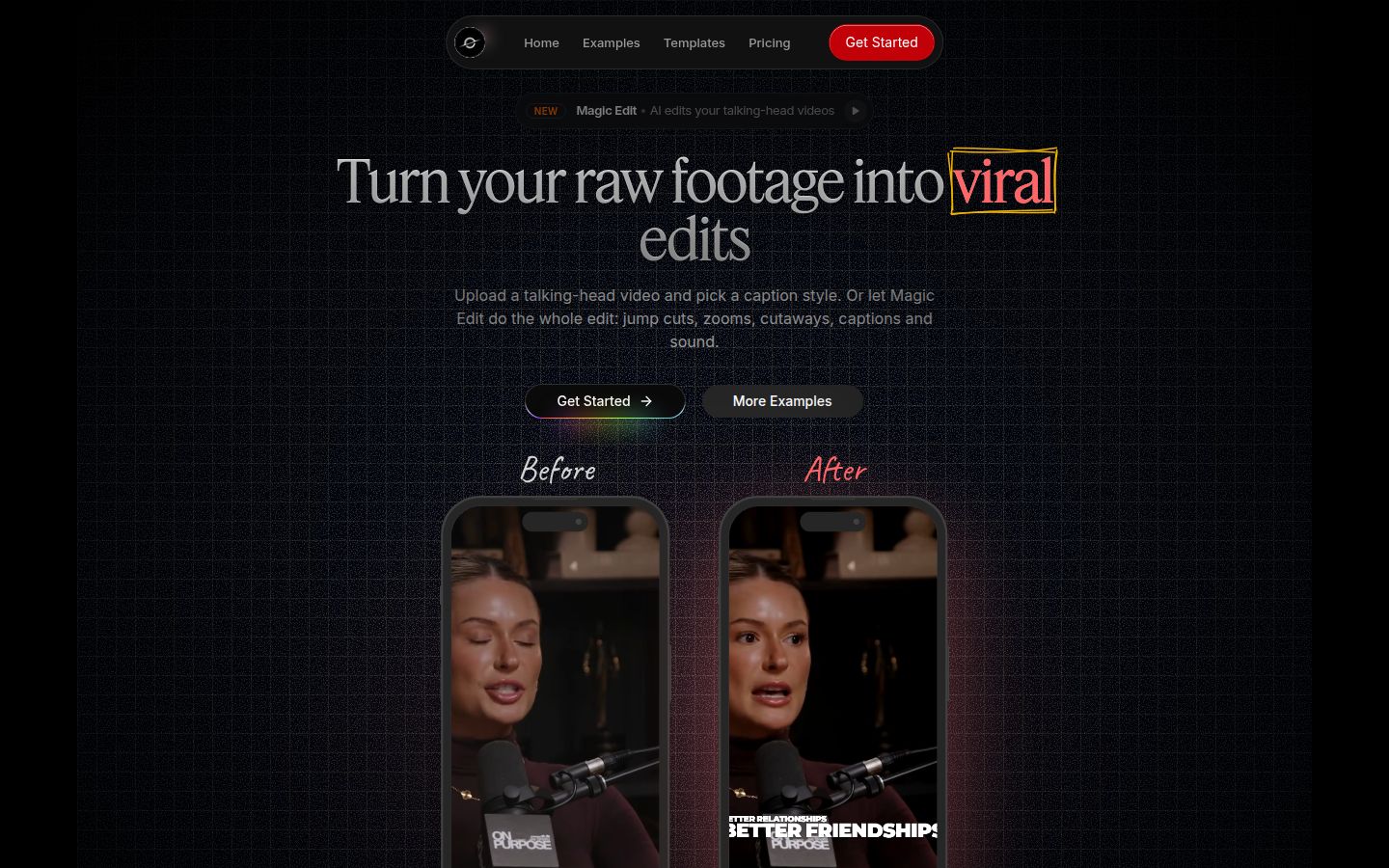
Sycamore does two jobs. For captions only, you upload a clip, choose an animated template, and export. Its caption templates include word pop, highlight words and Beast. Sycamore's TikTok caption page lists the steps like this:
- Upload an MP4, MOV or WebM of your clip.
- Choose a template, and set the captions to top, center or bottom.
- Click any word in the transcript to correct it. The timing stays the same.
- Export the MP4 with the captions burned in, then upload it to TikTok.
The second job is Magic Edit. You upload a raw talking-head recording, and Sycamore cuts out silences and filler words, adds word-synced captions, and adds zooms and full-screen text where the big lines land. You pick an edit style, such as Apollo or Hermes, then review the edit and change anything before you export. Each line can be set to Normal, Emphasis, Full screen, Number, List or Label. You can also restore any cut from the transcript and export again.
Sycamore is the best fit when you film yourself talking, want the cuts and captions done in one pass, and want to stay in control of the result through a plain-words review. Pricing is by minutes of video, not by seat. The Free plan gives you 10 minutes of video, one time, with no credit card. Starter is $19 a month for 3 hours of video, and Growth is $39 a month for 10 hours. Both paid plans list no watermark, and the Free plan doesn't. Saving a style preset to reuse on every video is on Starter and Growth.
Sycamore has limits that matter for some readers:
- Transcription is English only.
- It exports an MP4 with the captions burned in. It doesn't export an SRT or VTT caption file.
- There's no mobile app. It works in a phone's browser, but it's a web app.
- It edits the video you upload. It doesn't clip a long video into many shorts, and it doesn't auto-post to TikTok.
Submagic
Submagic is a well-known caption and edit tool for short videos. Its paid plans add things Sycamore doesn't do: B-roll, social publishing and an API.

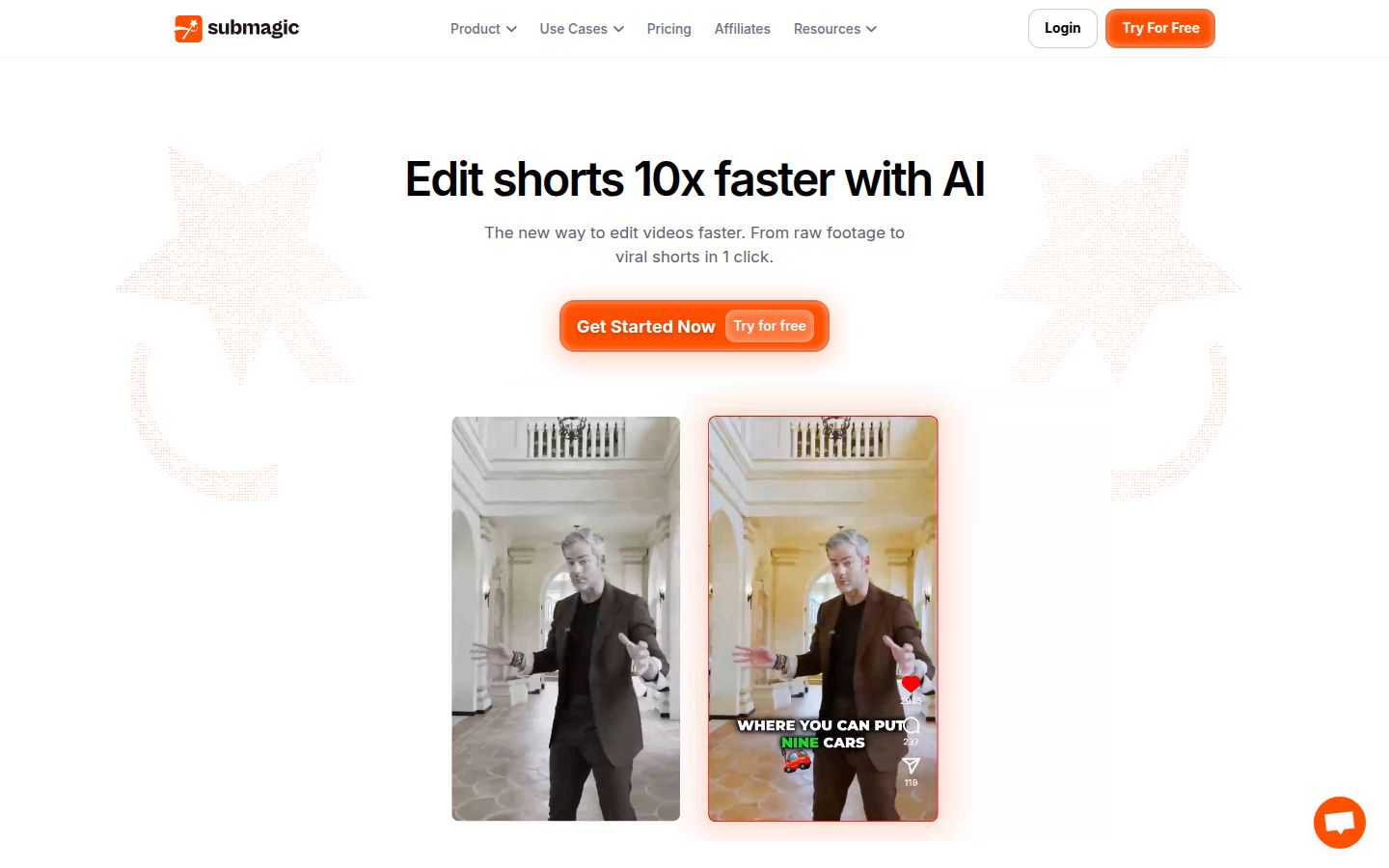
Submagic's pricing is per member, per month. A third-party check of Submagic's pricing page, updated October 16, 2026, lists three plans:
- Starter: $19 a month, or $12 a month billed yearly. 15 videos a month of up to 2 minutes each, exported in 1080p, with no watermark. It includes free stock B-roll and audio.
- Pro: $39 a month, or $23 billed yearly. 40 videos of up to 5 minutes. Removing silences, bad takes and filler words starts here.
- Business: $69 a month, or $41 billed yearly. 100 videos of up to 30 minutes, with up to 3 publishing profiles per platform.
Submagic's free trial lets you edit 3 short videos with no card. Downloading them without the watermark needs a paid plan. Its pricing page also lists Magic Clips as an add-on.
Submagic is a good fit if you need B-roll on a low plan, or if you want to publish from the same tool. The limits to plan around are the 2-minute cap on Starter and the fact that silence and filler-word removal start on Pro.
If you want AI-generated footage rather than captions, that's a different category. Captions AI's pricing page lists its Max plan at $24.99 a month, and says those prices are for iOS plans. Its free plan includes one caption template.
Common caption mistakes and fixes
The captions cover your face or TikTok's buttons. Put the captions at the top or center. Sycamore's TikTok page notes that the like and comment icons sit at the bottom of the screen. AutoSubtitles recommends keeping captions above the bottom fifth of the frame for TikTok, Reels and Shorts.
Auto captions get names and brand words wrong. Fix them before you post. Auto captions struggle most with names, slang, accents and numbers. On TikTok you can edit after posting, but it's faster to fix the words in the editor first.
Your TikTok caption edits don't save. One Reddit post from March 2026 in r/tiktokcreatorclub describes edits that stopped saving after the poster resized the captions. That poster moved to CapCut for captions. Treat that as one report, not a rule. Update the app, retry the edit, and check the caption again after you post. If nothing changes, use a burned-in caption instead.
You see two sets of captions. This happens when you burn captions into the video and also leave TikTok's auto captions on. Turn TikTok's captions off before you post a burned-in video.
The captions disappear when you repost. TikTok's built-in captions stay on TikTok. If you post the same file to Reels or Shorts, burn the captions in before you export. Our burned-in vs auto captions guide covers when each one makes sense.
The text is too hard to read. Keep each line to 2 to 4 words, so each phrase stays on screen long enough to read. AutoSubtitles recommends that range for vertical video. Sycamore's tool pages suggest lowering the words per line so each line matches your speaking pace.
Which one should you pick?
Start with the job. If you want a quick caption on one TikTok, use TikTok's own captions and don't pay for anything. If you already edit in CapCut and your account still has auto captions, use CapCut. If you want captions burned in, plus a cleanup of silences and filler words, Sycamore is the most direct route. If you need B-roll, or you publish from the same tool, look at Submagic's plans.
The free options cost nothing, but they ask more of you. The paid options save time on the edit itself. Pick the one that matches the work you'll repeat every week.
Recap: how to add captions to a TikTok video
- Choose your method: TikTok's creator captions, CapCut, Sycamore or Submagic.
- Upload or record your video.
- Turn on captions and select the spoken language.
- Read every line, and fix names, brand words and numbers.
- Pick a style, and place the captions at the top or center.
- If you burned the captions in, turn off TikTok's captions.
- Check the preview on your phone, then post.
For more on tools and setup, see our free caption and video tools page, or the Sycamore pricing page if you want the full plan list.
FAQ
Does TikTok add captions automatically?
TikTok can transcribe your speech. Tap the Captions button on the side panel of the preview screen to create creator captions, or set the spoken language under More options, then Select video language, for auto-generated captions.
Can I edit TikTok captions after I post?
Yes. Tap the caption on your video, tap Edit captions, change the text, then tap Save at the top.
Are CapCut auto captions free?
Not reliably. CapCut's free plan has included auto captions, but AutoSubtitles reported in October 2026 that CapCut now lists them as a Pro feature, so check the label in your own app before you rely on them.
Can I add burned-in captions for free?
Sycamore's Free plan lets you caption up to 10 minutes of video one time, with no credit card, and exports an MP4 with the captions burned in. Starter, at $19 a month, adds 3 hours of video per month and lists no watermark.
Does Sycamore export an SRT file?
No. Sycamore exports one MP4 with the animated captions burned into the picture, and its transcription is English only.
How much does Submagic cost?
Starter is $19 a month per member, or $12 a month billed yearly, with 15 videos of up to 2 minutes each. Pro is $39 a month, or $23 billed yearly.