A good talking-head short is a tighter version of the take you already filmed. You cut the dead air, the "ums" and the restarts, add captions that follow your words, and punch in on the lines that matter. At the end you have one vertical MP4 (9:16) ready for TikTok, Instagram Reels, YouTube Shorts or LinkedIn. Plan on about 30 minutes for your first one. That number is our rough estimate, not a benchmark, and it gets shorter once you have a routine.
This guide walks through the same seven steps and shows where each tool does them. You can do all of it by hand in a free editor, or hand most of it to a tool that works from the transcript. Pick the route that fits how you work.
What you need before you start
- One raw recording of one person talking to camera. Use the original file from your camera or phone, not a version that has already been compressed for posting.
- A single point for the short. Write it in one sentence. Every cut after this step is easier when you know what the clip is about.
- A file the tool accepts. Sycamore takes MP4, MOV, WebM or MP3 uploads up to 2 hours. Submagic lists a 3,000 MB file limit on every plan, according to StoryCut's comparison of Submagic plans.
The seven steps
- Pick the one point. Cut anything that doesn't support it.
- Remove the dead air. Cut silences and long pauses between sentences.
- Remove filler words and false starts. Cut the "um", "uh" and the sentence you restarted.
- Write the hook. The first line the viewer hears should be the strongest one. Move it to the top if it's buried.
- Add captions and emphasis. Captions should follow your words, with the key words highlighted.
- Punch in on key lines. A zoom on a strong sentence keeps the eye on the screen.
- Review, export at 9:16, and watch the first three seconds on your phone.
Steps 2, 3, 5 and 6 are where tools save the most time. The sections below show what each tool does for those steps.
Sycamore

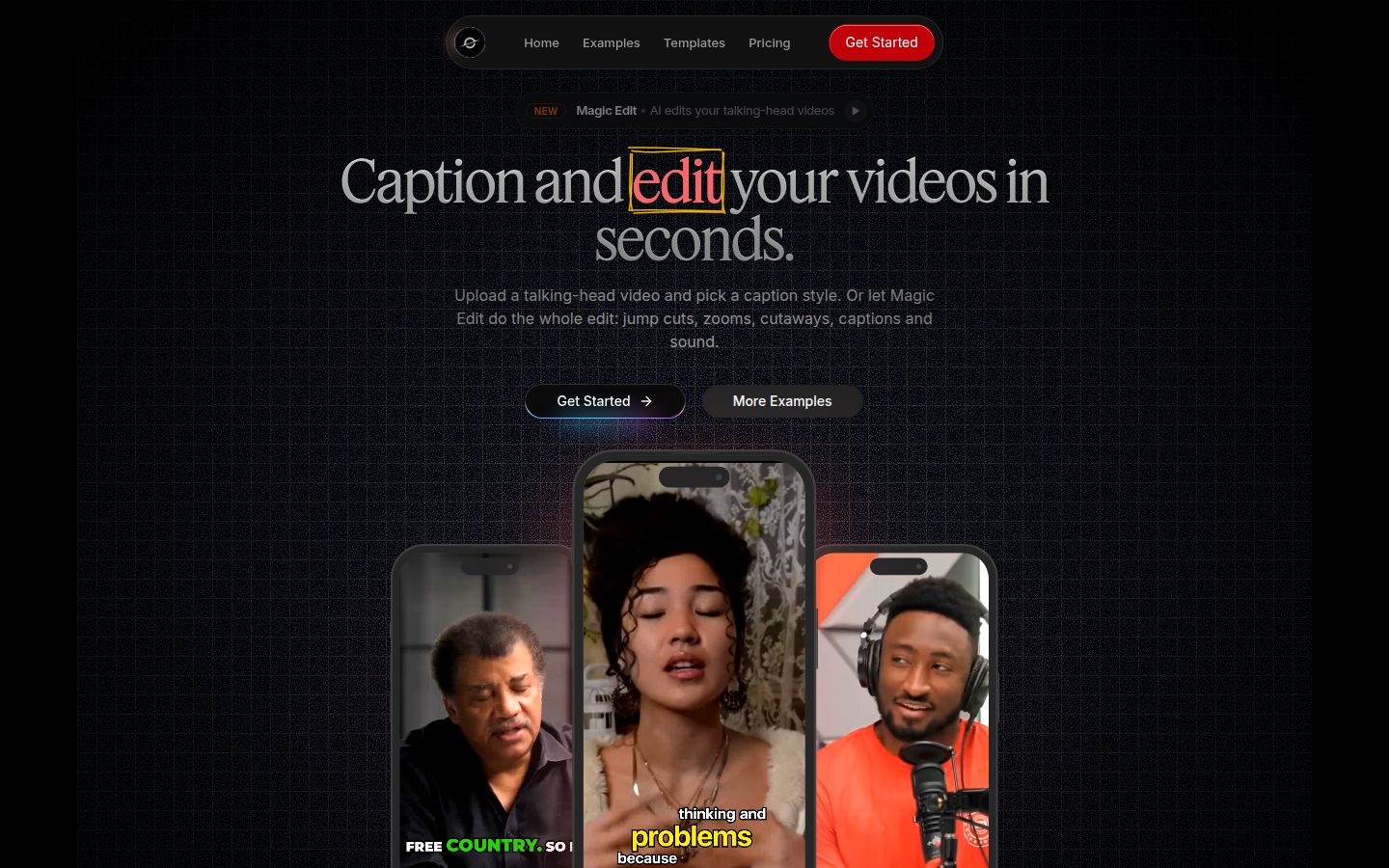
Sycamore is a web app that turns a raw talking-head recording into a finished, captioned short. It runs in the browser, so there's nothing to install. It also works in a phone's browser, but there is no mobile app.
Its Magic Edit mode does the whole edit in one pass. According to Sycamore's homepage, it reads the transcript, cuts silences and filler words, adds a hook at the start, puts zooms and full-screen text cutaways on key lines, and adds captions. You review the result before you export.
- Sign up and upload. The Free plan gives you 10 minutes of video, one time, with no credit card. Upload an MP4, MOV, WebM or MP3.
- Choose Magic Edit and pick a style. Apollo is a high-contrast edit with a punchy hook, serif emphasis, jump cuts and quote cutaways. Hermes is lighter and springier, with a hyperzoom intro and motion-graphic cutaways. The homepage also lists Athena, which uses bold stacked type.
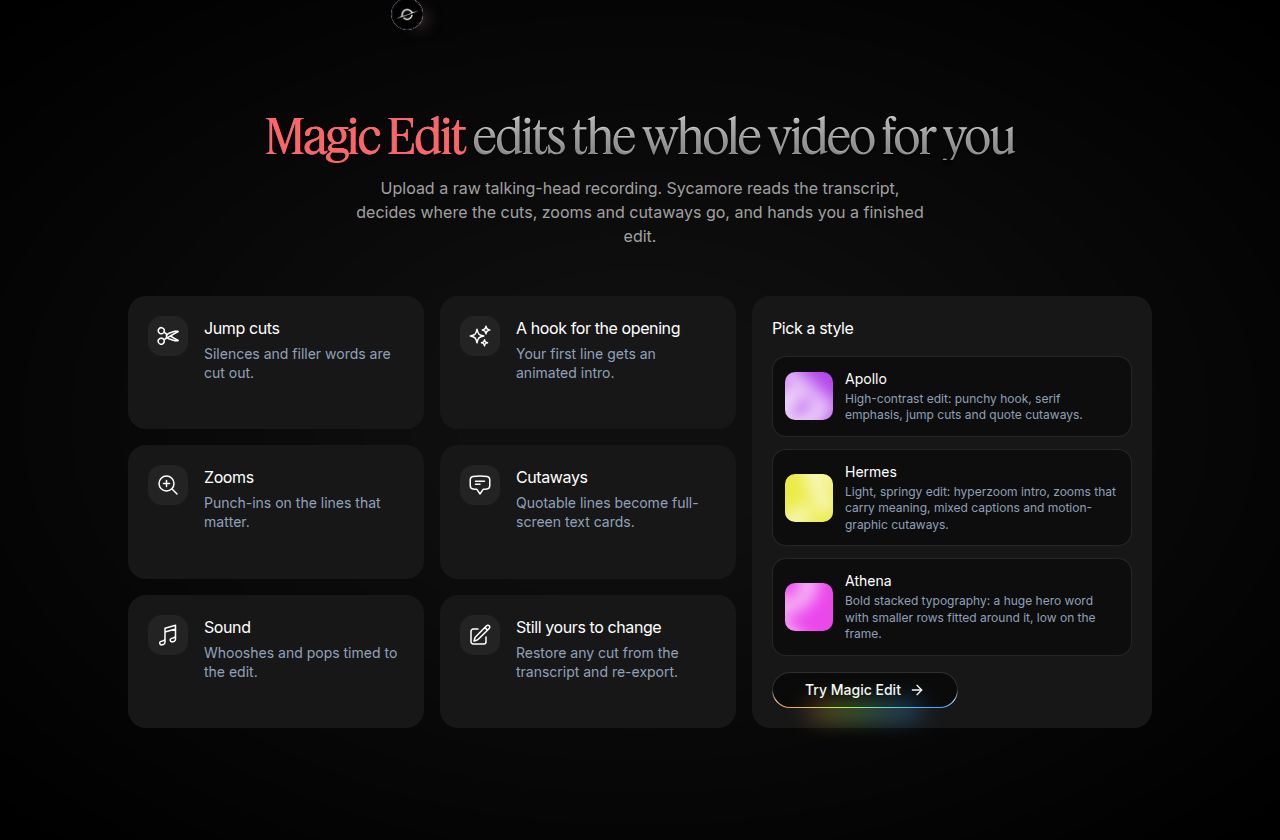 Sycamore's Magic Edit section, showing the edit features and style picker
- Review the edit in plain words. Each line can be set to Normal, Emphasis, Full screen, Number, List or Label. If a cut breaks the rhythm, restore it from the transcript.
- Fix any mis-heard word. Click the word in the transcript and type the correct spelling. The timing stays the same.
- Export. Export an MP4 in 9:16, 1:1 or 16:9.
Sycamore's pricing page lists these plans, as of October 2026:
- Free: $0, 10 minutes of video one time, no credit card.
- Starter: $19 a month, 3 hours of video a month, no watermark, and saved style presets.
- Growth: $39 a month, 10 hours of video a month, no watermark, priority rendering.
Sycamore suits a creator who films straight to camera, posts a few shorts a month, and wants the edit done without a timeline. You keep control because you review every line before export.
Two limits matter for this choice. Transcription is English only. And Sycamore edits the video you give it. It doesn't cut a long recording into many shorts, and it has no stock B-roll library. For those jobs, see Opus Clip below.
Descript


Descript edits video through its transcript, the way you would edit a document. Delete a word in the script and the matching video goes with it. It's a full editor for video and audio, so it covers more than shorts. That is the trade-off: there is more on the screen than a one-job tool shows you.
The steps for the cleanup are in Descript's own help and blog:
- Open the Action bar (the magnifying glass icon) and choose Remove filler words, as shown in Descript's beginner tutorial.
- To cut pauses, use Actions > Shorten word gaps, as described on Descript's silence remover page.
- Check each detected filler. Descript's help center says filler detection works on English transcripts only.
Descript's plans, as of October 2026, per CursorClip's breakdown of Descript's pricing page and Layer3 Labs' pricing guide: Free is $0 with 60 media minutes a month and 720p export with a watermark. Hobbyist is $16 a month billed yearly ($24 billed monthly), with 10 media hours and 1080p export without a watermark. Creator is $24 a month billed yearly ($35 billed monthly), with 30 media hours and 4K export.
Descript suits someone who wants audio cleanup, screen recordings and podcasts in the same app, and who likes editing by reading. The plan is metered by media hours, so check how many hours you film in a month before you pick a tier.
CapCut


CapCut has a desktop editor with a full timeline, and it's the most free route if you're happy to cut by hand. CapCut's own filler-word page says its auto captions detect common filler words such as "um," "uh," "like" and "you know." The same page lists three steps: import the video, generate captions and identify filler words, then review, refine and export.
For silences, a Hollyland how-to from June 2026 describes the desktop Auto Remove Silence tool. On mobile, it says you tap the clip, open Captions, then turn on Identify filler words under Advanced Options. On mobile you split and delete the gaps yourself.
CapCut suits someone who wants a free editor and enjoys the control of a timeline. The trade-off is that you check every cut yourself. Feature access can depend on your account. A Filmora review says filler removal is a Pro feature. We could not confirm that on CapCut's own page, so check the label in your app before you build your workflow on it.
Submagic

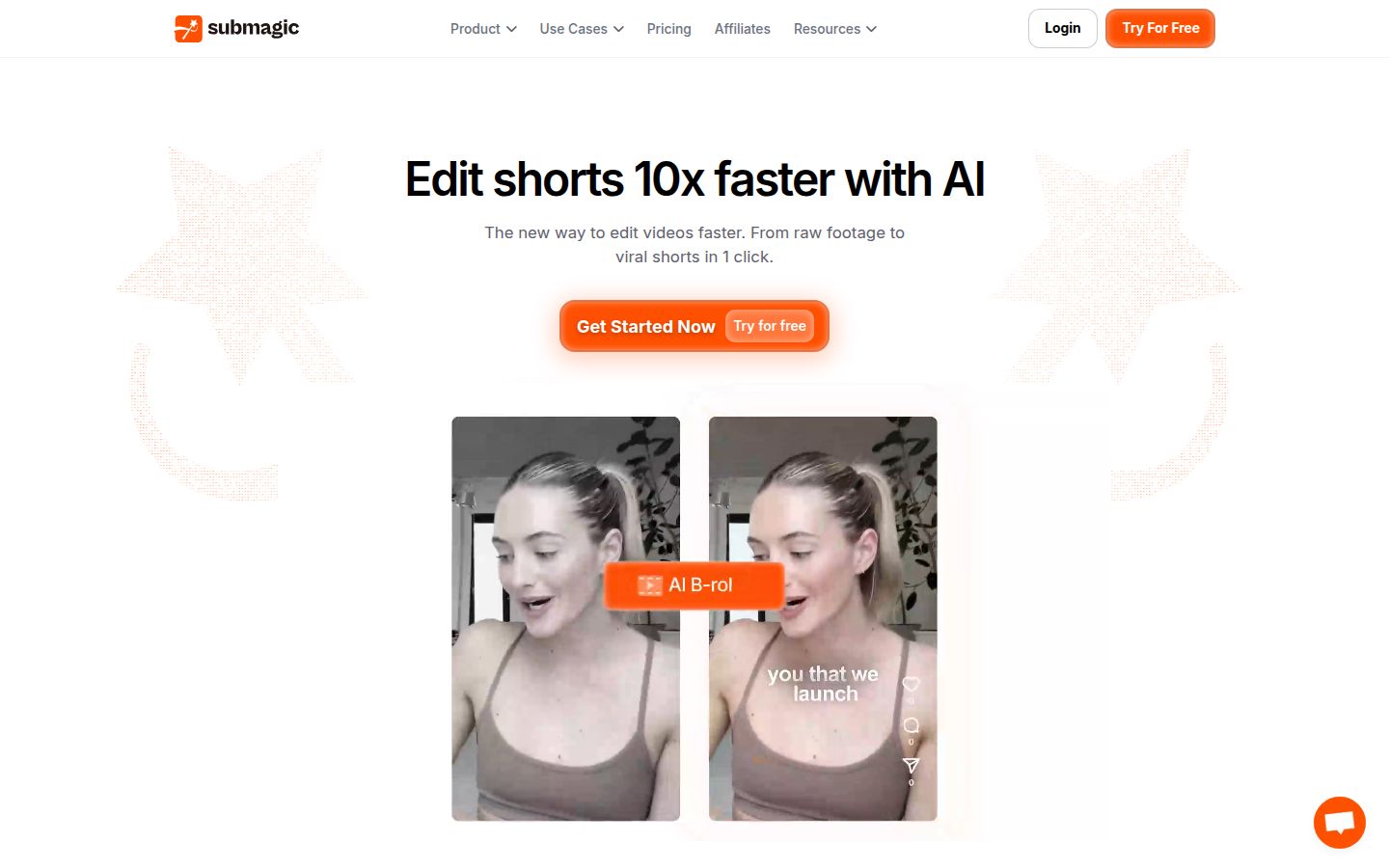
Submagic generates captions and then adds effects, B-roll and music on top. Its official setup guide describes the flow: click Generate Captions in the dashboard, upload the file, pick the language and the number of speakers, then click Generate Captions again. You can trim first with the Trim tool, which has Remove Silences and Remove Bad Takes options.
Its help center lists the plans as of October 2026. Starter is $19 a month for 15 videos. The $39 plan (called Professional in the help center) covers 40 videos. Business is $69 a month for 100 videos. StoryCut's Submagic pricing comparison, checked on October 9, 2026, adds the length limits: 2 minutes per video on Starter, 5 minutes on the $39 plan and 30 minutes on Business. It also lists silence, bad-take and filler-word removal as part of the $39 plan and up, not Starter.
Submagic suits a creator who wants captions plus B-roll, music and publishing in one tool. Its site menu also lists a video editing API. The limits to know: the cleanup tools start at the $39 plan, and the Starter plan caps each video at 2 minutes.
OpusClip

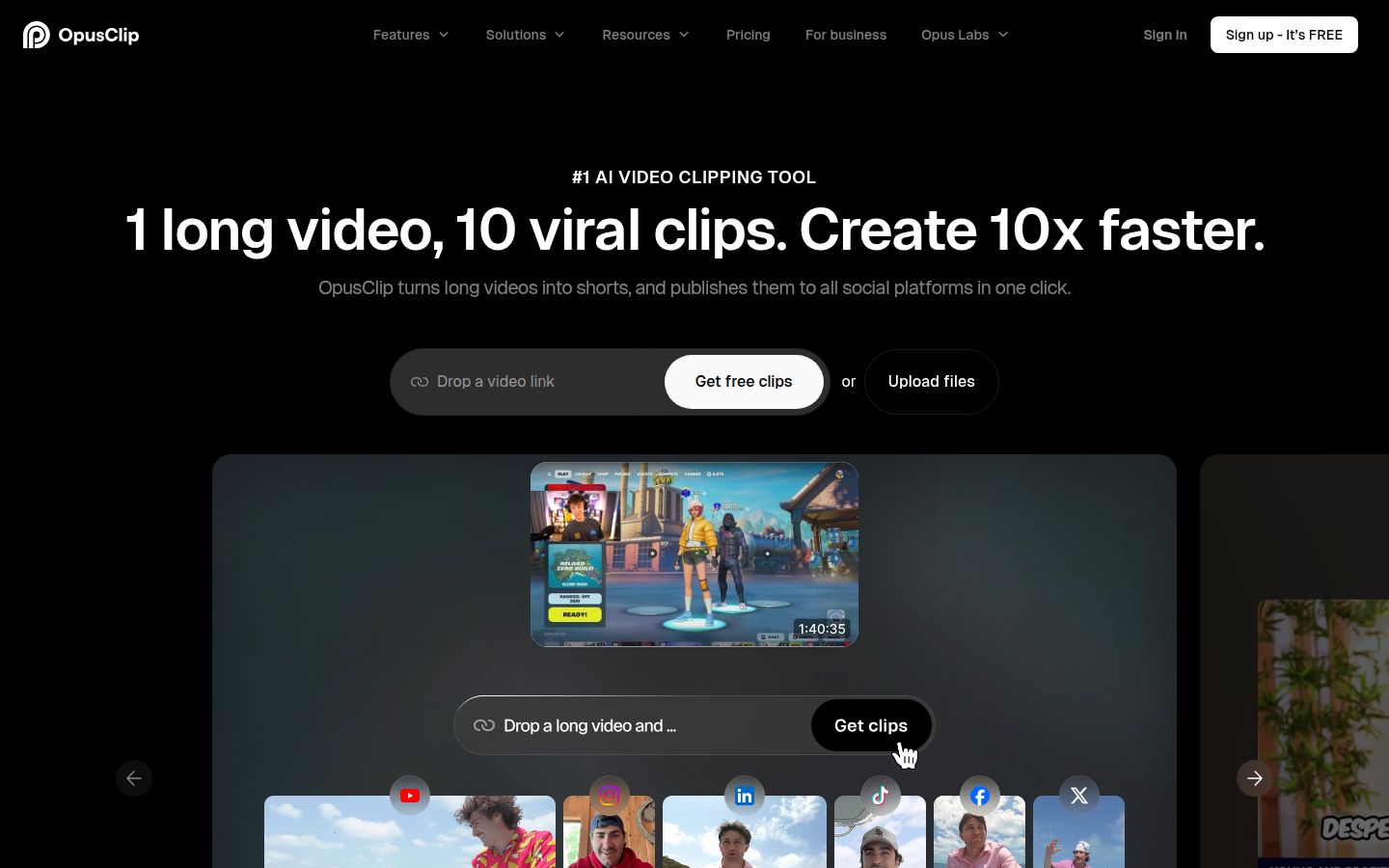
Opus Clip starts from a long video and cuts it into several short clips with captions. Its homepage describes "1 long video, 10 viral clips." If your raw footage is a 30-minute webinar or podcast, this is the job it is built for.
Its pricing page lists AI B-roll, a social scheduler and Export to XML for Premiere Pro or DaVinci Resolve. UsagePricing's Opus Clip page lists a free tier with 60 credits, Starter at $15 a month with 150 credits, and Pro at $29 a month with 300 credits and two seats. Castmagic's Opus Clip guide describes the same plans as 150 and 300 processing minutes.
Opus suits someone with long recordings who wants several clips from each one. The limit to know: plans come with a set number of processing minutes, so a long source video uses up more of them than a short one.
DaVinci Resolve
DaVinci Resolve is a professional editor from Blackmagic Design. Its Studio page says the free version is packed with features and can edit and finish up to 60 fps at resolutions as high as Ultra HD. It suits an editor who wants full control over every cut and grade. You make each jump cut and caption by hand, so it's the most time per video. If you already know a timeline, it's a strong free choice.
Which tool suits which creator
| Tool | Price (October 2026) | Best for | Limit to know |
|---|---|---|---|
| Sycamore | Free (10 min, one time); Starter $19/mo; Growth $39/mo | Straight-to-camera shorts, edited in one pass with review | English-only transcription; no B-roll library; edits the video you give it |
| Descript | Free; Hobbyist $16/mo yearly ($24 monthly); Creator $24/mo yearly ($35 monthly) | Editing by transcript, audio cleanup, podcasts | Filler detection is English only; plans are metered by media hours |
| CapCut | Desktop editor, free to download | Free control on a timeline | You check every cut; some features depend on your account |
| Submagic | $19, $39 or $69 a month | Captions plus B-roll, music and publishing | Cleanup tools start at the $39 plan |
| OpusClip | Free tier; Starter $15/mo; Pro $29/mo | Turning long recordings into several clips | Plans run on processing minutes |
| DaVinci Resolve | Free version | Full manual control | You make every cut yourself |
If you film straight to camera and want the cuts, captions and zooms done, Sycamore is built for that job. If you already edit on a timeline and want it free, CapCut or DaVinci Resolve gives you that control. If your raw material is long, start with Opus Clip. Check each pricing page before you buy, because plans change.
Common mistakes and how to fix them
Cutting every pause. A short breath before a punchline makes you sound like a person thinking, not a person rushing. Remove dead air. Keep the beat before a key line.
Captions over your face or the app buttons. On TikTok, the like, comment and share icons sit near the bottom of the screen. Place captions at the top or center so no words are hidden. Keep the text clear of your eyes and mouth too.
Wrong words in the captions. Fix them in the transcript or caption editor before you export. Fixing one word after export means re-exporting the whole video.
Editing a long recording as one file. Trim the video to the one point you wrote down. A 15 to 60 second short is easier to hook and easier to review than the whole call.
Missing the watermark or the size. Descript's free plan exports at 720p with a watermark. Check the export rules on any free plan before you post.
Non-English audio. Sycamore transcription is English only, and Descript's filler detection works only on English transcripts. If you film in another language, check each tool's language support first.
Forgetting to review the first three seconds. Watch the opening on your phone at full size. If the hook doesn't land there, move the strongest line to the top and cut the warm-up.
Recap
- Pick one point and cut what doesn't support it.
- Remove silences and pauses.
- Remove filler words and false starts.
- Put the strongest line first as the hook.
- Add captions and highlight the key words. Keep them off your face and the app buttons.
- Punch in on key lines.
- Review, export at 9:16 and check the first three seconds on your phone.
For a straight-to-camera short, Sycamore runs steps 2 through 6 in one pass and leaves the review to you. Pick the tool that fits your footage and your budget, and you'll have your first short in about half an hour.
FAQ
What is the fastest way to edit a talking-head video into a short?
Use a tool that edits from the transcript. Sycamore's Magic Edit cuts silences and filler words, adds captions and zooms in one pass, and you review the edit before export. Descript and CapCut can also remove filler words and silences, but you check each cut yourself.
Is there a free way to remove silences and filler words?
Yes. CapCut's desktop editor has an Auto Remove Silence tool and identifies filler words in its auto captions. Descript's Free plan includes 60 media minutes a month, with 720p export and a watermark.
How much does Sycamore cost?
As of October 2026, Sycamore's Free plan gives 10 minutes of video one time with no credit card. Starter is $19 a month for 3 hours of video, and Growth is $39 a month for 10 hours, both without a watermark.
Which tools work with non-English videos?
Sycamore's transcription is English only. Descript's filler-word detection also works only on English transcripts. Check each tool's language support before you record in another language.
Should captions go at the top or bottom of a TikTok talking-head video?
Place captions at the top or center. The bottom of the screen holds the like, comment and share buttons, which can hide words.
Can one tool turn a long podcast or webinar into many shorts?
OpusClip is built for that job: it starts from a long video and creates several short clips. Sycamore edits the video you upload and does not split long recordings into many shorts.