This guide shows you how to add subtitles to a video for free. You'll finish with either a captioned video file ready to post on TikTok, Instagram Reels, YouTube Shorts or LinkedIn, or a caption track on a YouTube video. For one short talking-head clip, plan on a single sitting. Most of that time goes to checking the words, not to the setup.
Start by picking the kind of subtitle you need. Then pick the tool that fits. The sections below cover four free options, three paid tools worth comparing, and the mistakes that cost people the most time.
Decide which kind of subtitle you need
There are two kinds of subtitles, and where the video goes decides which one you need.
Burned-in captions are drawn into the picture itself. They always show, they look the same on every app, and they can be animated word by word. Viewers can't turn them off, and a typo means re-exporting and uploading again. For a short vertical clip posted as a file to TikTok, Reels or Shorts, this is usually what you want, as CutXflow's guide on SRT vs burned-in captions explains.
A caption track is a separate text file, usually SRT, that the viewer can switch on or off. This is how YouTube's CC button works. It's easy to fix and replace after you post.
As a rule: a short clip for the feed gets burned-in captions. A longer YouTube video gets a caption track.
YouTube Studio

YouTube creates automatic captions for uploads, and you can edit them or upload your own file in YouTube Studio. This is the free route if your video lives on YouTube.
- Sign in to YouTube Studio at studio.youtube.com with the channel account.
- In the left menu, select Subtitles. Click the video you want.
- Find the language row for your video. If it doesn't exist, click ADD LANGUAGE and pick the language the audio is in.
- Click ADD. You'll see three options: Auto-sync, Upload file and Type manually. Auto-sync aligns a transcript you provide.
- Under Subtitles, click More next to the track and review it. YouTube's own help says to review automatic captions and fix any parts that weren't transcribed properly.
- To use your own SRT file, choose Upload file, then With timing if the file already has timecodes. Then click Continue and PUBLISH.
YouTube's help page for automatic captioning covers the review step: Use automatic captioning. Pick "With timing" for a finished SRT. "Without timing" makes YouTube realign the text, which can scramble good timing, as Tapescribe's SRT upload guide notes.
YouTube gives you a caption track, not burned-in captions. If you post the same clip to TikTok or Reels, you still need a captioned MP4 from one of the tools below.
CapCut

CapCut has auto captions built into its editor. It's a full video editor, so it has more controls than a simple talking-head clip needs.
CapCut's own help page describes the steps. You can run it in a browser at capcut.com or in the desktop app. Here is the path:
- Import your video, then drag it onto the timeline.
- Click Text, then Auto Captions. Choose the spoken language and click Generate. On desktop the button may say Recognize.
- Click any subtitle block in the timeline, then Edit captions in the right-side panel to fix words.
- Pick a caption style, then export as an MP4.
The fix steps are in CapCut's help page on inaccurate auto-captions. CapCut also has a step-by-step guide to adding subtitles across web, mobile and desktop.
Check the watermark before you record a series. Sources disagree on this. CostBench's free plan page says the free plan puts a CapCut watermark on all exports. Other reviewers say the free export is watermark-free at 1080p. Export one test video and look at it before you commit.
Clipchamp

Microsoft's Clipchamp is a browser editor with free auto captions. It's a good choice if you want a subtitle file alongside your video.
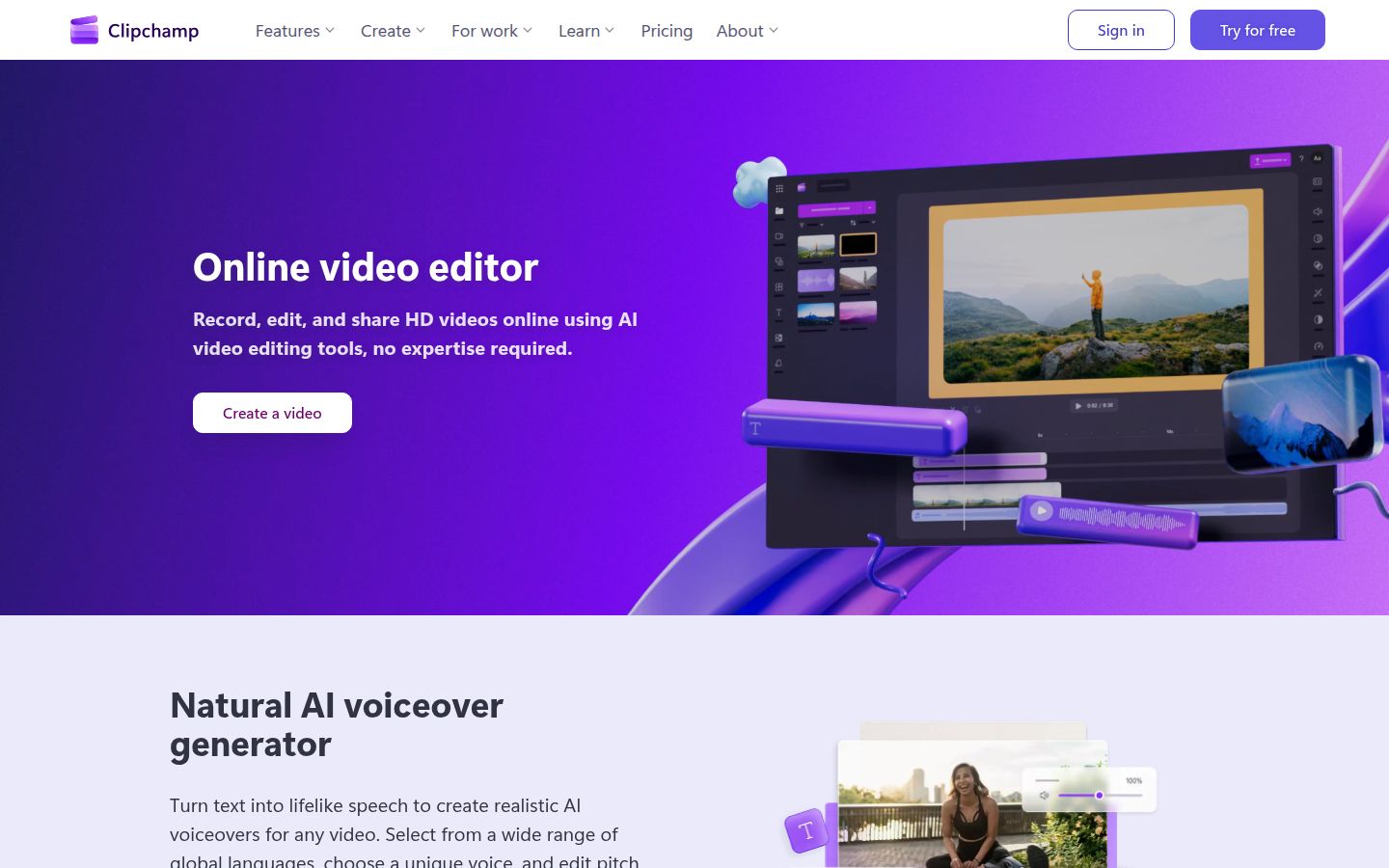
Clipchamp's June 2026 guide on autocaptions says the feature is free and lets you download the SRT file for free. The steps are:
- Add your video to a new project.
- Click the Captions tab in the property panel, then Transcribe media. You can also click the captions icon on the video preview.
- Edit any typos in the transcript.
- Download the SRT if you need the subtitle file.
Clipchamp's pricing page says its free plan exports up to 1080p with no watermark, and that premium features come with a Microsoft 365 Personal or Family plan (Clipchamp pricing).
Sycamore

Sycamore is the tool we build. It runs in the browser, so there's nothing to install. It's built for one job: turning a raw talking-head recording into a captioned short.
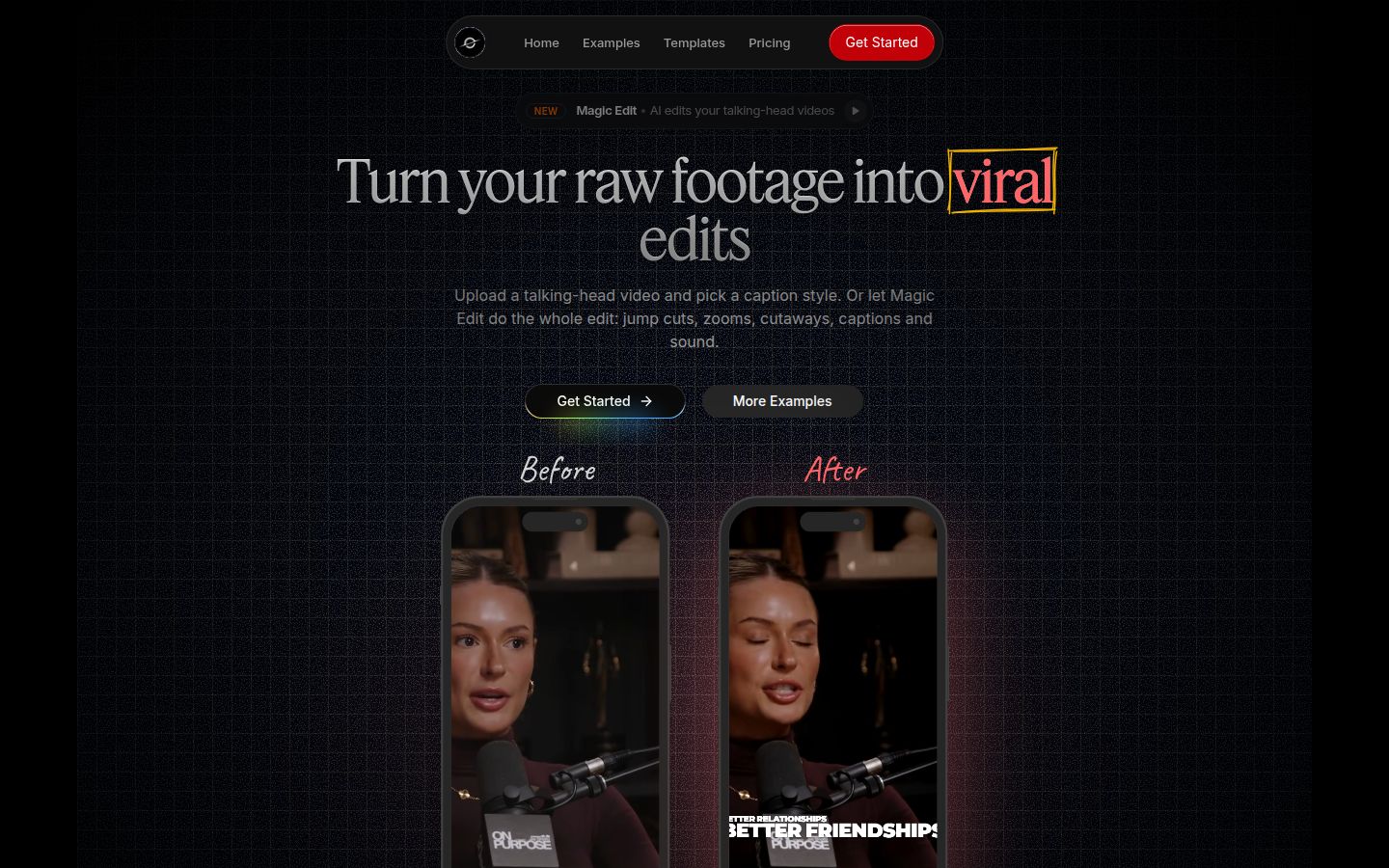
Sycamore has two paths. You can add captions only, or let Magic Edit do the whole edit. The steps are the same either way:
- Upload your video. Sycamore accepts MP4, MOV, WebM or MP3 files up to 2 hours.
- Pick a caption template, or pick a Magic Edit style to have the whole video edited. Magic Edit cuts out silences and filler words, adds zooms and full-screen text cutaways, and adds captions.
- Review the result. You can fix any word, undo any cut and change the style.
- Export an MP4 in 9:16, 1:1 or 16:9.
The reason to use Sycamore is that it edits the whole raw video in one pass, not just the captions. You still review the edit before you export. Each line can be set to Normal, Emphasis, Full screen, Number, List or Label, so you control what the viewer sees.
Sycamore's free plan gives you 10 minutes of video, one time, with no credit card. The paid plans are Starter at $19 a month for 3 hours of video and Growth at $39 a month for 10 hours, both with no watermark (Sycamore pricing).
Here are its limits that matter for this decision:
- Transcription is English only.
- It doesn't export an SRT or VTT file, so it can't feed a YouTube caption track.
- It doesn't cut one long video into many shorts. It edits the video you upload.
- It has no mobile app. It works in a phone's browser.
If you need a subtitle file, use YouTube Studio or Clipchamp. If your captions must be in another language, check a tool's language list before you start, because Sycamore transcribes English only.
Paid options worth knowing: Submagic, Descript and Kapwing
Submagic

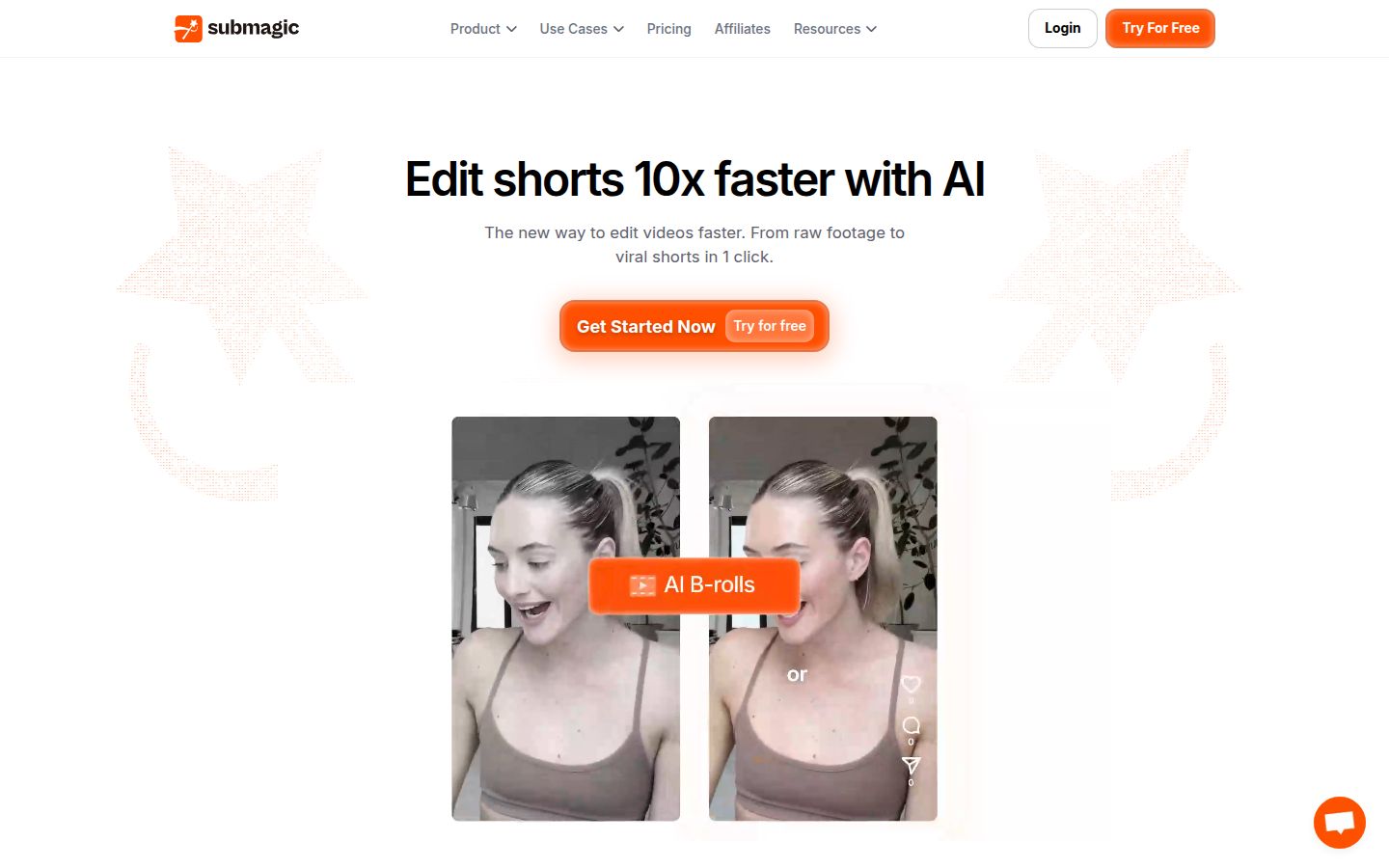
Submagic is a dedicated captioning tool with a large set of short-form features. Its pricing page lists Starter at $19 per member a month, Pro at $39 and Business at $69, with lower rates on yearly billing. Starter covers 15 videos a month, each up to 2 minutes (Submagic pricing; StoryCut's summary of the same page).
Submagic has features Sycamore doesn't. It offers B-roll, Magic Clips for turning long videos into clips, and social publishing. It's the better pick if you want those in one app. There's no free plan. The free trial lets you edit 3 short videos without a card, and watermark-free downloads need a paid plan, according to StoryCut's review of the Submagic help center.
Descript
Descript is an audio and video editor that works like a document. You edit the video by editing its transcript. Its pricing page says paid plans start at $16 a month, and the free plan includes 60 minutes of media a month (Descript pricing). It's the better pick if you also edit podcasts or want a full editor. It's more to learn than a one-job caption tool.
Kapwing
Kapwing has a browser-based subtitler. Its free plan has 10 credits, exports at 720p, allows clips up to 4 minutes, and adds a watermark to every export (Kapwing pricing). It's a fast option for a one-off clip if you don't mind the watermark.
Common mistakes and how to fix them
Auto captions get names and jargon wrong. Automatic transcription misses brand names, client names and technical words. Read the transcript before you export. YouTube recommends the same review step. In Sycamore you can edit any word, and in CapCut you can select a subtitle block and choose Edit captions.
The language is wrong on a YouTube track. Set the track to the language the audio is in. Tapescribe's guide calls the wrong language the single most common cause of subtitles that display but never show up in search.
Captions sit under the app's buttons. The feed's buttons and text cover parts of the frame, so keep your burned-in captions in the middle of the picture. CutXflow's guide notes that its preview has a safe-zone guide for Reels and Shorts, so look for one in your editor.
Two sets of captions show at once. If the platform generates its own captions and you also burn yours in, viewers see both. Check the platform's caption setting and turn off the automatic one where you can.
You expect an SRT file from a tool that doesn't export one. Sycamore doesn't export SRT or VTT. If you need the file, get it from YouTube Studio or Clipchamp.
You check the watermark too late. Export a short test before you record a batch. Kapwing's free exports carry a watermark, Submagic's trial downloads need a paid plan to lose it, and the sources disagree on CapCut's free exports.
Which free option to pick
| Tool | Cost, October 2026 | What you get | Best for |
|---|---|---|---|
| YouTube Studio | Free | Caption track for a YouTube video | Long YouTube videos and SRT uploads |
| CapCut | Free to start | Auto captions in a full editor | Creators who want to fine-tune every frame |
| Clipchamp | Free | Auto captions, SRT download, 1080p without watermark | A subtitle file alongside your video |
| Sycamore | Free for 10 minutes, then $19 or $39 a month | Captioned short with an optional full edit | Talking-head shorts from raw footage |
| Submagic | $19 a month per member on monthly billing | Captions plus B-roll and publishing | Creators who want many extra features |
If your video is on YouTube, start with YouTube Studio. If you post short clips to the feed and want the least editing, Sycamore's free 10 minutes let you test it with no card. If you want a subtitle file and a free editor, use Clipchamp. If you want a full editor and don't mind learning it, use CapCut.
Recap: how to add subtitles to a video for free
- Decide: burned-in captions for a feed clip, a caption track for YouTube.
- For YouTube: open Subtitles in YouTube Studio, choose the video, click ADD, then review the track or upload your SRT with timing.
- For a burned-in MP4: upload to CapCut or Sycamore, generate captions, and fix every name and term.
- Pick a style, keep the text in the middle of the frame, and export.
- Check the export for a watermark before you batch-record.
- Post, and turn off any duplicate auto-captions on the platform.
FAQ
Can I add subtitles to a video for free?
Yes. YouTube Studio lets you add a caption track to a YouTube video for free. CapCut and Clipchamp both include auto captions in their free plans, so you can burn captions into a video file.
What is the difference between burned-in captions and a subtitle file?
Burned-in captions are drawn into the video picture, so they always show and can't be turned off. A subtitle file such as SRT is a separate track that viewers can switch on or off.
Does CapCut put a watermark on free exports?
Sources disagree. CostBench says the free plan puts a CapCut watermark on all exports, while other reviewers say free 1080p exports are watermark-free. Export a test video to check before you commit.
How much does Sycamore cost?
Sycamore's free plan gives you 10 minutes of video, one time, with no credit card. Starter is $19 a month for 3 hours of video and Growth is $39 a month for 10 hours, both with no watermark.
Can I download an SRT file for free?
Clipchamp's autocaptions guide says you can download the SRT file for free. Sycamore doesn't export SRT or VTT files, so use YouTube Studio or Clipchamp if you need one.
Is Sycamore's caption transcription available in other languages?
No. Sycamore's transcription is English only, so check a tool's language list first if your captions must be in another language.