You can have captions on your Instagram Reel in about ten minutes, and you have four real ways to do it. Instagram's own tools cost nothing and live in the app you already use. CapCut is free to start and gives you a full editor. Submagic is a paid tool built around caption styles. Sycamore, which is our product, is built for one job: taking a raw talking-head recording and returning a captioned, edited video. This guide shows the steps for each, then helps you pick.
Decide what kind of caption you want
There are two kinds of captions, and the steps differ.
Closed captions are text Instagram writes from your speech. Viewers see them only when they turn them on, and you can't choose the font or color. Instagram's help center describes them as the speech being "automatically written out as text at the bottom," so they're a good fit for accessibility and for plain talking-head reels.
Burned-in captions are part of the video file. The words are always on screen, in whatever style you pick, and they look the same on every app and every phone. Most short-form talking-head videos on TikTok and Reels use burned-in captions, and that's the kind this guide focuses on.
If you want the cheapest, fastest option for one reel, start with Instagram's closed captions. If you want captions that look like part of the edit, use one of the burned-in options below.
How to add Instagram's closed captions
This is free and takes about a minute. These steps come from Instagram's help page for new reels.
- Tap Create at the top or swipe right anywhere in Feed.
- At the bottom, tap Reel.
- Select a video from your camera roll, then tap Next.
- Tap Next again.
- At the bottom, tap More options.
- Turn on the toggle next to Enable closed captions.
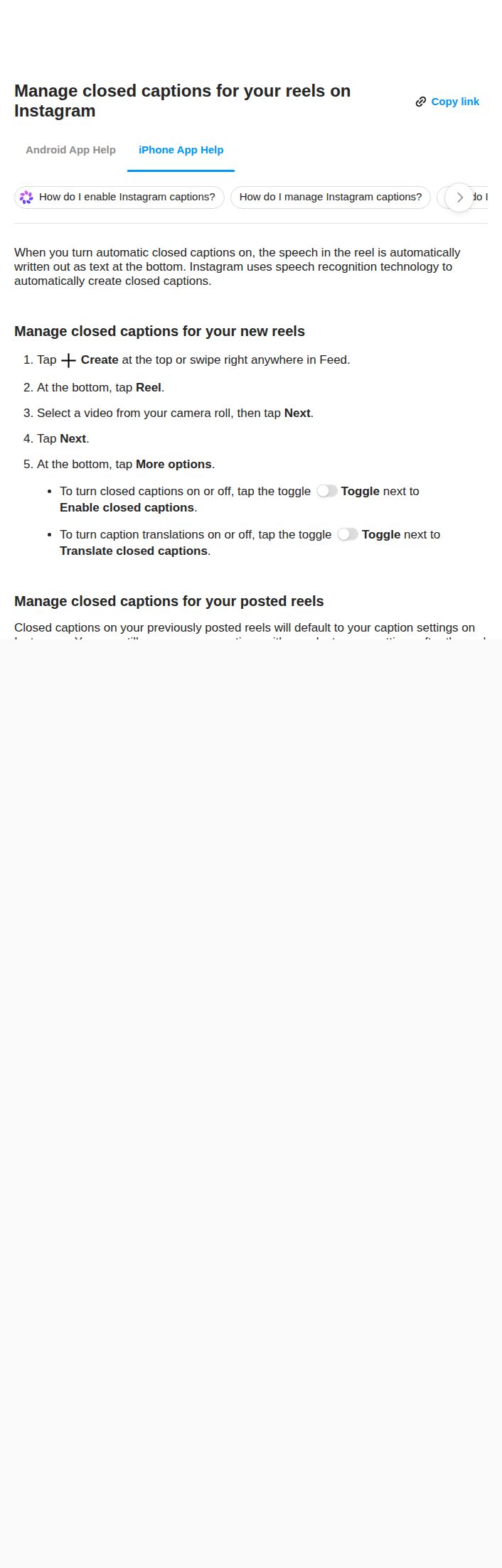 Instagram help page showing the Enable closed captions toggle under More options
Leave Translate closed captions off unless you want Instagram to translate your speech. Then tap Share as you normally would.
Turn captions on for a Reel you already posted
Instagram's help page covers this too. Go to your profile, open the reel, tap Options, then Edit, then More options. Turn on Enable closed captions there. Captions on a posted reel follow your Instagram caption settings.
Instagram's help center also says captions "may not be available to everyone," so if you don't see the toggle, check again later.
How to add burned-in captions in Instagram Edits
Edits is Instagram's separate video editor for Android and iPhone. It creates captions that are part of your video, and it's free. You can pick the spoken language, the caption style and how the transcript is written.
- Open your project in Edits and tap Captions at the bottom.
- Choose the language being spoken in your video.
- Pick a caption style. Adjust the transcription controls if you want: punctuation, title case, and whether curse words show.
- Tap Generate Captions.
- Tap the captions layer, then use Style to change the look, Edit to fix words, Opacity to soften them, or Move to reposition them.
- Export your video from Edits when it looks right.
Edits gives you the most control of the free options on this list, and it keeps the whole process inside Instagram. Its limit is that you're editing in the Edits app, not the Reels editor.
How to add captions in CapCut
CapCut has a free version with auto captions. The mobile app is where most creators start.
- Start a new project and import your video.
- Tap the Text tab, then tap Auto captions. CapCut's guide describes this same path in its app.
- Edit any caption that's off, then change the caption style.
- Export the video and upload it to Instagram.
CapCut's prices, from its own resource page as of October 2026: Pro is $19.99 a month or $179.99 a year. A Standard plan at $9.99 a month is listed on a third-party guide as mobile-only. CapCut says prices vary by region and platform, so check the price in your app before you pay.
CapCut suits you if you want a full editor with a timeline, music and many templates. Its caption tools are one part of a bigger app, so there's more to learn than in a tool built only for captions.
How to add captions with Submagic
Submagic is a paid caption and editing tool. You upload the video, choose a style from its caption library, check the words and export.
Submagic's help center, updated September 30, 2026, lists monthly prices of $19 for Starter (15 uploads a month), $39 for Professional (40 uploads) and $69 for Business (100 uploads). Its own AI caption page gives lower annual prices, $12, $23 and $41 a month. It also offers a free plan of 3 videos a month with a watermark.
Two independent reviews, from TechPilot and CreatorIntel HQ, say you need a paid plan to download a clean finished file. Check the current free plan before you test it.
Submagic suits creators who want many caption looks and are fine paying per uploaded video. Its plans count videos, not minutes, so compare it to Sycamore by how many videos you post, not by price alone.
How to add captions with Sycamore
Sycamore runs in your browser. There's nothing to install, and you can use it from a phone's browser too.
- Sign up. Click Get Started on sycamore.to. The free plan gives you 10 minutes of video, one time, with no credit card.
 Sycamore homepage showing the headline "Caption and edit your videos in seconds" and the Get Started button
- Upload your video. Sycamore accepts MP4, MOV, WebM or MP3 files up to 2 hours long.
- Pick a caption template, or a Magic Edit style. Magic Edit cuts silences and filler words, adds zooms and full-screen text for key lines, and styles the captions. You choose Apollo or Hermes as the edit style.
- Review the edit. Every word is timed, so you can fix any word, restore any cut, change the caption colors, size, animation and position, and set each line to Normal, Emphasis, Full screen, Number, List or Label.
- Export an MP4. Choose 9:16 for Reels. Sycamore exports in 9:16, 1:1 and 16:9.
Sycamore's pricing as of October 2026, from its pricing page, is:
- Free: 10 minutes of video, one time, no credit card.
- Starter: $19 a month for 3 hours of video a month, no watermark.
- Growth: $39 a month for 10 hours of video a month, no watermark, with priority rendering.
The free plan lists all caption templates and the full caption editor. The no-watermark line appears on Starter and Growth.
Sycamore suits talking-head creators who want the silences and filler words cut and the captions added in one pass. You review the plain-words edit before you export, so you stay in control of the result. It's also one job, which means less to learn than a full video editor.
Two limits matter for this decision. Transcription is English only. And Sycamore doesn't post for you: you download the MP4 and upload it to Instagram yourself. If you need other languages or scheduling, Instagram's tools or CapCut will cover more of that.
Which option to pick
| Option | Price (October 2026) | Captions burned into the video? | Best for |
|---|---|---|---|
| Instagram closed captions | Free | No, viewers turn them on | Quick, accessible captions on one reel |
| Instagram Edits | Free | Yes | Styled captions without leaving Instagram |
| CapCut | Free; Pro $19.99 a month | Yes | A full editor with a timeline |
| Submagic | From $19 a month, monthly billing | Yes | Many caption looks, paid per video |
| Sycamore | Free for 10 minutes; $19 or $39 a month | Yes | Talking-head videos with cuts and captions in one pass |
Pick by what you already do. If you only need captions and your footage is clean, Instagram's tools are the simplest. If you film yourself talking and want the edit done for you, with captions and cuts together, Sycamore is built for that. If you want a full editor and don't mind learning it, CapCut is the wider tool.
Common mistakes and how to fix them
The captions cover your username or the caption text. Instagram's closed captions sit at the bottom of the screen, where your username and caption also appear. In a 2023 tutorial, Stephanie Kase moves the captions higher in the preview so they stay clear of that area. Check the preview before you share.
Words are wrong. Auto captions get a word or two wrong. Fix them before you post. In Edits, use Edit on the captions layer. In Sycamore, fix any word in the editor. Kase's tutorial also shows that Instagram's closed captions can be tapped and edited, though menus change, so check what you see in your app.
You see two sets of captions. If your video already has burned-in captions, turn off Enable closed captions before you share. Otherwise viewers see the words twice.
The captions are in the wrong language. Edits lets you choose the spoken language before you generate captions. Sycamore transcribes English only, so use a different tool for other languages.
You spot a mistake after posting. The words inside a burned-in caption are part of the video, so you can't edit them after you post. Fix the file, export it again and upload a new reel. Instagram's caption text on a post can be changed, but that doesn't change the video.
Recap
- Decide whether you want closed captions (Instagram toggle) or burned-in captions (Edits, CapCut, Submagic or Sycamore).
- For Instagram closed captions, tap Create, then Reel, choose the video, tap Next twice, tap More options and turn on Enable closed captions.
- For Edits, open the project, tap Captions, choose the language and style, tap Generate Captions and adjust with Style, Edit and Move.
- For Sycamore, sign up free, upload the video, pick a template or Magic Edit style, review and fix the words, then export an MP4 in 9:16.
- Check the preview for overlap with your username, fix any wrong words, and only turn on Instagram's closed captions if your video doesn't already have burned-in ones.
FAQ
Can I add captions to a Reel I already posted on Instagram?
Yes, for Instagram's closed captions. Go to your profile, open the reel, tap Options, then Edit, then More options, and turn on Enable closed captions. Burned-in captions are part of the video file, so you'd need to export and post a new version to change them.
Are Instagram's auto captions free?
Yes. The closed captions toggle is part of the Instagram app and has no separate price. Viewers can turn the captions on or off, and you can't choose their font or color.
Can I make Instagram captions burned into the video for free?
Yes, with Instagram Edits, the separate free editor for Android and iPhone. Open a project, tap Captions, generate them, then adjust the style, text and position.
How much does Sycamore cost for captioning Reels?
Sycamore's free plan gives 10 minutes of video one time with no credit card. Starter is $19 a month for 3 hours of video and Growth is $39 a month for 10 hours, both as of October 2026.
Does Sycamore work on a phone?
Sycamore is a web app, so you use it in your phone's browser. There is no separate mobile app to install.
Which caption tool works in languages other than English?
Sycamore transcribes English only. Edits lets you select the spoken language before generating captions. Check each other tool's current language list before you choose.