A talking-head video is a video of one person speaking straight into the camera, usually framed from the chest up. Creators use the format for advice, stories, product explanations and opinions. It's the most common shape for short videos on TikTok, Instagram Reels, YouTube Shorts and LinkedIn. You don't need a studio to make one. A phone on a stand, a window for daylight and a quiet room will do.
The part most people underestimate is the edit. A raw take has pauses, false starts, "ums" and sentences you'd rather cut. Once those are gone and captions are on screen, the video is ready to post. This guide covers what the format is, the steps from raw footage to a finished short, and five tools that handle the edit, with prices as of October 2026.
Short version: if you film yourself and want a finished, captioned short without learning a full editor, pick a tool built for talking-head footage. Sycamore is one. If you want a free editor you control by hand, start with CapCut. If you have long recordings and need many clips from each one, look at Opus Clip or Vizard.
What a talking-head video is
In a talking-head video, one person speaks directly to the viewer. The shot is usually a medium close-up, head and shoulders, with the speaker looking into the lens. The name comes from the frame, which shows mostly the speaker's head.
The format works because it feels like a conversation. The viewer sees a person, hears a voice and reads the words on screen. That makes it a good fit for short videos where you have about a few seconds to earn the next one.
The camera doesn't need to be expensive. A recent phone is enough for most creators. Keep the lens at eye level, put your light source in front of you rather than behind you, and record in a quiet room. Bad audio makes people leave faster than a plain background does.
Action: Film one 60-second take this week with your phone at eye level. You'll use it as a test file for the steps below.
What makes a raw take look unfinished
A raw recording usually has the same problems:
- Dead air at the start and between sentences
- Filler words such as "um", "uh" and "you know"
- Restarts, where you say the same line twice
- No captions, so viewers who watch on mute scroll past
- No emphasis, so your key line sounds like every other line
Each of these is a fix in the edit. You can do each one by hand in any video editor, or you can use a tool that does most of them in one pass.
How to turn raw footage into a finished short
- Re-take lines in place. When you flub a line, pause for a second and say it again. Don't stop recording. The bad take is easy to find later because the same sentence shows up twice.
- Cut the silences. Remove the long pauses, but leave a short gap at each cut so the speech doesn't sound clipped. Our guide to cutting silences from a video shows the steps.
- Remove the filler words. Check each cut by ear. A removed "um" can leave a small jump in the sound, and you may need to trim a few frames.
- Keep the best take of each line. Delete the rest.
- Add word-by-word captions. Captions hold attention when the sound is off, and most short-form viewers watch with the sound off at least some of the time.
- Mark the key lines. Use emphasis, a zoom or a full-screen text card on two or three lines. More than that and the emphasis stops working.
- Export for the platform. Use 9:16 for Shorts, Reels and TikTok, 1:1 for a square feed post and 16:9 for YouTube long-form. Watch the final file on your phone with the sound on before you post.
Action: Run your test take through steps 1 to 4 this afternoon. How much work the footage needed tells you which kind of tool you need.
Which kind of tool to use
Tools for this job fall into three groups:
- One-pass tools for talking-head footage take a raw recording and return an edited, captioned video with little manual work. Sycamore and Submagic are in this group.
- Full editors give you a timeline or a text-based editor and let you control every cut. Descript and CapCut are in this group.
- Clipping tools find short clips inside long recordings. Opus Clip and Vizard are in this group.
Here are the entry plans and what they include, as of October 2026. Check each tool's pricing page before you pay, because plans change.
| Tool | Entry paid plan | What the plan gives you | Best for |
|---|---|---|---|
| Sycamore | Starter, $19/month | 3 hours of video a month, no watermark | Raw talking-head footage turned into a finished short in one pass |
| Submagic | Starter, $19/month (monthly billing) | 45 credits a month. An upload costs 3 credits. AI captions are free. | Caption styles and quick AI edits, with B-roll and scheduling |
| Descript | Hobbyist, $24/month ($16/month billed yearly) | A transcript-based editor with a monthly transcription-hours cap | Editing a recording like a document, with a full editor |
| CapCut | Pro, $19.99/month ($179.99/year) | A free editor with templates and manual control | Free editing with a large template library |
| Opus Clip | Starter, $15/month | 150 credits a month. One credit covers one minute of source video. | Turning one long recording into many clips |
| Vizard | Creator, $29/month ($14.50/month billed yearly) | 1 credit per minute of video, no watermark | Clips from long videos, with scheduling |
Sycamore

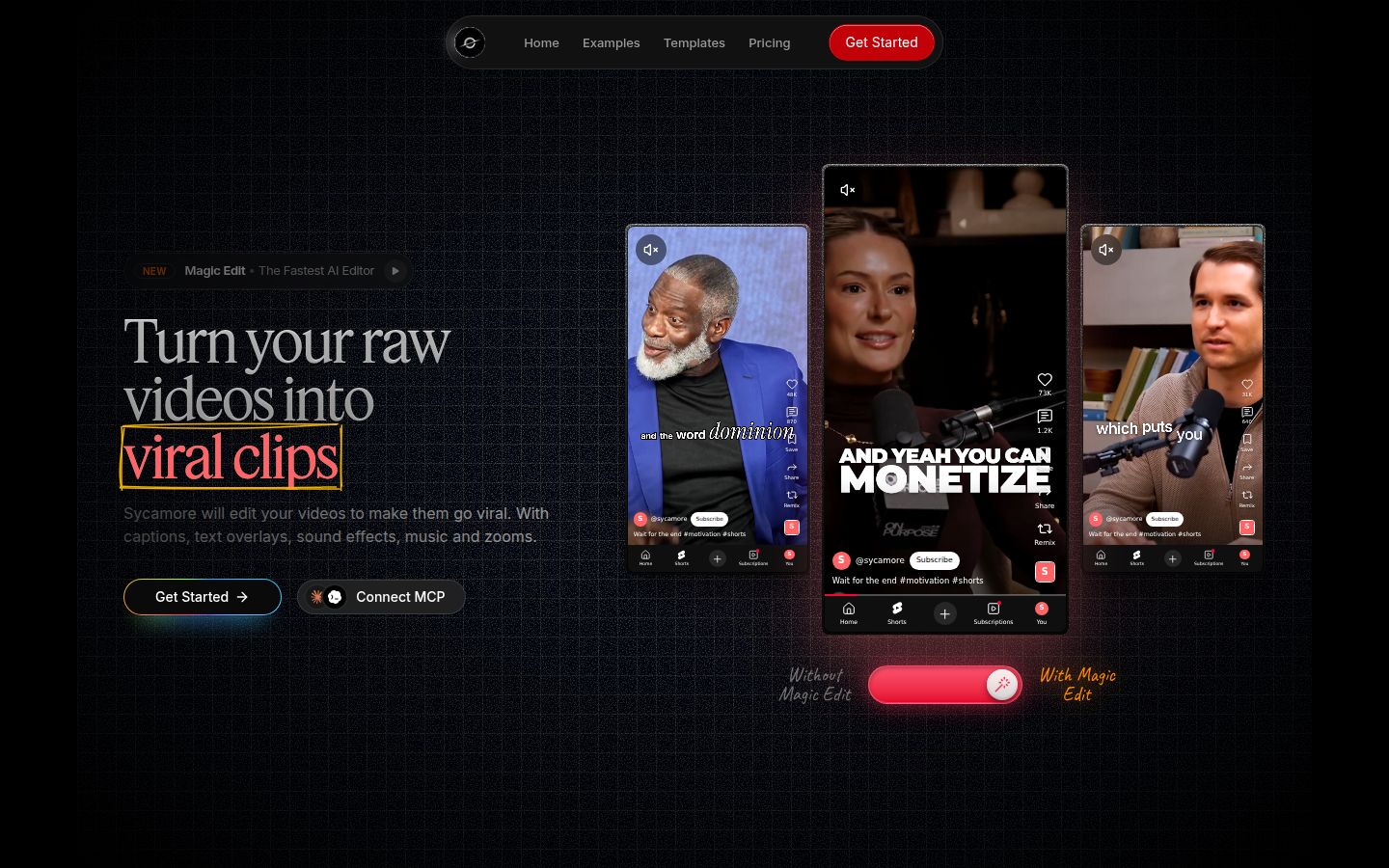
Sycamore is a web app that turns a raw talking-head recording into a finished, captioned short. It runs in the browser, so there's nothing to install. You can upload MP4, MOV, WebM or MP3 files up to 2 hours long.
The main feature is Magic Edit. You upload the raw video and pick one of three edit styles: Apollo, Hermes or Athena. Sycamore cuts silences and filler words, adds animated word-by-word captions, and adds emphasis on key lines, zooms and full-screen text for the big moments. All of that happens in one pass. Then you review the edit in plain words. Each line can be set to Normal, Emphasis, Full screen, Number, List or Label. You can change any word or setting before you export an MP4 in 9:16, 1:1 or 16:9.
Sycamore suits founders, coaches, educators, podcasters and creators who film themselves and post on TikTok, Reels, Shorts and LinkedIn. It's built for one job, so there's less to learn than in a full video editor.
Pricing as of October 2026:
- Free: 10 minutes of video, one time, no credit card
- Starter: $19/month for 3 hours of video a month, no watermark
- Growth: $39/month for 10 hours of video a month, no watermark, priority rendering
Two limits matter for most buyers. Transcription is English only. Sycamore also edits the video you upload. It doesn't cut one long recording into many shorts, and it doesn't post or schedule for you. It's a web app with no separate mobile app, so you work from your phone's browser.
Action: Upload one of your own clips to the free 10 minutes and compare the Magic Edit result with the cut you'd make by hand.
Submagic

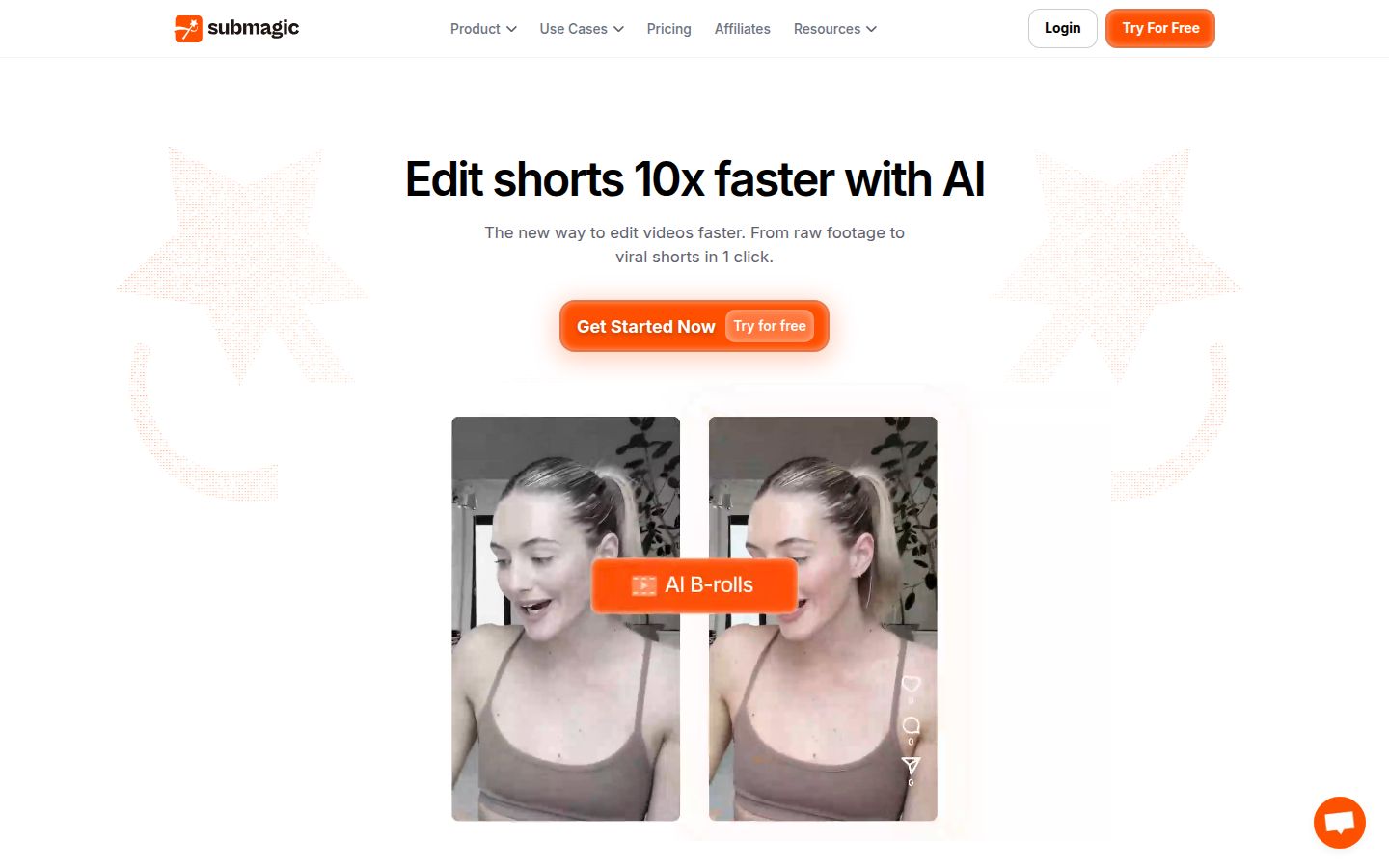
Submagic is a caption and AI editing tool for short videos. It adds captions and runs AI edits on your uploads. It also covers things Sycamore doesn't: B-roll, sound effects, background music, auto-zoom, a social publishing feature and an API.
Its plans run on a monthly credit balance. The Starter plan is $19 a month and includes 45 credits. Pro is $39 a month with 120 credits, and Business is $69 a month with 300 credits. Uploading a video costs 3 credits, AI captions are free, and Magic Clips cost 8 credits each. Annual billing lowers the monthly price.
Submagic fits creators who want caption styles plus extra features like B-roll or scheduling, and teams who need an API. The limit to watch is the credit pool. Every upload and AI feature draws from it, so heavy use of extra features uses credits faster.
Action: Check your average number of uploads a month against the credit count before you choose a plan.
Descript

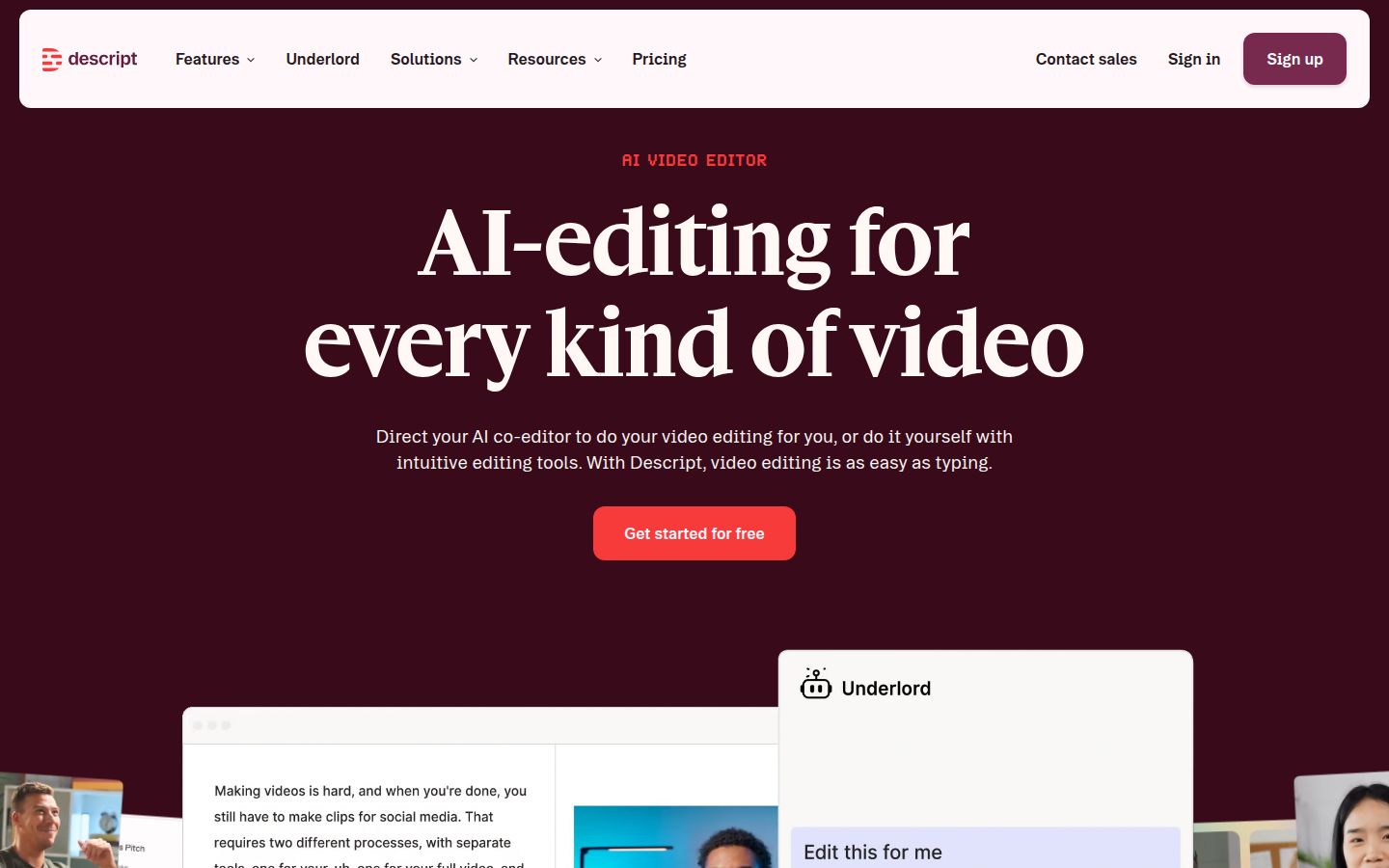
Descript is a full editor built around the transcript. You edit the video by deleting or moving words in the text, and the video follows. It has filler-word removal, Studio Sound for cleaner audio, captions, eye-contact correction and an AI assistant. It's a strong choice if you record long conversations or podcasts and want audio and video in one tool.
The free plan exists, but it adds watermarks. Hobbyist costs $24 a month billed monthly, or $16 a month billed yearly. Creator costs $35 a month billed monthly, or $24 a month billed yearly. Each paid tier has a monthly cap on transcription hours.
Descript has more features than a short talking-head clip needs. If all you want is a captioned short, a one-pass tool is quicker to learn.
Action: If you already edit in a document-style workflow, open the free plan and test one filler-word removal on a clip.
CapCut

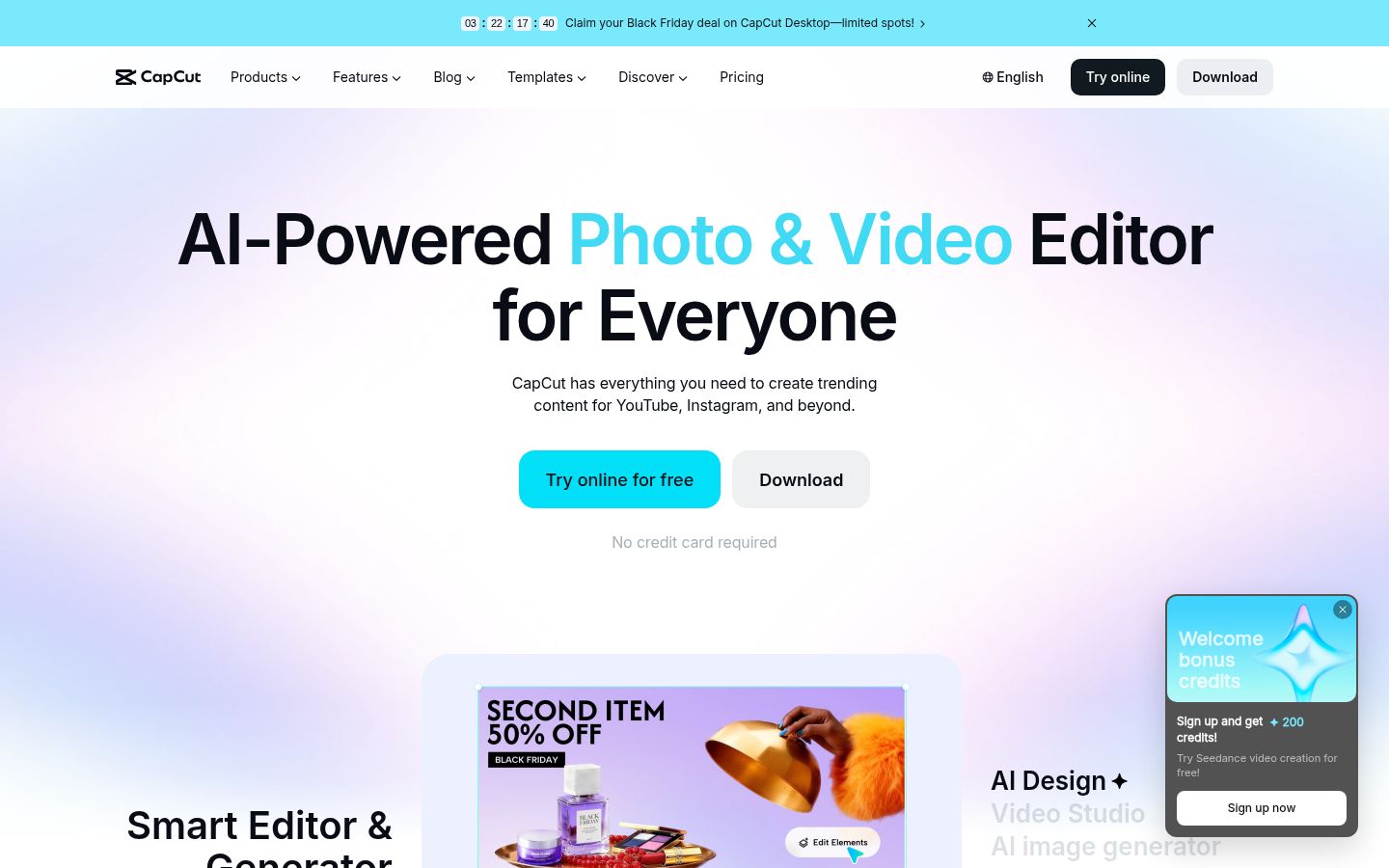
CapCut is a free video editor that works on phone, desktop and in the browser. It has a timeline, effects, transitions, a large template library and auto captions. It also has a transcript-based editing tool and a long-video-to-shorts tool. Many creators start here because the free plan covers a lot.
The free plan includes auto captions, but with limits. Pro costs $19.99 a month or $179.99 a year. It adds features such as 4K export and more premium assets.
CapCut is the better choice if you want a free start and full manual control over every cut and template. For talking-head shorts, expect to make more of the edit yourself than you would in a one-pass tool.
Action: Use the free plan on your test take. Note how many minutes of hand editing it takes you to reach a finished captioned video.
Opus Clip

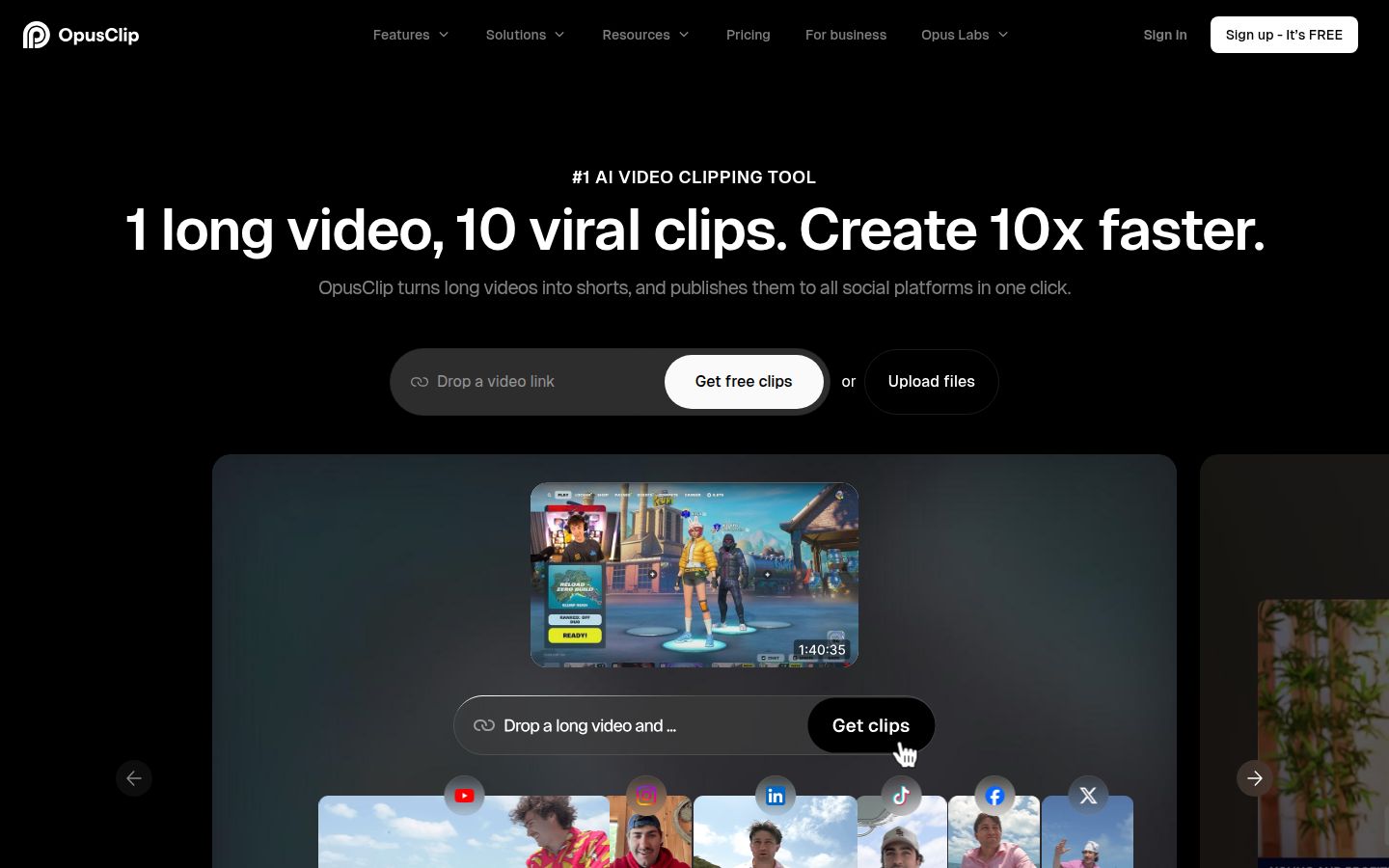
Opus Clip is built to find clips inside long videos. You give it a long recording such as a webinar, podcast or livestream, and it returns short clips with captions. Its homepage says it works with videos in English and more than 20 other languages, which is a wider range than Sycamore's English-only transcription.
The free plan gives 60 credits a month. Starter is $15 a month with 150 credits, and Pro is $29 a month with 300 credits. One credit covers one minute of source video.
Opus Clip is the right pick when your job is one long recording into many clips. The credit system charges by minute of source video, so long recordings use credits quickly.
Action: If you have a recording over 20 minutes, test one upload on the free plan and count the clips you'd post.
Other tools worth a look
Vizard works the way Opus Clip does, with clips from long videos. Its Free plan gives 60 credits a month. The Creator plan is $29 a month, or $14.50 a month billed yearly, and it removes the watermark. Its Business plan is $39 a month.
Captions is an app for iPhone and Android. Its pricing page lists a free plan with one caption template, against 100-plus templates on the paid plans. It's a good fit for people who edit on their phone and want a mobile-first workflow.
Action: If you're comparing clip tools, put the same long recording into Opus Clip and Vizard and count which one gives you more clips you'd post.
Which one to pick
- You film one short at a time and want a finished, captioned result with a plain-words review. Start with Sycamore. The Starter plan is $19 a month for 3 hours of video.
- You want B-roll, sound effects, scheduling or an API. Look at Submagic's Pro or Business plans.
- You edit long recordings by reading the transcript. Descript is the closest fit.
- You want a free start and manual control over every cut. Use CapCut's free plan.
- You have long recordings and need many clips from each one. Use Opus Clip or Vizard.
Whichever you pick, run one of your own clips through its free allowance and watch the result on your phone with the sound on. That one test tells you more than any comparison, including this one.
For more on the edit itself, read how to edit talking-head videos or how to remove filler words from a video.
FAQ
What is a talking-head video?
A talking-head video shows one person speaking directly to the camera, usually head and shoulders. It's the common format for short advice, stories and opinion videos on TikTok, Reels, Shorts and LinkedIn.
Do I need an expensive camera for a talking-head video?
No. A recent phone is enough for most creators. Keep the lens at eye level, light your face from the front and record in a quiet room.
What is the cheapest way to edit talking-head videos?
CapCut has a free editor, and Sycamore's Free plan covers 10 minutes of video one time with no credit card. Opus Clip and Vizard also have free plans with monthly credits.
Does Sycamore support languages other than English?
No. Sycamore's transcription is English only, so use a tool with multilingual support if you post in other languages.
Can Sycamore turn one long video into many shorts?
No. Sycamore edits the video you upload into one finished, captioned short. For cutting a long recording into many clips, use a clipping tool such as Opus Clip or Vizard.
Can I remove filler words automatically?
Yes, several tools do this, including Sycamore's Magic Edit and Descript. Check each cut by ear, because a removed filler word can leave a small jump in the sound.