The best font for captions on Shorts, Reels and TikTok is a heavy sans-serif, set large, with a dark outline or shadow behind it. Montserrat Bold is the most common choice. In a sample of about 2 million short videos, Submagic found that 61% used Montserrat. Poppins, Inter, Anton and Bebas Neue are strong alternatives, and TikTok Sans is the one to pick if you want captions that look like TikTok's own text.
Weight, size and contrast matter more than the font name. A good typeface in a thin weight, with no outline, still disappears over a moving background. So set those first, then pick a font you like from the short list below.
This guide covers the rules, the fonts to try and skip, and where to change the font in Sycamore, Submagic, Opus Clip and Descript. Prices are as of October 2026.
Set weight, size and contrast before you pick a font
A viewer on a phone reads each word for about 0.4 seconds, over footage that keeps moving. Five settings do most of the work (Capto's caption font guide):
- Weight. Use Semibold at least, and Bold if you can. Thin and Light weights vanish on bright footage.
- Size. Set the main line at about 7 to 9 percent of the frame height. On a 1080 by 1920 video, that is roughly 130 to 170 pixels.
- Contrast. White text with a 2 to 4 pixel black stroke works on most footage. On a very busy background, add a semi-transparent rounded box behind the text.
- Safe zone. Keep captions out of the bottom 12 to 15 percent of the frame. Usernames, Reels controls and Shorts buttons sit there and cover your words.
- Line length. Use four to seven words per line, and two lines at most.
Check the result on the brightest frame of your clip, not the first one. A caption that reads well on a dark opening frame can vanish when the background turns bright (Monty's font guide).
Do this: Set those five values on one caption, then play the clip on your phone before you change anything else.
Fonts to try first
These fonts hold up at heavy weights on a small screen. Each one fits a different kind of video. The picks come from Capto and Blitzcut's TikTok caption guide.
| Font | Why it works | Good for |
|---|---|---|
| Montserrat Bold | Wide, even letters that stay clean at heavy weights. The most used caption font in Submagic's sample. | Your default for talking-head shorts |
| Inter Bold | Built for small screens, with a tall x-height so lowercase stays readable. | Education, tips and how-to content |
| Poppins SemiBold or Bold | Rounder, friendlier shapes that hold up over busy backgrounds. | Coaches, lifestyle and softer brands |
| Anton | One very heavy, condensed weight that fits long lines on a narrow screen. | One or two keyword punches |
| Bebas Neue | A condensed, all-caps look that many viewers already read as native to short video. | High-energy hooks |
| Open Sans Bold | Plain and easy to read, a good accessibility-first pick. | Longer captions and dense explainers |
Write the sentence in lowercase and use caps for the one or two words that carry the point. A whole line in caps reads slower, because the eye loses the word shapes (Monty).
Do this: Pick one workhorse font from this table. Use at most one accent font for keywords.
Fonts to skip on moving video
Some fonts look fine in a still frame and fail in motion. These are the common ones:
- Thin and Light weights. They lose contrast the moment the background changes.
- Script and handwriting fonts. The connected strokes take more time to read than a viewer gives a word.
- Delicate serifs at caption size. Thin serif details break up when the text is small and compressed. A heavy slab can work for a single keyword.
- Plain system fonts with no stroke, shadow or box. They read as a placeholder, not a choice.
- Three or more fonts in one video. One main font and one accent is enough.
Do this: Before you export, check that every caption uses a Semibold or heavier weight.
Use TikTok Sans for the native TikTok look
TikTok Sans is the typeface behind TikTok's text overlays and interface. TikTok released it as a free, open-source font under the SIL Open Font License 1.1, and the TikTok app offers it as "Classic," "Bold" and "Oblique" (TikTok for Developers). You can download it from Google Fonts.
It is a good pick if most of your shorts go to TikTok and you want captions that match the app. If your shorts also go to Reels or Shorts, a bold sans like Montserrat is the more neutral choice.
Do this: Download TikTok Sans from Google Fonts and test it on one video, next to Montserrat Bold. Keep whichever reads better on your phone.
Sycamore

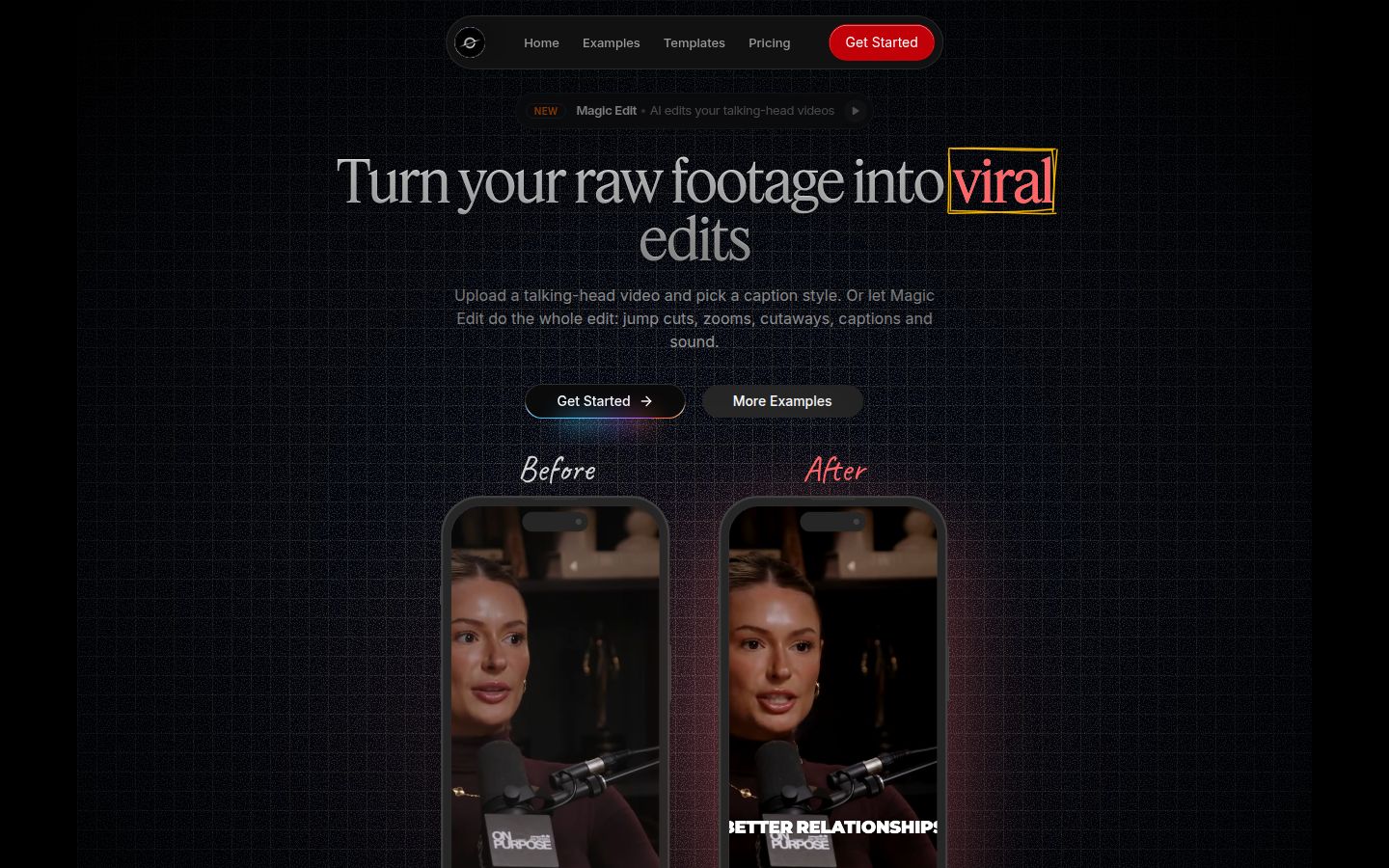
Sycamore turns a raw talking-head recording into a captioned short in one pass. It cuts silences and filler words, adds animated word-by-word captions, and gives you a plain-words edit to review before you export. You can edit any word, then change the font, colors, size, animation and position. Save the look as a preset and every new video starts with the same caption style.
That makes it a good fit for founders, coaches, educators and creators who film themselves talking and post to TikTok, Reels, Shorts or LinkedIn. You choose the font once, and the rest of your videos match it.
Pricing as of October 2026: the Free plan includes 10 minutes of video, one time, with no credit card. Starter is $19 a month for 3 hours of video, and Growth is $39 a month for 10 hours. Paid plans have no watermark (Sycamore pricing).
Two limits matter for this decision. Transcription is English only. And Sycamore edits the video you give it. It does not cut one long recording into many shorts, so if that is your starting point, Opus Clip is built for that job.
Do this: Upload one talking-head clip to the free plan, pick a font from the list in the caption editor, and save the look as a preset.
Submagic

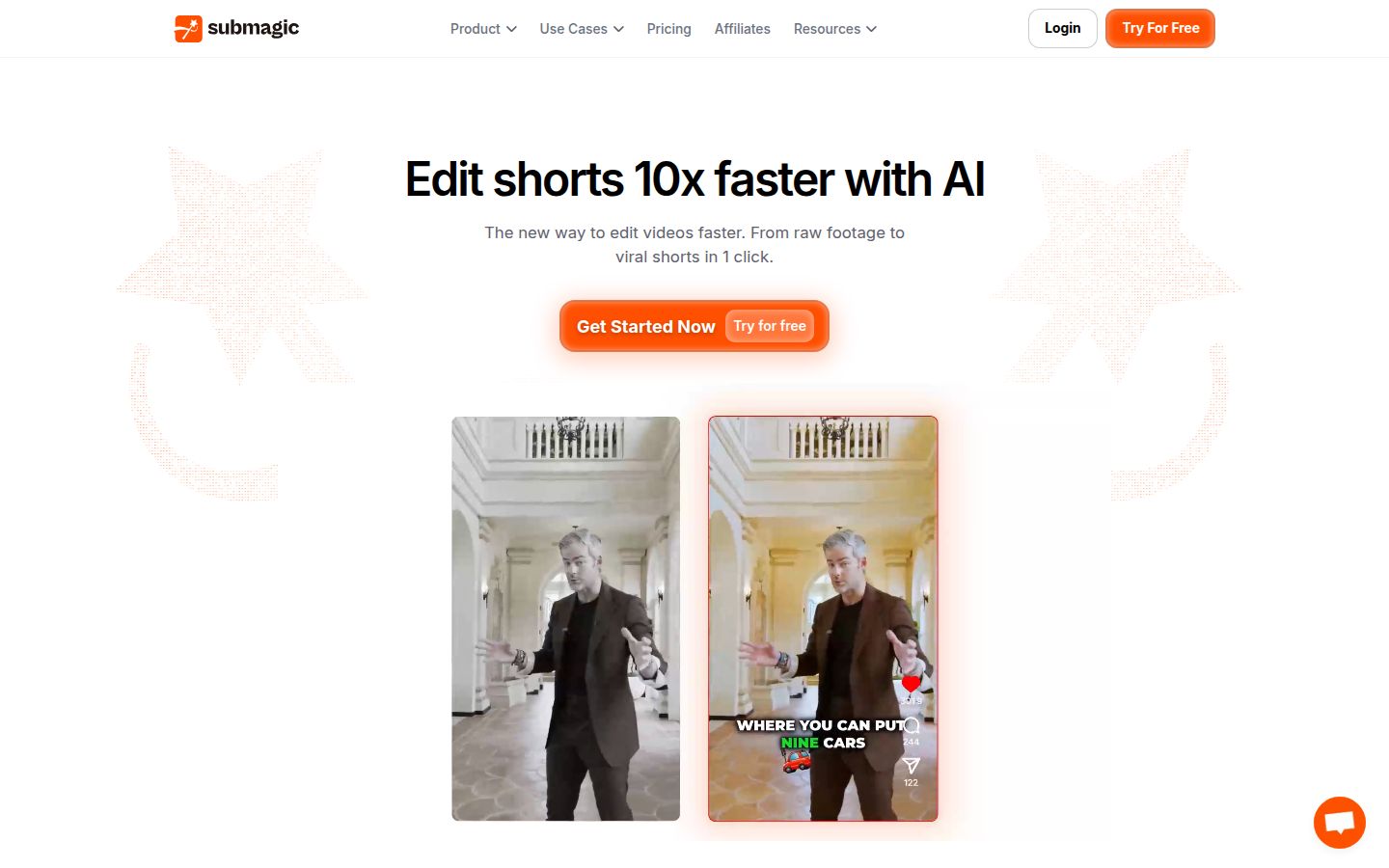
Submagic is an AI video editor for short-form captions, with a library of caption themes. Each theme sets the font, size and colors, and you can customize a theme by changing its font, adding shadows or changing the number of words per line (Submagic's font articles). Submagic also published the font sample behind the Montserrat figure above, so it has a clear view of what creators pick.
Its own font help says uploading your own .ttf or .otf file is available on the Pro plan (Submagic help). Pro is $39 a month, or $23 a month billed yearly. Starter is $19 a month, or $12 billed yearly, and covers 15 videos up to 2 minutes each (Submagic pricing summary).
It suits creators who want a theme library and their own brand font. Starter does not include custom font upload, and its 2-minute limit is short for a longer talking-head clip.
Do this: If you need your own brand font, check the Pro plan's current limits before you subscribe.
Opus Clip

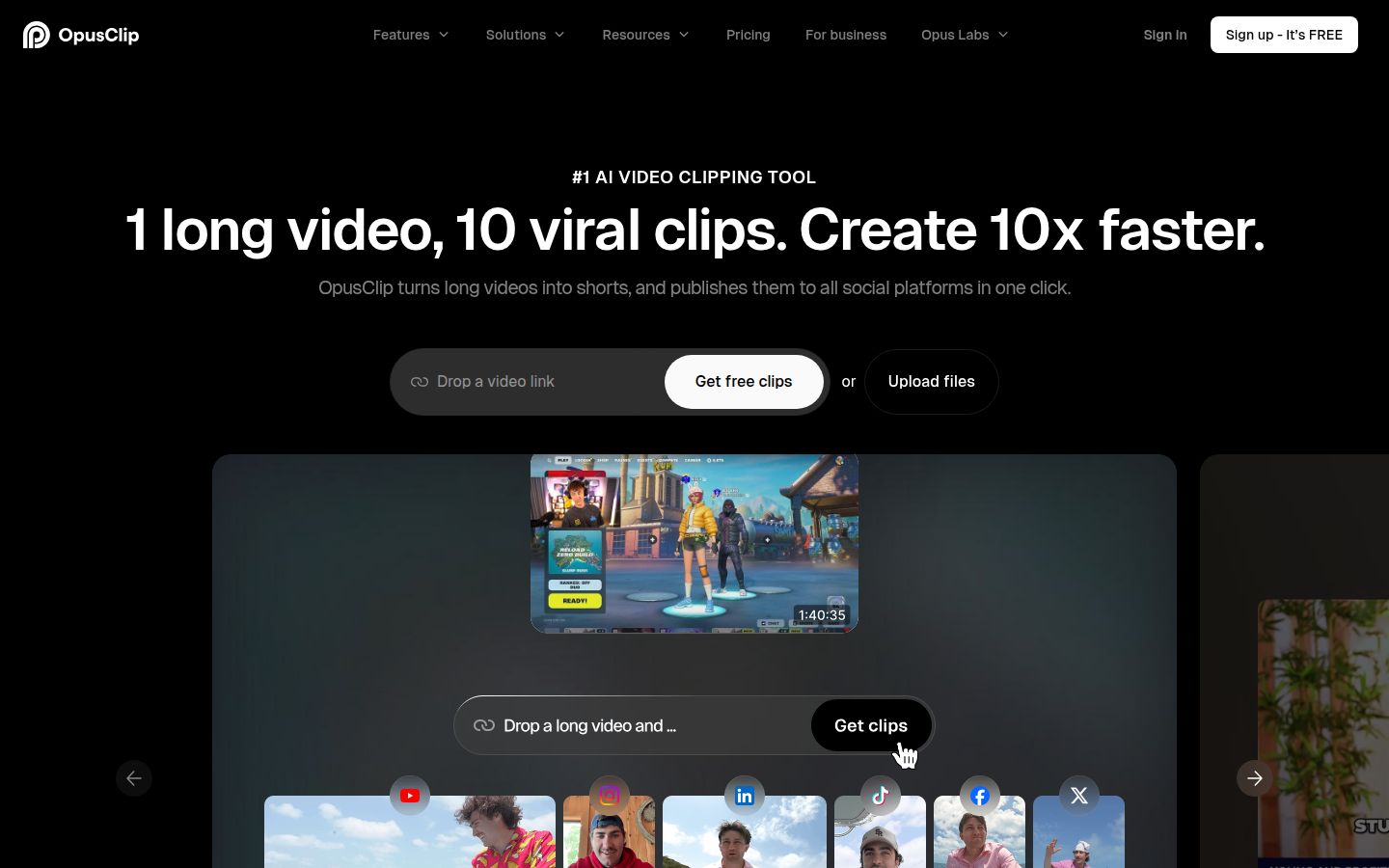
Opus Clip is built to turn one long video into several short clips, each with captions. Its Captions tab lets you change the font style, size, color, stroke, shadow and letter case (Opus Clip help). Its help center also has an article on adding a logo and custom fonts (Opus Clip help).
Pricing as of October 2026: the free plan includes 60 credits a month and adds a watermark (Opus Clip pricing). Starter is $15 a month and Pro is $29 a month (FluxNote's Opus Clip pricing guide). Credits are metered, with one credit roughly equal to one minute of video processed (Quso).
It suits people who start with a long recording, such as a podcast or webinar, and want many clips from it. The credit system means a long source uses more of your monthly allowance.
Do this: If you start from a long recording, run one episode on the free plan and check the caption style on the clips it makes.
Descript

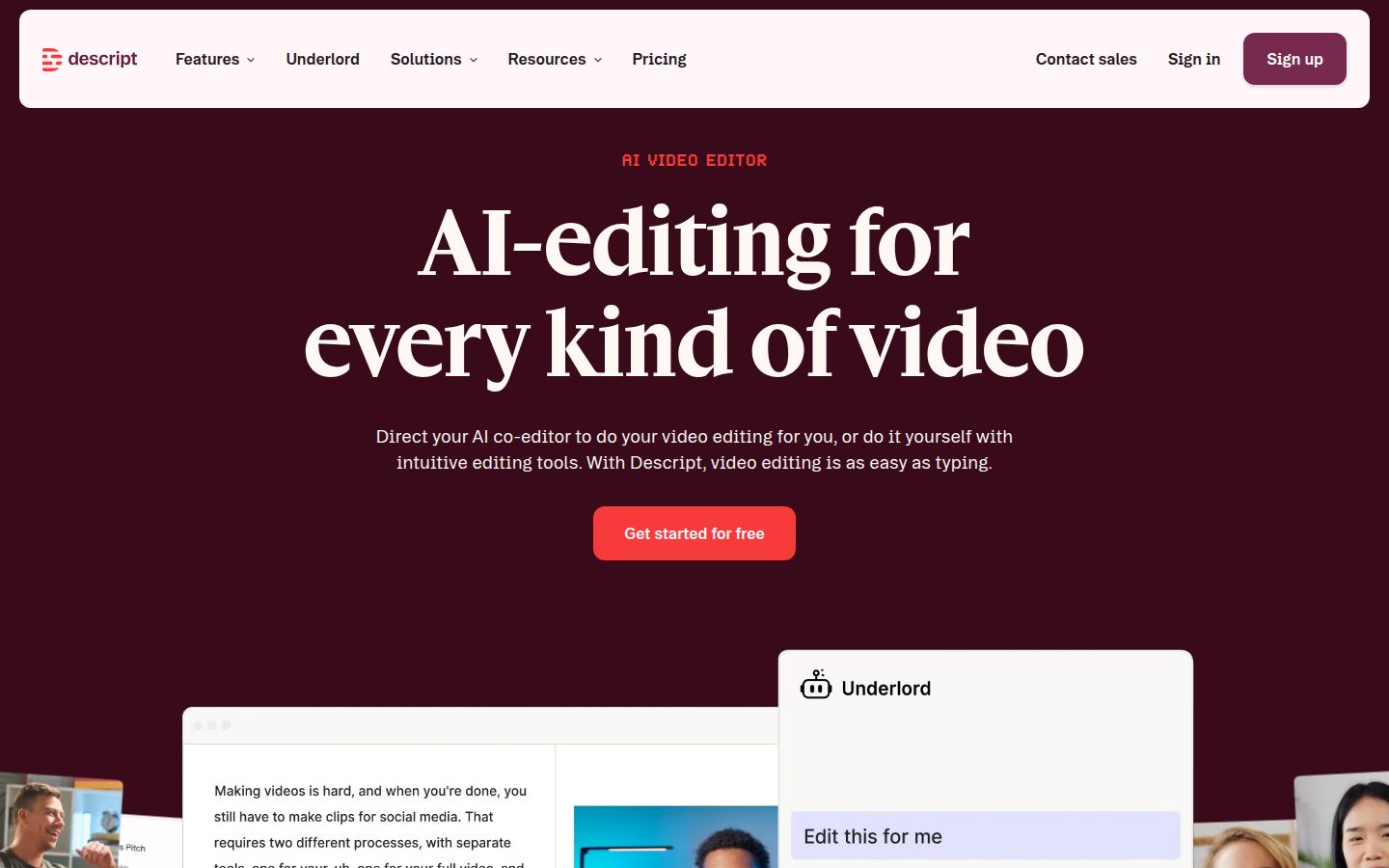
Descript is a full video and audio editor where you edit the video by editing its transcript. Captions are a layer you add to the project. Pick a caption style from the sidebar and Descript applies that style's font, colors and animation to your composition (Descript help). Its Brand Studio lets you add fonts to your Drive, including Google Fonts (Descript help).
Its paid plans start from $16 a month billed yearly (Descript pricing). It suits people who edit audio and video together, such as podcasters and anyone recording screens, and who want captions in the same project. Because it is a full editor, it has more to learn than a caption-only tool.
Do this: If you already record in Descript, add a caption layer to one project and test your font there.
Which tool to pick for your caption font
| Sycamore | Submagic | Opus Clip | Descript | |
|---|---|---|---|---|
| Starting price | Free for 10 minutes, then $19 a month | $19 a month, or $12 billed yearly | Free plan, then $15 a month | Paid plans from $16 a month billed yearly |
| Font control | Font, colors, size, animation, position, saved presets | Themes with font, size and colors; custom themes | Font, size, color, stroke, shadow, case | Caption styles; text layers; custom fonts |
| Best for | Talking-head shorts from one recording, with a plain-words edit | Theme library and your own font on Pro | Long recordings turned into many clips | Editing audio and video in one project |
CapCut is another option. Its web tool adds auto captions from the spoken audio, and you can change the caption font from there (CapCut). It is a full editor, so it has more controls than a caption-only tool.
Pick Sycamore if you want the whole talking-head edit and a caption look you can save and reuse. Pick Submagic if you need your own font on a theme. Pick Opus Clip if your source is a long video. Pick Descript if you edit audio and video in one place.
Do this: Pick the one that matches your source, then run the same clip through it with the same font.
Your caption font checklist
- Choose one heavy sans from the table above, or TikTok Sans.
- Set the weight to Semibold or Bold.
- Set the main line to about 7 to 9 percent of the frame height.
- Add a 2 to 4 pixel black stroke, or a semi-transparent box on busy footage.
- Keep captions above the bottom 12 to 15 percent of the frame.
- Save the look as a preset in the tool you use, then play it on your phone.
If your shorts are for Instagram, how to add captions to Instagram Reels covers the placement and settings in more detail. If you are still choosing a tool, Best Caption Apps for TikTok compares more options.
FAQ
What is the best font for TikTok captions?
A heavy sans-serif such as Montserrat Bold is the safest choice. In a sample of about 2 million short videos, Submagic found 61% used Montserrat. TikTok Sans is the best pick if you want the native TikTok look.
Is TikTok Sans free to use for captions?
Yes. TikTok released TikTok Sans as an open-source font under the SIL Open Font License 1.1, and you can download it from Google Fonts.
Do fonts matter more than size and contrast for captions?
No. Weight, size and contrast do most of the work. A good font in a thin weight with no outline still gets lost over moving footage.
Can I use my own font for captions in Submagic?
Submagic's help center says uploading your own .ttf or .otf font is available on the Pro plan, which is $39 a month or $23 a month billed yearly.
Can I change the caption font in Sycamore?
Yes. In the caption editor you can edit any word and change the font, colors, size, animation and position, then save the look as a preset for future videos.
Which font works for Instagram Reels captions?
The same rules apply as for TikTok and Shorts: a bold sans-serif, Semibold weight or heavier, sized to about 7 to 9 percent of the frame height, and kept above the bottom 12 to 15 percent of the frame.