Cut every pause longer than about half a second, cut every "um," then change what's on screen every two to four seconds. That's a sound starting point for talking-head shorts on TikTok, Reels, YouTube Shorts and LinkedIn. The exact number moves with the platform and the video, so treat it as a starting range, not a law. A fast cut only helps when it removes something the viewer doesn't need. Cutting faster for its own sake makes a video feel busy, and people still swipe.
This guide gives you the rules, the ranges you'll see online and why they disagree, and five ways to make the cuts, from doing it by hand to letting an editor make the first pass. Prices are as of November 2026.
The short answer: remove dead air, then change the picture
Work through these in order on any raw take.
- Cut silences longer than about 0.5 seconds. Shorter gaps can sound choppy once you remove them. Longer gaps make the viewer wait for the next line.
- Cut filler words and false starts. Keep the cleanest take of each line and delete the restarts.
- Change the picture every 2 to 4 seconds. Use a punch-in on a key line, a cutaway, text on screen for a number, or a caption emphasis.
- Never let a static frame run past about 4 seconds. A locked shot that runs long is where viewers most often leave.
- Keep a pause when it's doing work. A beat before a punchline or after a big claim gives the point room to land.
Do this now: Mute your last short and count the seconds with no word spoken. Those seconds are your first cuts.
Why the cut-rate numbers disagree
Search for "how often to cut" and you'll find different numbers. One set of guides puts TikTok at a cut every 1.5 to 3 seconds, Instagram Reels at every 2.5 to 4 seconds and YouTube Shorts at every 3 to 5 seconds. Another set puts TikTok at every 3 to 4 seconds, Reels at every 4 to 5 and Shorts at every 5 to 6.
The gap comes from two things. Each guide is describing one editing style, and the platforms don't publish a pace to hit. A fast comedy clip and a calm, founder-led explainer need different rhythms, even on the same app.
So use the ranges to start, then check your own numbers. Your retention graph in each platform's analytics shows the second where people leave. Find the steepest drop, watch the five seconds before it, and fix that spot first. That tells you more about your audience than any table.
Match the pace to the part of the video
The first three seconds are the fastest part. Open on your strongest line, not a greeting or a setup. Cut "hey guys" and any pause before the point. The first frame is the hook.
The middle is where you vary the rhythm. Keep the cuts tied to the speech. A quick run of cuts through a list works well, and a longer shot on a story gives the viewer a moment to follow it.
The ending can slow down a little. If your last line is the takeaway, leave a short pause after it and let the viewer read the caption.
Where jump cutting goes wrong
Some viewers read heavy jump cutting as busy or over-produced, especially on a long, serious talk. Cutting every breath can make you sound rushed, or robotic. Ask one question of each cut: does it remove something the viewer doesn't need? If the answer is no, leave the pause in.
Do this now: Take one video you already posted and watch the middle third with the sound off. If you can't tell what changed every few seconds, add a visual change there first.
Five ways to make the cuts
Pick by how much control you want and how much time you have. Some tools cut by hand on a timeline. Others cut from the transcript or make a first pass for you. Each one below is listed with its current price and its main limit.
Sycamore

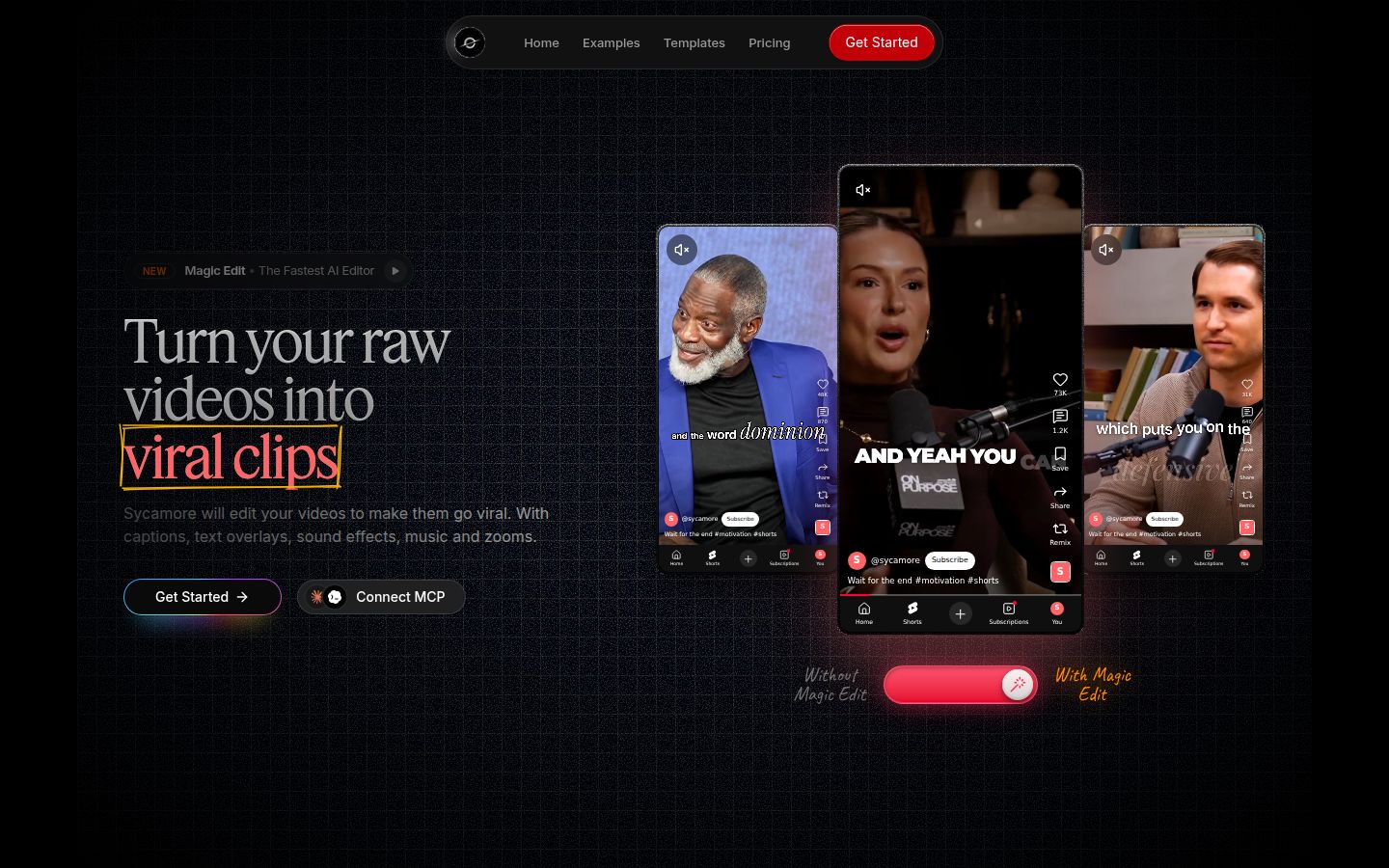
Sycamore is an AI video editor for talking-head videos. You upload raw footage in your browser and Magic Edit makes the first pass. It cuts silences, filler words and dead air. Then it adds zooms and punch-ins, emphasis on key lines, full-screen text cutaways for big moments, numbers and lists on screen, and word-by-word captions.
You choose one of four edit styles: Apollo, Hermes, Athena or Helios. Then you review the result. The editor works in plain words rather than a timeline. Each line can be set to Normal, Emphasis, Full screen, Number, List or Label. If a cut lands too fast, you change that line, and you can switch the edit style without starting over. You export an MP4 in 9:16, 1:1 or 16:9.
Pricing: Free gives you 10 minutes of video, one time, with no credit card. Starter is $19 a month for 3 hours of video with no watermark. Growth is $39 a month for 10 hours, with priority rendering. Full details are on the Sycamore pricing page.
Best for: Creators who film themselves talking and want the cutting and pacing done in one pass, then tuned by hand.
Limits: Transcription is English only. Sycamore edits the footage you give it, so it won't write your hook or your script. It's a web app with no mobile app, so on a phone you use it in the browser.
CapCut


CapCut is a video editor with desktop, online and mobile versions. It has a timeline, auto captions and caption templates. You make the cuts yourself: you split clips, delete the pauses and add the zooms by hand. That gives you full control, and it's a strong fit for people who like to edit on their phone.
Pricing: The editor has a free plan. Pro is listed at $19.99 a month in the US on CapCut's pricing page, with a 7-day free trial for new users. Plan names and prices vary by region, so check the page for your country.
Best for: Hands-on editors who want to make every cut and work on a phone.
Limits: Every pause you remove and every zoom you add is a manual step. A tool that makes a first pass for you saves that time, but you still review every change.
Descript

Descript is an editor where you work from the transcript. Delete a word in the text and it comes out of the video. For pacing, it has a Remove filler words option in its AI Tools panel. It also has Shorten word gaps, which removes the dead space between words, and you can adjust the timing settings for it in the help center.
Pricing: The free plan includes a limited number of media minutes. Hobbyist is $24 a month, or $16 a month billed yearly. Creator is $35 a month, or $24 a month billed yearly. The Descript pricing page lists paid plans from $16 a month.
Best for: People who think in text, and podcasts or longer talks as well as short clips.
Limits: It's a full editor with more to learn than a talking-head tool. The pacing options are one step in the process, and you still choose the visuals.
Submagic

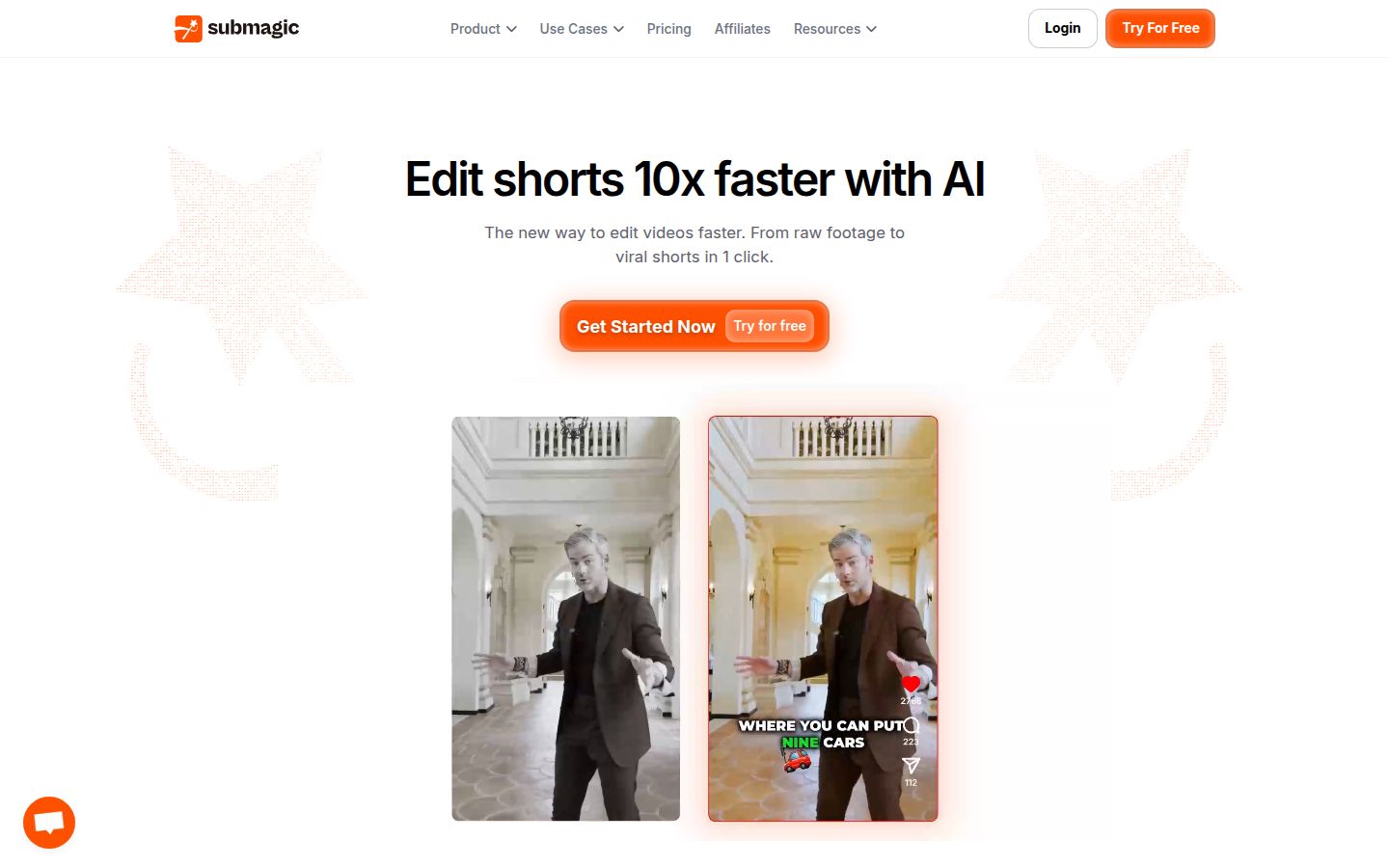
Submagic is built around captions and short clips. Its editing tools include auto zoom, silence and filler-word removal, and captions in a range of styles. Magic Clips, an add-on, pulls short clips out of a longer video.
Pricing: Starter is $19 a month, or $12 a month billed yearly. Pro is $39 a month, or $23 a month billed yearly. Business is $69 a month, or $41 a month billed yearly. Prices are per member. The Submagic pricing page has the current details.
Best for: Creators who want captions and clips from long recordings and are fine with per-video length limits.
Limits: On Starter, videos can run up to 2 minutes. Silence, bad-take and filler-word removal are on Pro. Magic Clips is a $19 a month add-on for 10 uploads.
Adobe Premiere Pro

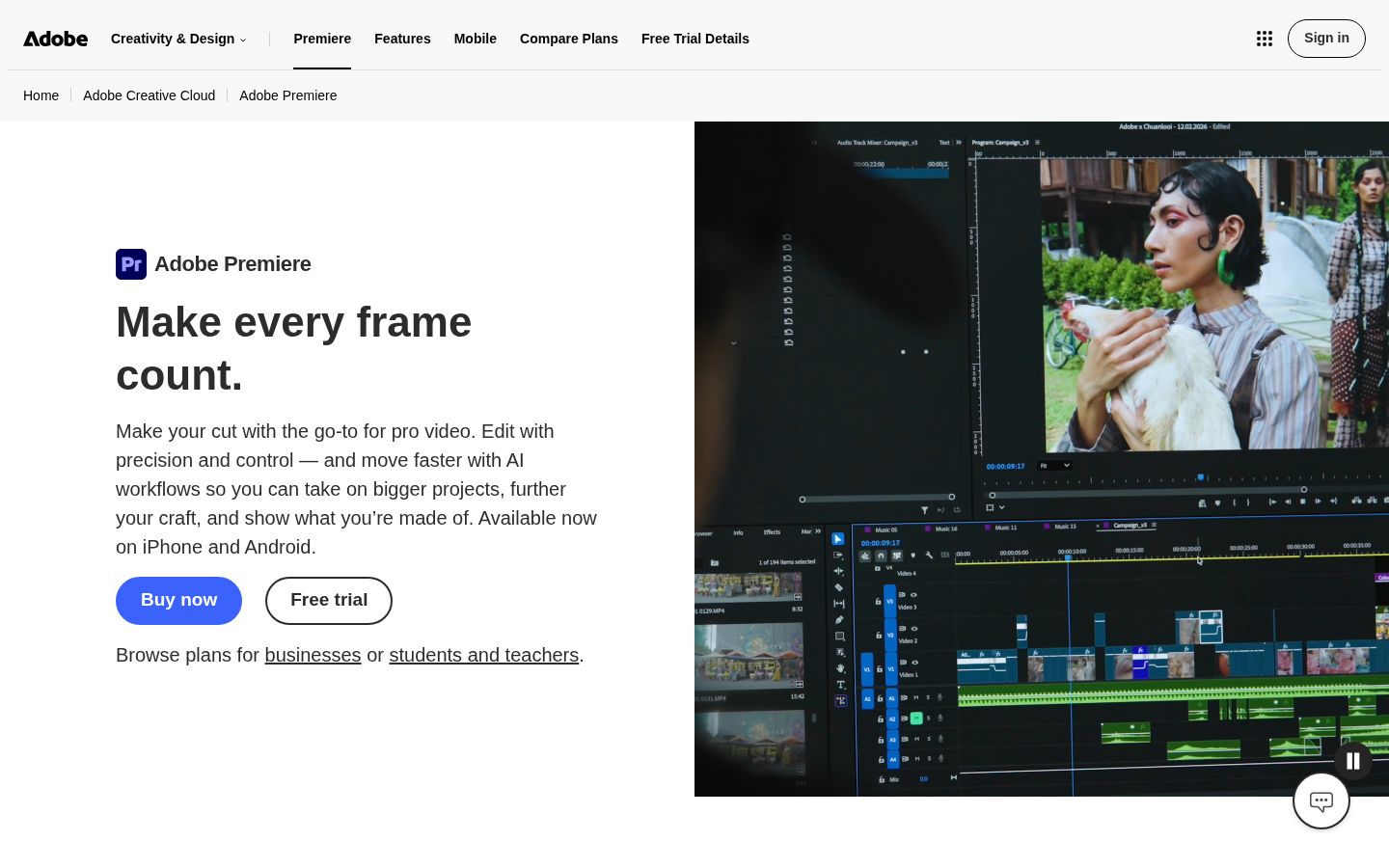
Premiere Pro is a professional timeline editor. Every cut, zoom and caption is your decision. If you already edit there, your pacing rules carry straight over.
Pricing: The individual plan is US$22.99 a month on an annual plan billed monthly, per the Adobe plans page. Adobe also offers a free trial.
Best for: Editors who work across many kinds of projects and want the most control of any tool here.
Limits: The learning curve is the steepest in this list, and most of the pacing work is manual on the timeline. For one talking-head short a day, it's more tool than you need. Our Descript vs Premiere Pro comparison covers that choice in more detail.
Which tool should you pick?
| Tool | Starting price (monthly billing) | Free option | Who does the cuts | Best for |
|---|---|---|---|---|
| Sycamore | $19/month (Starter) | 10 minutes, one time, no card | Sycamore makes the first pass, you review | Raw talking-head footage to a finished edit in one pass |
| CapCut | Pro listed at $19.99/month (US) | Free editor | You, by hand | Hands-on control, especially on a phone |
| Descript | $24/month (Hobbyist) | Free plan with limited media minutes | You, from the transcript | Text-first editing, podcasts and longer talks |
| Submagic | $19/month (Starter) | Free trial | Mostly you, with auto zoom and silence removal on Pro | Captions and clips from longer recordings |
| Premiere Pro | US$22.99/month (annual, billed monthly) | Free trial | You, on a full timeline | Professional control across many projects |
Here's how we'd choose:
- You film in English, want the pacing done in one pass, and don't want to learn a timeline: start with Sycamore's free 10 minutes, then check the first edit against the rules above.
- You edit on your phone and enjoy making every cut yourself: start with CapCut's free editor.
- You want to edit by reading the transcript: try Descript's free plan.
- Your recordings are long and you need clips from them: look at Submagic's Magic Clips, and note the video length limits on each plan.
- You already work in Premiere: keep it, and use the rules in this post as your checklist.
Start this week
- Pick one recent video and count the seconds with no speech.
- Cut every pause longer than about half a second, and every filler word.
- Add a visual change every 2 to 4 seconds, and check that no static frame runs past 4 seconds.
- Open on your strongest line and cut any greeting before it.
- Post the next video, then compare the first 10 seconds of its retention graph with your last one.
If you want the full method for finding where viewers drop, read our What Is Retention Editing? guide. For silence removal on its own, see How to Cut Silences From a Video.
FAQ
How often should you cut a TikTok video?
A common working range is a visual change every 1.5 to 3 seconds, though other guides put TikTok at every 3 to 4 seconds. Start in that range, then check where your retention graph drops and fix that spot first.
How long should a pause be before you cut it?
Start with silences longer than about 0.5 seconds. Shorter gaps can sound choppy once removed, and longer gaps make viewers wait for the next line.
Are jump cuts bad for talking-head videos?
No. Jump cuts are a common style for talking-head shorts. Heavy cutting can feel busy on long, serious talks, so keep pauses that carry a point.
Is Sycamore free to try?
Yes. The free plan includes 10 minutes of video, one time, with no credit card. The Starter plan is $19 a month for 3 hours of video as of November 2026.
Which free tool removes filler words and silences?
Descript has a free plan with a limited number of media minutes, and its editor includes filler-word removal and a Shorten word gaps option. CapCut's free editor lets you cut pauses by hand on the timeline.