If you film yourself talking to a camera and post the clips to TikTok, Instagram Reels, YouTube Shorts or LinkedIn, you need an editor that handles the boring parts fast: cutting the pauses, the "ums" and the false starts, then adding captions that people can read on a phone.
The list is shorter than it looks. Six tools cover most beginners, and each one is good at a different job. This post covers those six, starting with Sycamore, because we make it. We've written each section the way we'd explain the tool to a friend who asked us which one to pick.
How we chose these tools
We looked at four things for each tool: the price and what the free plan really covers, the features a talking-head creator uses most (cutting dead air, captions, zooms, export sizes), the kind of video each one makes, and who it suits best. We left out full professional editors such as Premiere Pro and DaVinci Resolve, because they take weeks to learn and most beginners don't need them yet.
Prices are as of November 2026. Regional prices and app store prices can differ from the US prices shown here, so check the price on the checkout page before you subscribe.
The short list at a glance
| Tool | Starting paid price | Free plan or trial | Best for |
|---|---|---|---|
| Sycamore | $19/month (Starter, 3 hours of video) | 10 minutes of video, one time, no credit card | Turning raw talking-head footage into a finished edit |
| CapCut | $9.99/month (Standard) or $19.99/month (Pro) in the US | Free editor with a full timeline | Hands-on editing with lots of templates, on a phone or computer |
| Descript | $16/month billed yearly ($24 billed monthly) | Free plan with 60 minutes of media, 720p with a watermark | Editing video by editing its transcript |
| Submagic | $12/month billed yearly ($19 billed monthly) | Free trial: 3 short videos, watermarked downloads | Animated captions on short clips you've already cut |
| Captions | $9.99/month (Basic) | Free plan with a one-time credit allowance | iPhone creators who want AI to do most of the edit |
| InShot | About $4.99/month or $19.99/year for Pro (US) | Free full editor with a watermark | Quick, hands-on edits in a phone app |
Sycamore

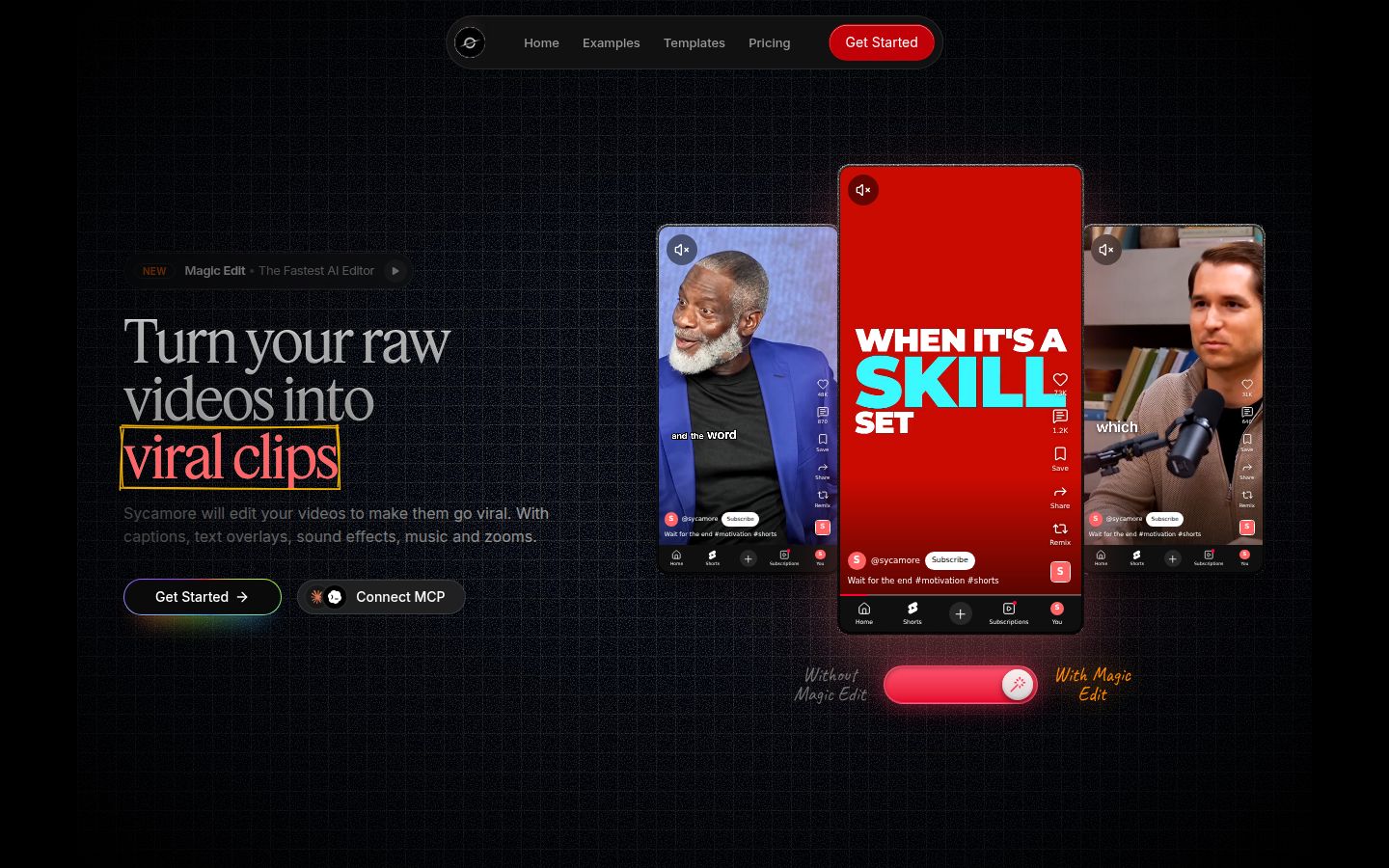
Sycamore is an AI video editor for talking-head videos. You upload raw footage of yourself talking, and it edits the video into a short-form clip built to keep people watching. It runs in your browser, so there's nothing to install.
The main feature is Magic Edit. Upload a video and Sycamore cuts out silences, filler words and dead air. Then it adds zooms and punch-ins, emphasis on the key lines, full-screen text cutaways for big moments, numbers and lists on screen, and animated captions that appear word by word.
You choose one of four edit styles: Apollo, Hermes, Athena or Helios. You can switch styles without starting over. The editor works in plain words rather than a timeline. Each line can be set to Normal, Emphasis, Full screen, Number, List or Label. You review the edit and change anything before you export an MP4 in 9:16, 1:1 or 16:9.
Strengths
- It does the whole edit in one pass. You don't have to build the cuts, zooms and captions by hand.
- You stay in control. You see the edit before export and can change any line.
- Captions are part of the edit. You can correct any word, change fonts, colors, size, animation and position, and save a look as a preset.
- There's no timeline to learn, and the tool does one job: talking-head shorts.
Limits that matter here
- Transcription is English only.
- There are no sound effects or background music right now. If your videos depend on music, use one of the other tools for that part.
Pricing as of November 2026
- Free: 10 minutes of video, one time, no credit card needed.
- Starter: $19 a month for 3 hours of video a month, no watermark.
- Growth: $39 a month for 10 hours of video a month, no watermark, with priority rendering.
- Uploads: MP4, MOV, WebM or MP3, up to 2 hours.
Best for founders, coaches, educators and podcasters who film themselves talking and want a finished short without learning an editor. If you enjoy making every cut yourself, CapCut or Descript will suit you better.
CapCut


CapCut is a full video editor with a timeline you control by hand. It runs on phones, desktop and the web, and it has a large template library. The free version covers a lot of everyday editing.
The free editor includes a full timeline, keyframes, transitions, filters and 1080p export. Basic auto captions are available on the free plan too. If you like trying trends, templates and effects, CapCut gives you a lot to play with without paying.
Strengths
- A free editor with a full timeline, so you can cut every second yourself.
- Caption options and templates for short vertical video.
- Works on phone, desktop and web, so you can start on your phone and finish on a computer.
Limits that matter here
- Effects, templates and music marked as Pro can be used in the editor, but exporting them on the free plan adds a watermark.
- 4K and 60fps export are part of the paid plans, not the free editor.
- You do the cutting yourself. That's the point for some creators and extra work for others.
Pricing as of November 2026
- Free: the editor, with the Pro watermark rules above.
- Standard: $9.99 a month in the US, sold mainly through phone app stores. It adds watermark-free 1080p export and more cloud storage, without 4K.
- Pro: $19.99 a month or $179.99 a year in the US. It adds 4K and 60fps export, a larger template library and more AI credits.
- CapCut also lists Ultra and Teams plans. Prices vary by region, device and promotion, so the checkout screen is the final word.
Best for creators who want to edit by hand, who like templates and trends, or who want a free phone editor that can do more than captions. If you want the editing done for you, Sycamore is the closer fit. We have a longer look at CapCut for talking-head creators on our blog: CapCut Review for Talking-Head Creators.
Descript

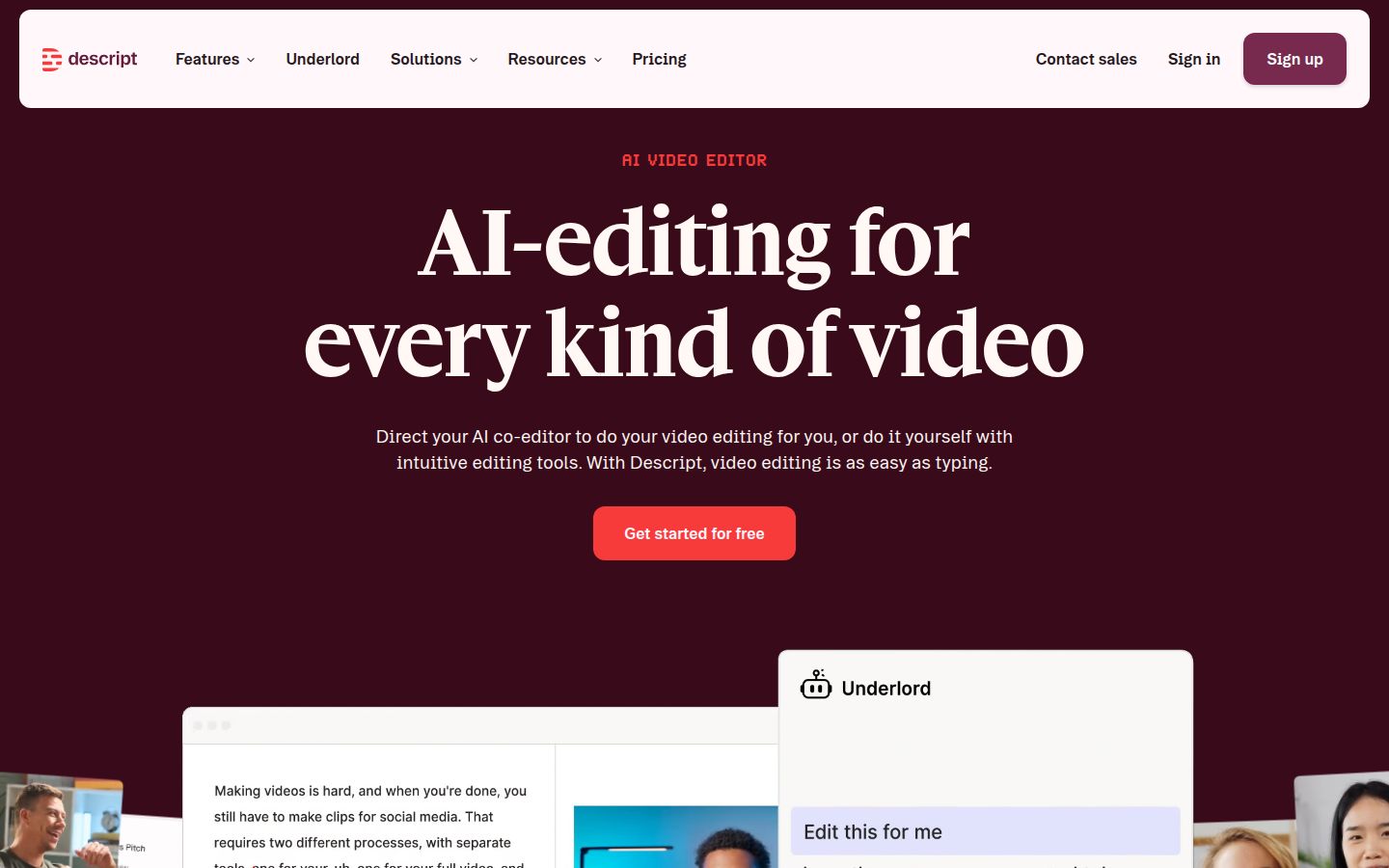
Descript works differently from most editors. It transcribes your recording, and you edit the video by editing the text. Delete a sentence in the transcript and the matching video is cut. This makes it a strong choice for long recordings such as interviews, webinars and podcasts that you want to turn into clips.
Descript also has tools for the audio and video cleanup beginners ask about most. Remove Filler Words and Studio Sound are both listed among its features, and Create Clips and captions are there too.
Strengths
- Text-based editing is quick to pick up if you already write your talking points in a document.
- Strong audio tools, including filler word removal and Studio Sound.
- Hobbyist exports 1080p with no watermark, and Creator adds 4K.
Limits that matter here
- Every paid plan has two monthly limits: media hours and AI credits. Media hours count what you upload, even if you trim most of it away. AI credits meter the AI tools.
- The free plan exports at 720p with a watermark.
- It's a fuller editing environment than a tool built only for short clips, so there are more options to learn.
Pricing as of November 2026
- Free: 60 minutes of media a month, 100 AI credits one time, 720p export with a watermark.
- Hobbyist: $16 a month billed yearly, or $24 billed monthly. It includes 10 media hours and 400 AI credits a month, 1080p export with no watermark, and one seat.
- Creator: $24 a month billed yearly, or $35 billed monthly. It includes 30 media hours, 800 AI credits, 4K export with no watermark, and up to three seats.
- Business: $50 a month billed yearly, or $65 billed monthly, with 40 media hours and 1,500 AI credits.
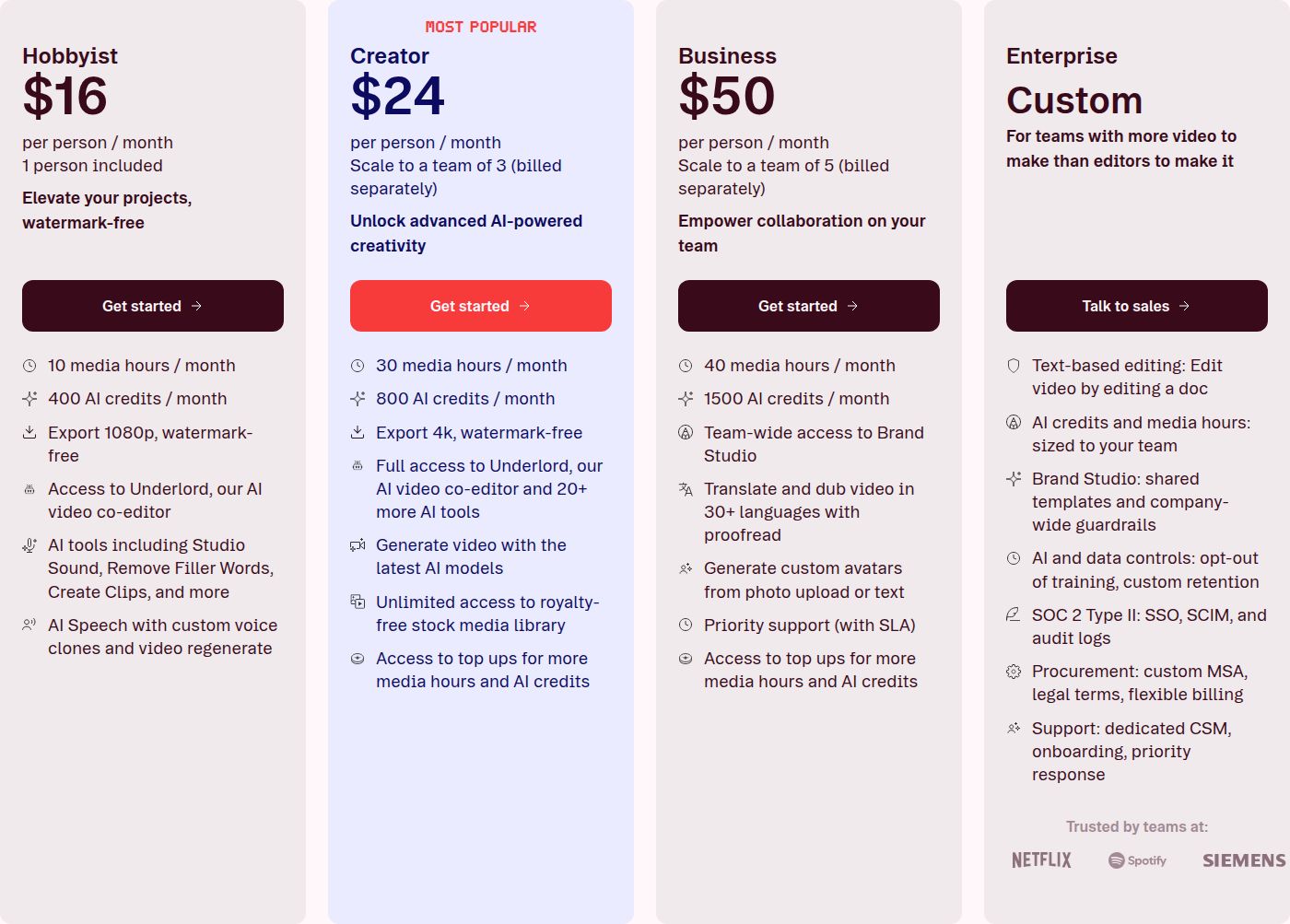 Descript's pricing plans
Best for podcasters and creators who think in words, and anyone who records long conversations and wants to cut them into shorter pieces by editing the transcript. If you only edit short vertical clips, Sycamore is a simpler start.
Submagic

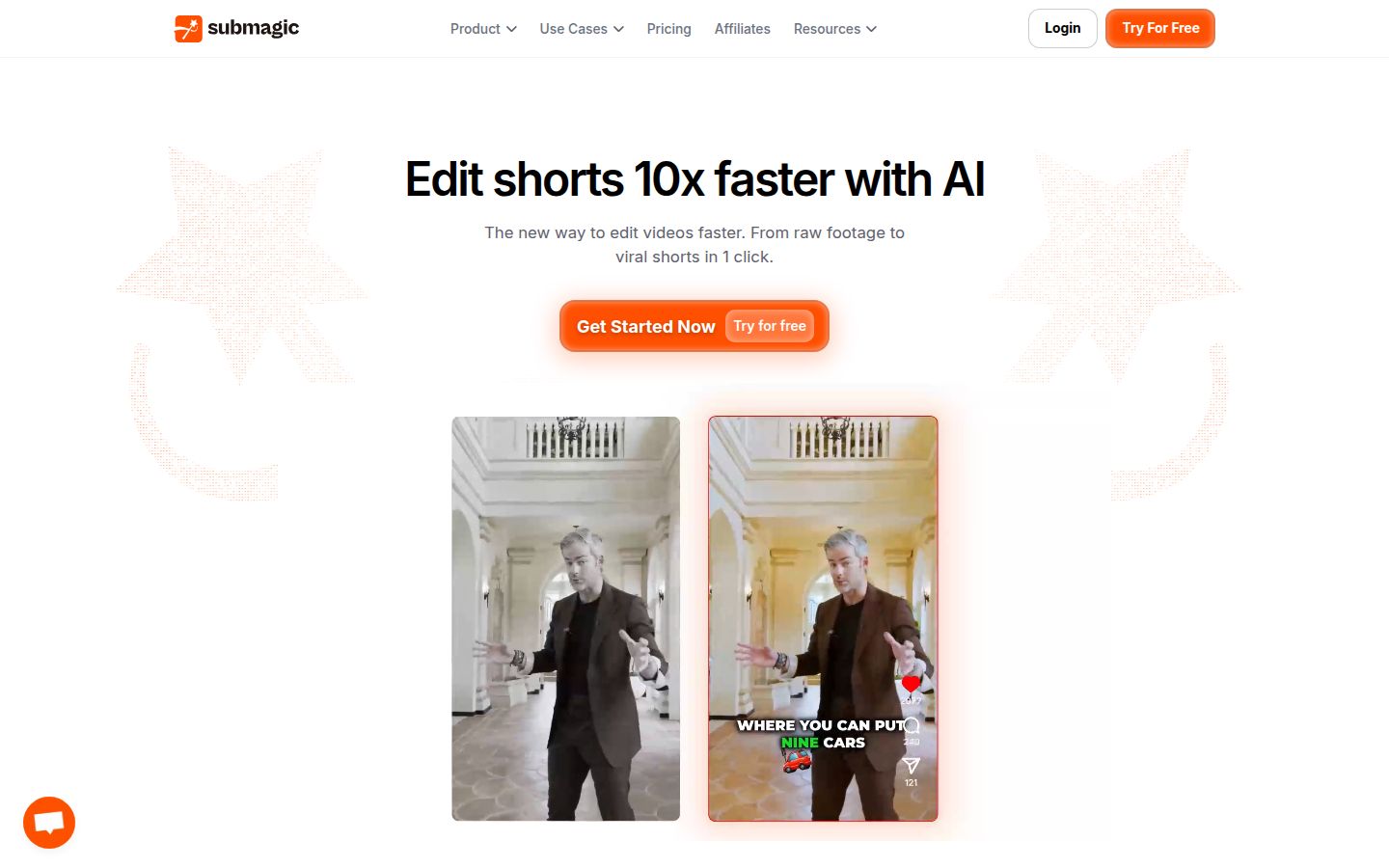
Submagic is built around captions for short vertical video. You upload a clip, pick a caption style, and it adds animated captions. It has a large library of caption styles, including Hormozi-style looks, and it's a good fit when you already cut your clips and want styled captions on many of them.
Submagic's higher plans add more editing help. The Pro plan includes removal of silences, bad takes and filler words, auto zoom, and AI eye contact correction, along with custom fonts and a brand kit.
Strengths
- A big library of caption styles, with custom fonts and colors on Pro.
- Quick captioning for clips you've already cut.
- Starter includes free stock B-roll and audio, and Pro adds more B-roll and audio from Storyblocks.
Limits that matter here
- There's no permanent free plan. The free trial lets you upload and edit 3 short videos without a card, but downloads need a paid plan to remove the watermark.
- On Starter, videos can be up to 2 minutes long, and silence and filler word removal aren't included. Those start on Pro.
- Long videos into clips is a separate add-on, Magic Clips, at $19 a month for 10 uploads.
Pricing as of November 2026
- Starter: $19 a month, or $12 a month billed yearly. It includes 15 videos a month, up to 2 minutes each, at 1080p.
- Pro: $39 a month, or $23 a month billed yearly. It includes 40 videos a month, up to 5 minutes each, at 1080p or 2K, plus the editing tools listed above.
- Business: $69 a month, or $41 a month billed yearly. It includes 100 videos a month, up to 30 minutes each, at up to 4K.
Prices are per member.
Best for creators who make a lot of short clips and want the captions to look the same across all of them. If you need the cuts made for you as well, Sycamore or Captions covers more of the edit.
Captions

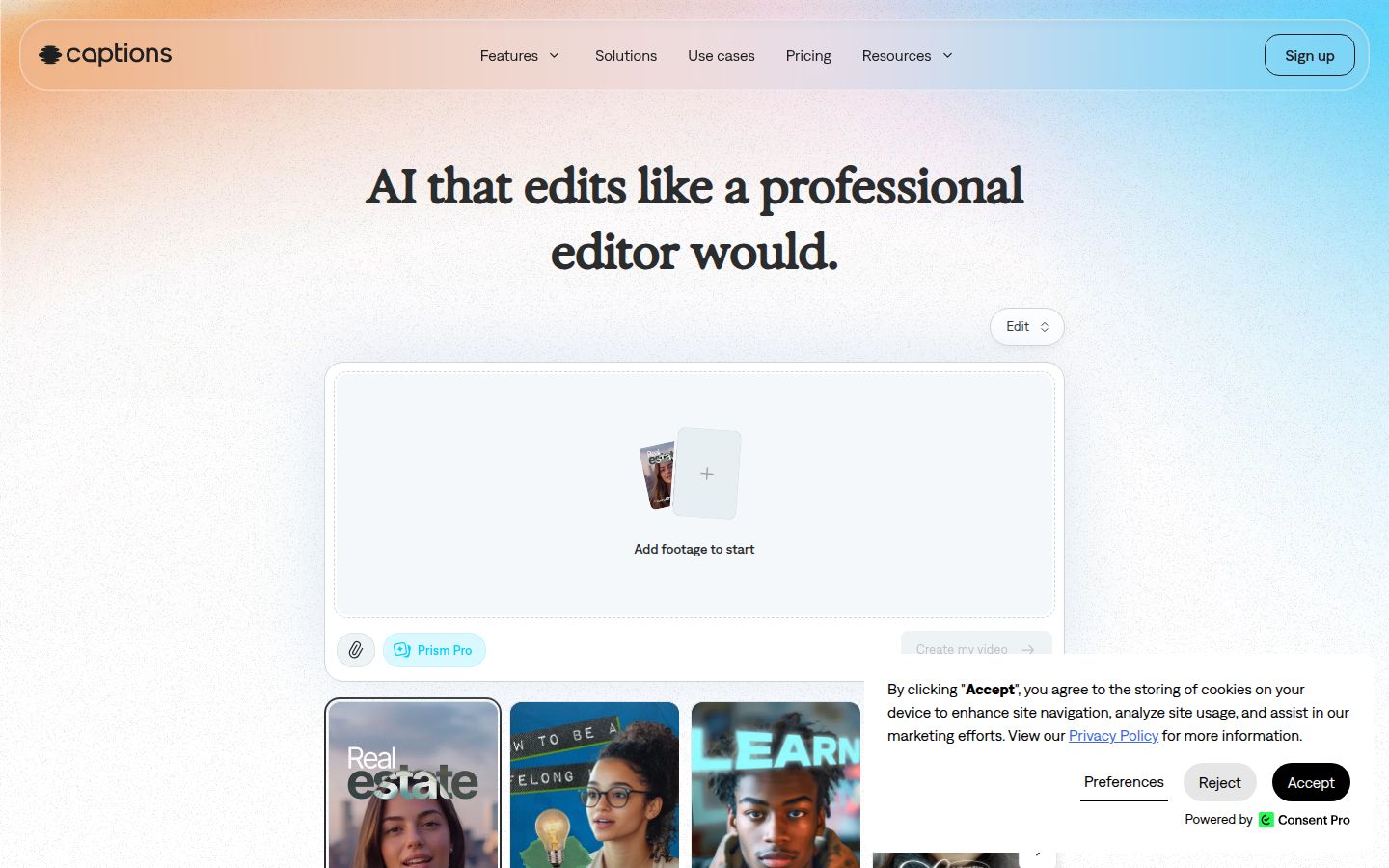
Captions is an AI editing app, made by the company Mirage, that is strongest on the iPhone. You film on your phone, and the app helps with the edit. Its Basic plan includes a teleprompter, captions, eye contact correction and noise removal. Its AI Edit, which builds a finished video from your footage, is on the Max plan.
Strengths
- Basic covers the core talking-head features: teleprompter, captions, eye contact, and noise removal.
- Built for filming and editing on a phone.
Limits that matter here
- AI Edit, Clips and the chat-based editor are Max features, which cost $24.99 a month.
- Plans use monthly AI credits. Once the credits run out, you need to wait for the next month or move to a higher plan.
- Free exports carry a watermark, and some AI features on Basic add one too.
Pricing as of November 2026
- Free: a one-time allowance of credits, with one caption template.
- Basic: $9.99 a month, with 200 credits a month. This plan was called Pro until recently.
- Max: $24.99 a month, with 500 credits a month and AI Edit, the chat editor and clips.
- Frontier: $69.99, $139.99 or $279.99 a month, with 1,400, 2,800 or 5,600 credits a month.
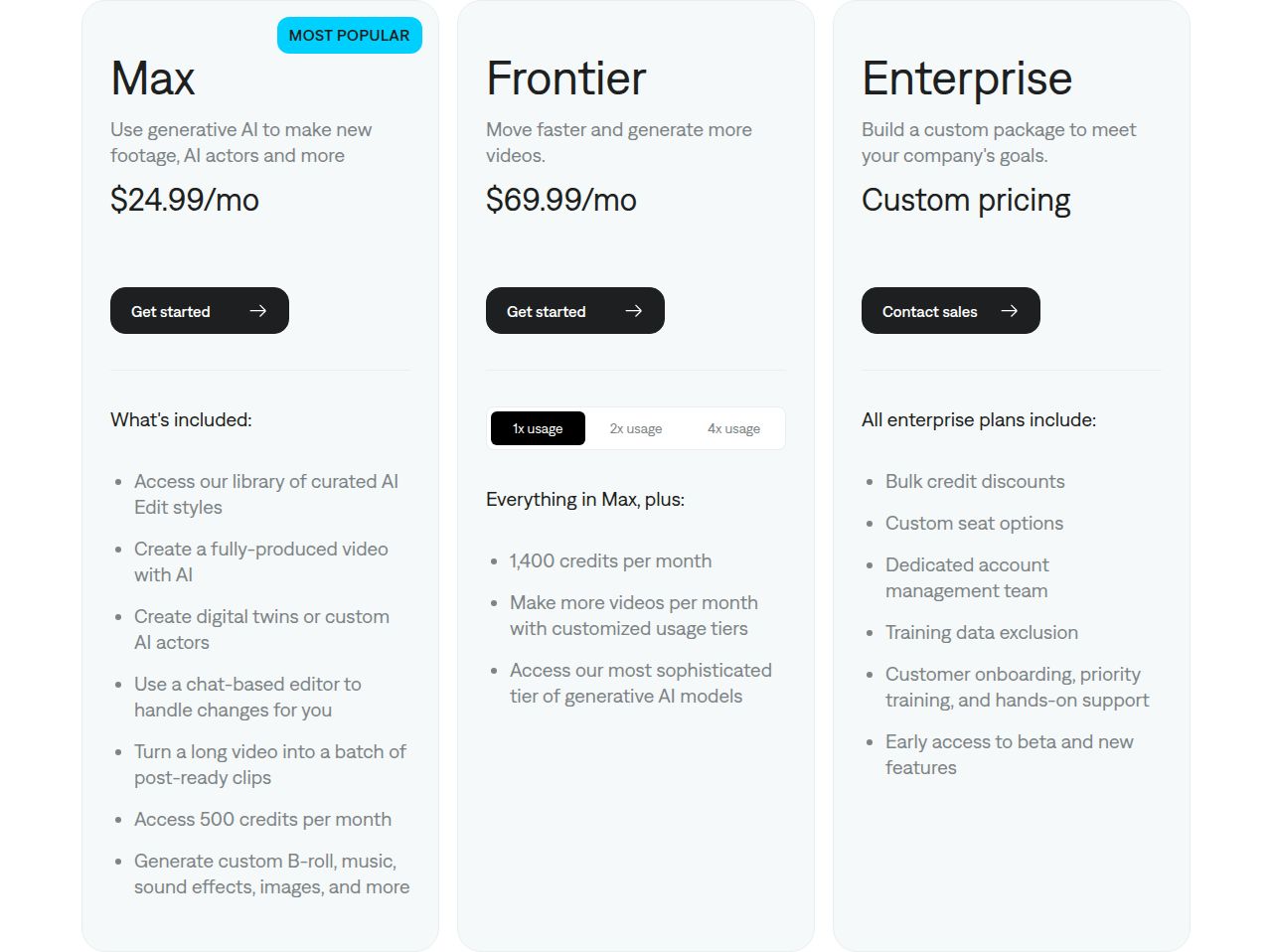 Captions' pricing plans
Best for iPhone creators who want AI to do most of the edit and who can live with a monthly credit limit. If you want a browser editor with plain pricing, Sycamore is the closer match.
InShot


InShot is a mobile video editor for iPhone, Android and Huawei AppGallery. It covers trimming, text, stickers, filters, transitions, speed changes and auto captions, which the app can generate in several languages. It's a simple, hands-on editor that suits quick clips made entirely on the phone.
Strengths
- An easy phone editor with the basic tools a beginner needs.
- Auto captions in multiple languages.
- The free editor exports up to 4K at 60fps.
Limits that matter here
- You make the cuts yourself, frame by frame in the editor.
- It's a phone app. There's no desktop version listed on its website.
- The free version carries a watermark, which the Pro plan removes.
Pricing as of November 2026
- Free: the full editor, with a watermark on exports.
- Pro: about $4.99 a month, $19.99 a year, or $49.99 for lifetime access in the US App Store. Pro removes the watermark and ads. Prices vary by region.
Best for creators who want a cheap, simple phone editor and are happy to make the cuts themselves. If you want the edit made for you, Sycamore or Captions is the better fit.
How to choose the right tool
Start with the work you don't want to do. The tool you pick should take that part off your plate.
- You want a finished short with the least work: Sycamore. Upload the raw video, pick an edit style, review it and export. The Free plan lets you test it on 10 minutes of footage.
- You want to cut everything yourself, for free: CapCut. The free editor is full-featured, and you only pay if you need 4K or the Pro templates.
- You record long conversations and think in words: Descript. Edit the transcript, and cut the video to match.
- You already cut your clips and want consistent captions on many of them: Submagic. Start with the free trial on three videos.
- You film and edit on an iPhone and want AI to handle most of it: Captions. Check the credit limit on the plan you pick.
- You want a cheap, hands-on phone editor: InShot. It's quick for simple edits, and Pro removes the watermark.
A few checks will save you money before you subscribe:
- Check the length limit. Submagic's Starter plan caps each video at 2 minutes. Sycamore's uploads go up to 2 hours.
- Check the watermark rules. Free exports from several tools carry a watermark, and some add it only when you use Pro assets.
- Check the language. Sycamore transcribes English only. Captions and Submagic both offer captions in more than 100 languages.
- Test with your own footage. Run the same 60-second clip through two tools and compare the edit.
If you want a deeper look at one of these, our Best Apps for Editing Talking-Head Videos guide covers more options, and our Sycamore vs CapCut for Talking-Head Videos post compares the two in more detail.
FAQ
What is the best free video editing app for talking-head videos?
CapCut's editor is free and includes a full timeline and basic auto captions, so it's the best free option if you want to cut by hand. Sycamore's free plan gives you 10 minutes of video one time with no credit card, and Descript's free plan includes 60 minutes of media with a 720p watermark.
How much does Sycamore cost?
Sycamore's Starter plan is $19 a month for 3 hours of video, and Growth is $39 a month for 10 hours. Both paid plans export without a watermark, and the free plan covers 10 minutes of video one time.
Do I need a separate caption app if I use Sycamore?
No. Sycamore's captions are animated, word by word, and come as part of the edit, so you can edit any word and change the style before you export. Sycamore transcribes English only.
Which tools work on a phone?
CapCut, InShot and Captions have phone apps. Sycamore runs in a browser, so you can use it from a phone's browser without installing anything.
Which of these tools cut out silences and filler words for you?
Sycamore's Magic Edit cuts silences, filler words and dead air in its automatic edit. Submagic removes silences, bad takes and filler words on its Pro plan, and Descript has a Remove Filler Words feature.